
POS and café management for counter service.

Take drink orders with the right choices, coordinate the barista queue and recognise returning guests. Keep recipes, stock and the till connected.

01 / ORDER

Drinks & choices

Sizes, milk and extras stay with the drink order.

02 / PREPARE

Barista & pickup

Prepare the order and keep the counter informed.

03 / RETURN

Regular guests

Points, stamps and messages linked to actual visits.

Explore the setup

01 / COUNTER SERVICE

Get the drink and its choices right.

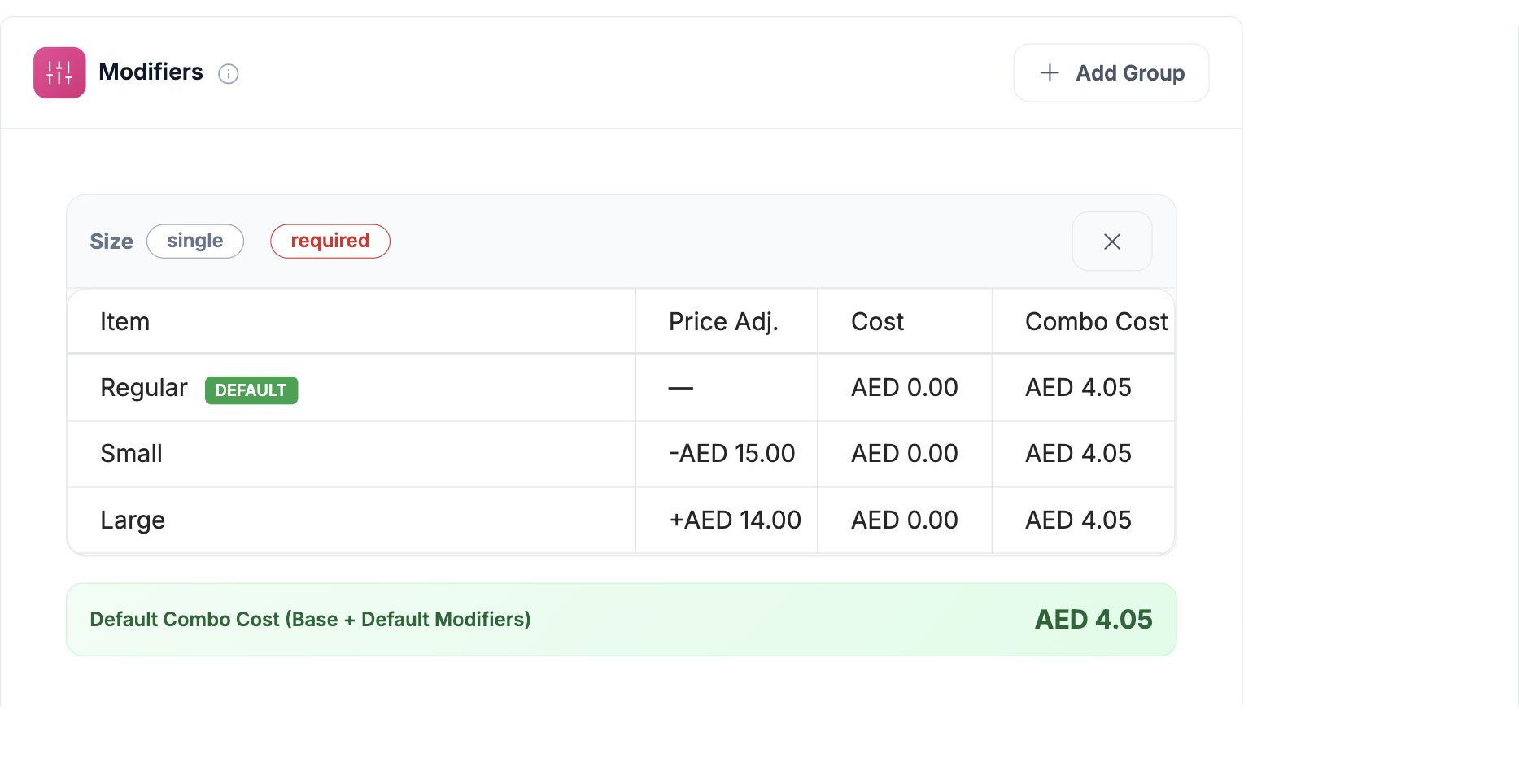
A large drink, a different milk, an extra shot: those choices belong on the order. Configure the options on your menu so the cashier can select them and the barista can see what was requested.

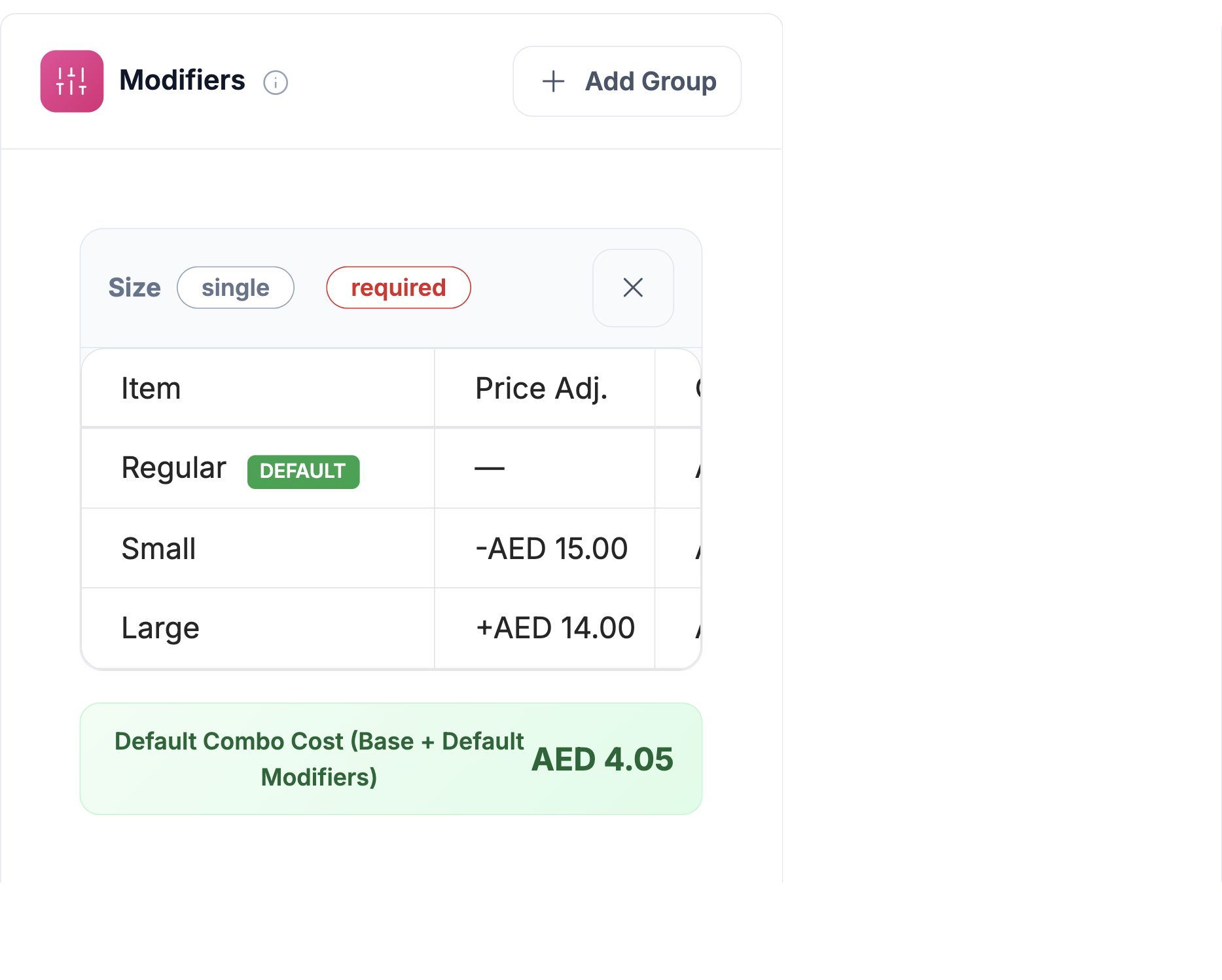
The menu builder keeps defaults, required choices and price adjustments together. The same configured choices can be used in POS and your ordering channels.

  • Required options
  • Default size
  • Price adjustments
  • Kitchen instructions
HoreX drink-size modifier group with Regular as default, Small and Large choices and price adjustments
Drink-size options and price adjustments in the mobile HoreX recipe view

02 / BARISTA & PICKUP

Keep the order clear until it reaches the guest.

Route drinks to the barista station with quantities, modifiers and notes. The team sees the active work and marks items ready as they finish them.

The counter follows the same order status. For a coffee and a food item, each station keeps its own preparation work while the order remains together.

  • Drink station
  • Order timers
  • Ready status
  • Food and drink coordination
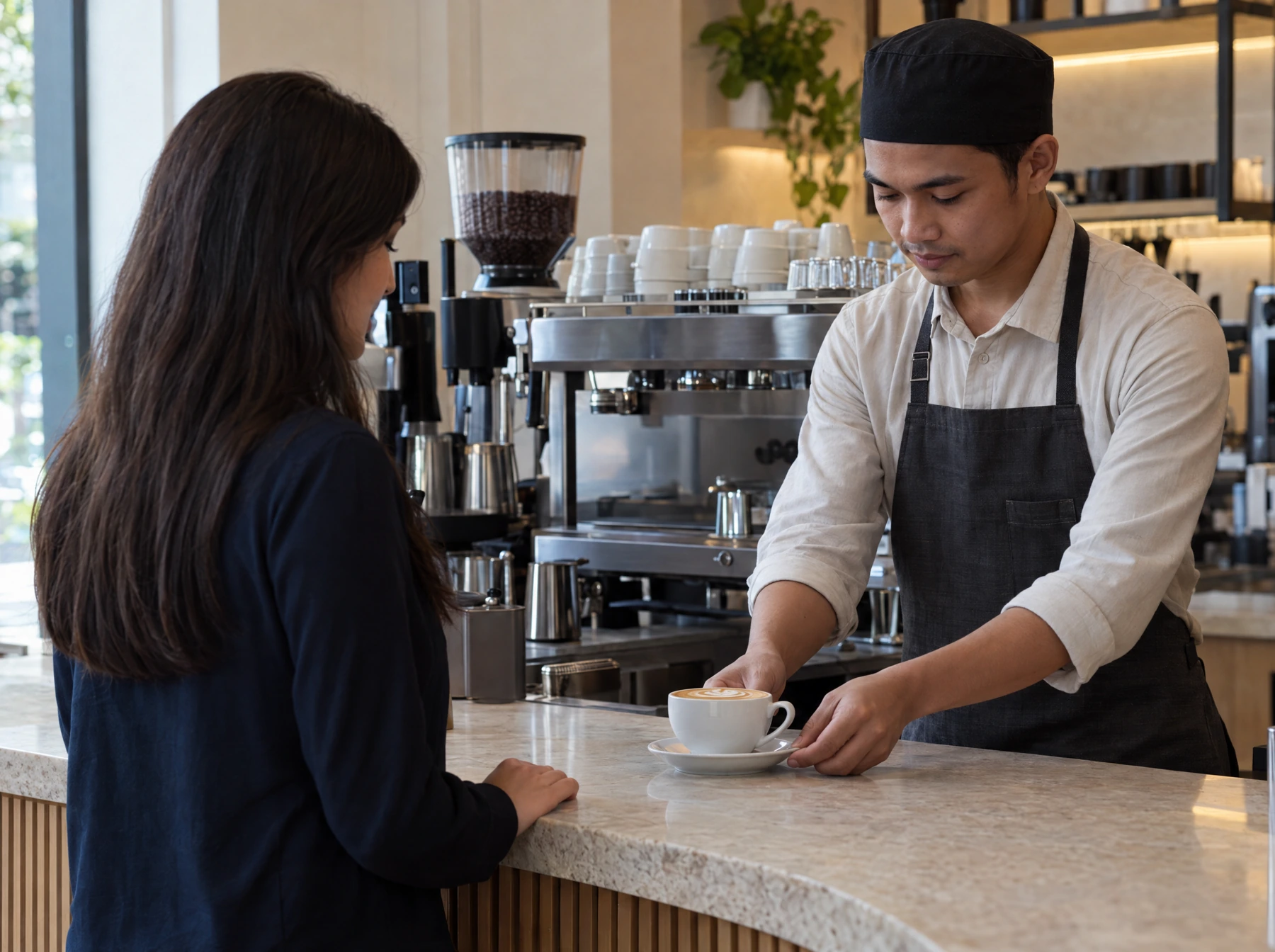
A barista places a finished coffee on the pickup counter for a waiting guest

03 / REPEAT VISITS

Recognise the guest behind the next order.

Link orders to a guest profile and build a programme the team can explain: points, a tier benefit or a stamp reward. Guests can use a Wallet pass without installing a separate restaurant app.

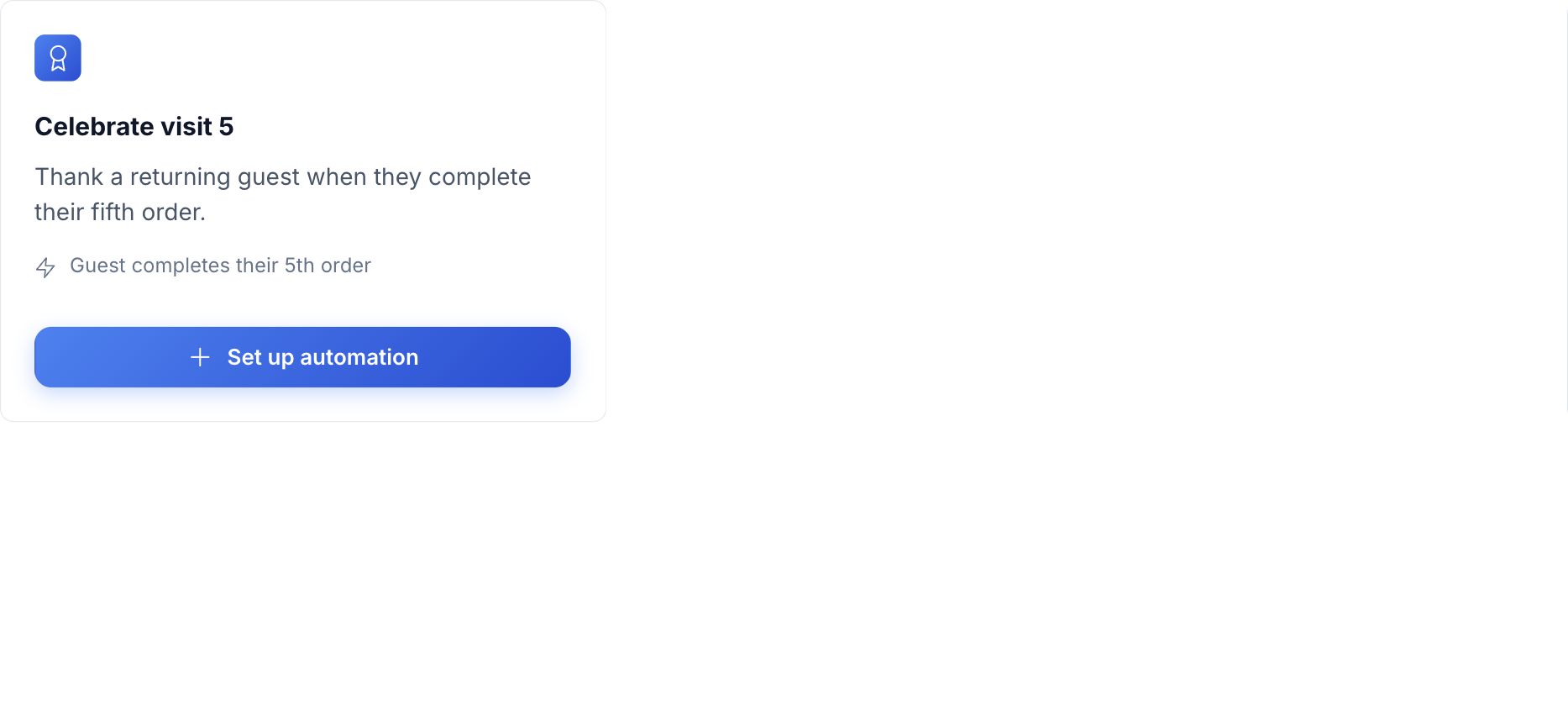
Journeys let you follow up on a completed-order milestone. Choose the eligible visits and reward rules before launching an offer.

  • Guest profiles
  • Digital stamp cards
  • Wallet passes
  • Visit-based journeys
Fifth-visit loyalty journey with completed-order trigger

04 / INGREDIENTS & WASTE

Count the milk as well as the coffees.

Recipes set the quantities of beans, milk, syrups and other ingredients used by each drink. Posted sales create the corresponding stock movements.

Count what remains and record waste separately. Comparing that evidence with sales helps the team spot over-pouring, spoiled stock or a recipe quantity that needs correcting. Review minimum levels and recent consumption before the next supplier order.

  • Recipe quantities
  • Stock counts
  • Waste records
  • Purchase suggestions

What your team can use.

Choose the modules and controls that fit your operation.

Counter orders

Enter the drink and its choices together.

See details

Use the menu and configured modifiers to record the guest’s size, extras or preparation request. Quantity stacking helps with several of the same item; comments handle the specific request that is not a menu option.

  • Menu categories
  • Quantity stacking
  • Required choices
  • Order-line notes

Drink modifiers

Keep sizes and extras consistent.

See details

Prepare option groups on the menu item. Set the default, whether a choice is required and its price adjustment. Recipe-linked options can add their own cost; the barista receives the choices selected on the order.

  • Option groups
  • Default and required options
  • Price adjustments
  • Recipe-linked costing

Barista station

Put drink requests in the preparation queue.

See details

Assign drinks to the appropriate kitchen station. The station view keeps the order, quantities and modifiers together. Use All Day for total dish quantities when planning the immediate work; staff still decide how to sequence preparation.

  • Dedicated station
  • Modifiers and notes
  • Order timers
  • All Day quantities

Pickup status

Keep the counter informed when a drink is ready.

See details

The barista advances the item through its preparation states. The connected order shows ready status so counter staff can coordinate pickup, while any food items remain in their own kitchen workflow.

  • Item status
  • Ready state
  • Mixed food and drink orders
  • Counter handover

Loyalty and stamps

Give regulars a reason to return.

See details

Enrol the guest through the configured registration flow and link future orders to their profile. Set up points, tiers or stamp rewards with eligibility and redemption rules the counter team can explain.

  • Guest enrolment
  • Points and tiers
  • Stamp rewards
  • Checkout redemption

Guest messages

Follow up on the visit that matters.

See details

Use a guest journey for a completed-order milestone or a campaign for a selected audience. WhatsApp delivery needs the restaurant’s connected Business account and approved message templates.

  • Visit milestones
  • Guest audiences
  • WhatsApp templates
  • Campaign results

Milk, beans and syrups

Connect the drink recipe to stock use.

See details

Store each recipe’s quantities and units. Posted sales deduct the configured ingredients; counts and waste entries record what actually happened to stock. Use the difference to decide what to check and what to order.

  • Recipe quantities
  • Sale-linked movements
  • Stock counts
  • Recorded waste

Purchasing and shelf life

Plan the next order from available stock.

See details

Review stock balances, minimum levels and recent consumption when preparing purchases. Keep receiving dates, shelf-life information and physical checks in the daily routine. The system’s records depend on the quantities and dates the team enters.

  • Stock balances
  • Minimum levels
  • Purchase suggestions
  • Shelf-life records

Payments and shifts

Keep the till ready for handover.

See details

Record cash, card and eligible loyalty redemption on the check. At the end of the shift compare the expected drawer with the cash counted and inspect any difference. Connected card payment depends on the configured provider and device.

  • Mixed payments
  • Loyalty redemption
  • Cash movements
  • Shift close

Questions about Cafés and coffee shops

Can HoreX show a queue for the barista?

Yes. Assign drinks to a kitchen station and use its KDS for quantities, modifiers, notes and preparation status. The counter follows the connected order. All Day shows total quantities; staff choose the preparation sequence.

Do guests need an app for loyalty?

A separate restaurant app is not required for Wallet-based membership. Guests enrol through the configured registration flow and future orders are linked to their profile. Points, stamps, tiers and redemption follow the rules you set for the programme.

Can we track milk, syrups and other perishables?

Yes. Recipes define ingredient quantities and posted sales create stock movements. Counts and waste records capture the physical differences. Keep shelf-life and receiving information accurate, and combine the records with the team’s daily stock checks.

Can several cafés share guest records and reporting?

Yes. A shared organisation can maintain guest records and provide branch-level reporting. Menu, pricing, programme eligibility and staff access should be configured for the branches participating in the rollout.

What do we prepare before switching?

Bring the drink and food menu, option groups, prices, recipes, current stock and the loyalty rules you want to offer. We review the counter, barista, payment and printer setup with your team before service.

Can our accountant review VAT records?

The VAT report brings together the period’s sales and purchase records and lets the accountant inspect source transactions. The accountant reviews tax treatment and any required adjustments before filing.

See your café’s service flow in HoreX.

Walk through a drink order, barista handover and a returning guest’s reward.