




AI invoice scanning for restaurants.

Scan purchase invoices and bills for rent, utilities and services. Review extracted details, convert supplier packs into stock units and let HoreX Intelligence remember confirmed product matches.

01 / READ

Capture the invoice

Read purchase invoices and expense bills in Arabic or English.

02 / CONVERT

Convert supplier units

Turn bags, cases and cartons into the kilograms, litres or pieces you stock.

03 / LEARN

Remember every match

Use your team’s confirmed supplier matches on future invoices.

04 / POST

Receive the purchase

Post the checked invoice to record stock and purchase prices.

Explore the invoice workflow

01 / FROM PAPER TO PURCHASE

Scan the supplier invoice.
Keep the original close.

Photograph the invoice at the restaurant or upload the supplier’s PDF. HoreX reads the supplier details, invoice number, date, products, quantities, prices and tax into an editable draft.

The original stays attached to the purchase record. Your team can check a line against the document, correct a price or quantity, and work through several invoices in the review queue.

  • PDF and phone photos
  • Arabic and English invoices
  • Original document retained
  • Bulk upload and review queue
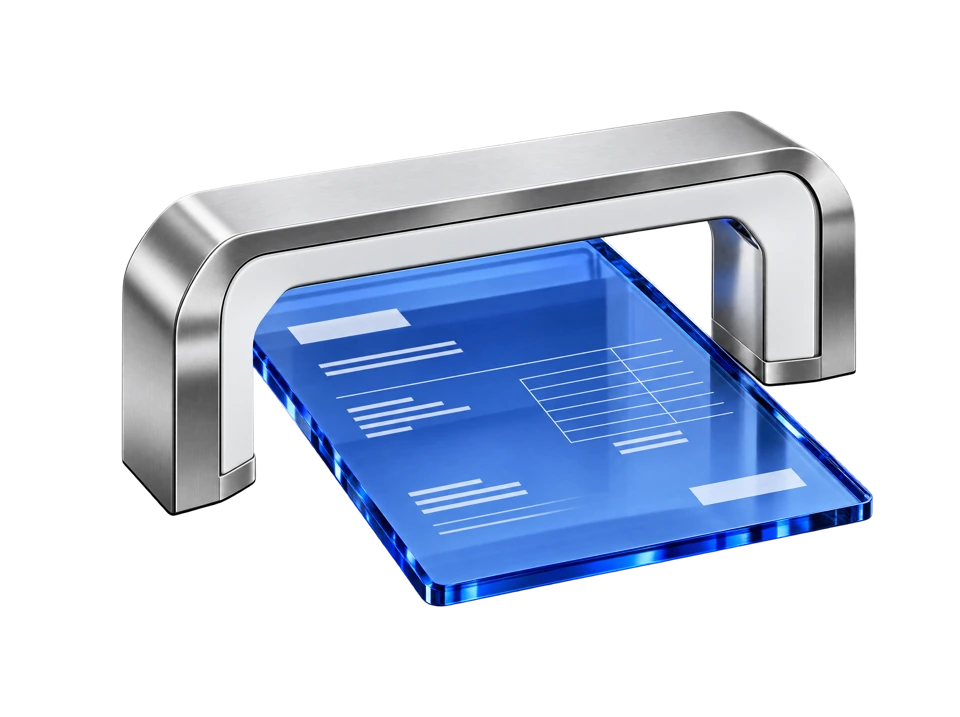
A restaurant manager photographing a supplier invoice at the receiving counter
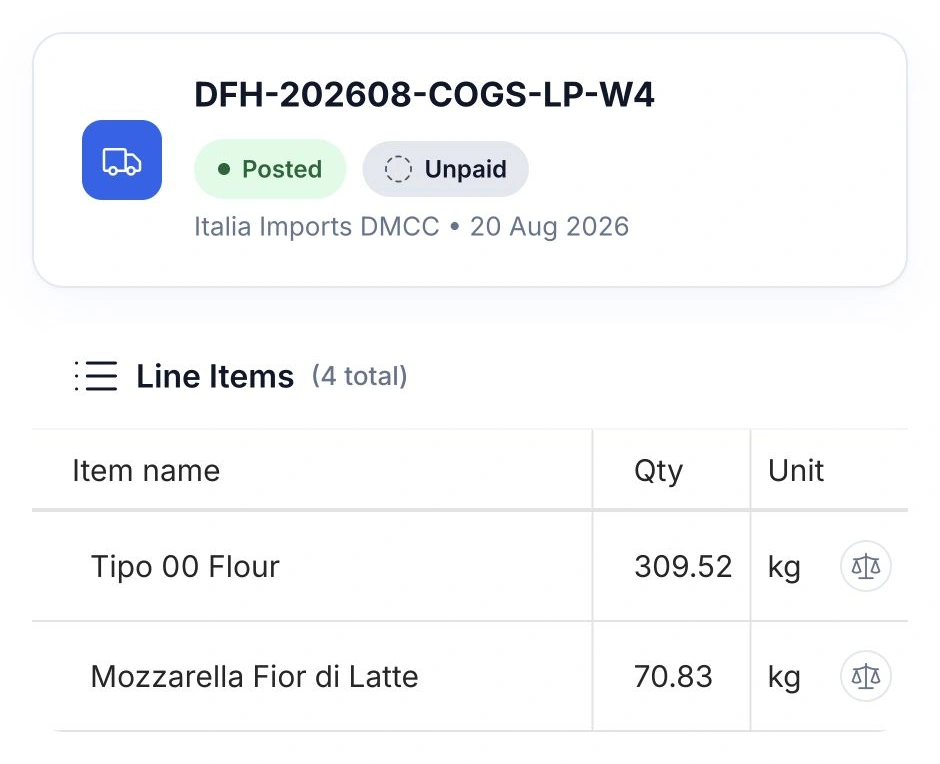
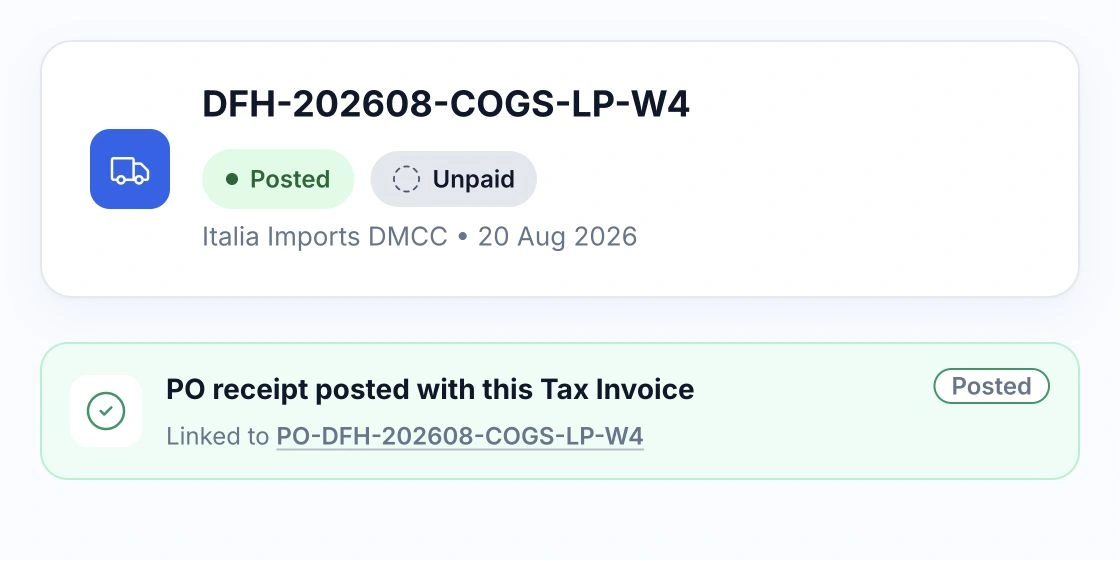
HoreX purchase invoice excerpt with supplier identity, posted status and product quantities
A restaurant manager photographing a supplier invoice at the receiving counter
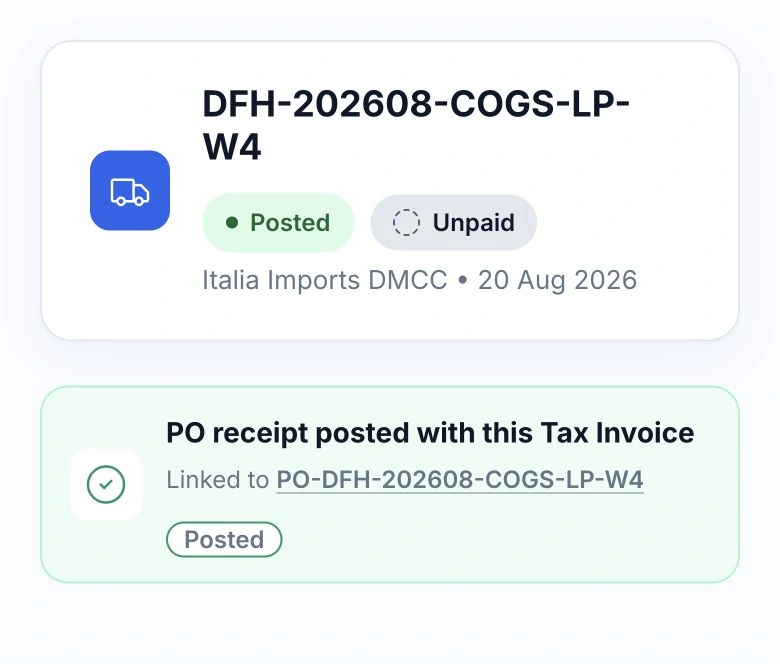
HoreX purchase invoice excerpt with supplier identity, posted status and product quantities

02 / DOCUMENT REVIEW

The original invoice.
Beside the fields you check.

Open the supplier’s document beside the purchase details. Check the invoice number, dates, supplier, payment terms and amounts while the original stays in view.

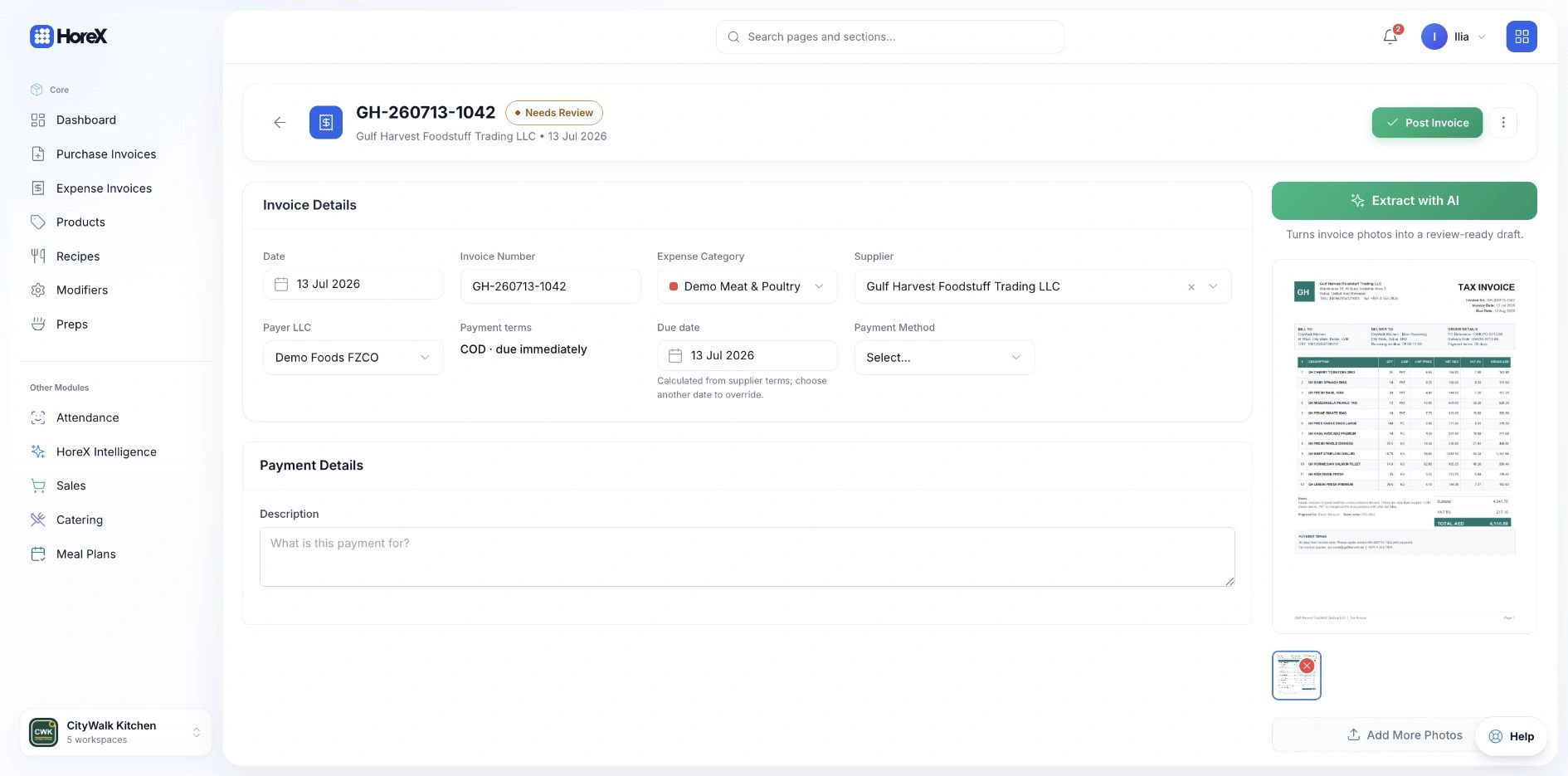
Supplier invoice details beside the original PDF in HoreX, with the extracted fields ready for review
The original supplier tax invoice attached in HoreX with the Extract with AI action

Correct an extracted field directly in the draft. The attached PDF or photo remains part of the record after posting, so finance can return to it when checking a bill.

  • Source document beside the draft
  • Editable invoice details
  • Supplier and due-date checks
  • Attachment available after posting

03 / PRODUCT MATCHING

Supplier descriptions.
Your product catalogue.

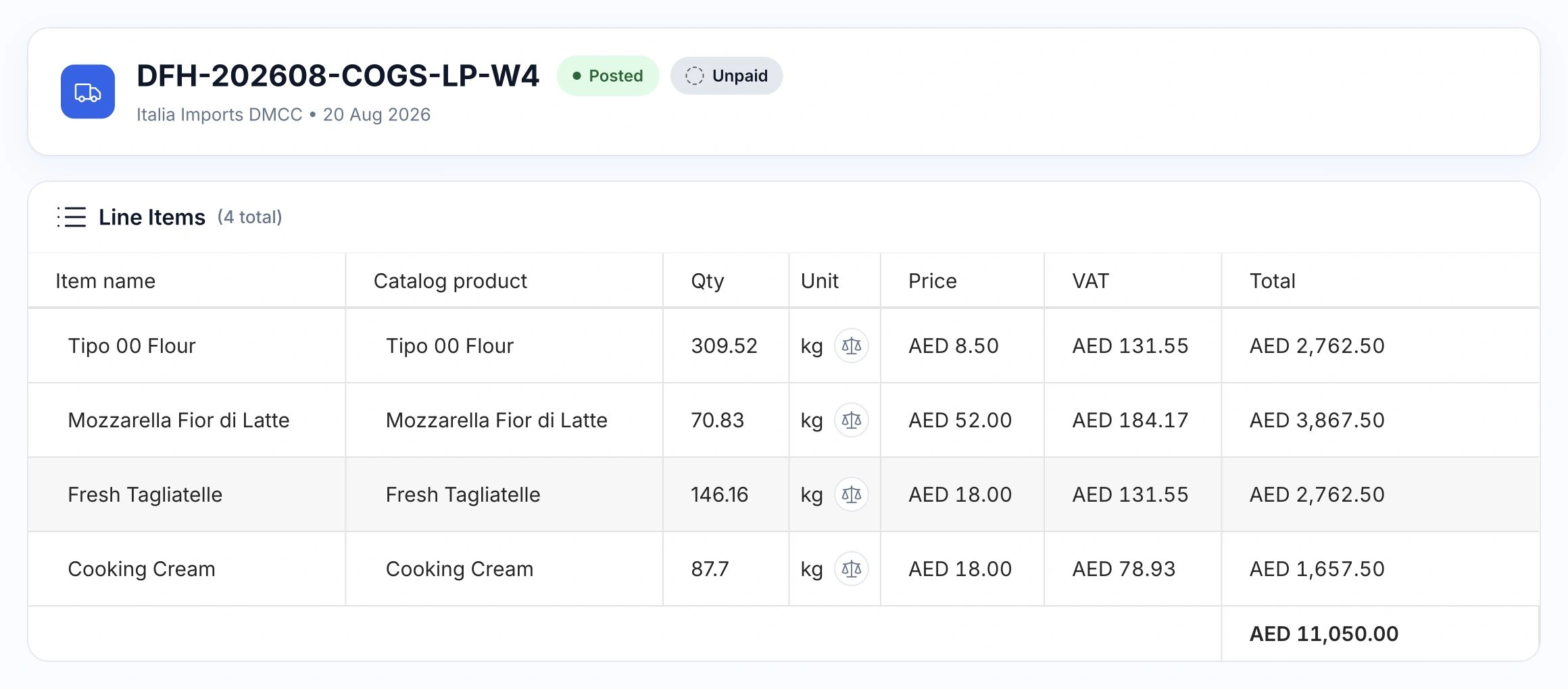
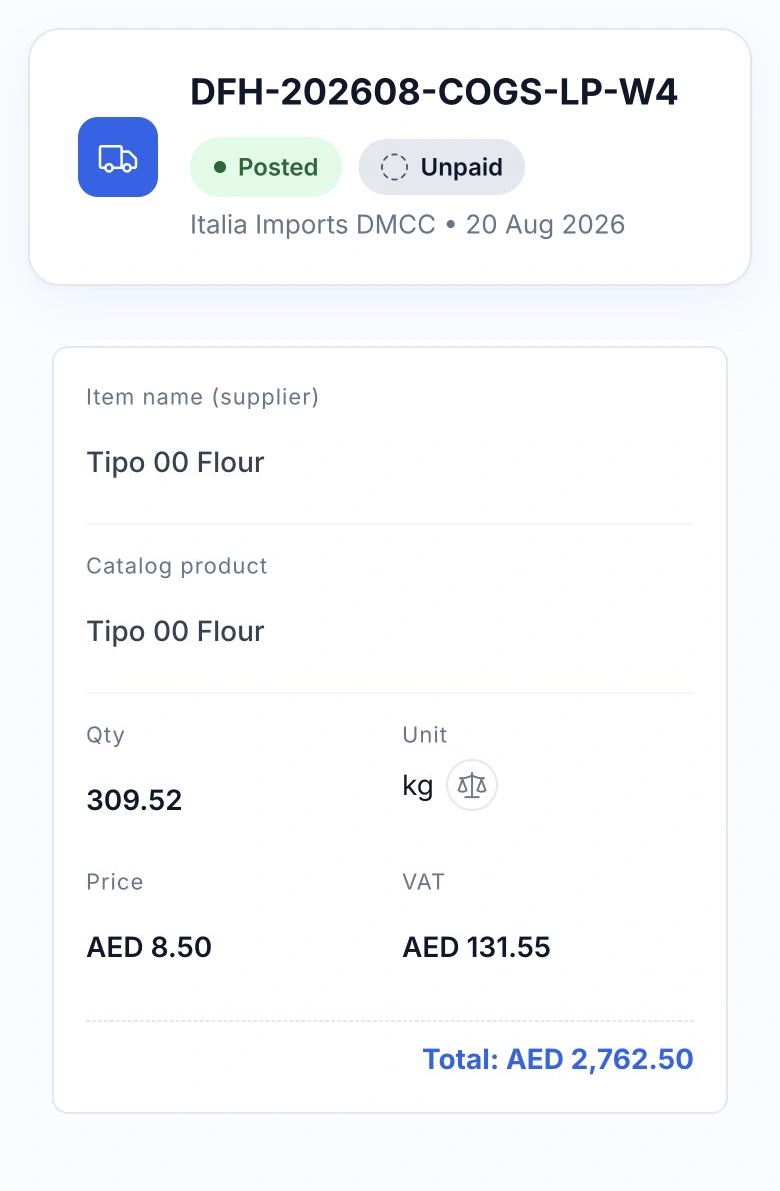
A supplier may use a different name for the ingredient you stock. HoreX proposes a catalogue match for each invoice line while keeping the supplier’s original description beside it.

HoreX invoice with supplier item names beside catalogue products, quantities, units, prices, VAT and totals

Your reviewer can confirm the product, check quantities, prices and VAT, and resolve unfamiliar items. The purchase is posted when the team is satisfied with the result.

  • Original supplier item names
  • Catalogue product matching
  • Quantities, prices and VAT
  • Review before stock posting

04 / UOM CONVERSION

Supplier packs.
Your stock units.

Buy in the units your suppliers sell, then receive stock in kilograms, litres or pieces. Each purchase unit has its own conversion factor, used for both quantity and cost.

Keep different rules for different products, suppliers or supplier items. Confirm the pack size once and use the conversion on future invoices.

  • Pack-to-base-unit conversion
  • Supplier-specific pack sizes
  • Quantity and unit cost together
  • Confirmed conversions retained
Example pack sizes

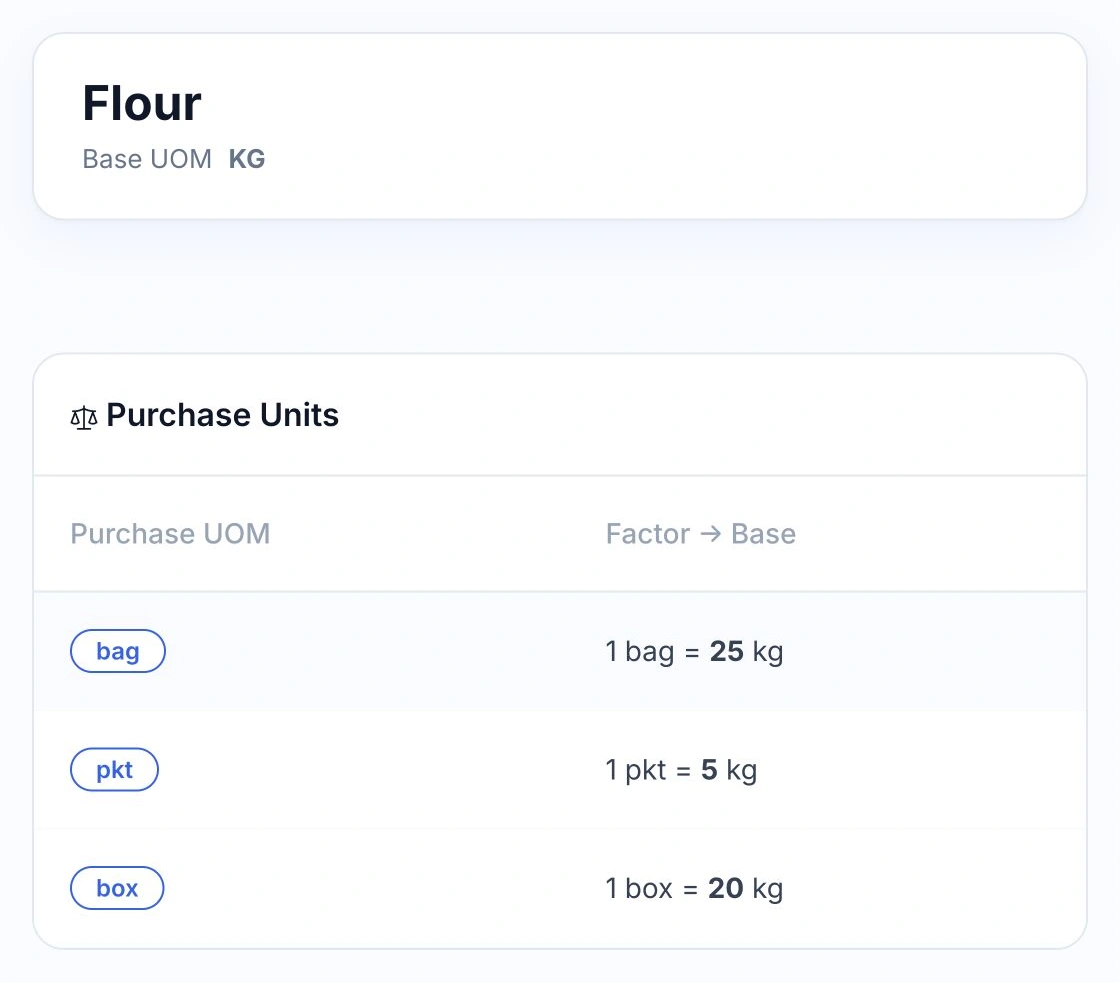
Supplier bags. Stock in kilograms.

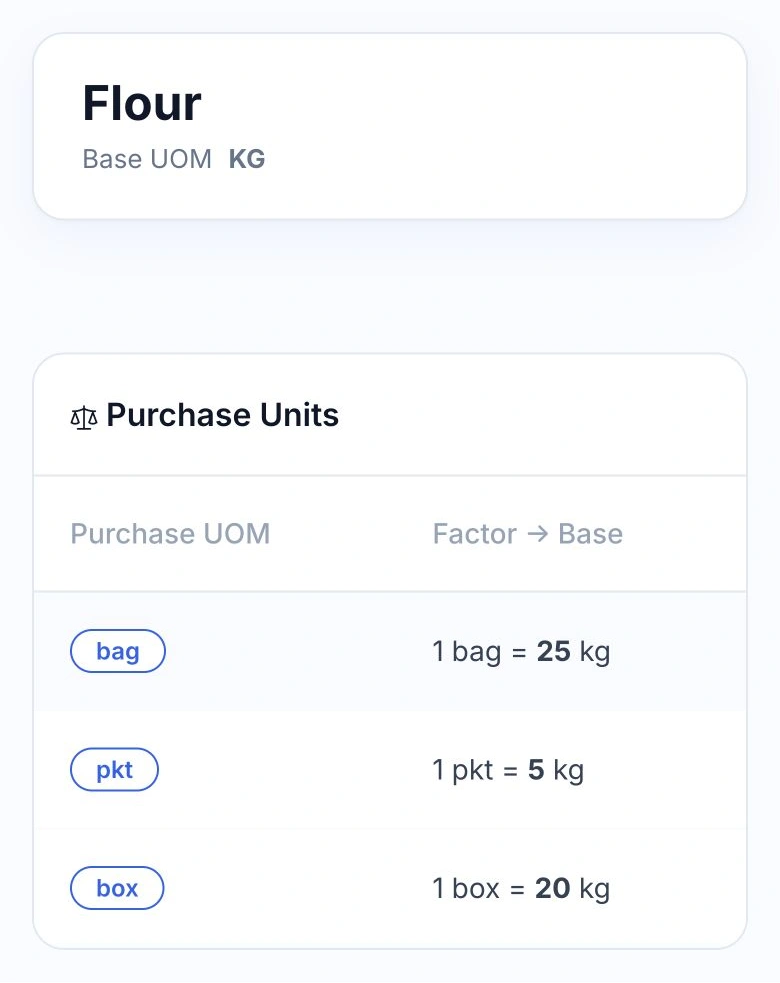
For example, four 25 kg bags become 100 kg in stock. A smaller 5 kg pack uses its own conversion. The purchase price is converted to a cost per kilogram too.

Example flour purchase-unit configuration in the HoreX interface, converting packs to kg

Cartons and bottles. One stock unit.

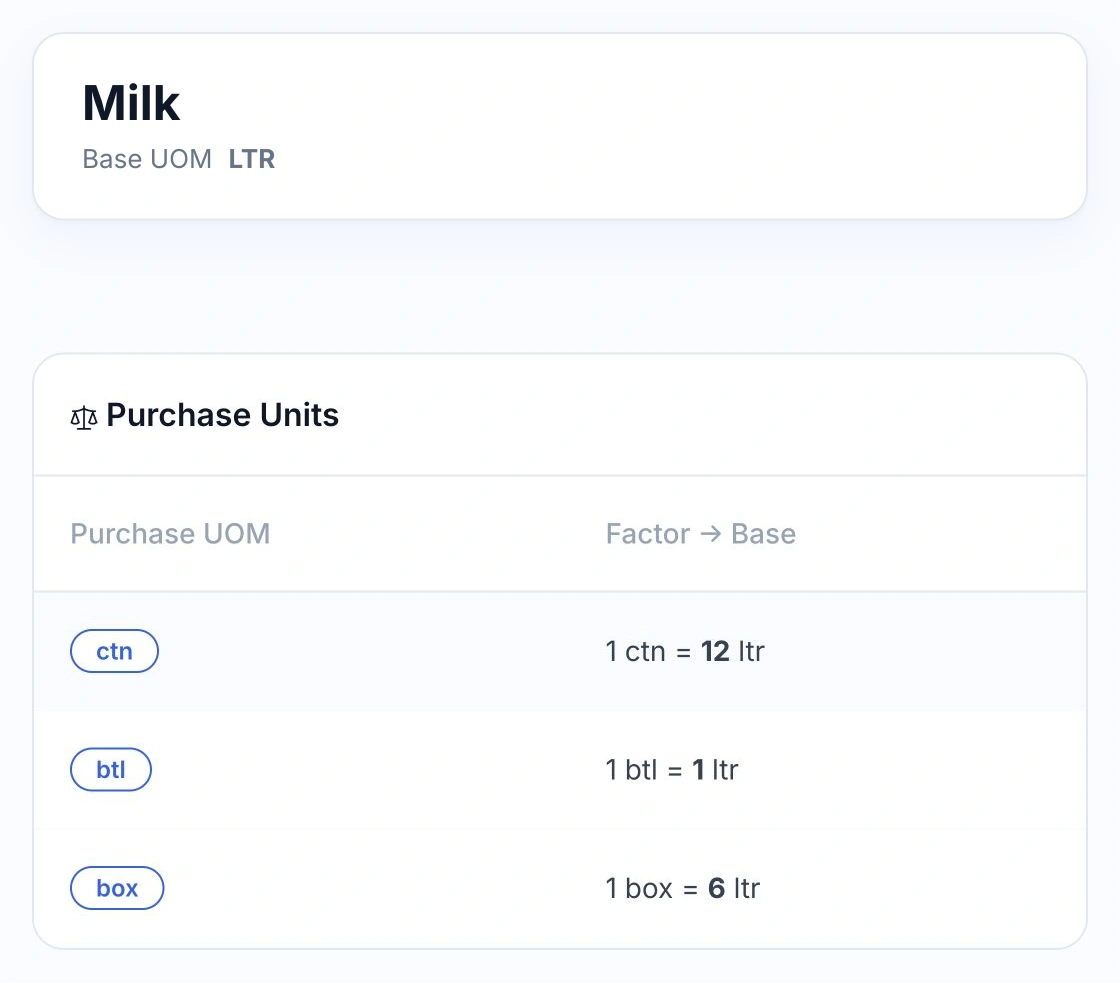
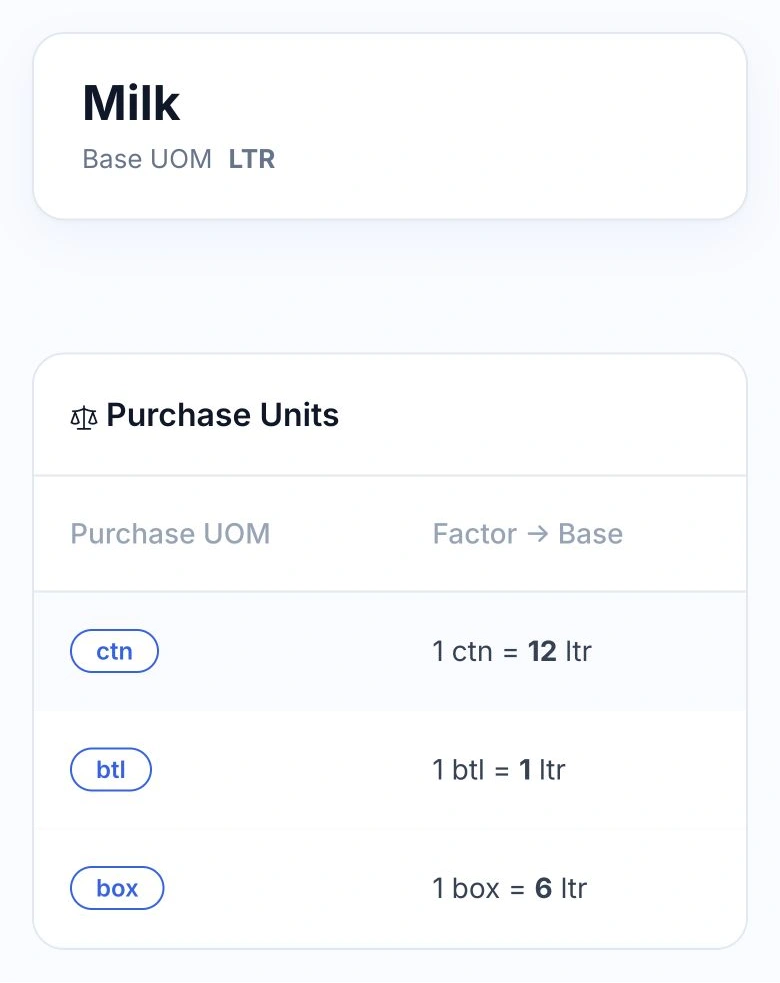
For example, two cartons of twelve 1-litre bottles become 24 litres in stock. Individual bottles and smaller cartons can have separate purchase units.

Example milk purchase-unit configuration in the HoreX interface, converting packs to ltr

Buy by the tray. Use by the piece.

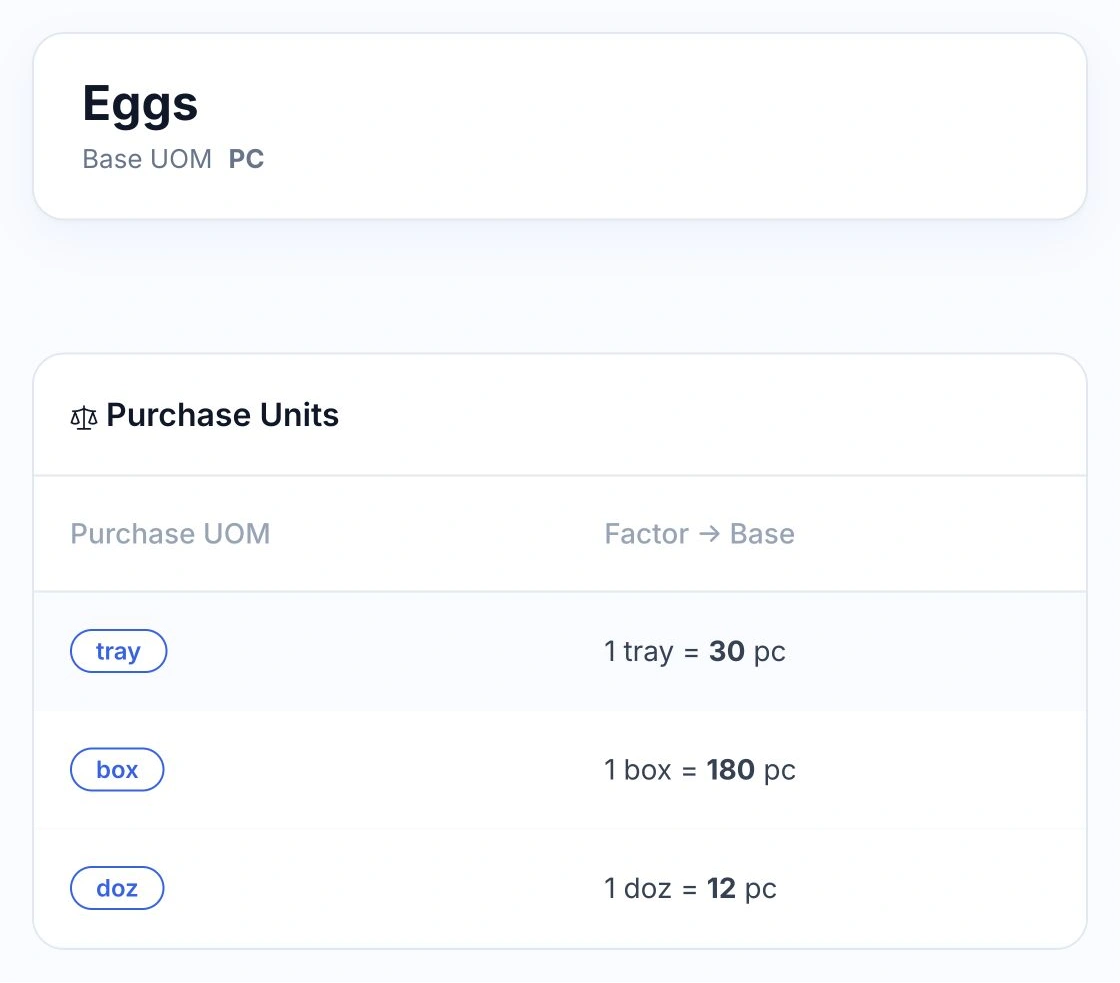
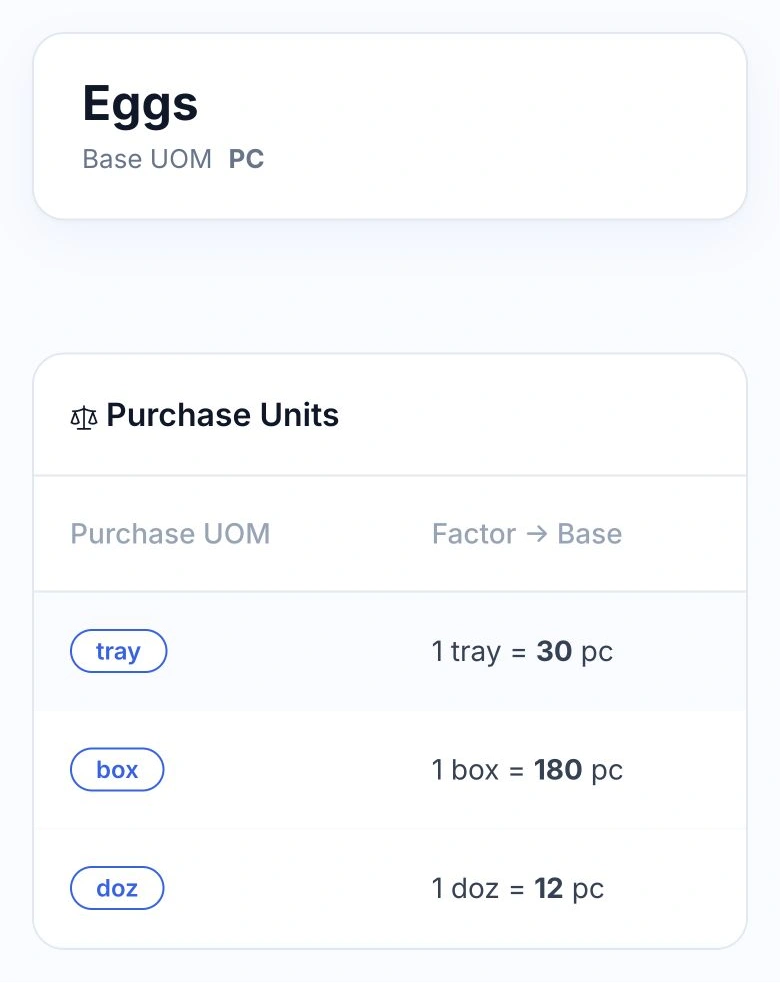
For example, three trays of 30 eggs become 90 pieces in stock. A bulk box or a dozen has a different factor, while recipes continue to use pieces.

Example eggs purchase-unit configuration in the HoreX interface, converting packs to pc

05 / HOREX INTELLIGENCE

Your team’s checks make
the next invoice easier.

Your reviewer connects the supplier’s description to the right product. HoreX Intelligence retains confirmed matches when the invoice is posted and uses them on later invoices from that supplier.

Familiar items can be matched from that history before AI works through new descriptions. Your catalogue, supplier names and confirmed pack conversions become useful knowledge for the next delivery.

New or uncertain items remain available for review. Your team keeps control of the product and unit that enter stock.

  • Learning from confirmed matches
  • Memory for each supplier
  • Less repeated product matching
  • Review of unfamiliar items
Verified supplier product cards retained for future invoice matching

06 / STOCK & INGREDIENT COST

One posted purchase.
Stock and costs updated.

Post the reviewed itemized invoice to receive the products into the selected branch’s stock. The confirmed unit conversion determines the quantity received and the purchase cost per stock unit.

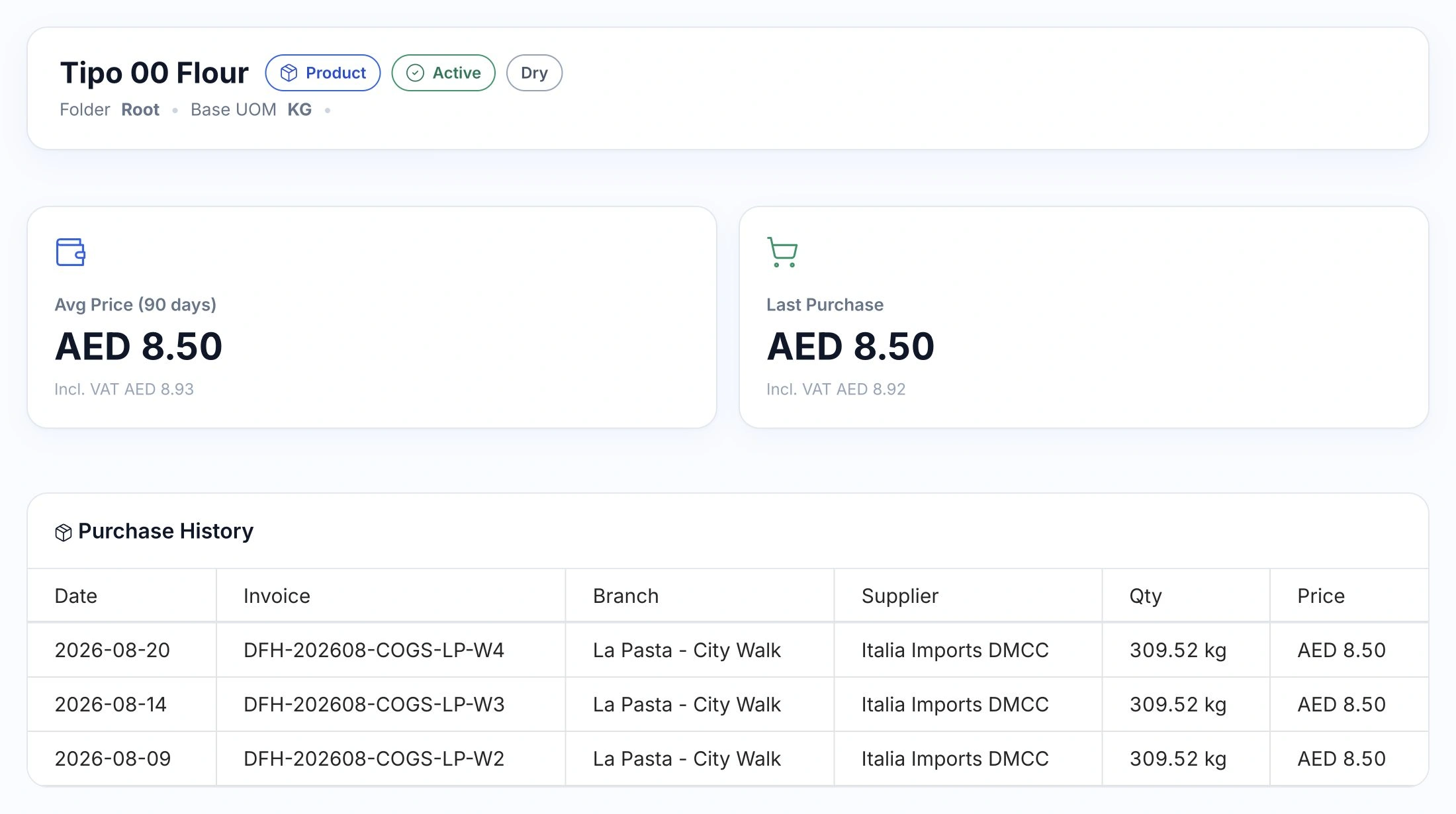
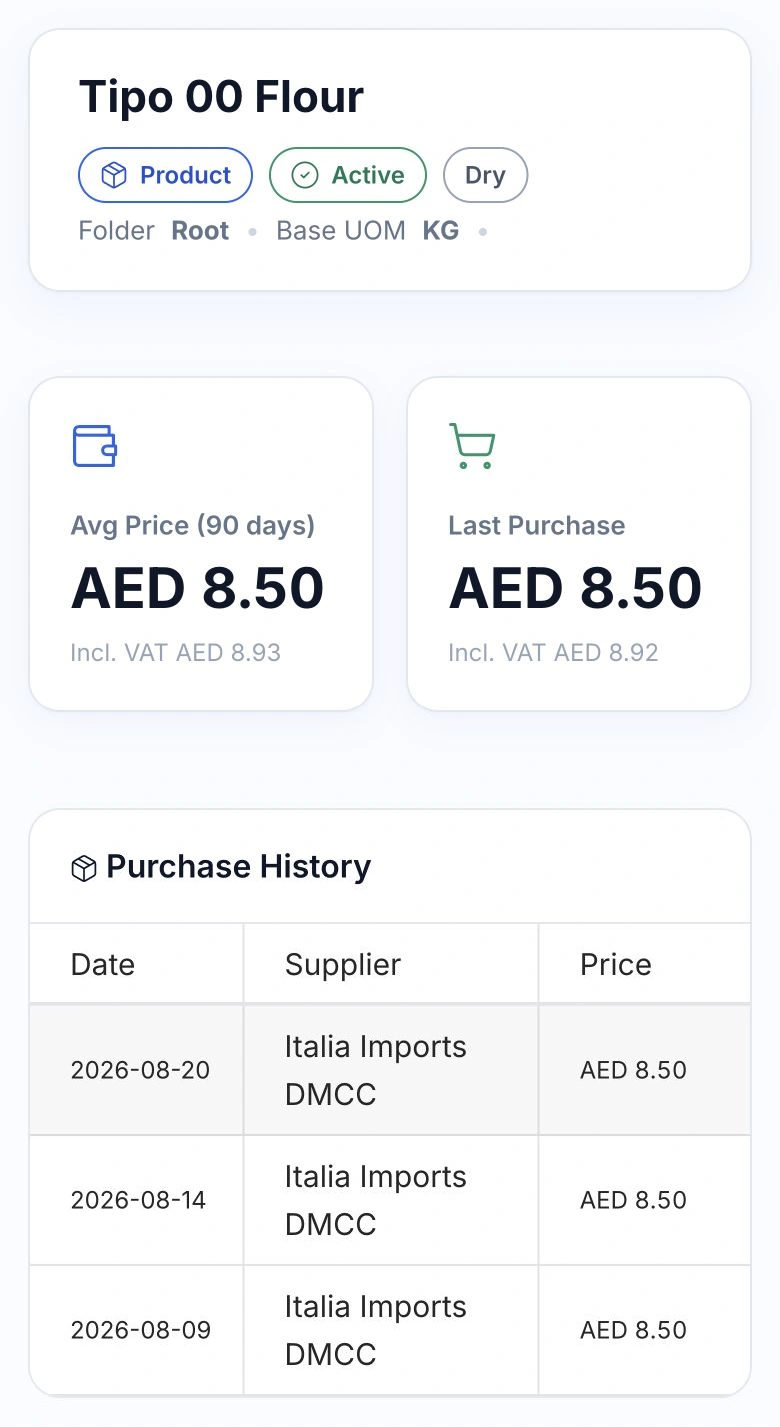
Tipo 00 Flour product record with last purchase price, 90-day average and supplier invoice history

The purchase becomes part of the ingredient’s price history, feeding recipe costing and financial reporting. Your team can trace a price back to its supplier invoice instead of maintaining a separate cost sheet.

  • Stock in the receiving branch
  • Supplier and invoice price history
  • Updated ingredient costs for recipes
  • Purchase records for finance

08 / GENERAL EXPENSES

Scan rent, utilities
and service bills.

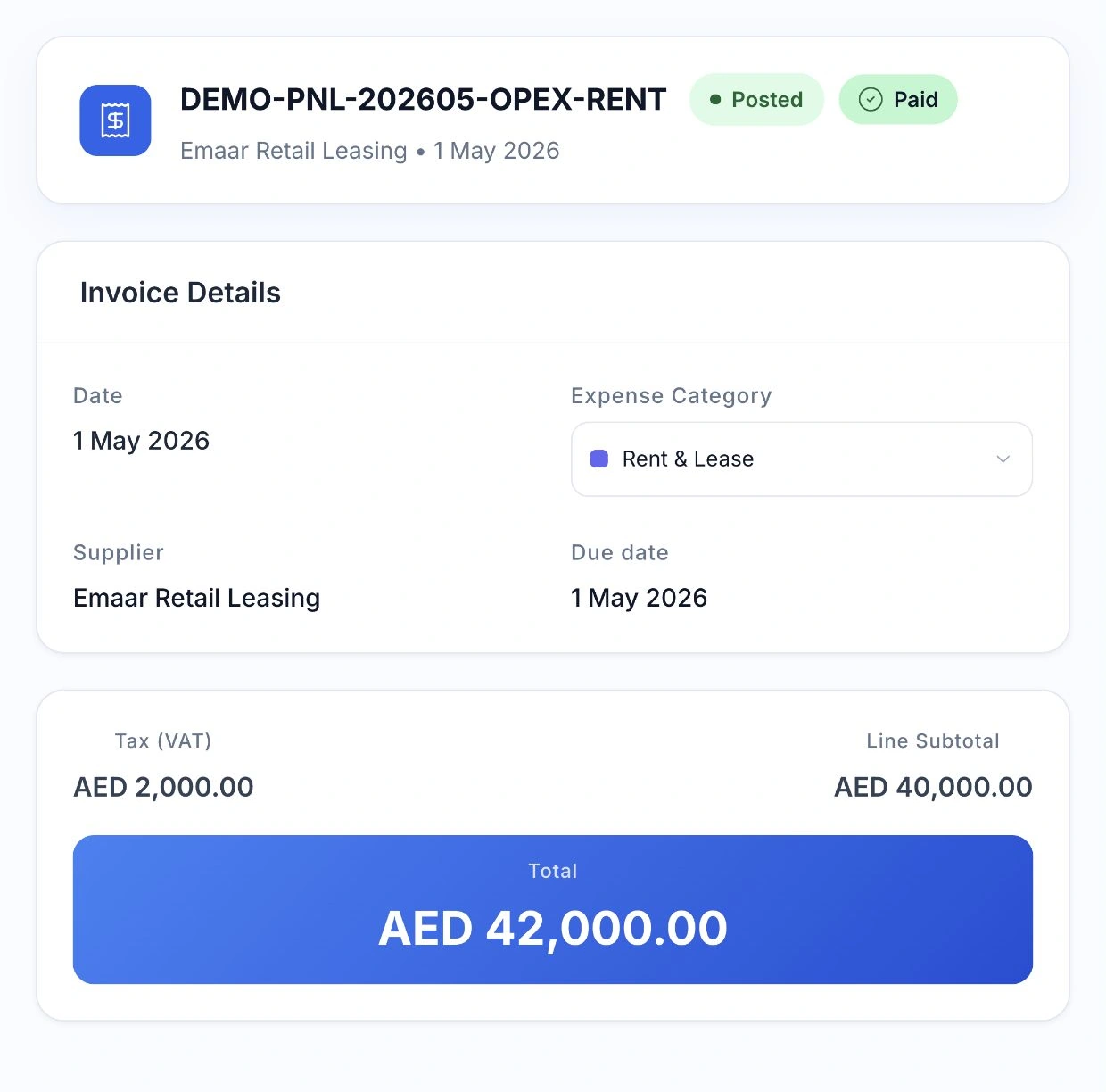
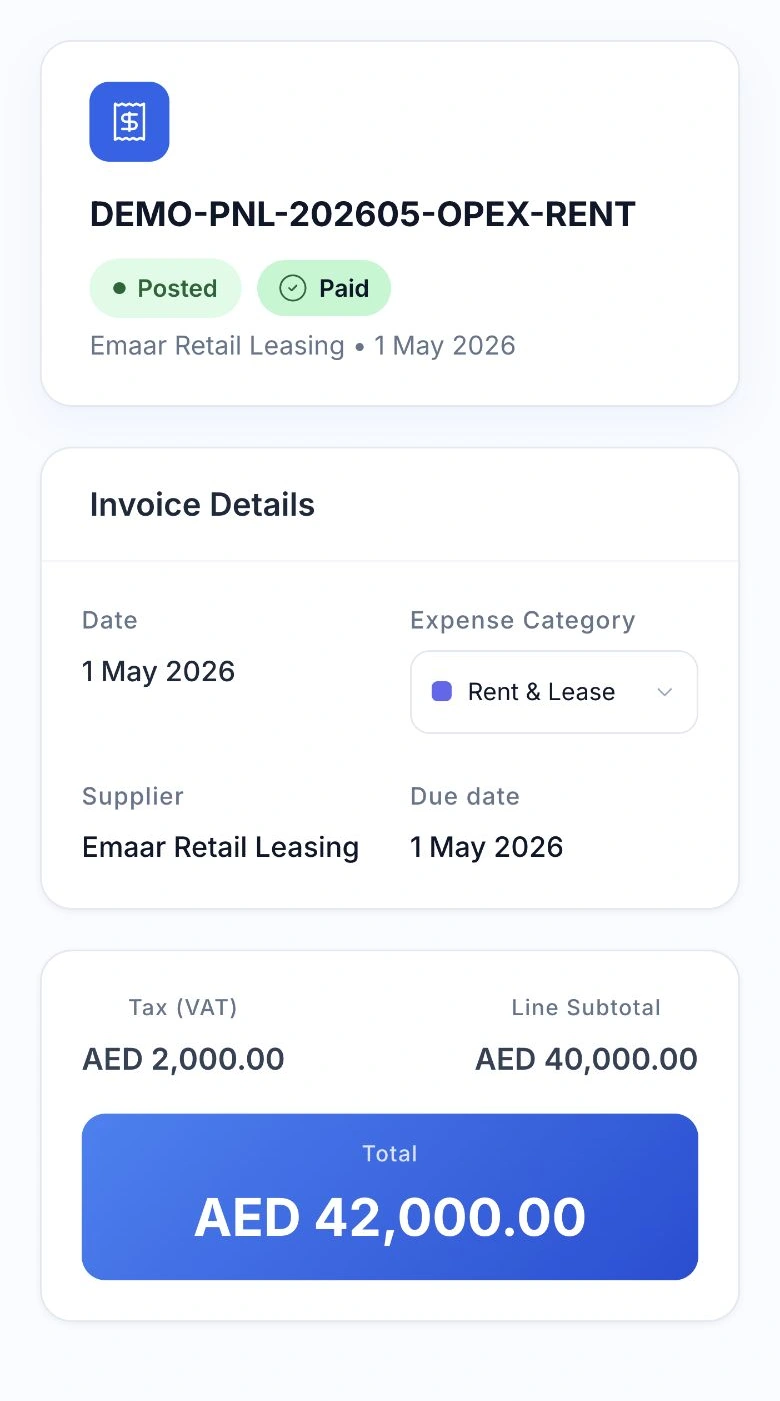
Capture the everyday costs of running your restaurant too. Upload a PDF or photograph a bill for rent, utilities, repairs or services. HoreX reads the supplier, invoice number, date, amount and VAT into an editable expense record.

Check the details, choose the expense category and post the bill. Keep the original document attached to the record, with its supplier, due date and payment status available when your accountant needs them.

Posted expenses feed payables and profit and loss reporting. They record the cost of the service without creating stock quantities.

  • PDF and receipt photos
  • Supplier, amount and VAT extraction
  • Expense categories
  • Original documents retained
  • Due dates and payment status
  • Connected to financial reporting
HoreX general expense record for rent, showing the supplier, category, due date, VAT, total and paid status

From invoice or expense bill to a checked record.

Document extraction, supplier knowledge, unit conversions and general expenses in one workflow.

PDF and photos

Upload the supplier document from your computer or phone.

See details

Keep the supplier's PDF or phone photos attached to the purchase record. A clear, complete document gives the extraction step more reliable information to work with.

Check that all pages belong to the same invoice before reviewing the extracted draft.

Extraction

Prepare an editable draft from the document.

See details

HoreX extracts supplier details, document fields and line items into an editable draft. Arabic and English invoice documents are supported.

Compare the result with the original. Correct the supplier, date, quantities, prices and tax before posting.

Products and units

Confirm catalog matches and supplier pack conversions.

See details

Confirm which catalog product each supplier line belongs to. Supplier descriptions and your internal product names do not have to be identical.

Check the quantity inside a case, bag or carton. The pack conversion determines both the received base quantity and the unit cost.

Review queue

Keep documents awaiting posting visible to the receiving team.

See details

Bulk upload and the posting queue help the receiving team keep track of documents awaiting review.

Each invoice keeps its own source, lines and state. Check the individual document and resolve product or unit questions before posting.

Source records

Keep original attachments and the document history together.

See details

Keep original attachments with the invoice so the team can return to the supplier's document when investigating a line or price.

Posted purchase prices become part of product cost history. Review the original quantity and pack unit when a cost looks unexpected.

UOM conversion

Convert supplier packs into your stock units and unit cost.

See details

Keep purchasing and stock quantities connected even when they use different units. A supplier bag, case or bottle can be converted into the kilograms, litres or pieces used in your catalogue.

Store the confirmed conversion for a product, a supplier or a specific supplier item. Different supplier pack sizes can keep their own rules.

The factor affects both the base quantity received and the unit cost. Review an unfamiliar pack before posting the invoice.

HoreX Intelligence learning

Build supplier matching knowledge from reviewed purchases.

See details

Your team’s confirmed product matches are retained when a purchase invoice is posted. They connect the supplier’s item name with your catalogue product.

On a later invoice from the same supplier, HoreX checks that existing knowledge before asking AI to work through unfamiliar descriptions. Known items need less repeated matching.

Confirmed unit conversions are retained alongside the purchasing setup. New products, changed descriptions and uncertain packs still need your reviewer’s attention.

General expenses

Scan service bills and keep the original with the expense record.

See details

Use general expenses for bills such as rent, utilities, repairs and services. AI extracts the supplier, invoice number, date, total amount and VAT from the uploaded document.

Review the extracted fields and select the expense category before posting. The PDF or photo remains attached, so the team can return to the original when checking the charge.

Keep the supplier, due date and payment status with the expense. Posted bills feed payables and profit and loss reporting without receiving inventory quantities.

Questions about invoice scanning

How does AI invoice scanning work?

Upload invoice photos or a PDF. AI extracts supplier details, product lines, quantities, prices and tax into a draft. Check the original document, correct the draft and explicitly post it when it is ready.

Does scanning an invoice receive stock automatically?

No. Extraction prepares a draft. Posting an itemized purchase invoice creates the stock receipt for the receiving branch. An expense invoice records an expense and does not receive product quantities.

Can I upload Arabic and English invoices?

HoreX supports Arabic and English invoice extraction. Scan quality and document layout affect the result, so your team reviews the extracted fields and totals before posting.

How are invoice products matched to my catalog?

HoreX proposes catalog matches for extracted supplier lines. Confirm the product and unit, including the base quantity inside a supplier pack. Review uncertain matches before posting.

What happens to costs after posting?

The posted purchase price becomes part of the product cost history used by recipe costing and reporting. Stock quantities are routed to the receiving warehouse. Finance reports retain their selected period and cost basis.

Can I link a purchase order to the invoice?

Yes. A purchase order records what you ordered; receiving records what arrived. The linked itemized tax invoice is the posting document for stock. Review quantities and discrepancies in that workflow.

Can I review several documents together?

The purchase invoice workspace has bulk upload and posting queue tools. Each document keeps its own extracted lines, review state and original attachment; check each document before posting.

Can supplier packs use different units from my stock?

Yes. Set how much of the stock unit is inside the purchase unit. For example, one bag can contain 25 kg. HoreX uses that conversion for received quantities and unit cost. Rules can apply to a product, supplier or supplier item, so different pack sizes can be kept separately.

Does HoreX Intelligence learn from our reviewers?

Yes. Confirmed product matches are retained when an invoice is posted. HoreX uses that supplier-specific history on later invoices before matching unfamiliar descriptions with AI. Confirmed pack conversions are also retained for future purchases. Your team can still review new or uncertain items.

Can I scan general expenses as well as itemized purchases?

Yes. Upload bills or receipts for rent, utilities, repairs and other services as general expenses. HoreX extracts the supplier, invoice number, date, amount and VAT. Review the fields, choose the expense category and post the bill. The original stays attached, with due dates and payment status in the record. Posted expenses feed financial reporting without receiving stock.

Bring one of your supplier invoices.

See extraction, UOM conversion, supplier matching and posting with your restaurant’s purchasing team.