


Branded mobile apps for restaurants.

Give guests a reason to order again: your menu, rewards and useful offers in one app. Build audiences from their order history and measure what brings them back.

01 / YOUR BRAND

Your restaurant app

Ordering, rewards and delivery under your name.

02 / KNOW YOUR GUESTS

Customer audiences

Reach guests by their purchases and last visit.

03 / REACH THEM DIRECTLY

Push campaigns

Bring the right offer to the guest’s phone.

04 / SEE WHAT WORKS

Repeat orders

Measure returning guests, frequency and value.

Explore all customer app features

01 / YOUR RESTAURANT APP

Ordering and rewards, under your own brand.

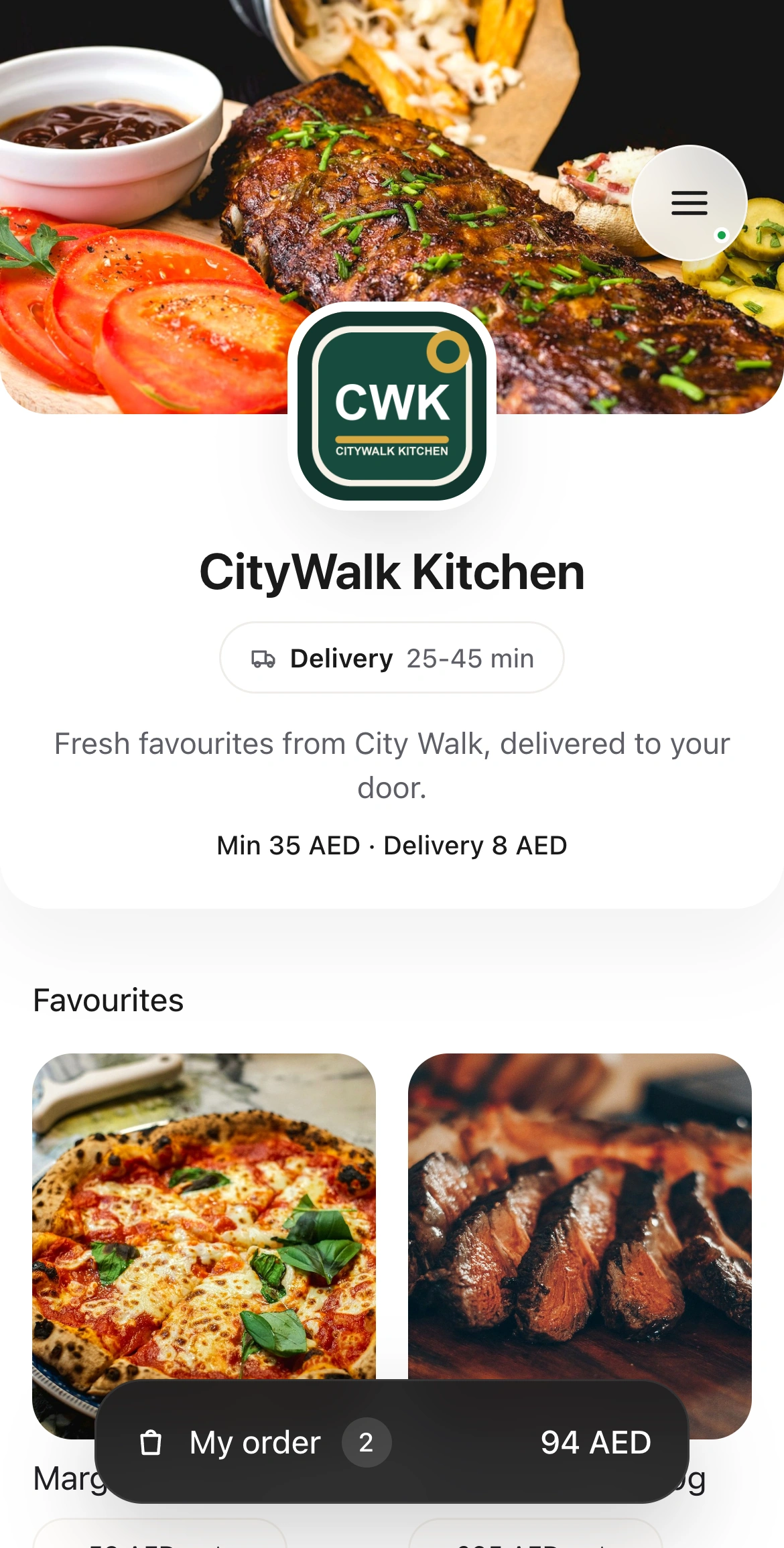
Bring the restaurant menu, delivery checkout and guest account into an app with your name and identity. The ordering menu stays connected to HoreX.

Guests choose dishes and options, confirm where the order should go and follow its progress. Your team handles the order through the connected restaurant and delivery workflows.

Your app gives guests a direct route back to your restaurant. Saved details make the next checkout easier; rewards and relevant offers give them a reason to return. Each identified purchase helps you understand what they order and when to reach out again.

  • Your name, logo and colours
  • Connected menu and dish options
  • Saved delivery details
  • Orders linked to the guest profile
Branded CityWalk Kitchen customer app with menu, delivery terms and basket

02 / CUSTOMER AUDIENCES

Build customer audiences from order history.

Every identified order adds to the guest’s history in HoreX. Use that history to build audiences: regulars who have not ordered recently, guests who buy a particular dish, or customers with a higher spend.

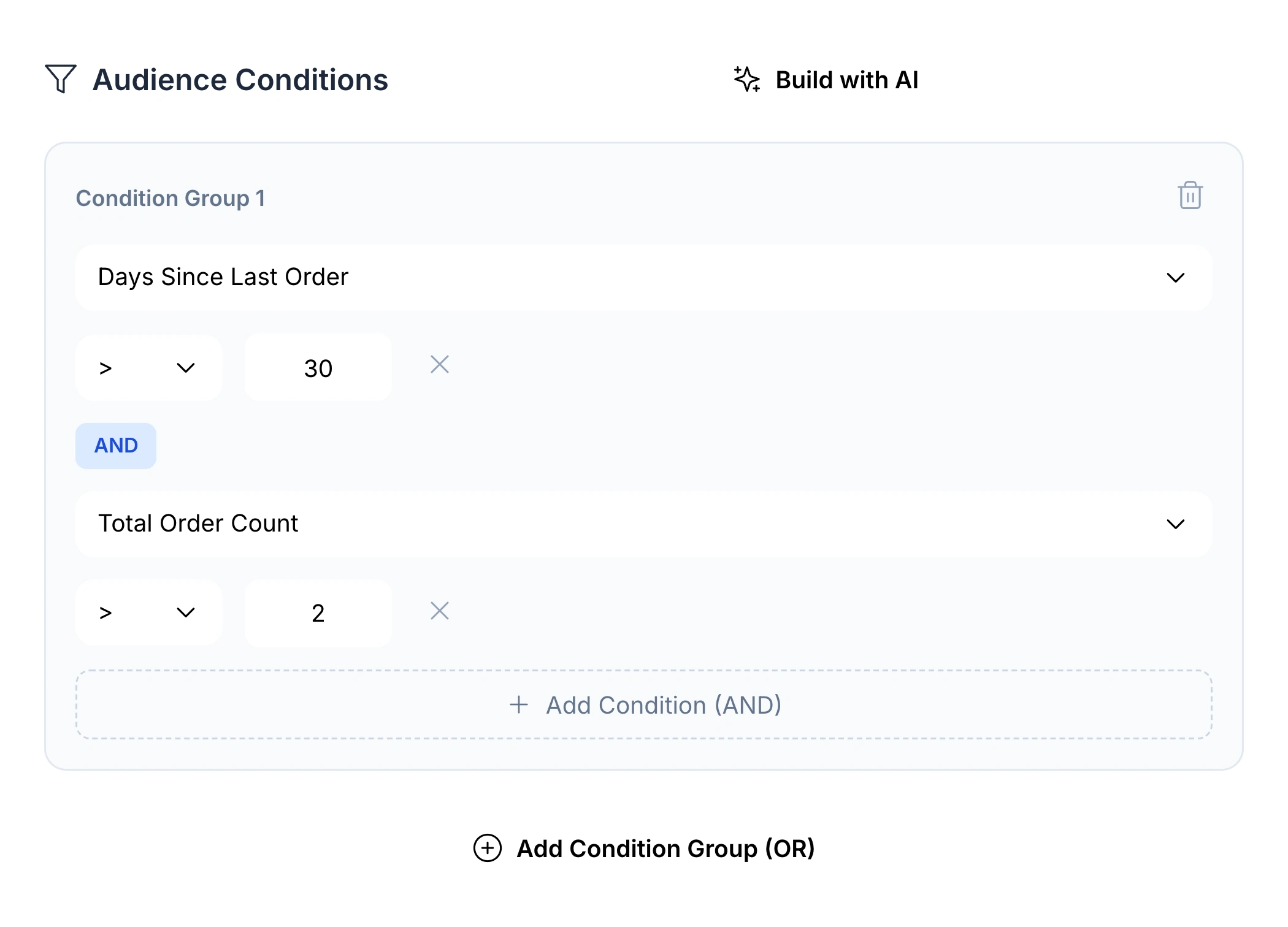
Combine conditions and preview the matching guests before a campaign. You can also describe an audience in plain language, then review and adjust the suggested filters. For example: regulars who have not ordered for 30 days.

  • Last order and purchase frequency
  • Spend and average order value
  • Dishes, categories and preferred branch
  • AI-assisted audience building and preview
HoreX Audience Builder: more than 30 days since last order and more than two orders
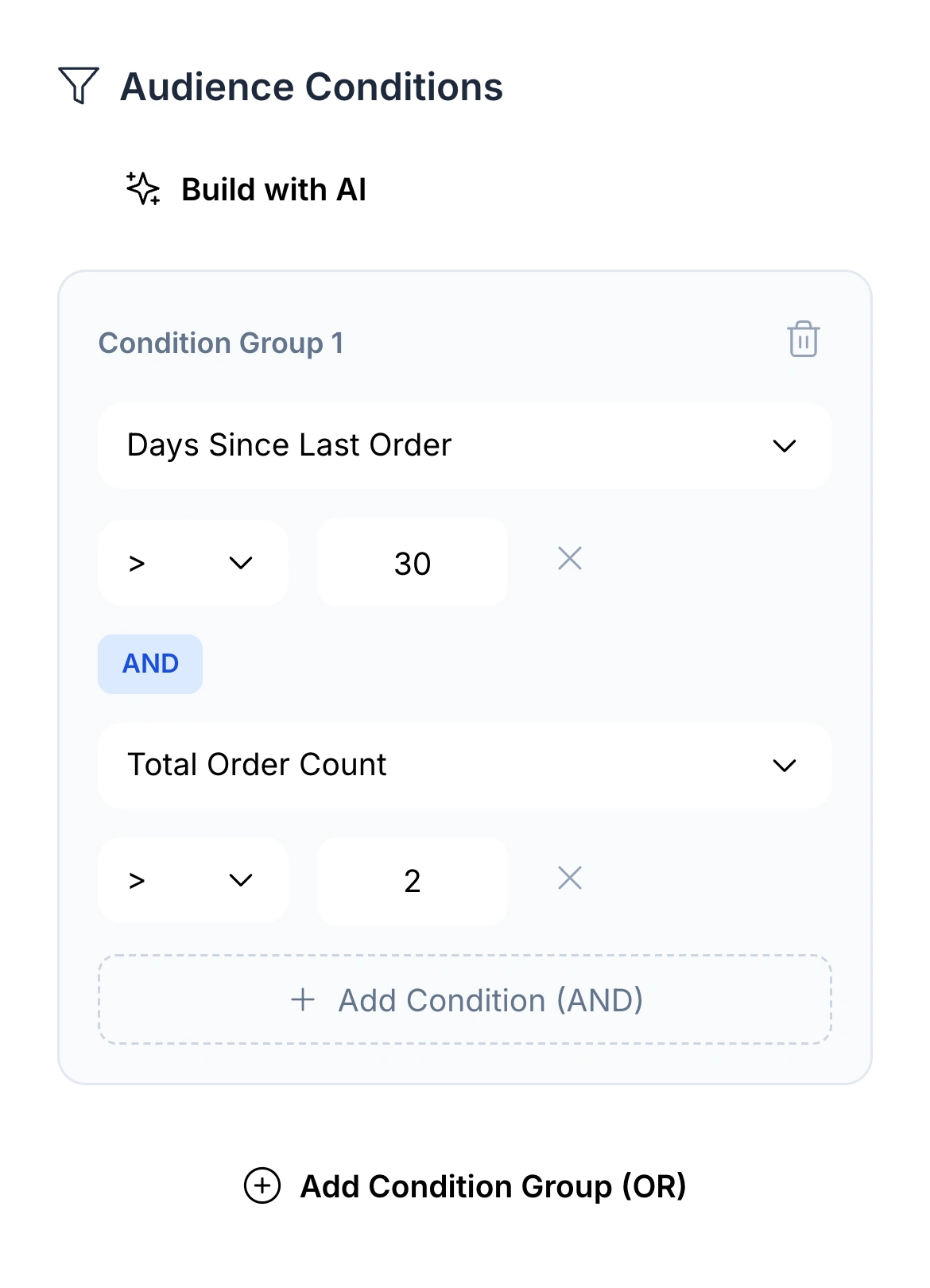
Native Audience Builder with the same two conditions

03 / PROMOTIONAL PUSHES

Reach the right guests with push offers.

Let regulars know about a new menu, share an offer with a selected audience or invite an inactive guest back. The message arrives on the guest’s phone under your app’s identity.

A tap can open the relevant offer, menu or destination in the app. Set the message and link together so the guest can act on the offer immediately. These campaigns are separate from order-status notifications.

  • Audience-based messages
  • Offer, title, image and destination
  • Marketing opt-in respected
  • Sent, failed and opened reporting
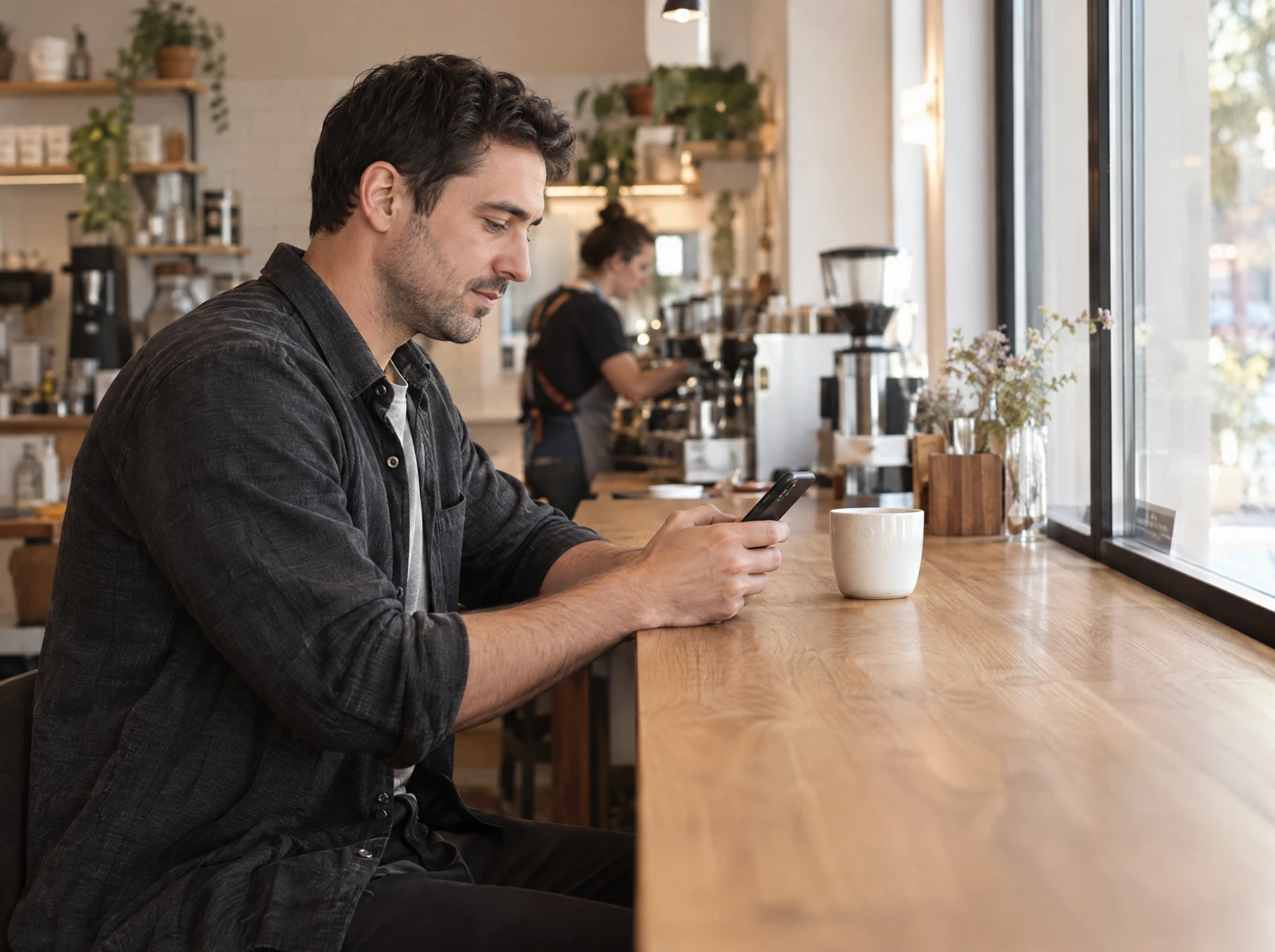
A regular guest looking at his phone in a neighbourhood cafe
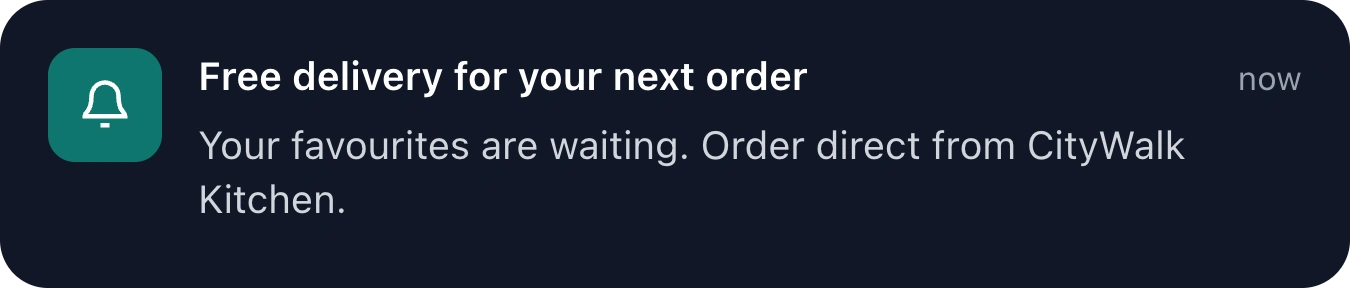
Customer app push preview: Free delivery for your next order. Your favourites are waiting. Order direct from CityWalk Kitchen.

04 / RETURNING GUESTS

Make the next order easier.

Saved details make the next checkout easier. Visible rewards give guests another reason to choose your restaurant.

The guest’s account in your app

Ready for the next delivery.

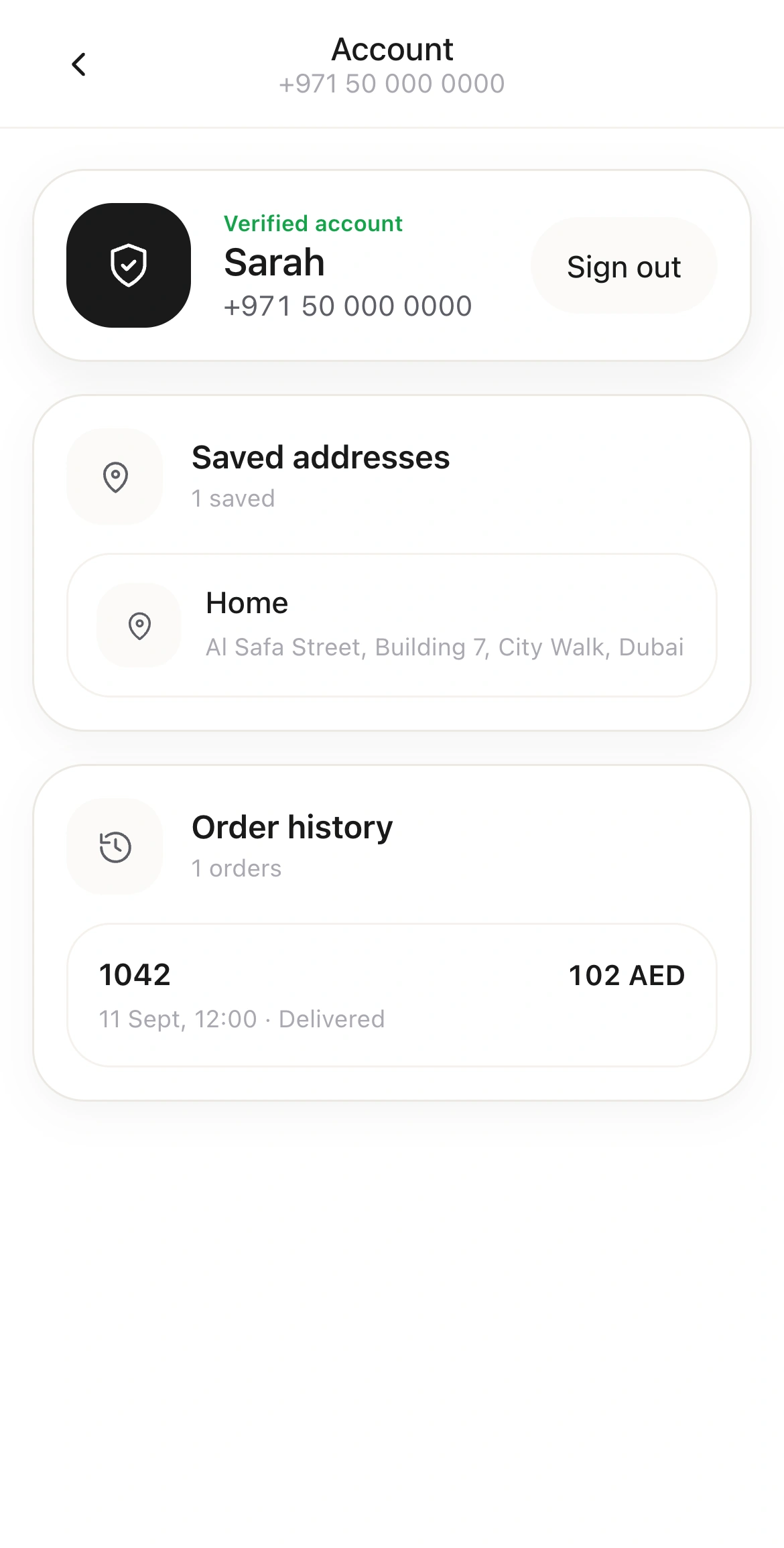
Guests sign in with their phone number to find saved delivery addresses and recent orders. Those details stay with their HoreX guest profile.

  • Phone verification
  • Saved address book
  • Order history
CityWalk guest account with a saved delivery address and recent order

Keep earned rewards visible.

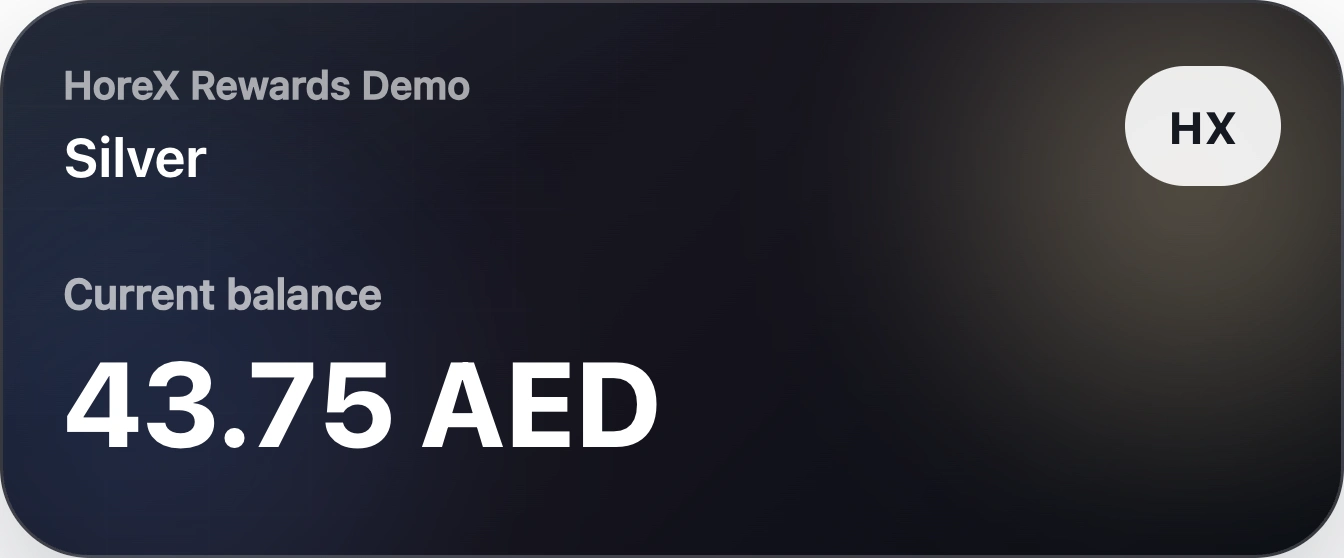
If the restaurant runs a loyalty program, the account also shows rewards and tier progress. Eligible rewards can be applied at checkout according to the program’s rules.

  • Current rewards balance
  • Membership tier
  • Configured Wallet pass access
Native guest rewards card showing Silver membership and current balance

05 / CAMPAIGN & CUSTOMER ANALYTICS

Measure campaigns and repeat orders.

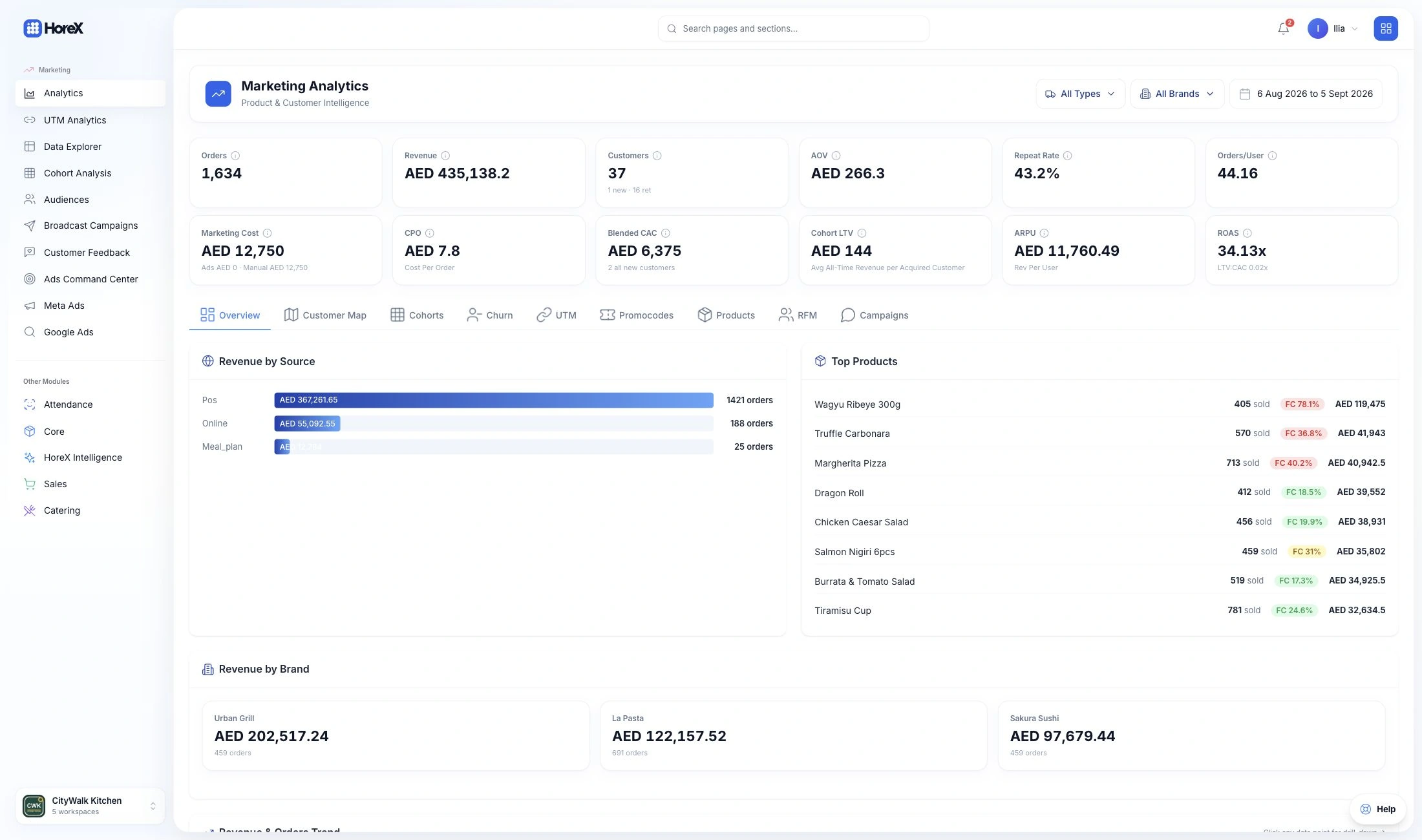
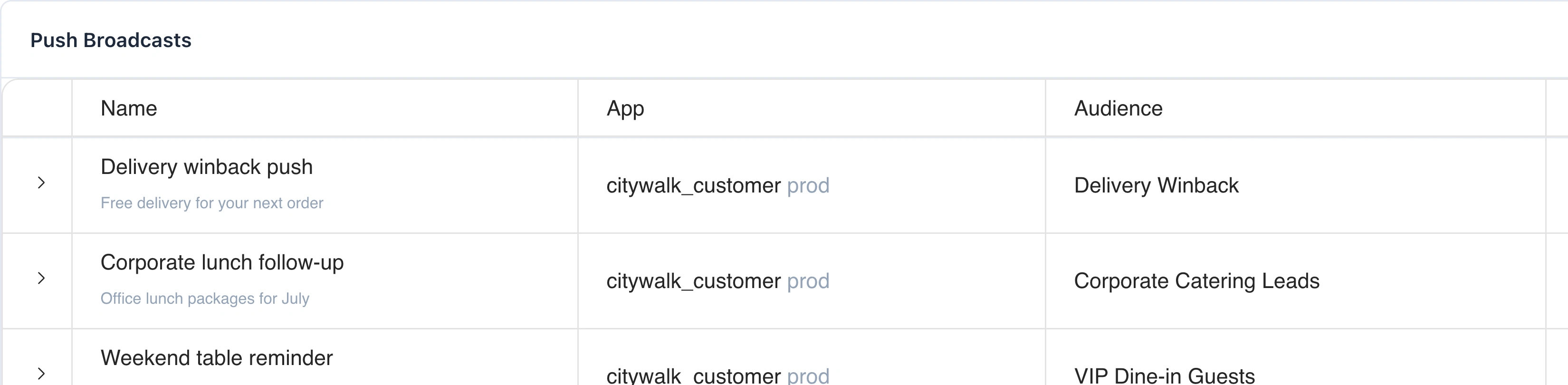
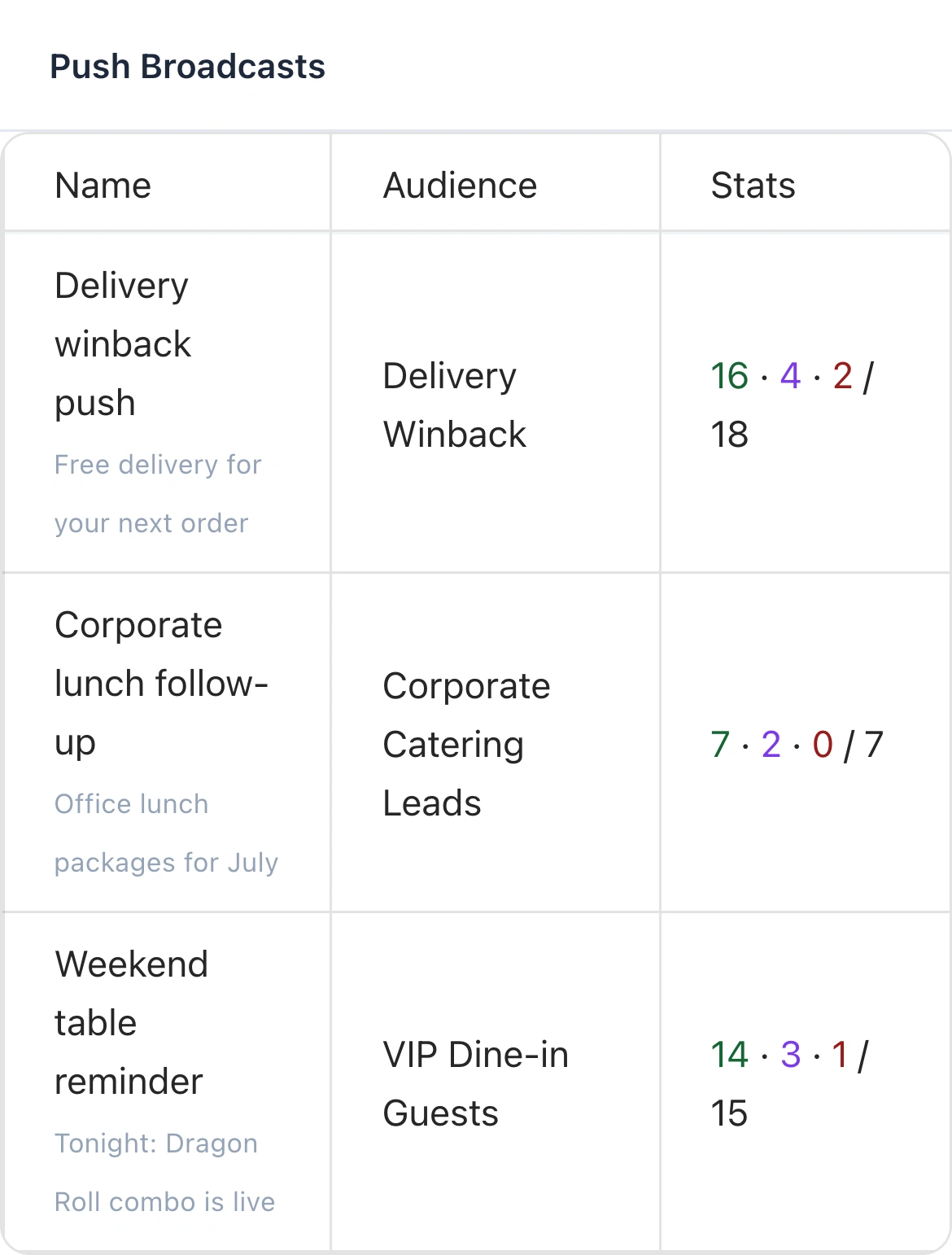
Check which pushes were sent, failed or opened. Use campaign links and promo codes to connect recorded orders and revenue to an offer, then review whether the guests you reached are ordering again.

Push campaigns

Native Push Broadcasts report with audience, sent, opened and failed results
Sent · opened · failed / total. Illustrative campaign data from the HoreX demo.
Push campaign names, their customer audiences and sending/opening counts
Sent · opened · failed / total. Illustrative campaign data from the HoreX demo.

Customer value

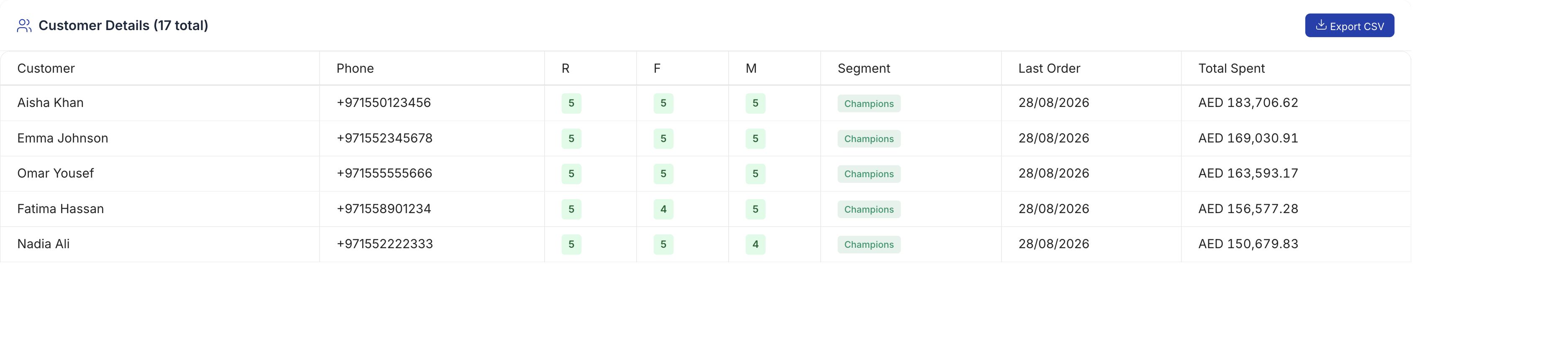
Native customer report with recency, frequency, monetary score, last order and total spend
Illustrative customer data from the HoreX demo.
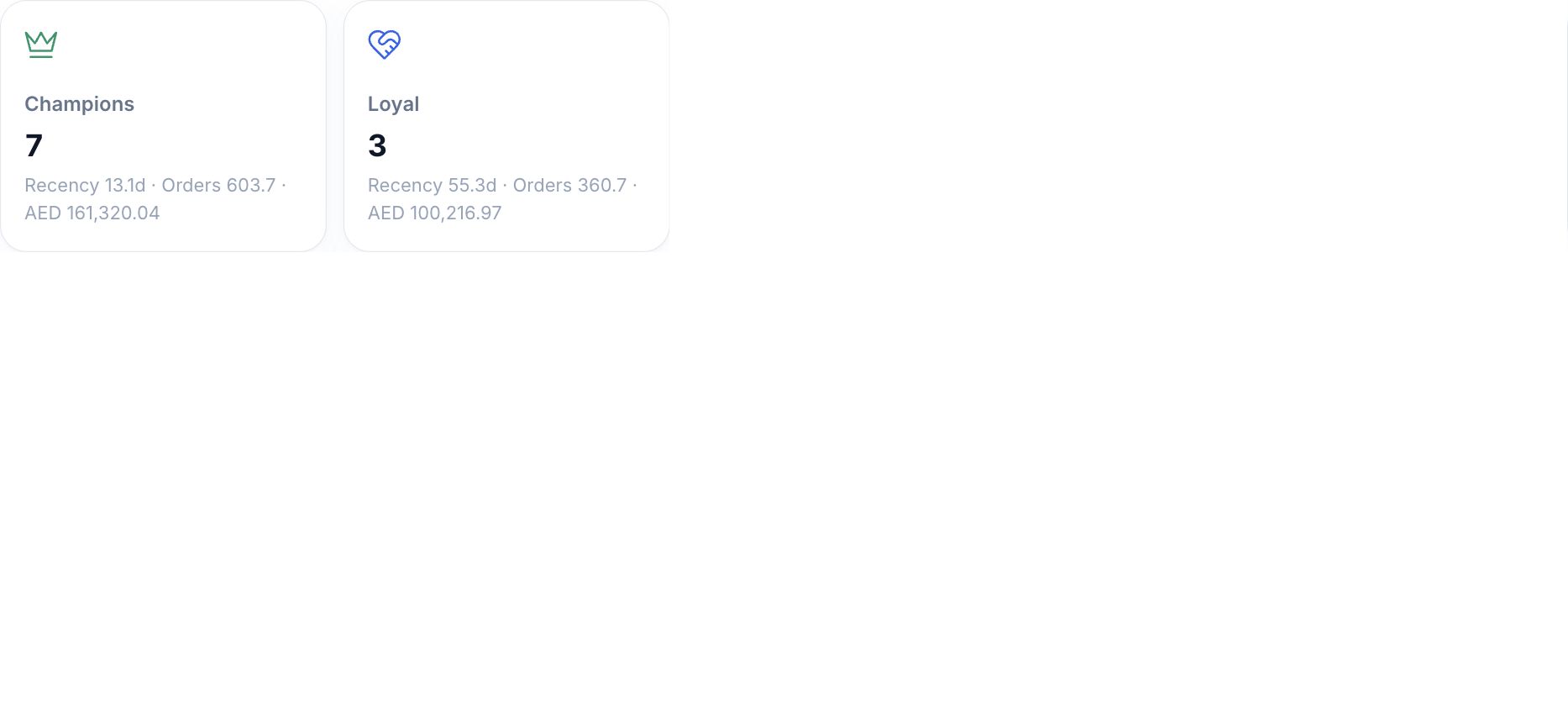
Native customer analysis with segment and purchase history
Illustrative customer data from the HoreX demo.

Customer history connects purchases recorded across HoreX with the same guest. Compare order frequency, average spend and lifetime value; use cohorts to see how the same group returns over time. Orders carrying campaign tags or promo codes show which offer they came from.

  • Push sends, failures and opens
  • Tagged campaign orders and revenue
  • New and returning customers
  • Frequency, value and cohort retention

06 / DELIVERY UPDATES

Order tracking from kitchen to doorstep.

App orders reach the guest profile, POS and kitchen in HoreX. Your team can dispatch a courier and reconcile the payment against the same order, while the guest follows its progress in the app.

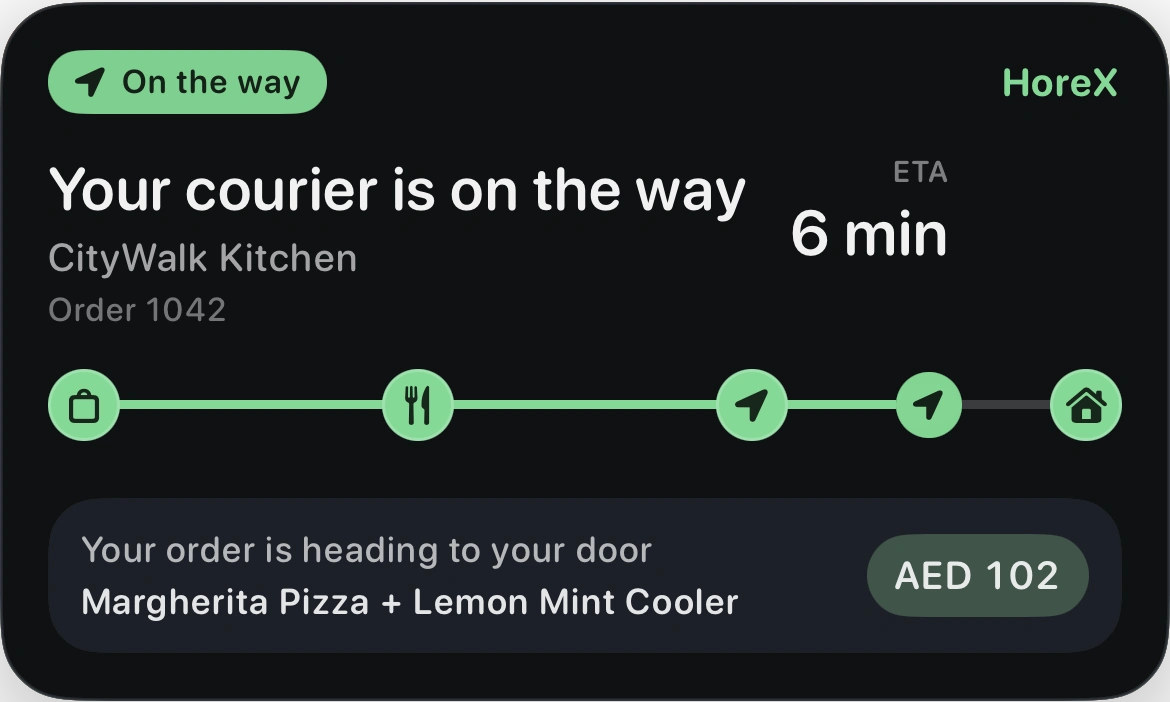
Order #1042 · CityWalk Kitchen

An update at a glance.

Tell the guest when the order is accepted, when the courier is on the way or when delivery is complete. Choose the events that are useful for your service.

With Live Activities enabled, delivery progress also appears on the iPhone lock screen and in Dynamic Island on compatible phones.

  • Kitchen and courier progress
  • Estimated arrival
  • Order details stay connected
HoreX native iPhone Live Activity: courier on the way, ETA six minutes, order 1042

See where the courier is.

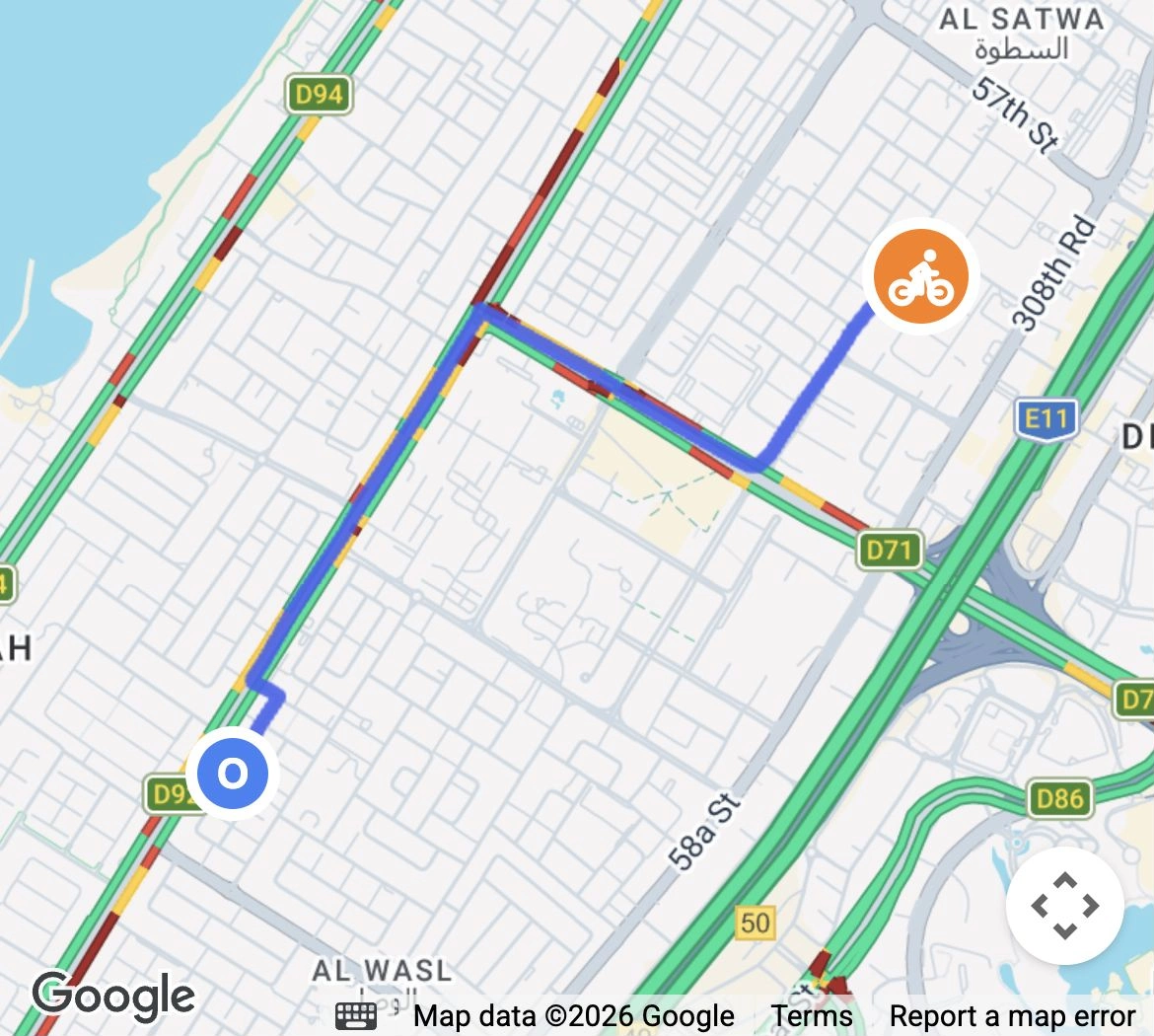
Guests can follow the courier on a map in the customer app and on the ordering website. Your restaurant sees the delivery in POS, with its assigned courier, guest and payment details.

  • Google Maps route
  • Courier location
  • Delivery status visible in POS
Guest tracking with Google Maps courier route and estimated arrival

More in the Customer App.

Ordering, guest accounts, rewards, audiences, push campaigns, delivery tracking and app release.

Restaurant identity

Put your name and menu on the customer’s phone.

See details

Use your restaurant’s name, icon, colours and menu. We prepare the app’s presentation with you, including the images and description guests see in the stores.

  • App name and icon
  • Restaurant colours
  • Branded menu

Phone verification

Sign guests into their restaurant account.

See details

When customer registration is enabled, the guest verifies their phone through WhatsApp. The account connects the app to their profile and addresses in HoreX.

  • WhatsApp verification
  • Customer profile
  • Returning sessions

Saved addresses

Let guests choose a delivery address they have used before.

See details

The guest’s address book stays with their customer record. Building, floor, apartment and courier instructions can be selected again without recreating the delivery details each time.

  • Address book
  • Building details
  • Courier instructions

Order history

Give guests a place to review recent orders.

See details

The account lists the guest’s recent website and app delivery orders. They can open the available order details and status without searching through messages.

  • Recent orders
  • Order details
  • Status link

Rewards balance

Show the restaurant’s active loyalty program.

See details

When loyalty is enabled, the account can show points, an AED rewards balance and available program information. The same guest record connects the rewards to order history.

  • Points and balance
  • Guest record
  • Program settings

Tier progress

Make the next reward level understandable.

See details

Show progress using the spend or visit unit configured for the guest’s loyalty tier. Levels and thresholds come from the restaurant’s program rather than a separate app-only scheme.

  • Configured tiers
  • Spend or visit progress
  • Program thresholds

Rewards at checkout

Apply eligible rewards to the order.

See details

Checkout checks the guest’s available rewards and the program’s redemption rules. If a promo code is also present, the configured combination rule determines whether both can be applied.

  • Available balance
  • Redemption rules
  • Promo compatibility

Wallet pass access

Let guests open a configured loyalty pass.

See details

When a Wallet pass is configured for the loyalty program, the guest account can provide the pass link. Pass availability depends on the program and supported device.

  • Program pass link
  • Guest identity
  • Supported Wallet setup

Order notifications

Choose which order events reach the customer.

See details

Enable the useful events: acceptance, readiness, courier assignment, on the way or completion. Delivery still depends on the customer’s notification permission and device connection.

  • Selectable order events
  • Device permissions
  • Order-linked updates

iPhone Live Activities

Keep supported order updates on the lock screen.

See details

With Live Activities enabled for your app, guests can follow an active delivery from their iPhone lock screen. They can check its progress without reopening the app.

  • Lock-screen progress
  • Order status changes
  • Configured iPhone build

Dynamic Island

Show delivery progress on compatible iPhones.

See details

On compatible iPhones, an active delivery can also appear in Dynamic Island. Guests keep the order’s progress in view while using other apps.

  • Compatible iPhone devices
  • Active delivery
  • Build verification

Courier tracking

Show the delivery while it is on the way.

See details

The customer status view can show the assigned courier’s reported location after pickup, with the restaurant and destination on the map. Location access ends with the delivery rather than exposing the courier indefinitely.

  • On-the-way location
  • Destination context
  • Order-limited tracking

Checkout payments

Use the restaurant’s connected payment choices.

See details

The app follows the ordering channel’s configured payment methods. Online payment requires an active provider; card and wallet availability depend on that connection and the customer’s device.

  • Configured methods
  • Online provider
  • Payment status

Customer offers

Connect app guests with the restaurant’s marketing.

See details

Guest profiles and order history can support relevant audiences and offers in HoreX. Marketing campaigns and their consent rules are configured separately from transactional order alerts.

  • Guest audiences
  • Promo codes
  • Separate marketing controls

Branch coverage

Use the kitchen that serves the delivery address.

See details

The delivery address identifies the kitchen serving the order. Menu availability and delivery charges follow that branch’s settings.

  • Delivery zones
  • Serving kitchen
  • Availability checks

Connected orders

Keep app sales in the same operational system.

See details

The app creates orders in HoreX with their dishes, modifiers, guest details and payment context. Staff do not need to retype the order into a separate POS.

  • Order lines
  • Guest details
  • Payment context

Kitchen handover

Use the restaurant’s configured preparation flow.

See details

App orders enter the same connected kitchen workflow as direct website orders. Dish mapping and station assignments determine how the kitchen receives the work.

  • Station routing
  • Dish options
  • Preparation state

Delivery handover

Keep the courier job linked to the guest order.

See details

Dispatch assigns the delivery, the courier confirms pickup and the order carries the delivery status back to the customer channel.

  • Linked delivery job
  • Pickup confirmation
  • Customer status

App release and updates

Review the test build before publication.

See details

Prepare branding and the restaurant configuration, review the test build on real phones, then complete the agreed store submission. App-store review and native changes can affect the release timeline.

Confirm branding, menu, delivery areas, payment and guest-account requirements.

Check ordering, sign-in, notifications and delivery updates in the test build.

Approve the store listing and release arrangement. Store review determines the final publication date.

  • Test build
  • Device review
  • Store submission

Customer audiences

Choose guests by their order history.

See details

Combine last-order date, frequency, spend, ordered items, branch and other customer conditions. Preview matching customers and save reusable audiences for campaigns.

Promotional push campaigns

Send relevant offers to opted-in app users.

See details

Choose an audience, compose the title and message, and set the destination or image. Review send and open results for each campaign. Promotional campaigns respect marketing opt-in and active device eligibility.

Campaign orders and revenue

Connect offers with recorded purchases.

See details

Use tracked campaign links and promo codes to identify related orders and revenue. Push opens are recorded separately; attribution follows the campaign data stored with each order.

Retention and customer value

Look beyond the first order.

See details

Review recency, frequency and spend alongside customer lifetime value. Cohort analysis follows groups over time to compare retention, revenue and repeat behaviour.

Questions about Customer App

How long does it take to launch the app?

We first prepare your branding, menu and ordering setup, then review a test version with you. The launch date also depends on App Store and Google Play review.

How do iPhone delivery updates work?

With Live Activities enabled, guests can follow an active delivery on the lock screen without opening the app. Compatible iPhones can also show progress in Dynamic Island.

How do guests sign in?

Guests enter their phone number and confirm the code sent through WhatsApp. This opens their account with saved addresses, recent orders and available rewards. WhatsApp messaging is set up for your restaurant.

What can guests see from the loyalty program?

The app can show the active program’s balance, points and tier progress, and apply eligible rewards at checkout. Thresholds, rewards and promo-code compatibility come from the restaurant’s loyalty settings.

Can I send offers to app customers?

Guest profiles connect to HoreX audiences and campaigns. Use the marketing workspace to choose who receives an offer. App order notifications have their own settings, so you can choose which delivery updates to send.

Can each branch have a different menu?

Yes. Branch visibility and your published catalogue determine which dishes guests can order. Address coverage identifies the kitchen serving the delivery. We can review any additional menu rules with you during the demo.

Does the app integrate with my POS, KDS, delivery, P&L, and VAT report?

App orders are recorded in HoreX with their lines, guest and payment context. Kitchen preparation, delivery and financial records follow the configured restaurant workflows and source documents.

Will the app carry my restaurant’s branding?

Yes. The app uses your agreed restaurant name, icon and branding. The publishing account and support arrangement are agreed with you during setup.

Can I have an Arabic app?

We review your language and right-to-left requirements as part of the app scope, including the menu, checkout and customer account. Ask to see those screens in the test version.

Who publishes the app in the stores?

HoreX can prepare the release under its store accounts. If you want to use restaurant-owned Apple and Google accounts, that arrangement and the account fees are agreed during setup.

See how your app can bring guests back.

Explore a campaign for your restaurant: choose an audience, send an offer and follow the next order through HoreX.