
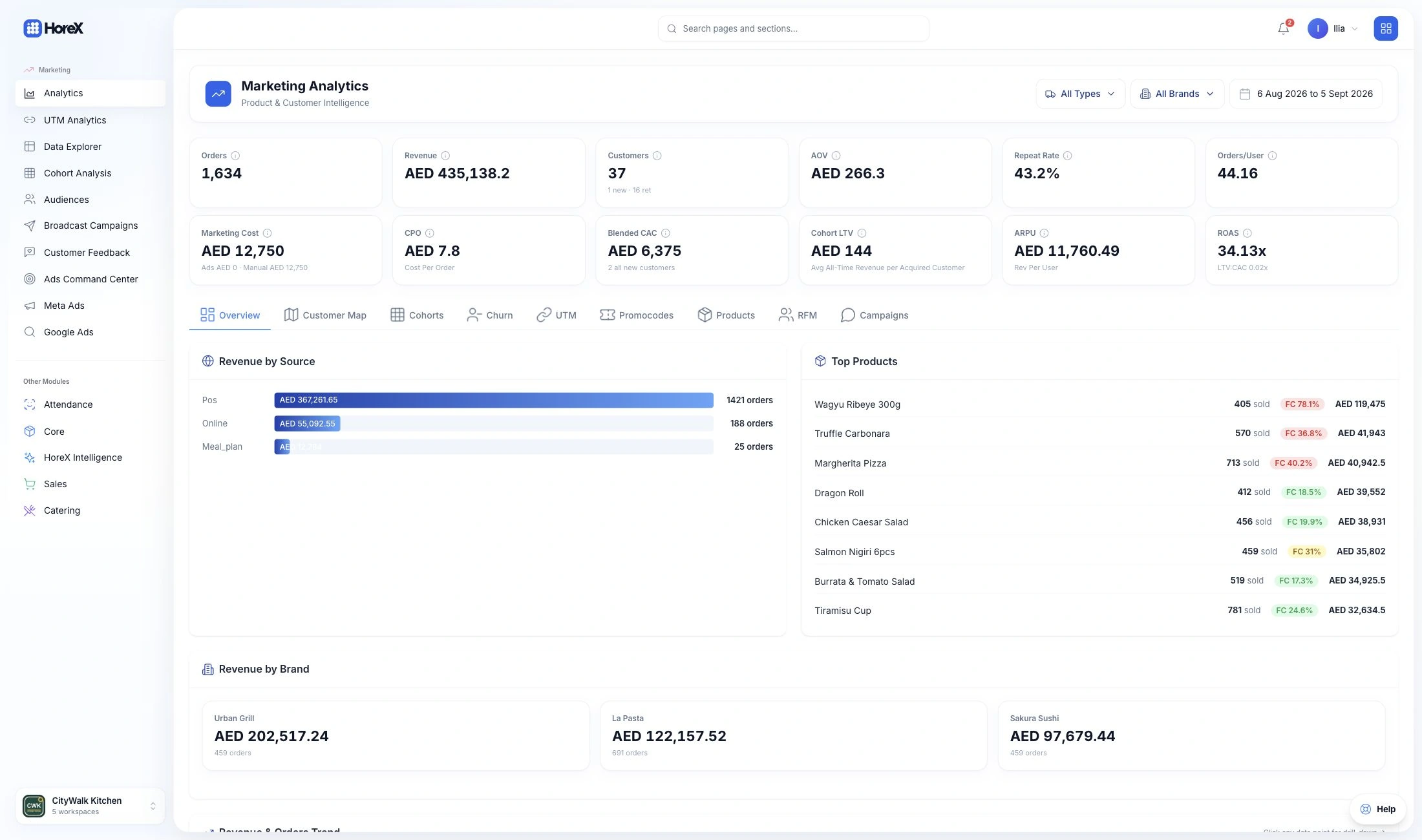

POS and kitchen management for delivery brands.

Run several menus through one kitchen. Connect order intake, preparation, packing and your own courier team with the ingredients and costs behind every sale.

01 / THE CONCEPTS

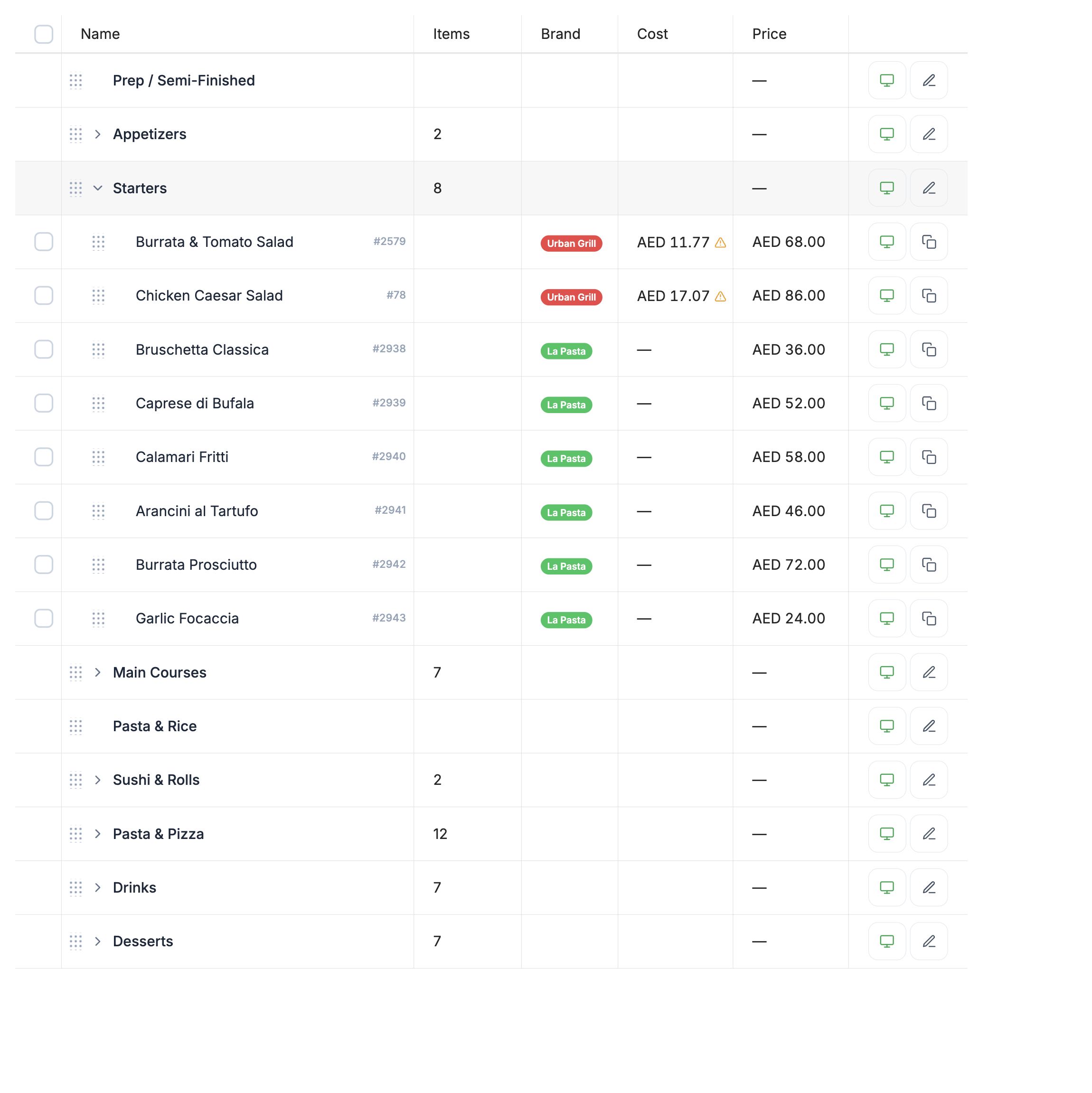
Brand menus

Separate menus with a shared ingredient base.

02 / THE KITCHEN

Kitchen & packing

Bring the complete order together at dispatch.

03 / THE DELIVERY

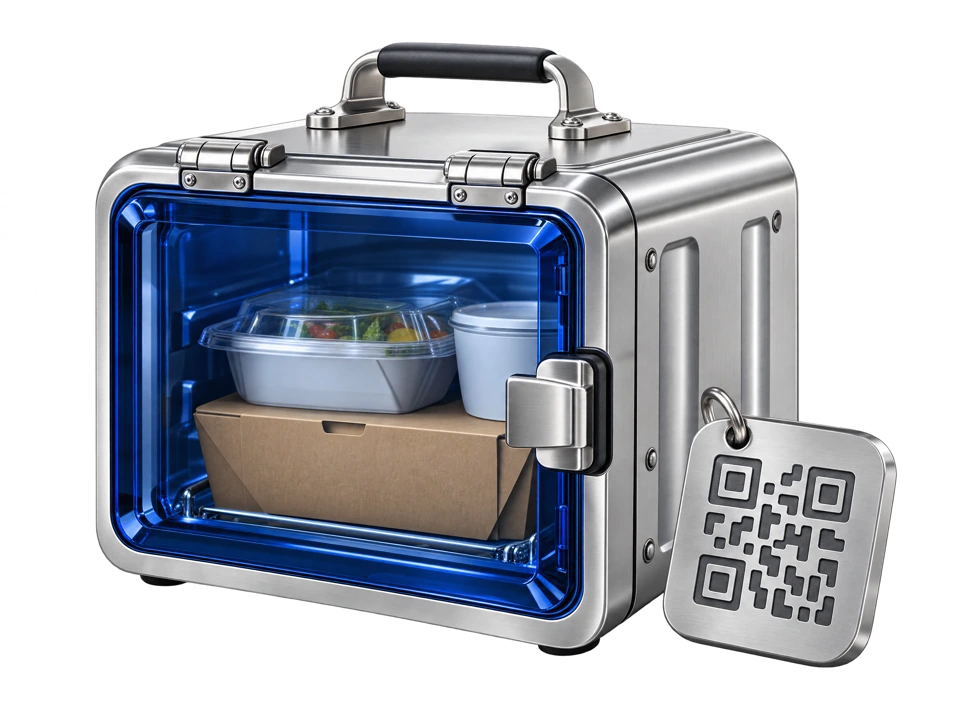
Courier handover

Match the bag to the delivery and follow its progress.

Explore the setup

01 / MULTIPLE BRANDS

Keep the brands separate and the kitchen connected.

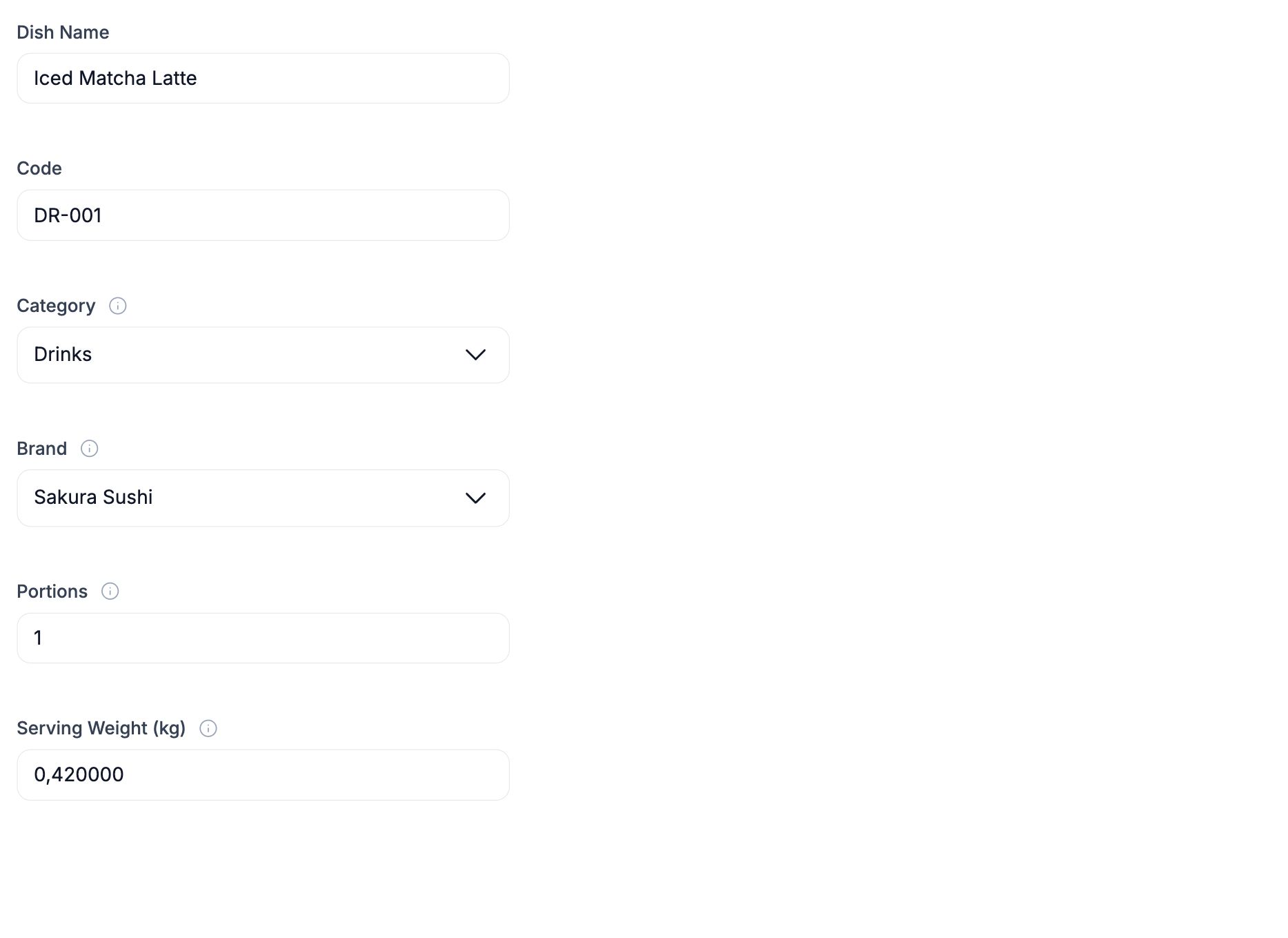
Your concepts can have different menus while buying many of the same ingredients. HoreX keeps the brand on each menu item and connects the recipes to a shared product catalog.

Use the relevant brand and branch when reviewing sales, prices and stock. Orders from configured channels retain their source as they enter the kitchen workflow.

  • Brand-specific dishes
  • Shared ingredient catalog
  • Menu prices
  • Channel mapping
HoreX menu catalog showing Urban Grill and La Pasta dishes with their brand and price
HoreX menu item with its dish name, category and Sakura Sushi brand

02 / STATIONS & DISPATCH

Bring the whole order together before sealing the bag.

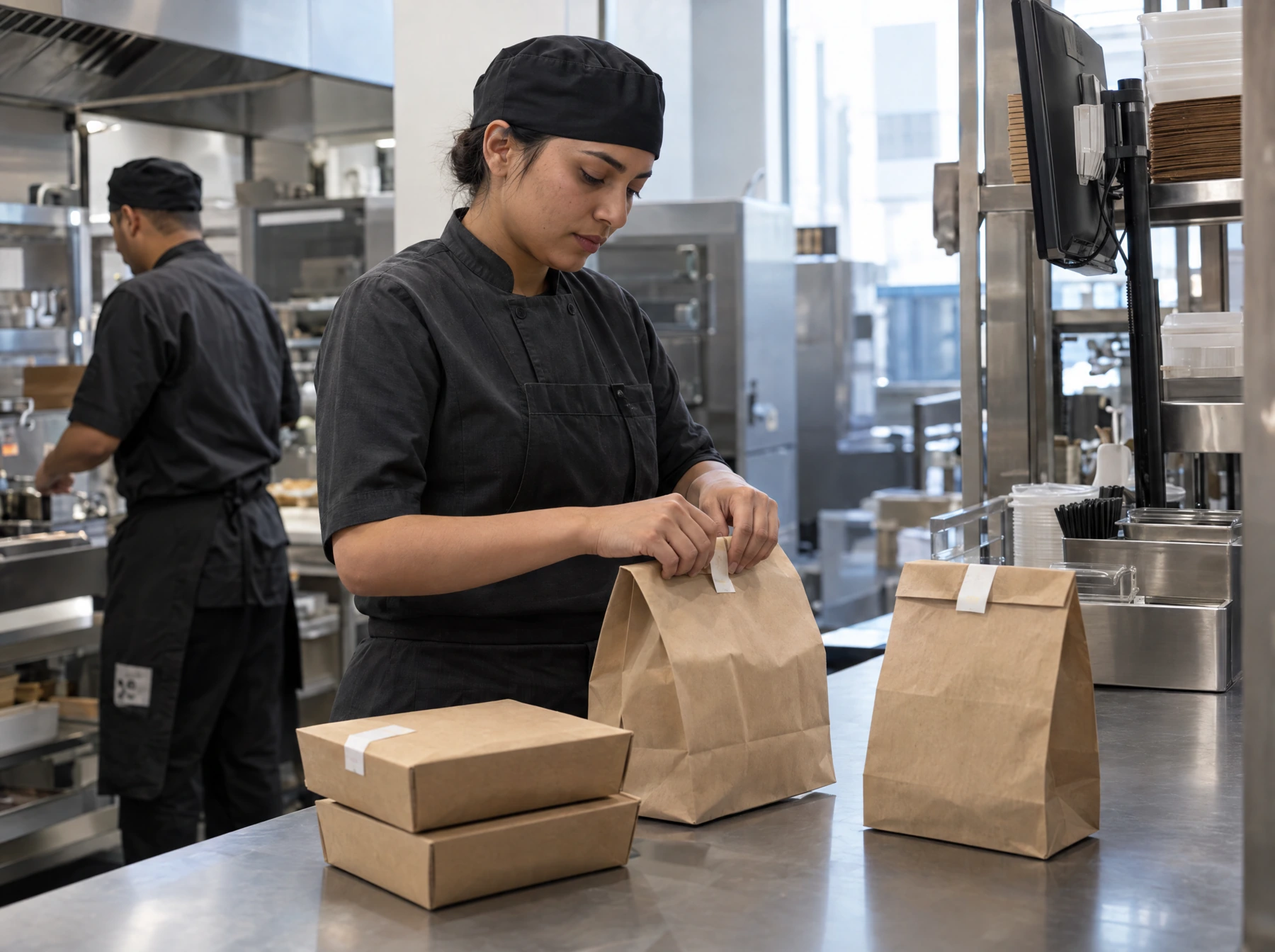
Each recipe sends work to its assigned station. Dispatch sees the whole order so the packer can check that the grill, cold kitchen and other sections have finished their parts.

Check the items, quantities and requests before handover. The order reference and configured labels keep the packed food connected to the delivery it belongs to.

  • Station queues
  • Complete-order view
  • Ready items
  • Order labels
A kitchen expediter checks and seals delivery bags at a clean packing station

03 / YOUR OWN FLEET

Give the courier one delivery record to follow.

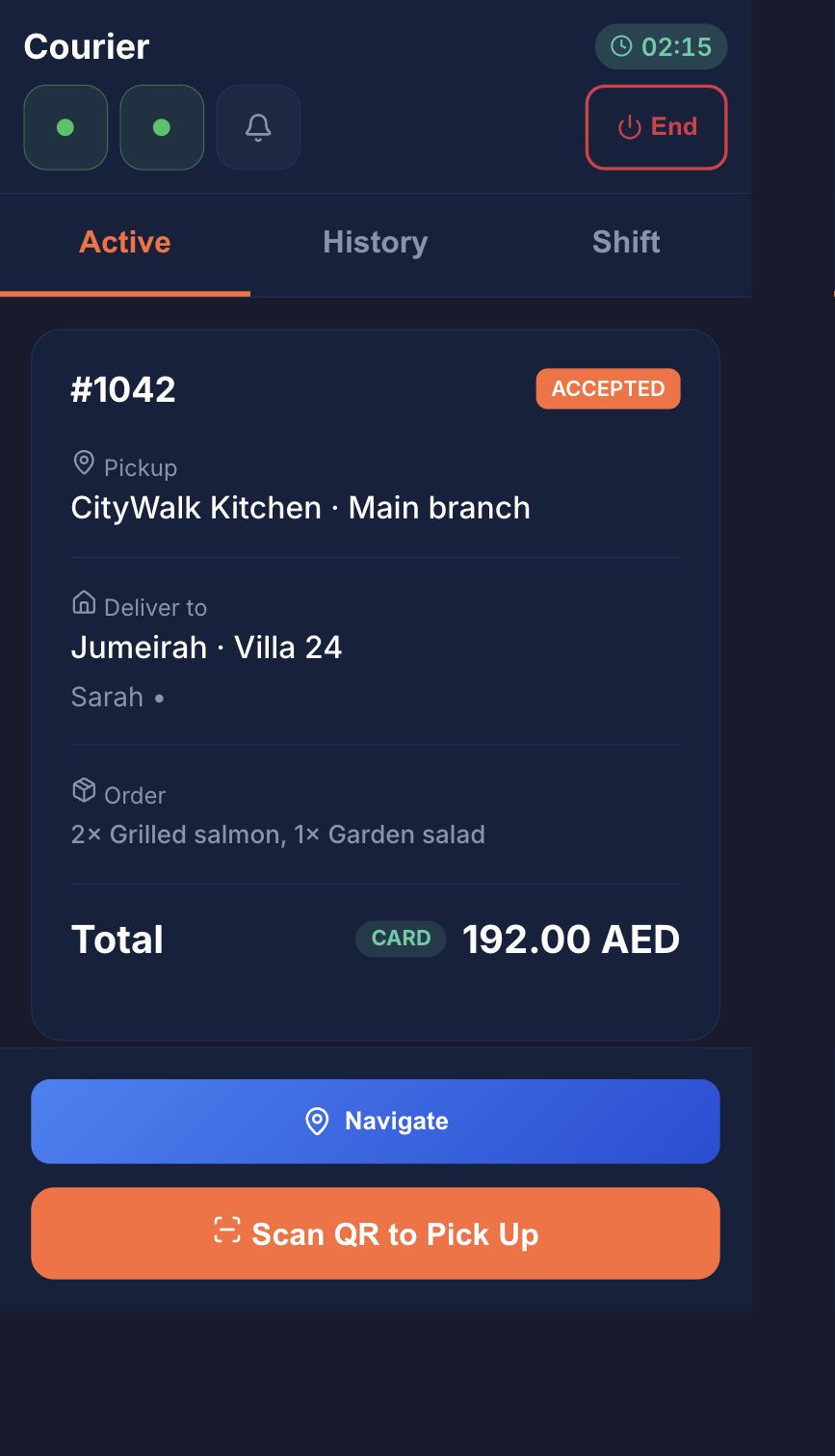
Assign the order from dispatch. The courier sees pickup, destination, items and payment details in the Android app, then scans the matching order QR at collection.

Navigation, recorded delivery proof and cash collection stay with that job. The dispatcher can see availability and the freshness of reported locations.

  • QR pickup
  • Navigation
  • Photo proof
  • Cash-on-delivery records
HoreX Courier showing an accepted order, pickup and destination details, payment method and Scan QR to Pick Up

04 / STOCK & COST

Follow the ingredients used across the brands.

Posted sales use the recipe quantities behind each dish. Shared ingredients leave the same stock records, whichever connected brand sold the meal.

Use counts, waste and supplier receipts to explain changes in the balance. Purchase suggestions use stock levels and recent consumption; your team reviews quantities before preparing a supplier order.

  • Sale-linked write-offs
  • Stock counts
  • Weighted average cost
  • Reviewed purchase suggestions

What your team can use.

Choose the modules and controls that fit your operation.

Brand menus

Keep each concept’s menu identifiable.

See details

Menu items retain their brand while using the organisation’s ingredient and recipe base. Manage the prices and availability for the relevant sales channels and locations. Shared ingredients do not require duplicate supplier products for every concept.

  • Brand on each dish
  • Shared ingredient catalog
  • Prices and availability
  • Recipe quantities

Order channels

Bring connected sales channels into one operation.

See details

Orders from enabled marketplace integrations and your own ordering website carry their source into the order workflow. Complete the provider setup and menu mapping before accepting live orders through each channel.

  • Marketplace connections
  • Direct ordering
  • Source labels
  • Menu mapping

Kitchen routing

Give each station its assigned dishes.

See details

A recipe’s station mapping determines where the kitchen work appears. The grill and cold stations can prepare different parts of the same order while dispatch follows the whole bag.

  • Recipe-to-station mapping
  • Station queues
  • Dispatch view
  • Unmapped-item visibility

Preparation timing

See which work needs attention.

See details

Item timers use the recipe’s preparation time to show approaching and overdue work. Review the item’s current state and the complete order before deciding what to prioritise.

  • Recipe cooking time
  • Elapsed time
  • Preparation warnings
  • Item status

Packing and pickup

Match the contents to the order before handover.

See details

At dispatch, check the complete order and its ready items before packing. Configured order labels help identify the bag. For your own couriers, the pickup QR must match the delivery they are collecting.

  • Complete order
  • Ready items
  • Order labels
  • Pickup QR

Your own couriers

Assign the delivery to a named rider.

See details

Dispatchers assign jobs to the restaurant’s courier team. The supported Android app shows pickup, destination, order and payment details, with navigation and completion evidence. Marketplace couriers remain in the marketplace workflow.

  • Dispatcher assignment
  • Android Courier app
  • Navigation
  • Delivery proof

Courier location

Know when the rider last reported a position.

See details

The courier roster and dispatch workspace show available status and reported location. Read the time of the last update before treating a position as current, and contact the courier when the phone has stopped reporting.

  • Availability
  • Reported position
  • Update freshness
  • Current job

Courier cash

Reconcile the money collected at the door.

See details

Cash-on-delivery jobs keep the amount to collect with the order. Courier shift records bring completed deliveries and cash together for handover and review.

  • COD amount
  • Recorded collection
  • Shift totals
  • Order history

Ingredient stock

Connect every posted sale to its recipe.

See details

Sales from the connected channels use the same recipe-based stock process. Purchase receipts, prep production, waste and counts provide the other movements needed to explain the balance.

  • Recipe write-offs
  • Shared ingredients
  • Counts and waste
  • Source-linked movements

Purchasing

Prepare supplier orders from the kitchen’s demand.

See details

Review stock, minimum levels and recent consumption to prepare purchase suggestions. Confirm the quantities and supplier order before sending it. Physical receiving records the delivery; the linked posted supplier invoice creates the stock receipt.

  • Purchase suggestions
  • Supplier orders
  • Receiving records
  • Posted invoices

Brand performance

Compare sales using the same period and definitions.

See details

Filter sales and item reports by the available brand and branch dimensions. Review discounts, cancellations, ingredient cost and recorded expenses when comparing the performance of two concepts.

  • Brand and branch filters
  • Item sales
  • Recipe cost
  • Source transactions

Questions about Cloud kitchens

What does a cloud kitchen need from its POS?

The order needs to keep its brand, source, dishes and delivery context from intake to dispatch. HoreX connects those records to kitchen stations, recipes and stock, with an additional courier workflow when you deliver through your own team.

Can we run our own delivery fleet?

Yes. Dispatchers assign jobs to couriers using the supported Android app. The courier follows the order through QR pickup, navigation, delivery evidence and cash collection where needed. The dispatcher can review reported positions and their update time.

Can several brands share the same kitchen and stock?

Yes. Menu items retain their brand while using the shared ingredient catalog and configured kitchen stations. Set up the recipes, locations, menus and prices for each concept so the order and stock records remain consistent.

Can we connect delivery marketplaces?

HoreX supports configured delivery-channel integrations. Review your providers, menu mapping, order acceptance and station routing during setup. A channel is ready for service only after its connection has been tested with your restaurant.

How do we review food cost by brand?

Recipe quantities and ingredient costs give the dish-cost basis. Sales and item reports provide the available brand and branch filters. Use stock counts, waste and recorded expenses alongside those figures to understand what changed.

Can we scan supplier invoices?

Yes. Invoice AI extracts fields and lines for the team to check. Review product matches, quantities, units and prices before posting. The posted supplier invoice creates the stock receipt; extracting a PDF alone does not add stock.

What does onboarding cover?

We review the brands, menus, recipes, suppliers, kitchen stations and sales channels. If you use your own fleet, we also walk through dispatcher access, the Android app, pickup labels, navigation and cash handover.

What can our accountant use?

Sales, payments, purchase invoices and expenses remain linked to their source records. Financial and VAT reports bring them together for a selected period; the accountant reviews tax treatment and any adjustments before filing.

Walk through an order from each of your brands.

See how the kitchen, packer and courier work from the same order.