


QR menus for restaurant tables.

Let guests explore your menu, share their choices with the waiter and review the bill. Connect online payments so they can pay and leave a tip from the table.

01 / BROWSE

Table menu

Browse dishes and prices from the table.

02 / CHOOSE

Dish choices

Choose options and share them with the waiter.

03 / THE BILL

Bill & tips

Review the bill, choose a share and add a tip.

Explore all features

01 / THE GUEST MENU

Your restaurant menu, on the guest’s phone.

The table QR opens dish photographs, descriptions, prices and the choices that belong to each dish. Guests can explore the menu and choose additions before speaking to the waiter.

Use your name, logo, cover and accent colour. Organise categories and multiple concepts, choose what each branch shows, and keep the same dish and price records in HoreX. No app download is needed.

  • Photos, descriptions and prices
  • Options with price adjustments
  • Required and optional choices
  • Your branding and menu structure
  • Several concepts in one menu
  • Separate QR and POS visibility
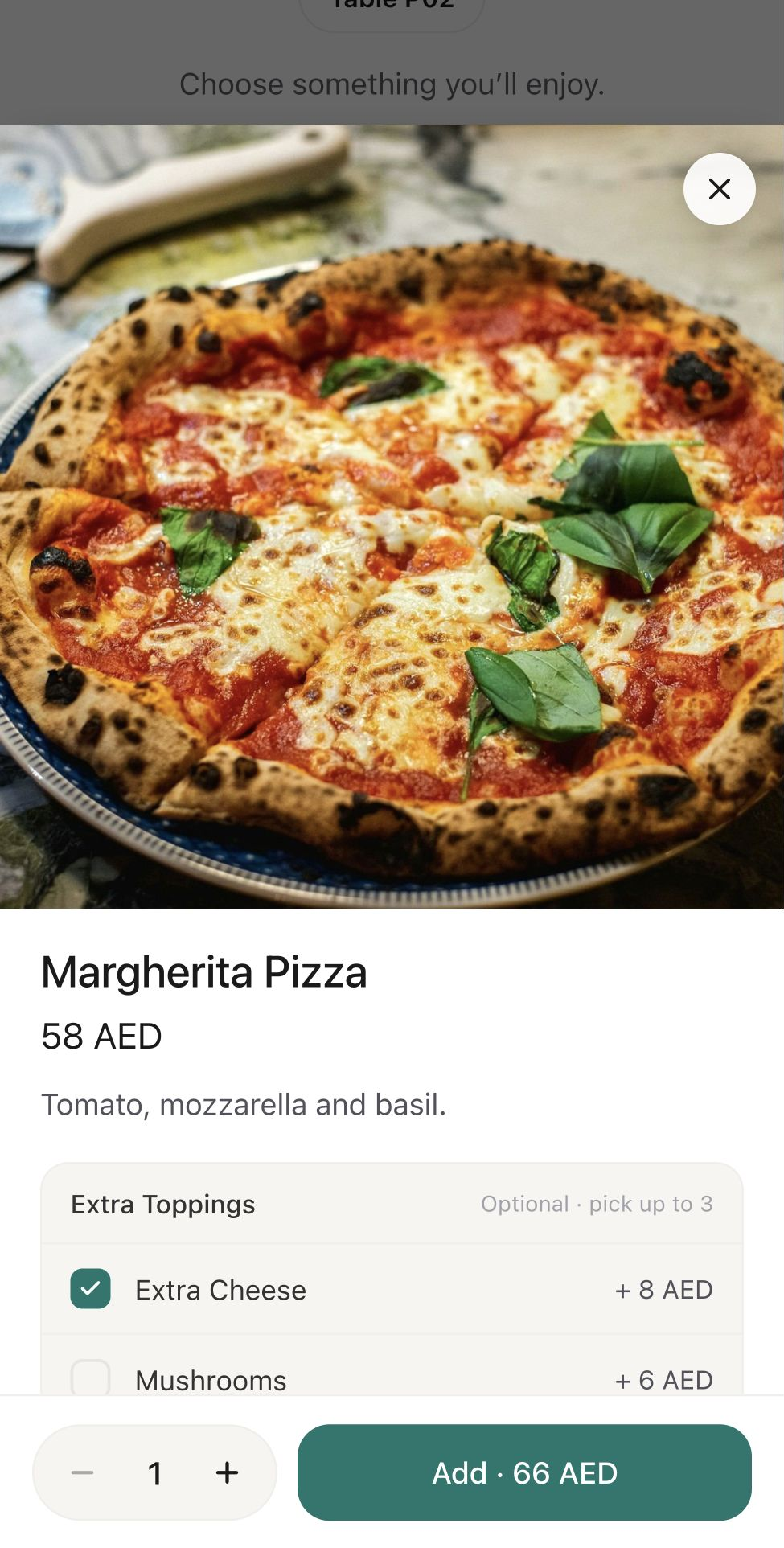
Native HoreX QR menu: Margherita Pizza with Extra Cheese selected and an Add total of AED 66

02 / TABLE SERVICE

Guests choose. Your waiter takes it from there.

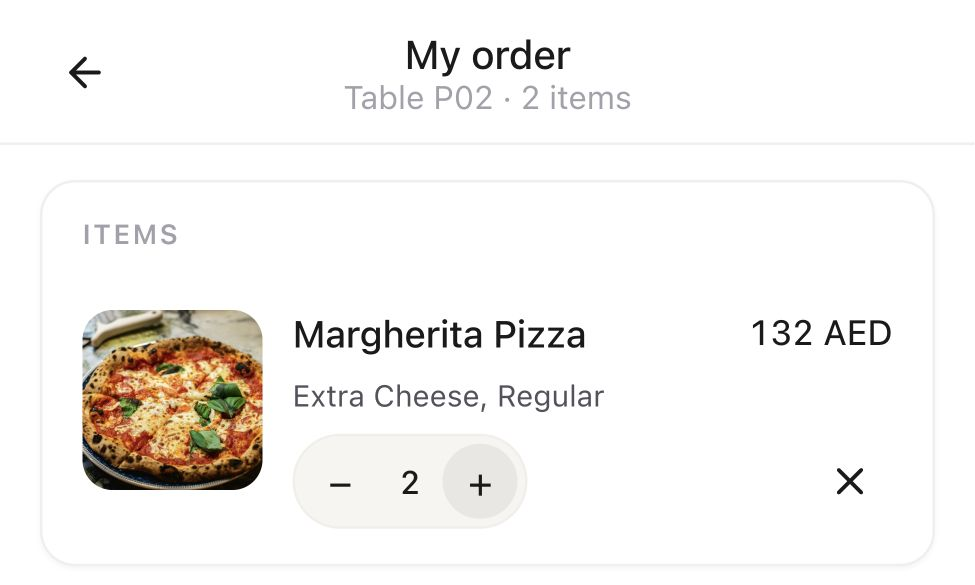
Guests collect dishes, quantities and options in My order, then call the waiter. The request carries the table and their choices, so the conversation can start with what they want.

Two restaurant guests looking at the menu together on an iPhone beside their table QR
Native guest selection for table P02: two Margherita pizzas with Extra Cheese and Regular size
Two guests choosing from the restaurant menu
Table P02 with selected dishes, quantity and modifiers

The waiter checks the selection, helps with questions and confirms the order before sending it to the kitchen. Service stays personal, with fewer details to repeat.

  • The right branch and table
  • Dish quantities and modifiers
  • A request to the service team
  • Staff confirmation before preparation

03 / ONLINE PAYMENT & TIPS

Pay from the table. Add a tip in the same step.

With a connected QR payment service, guests can settle the bill on their phone and leave a tip during checkout. Offer percentage presets or let the guest choose their own amount.

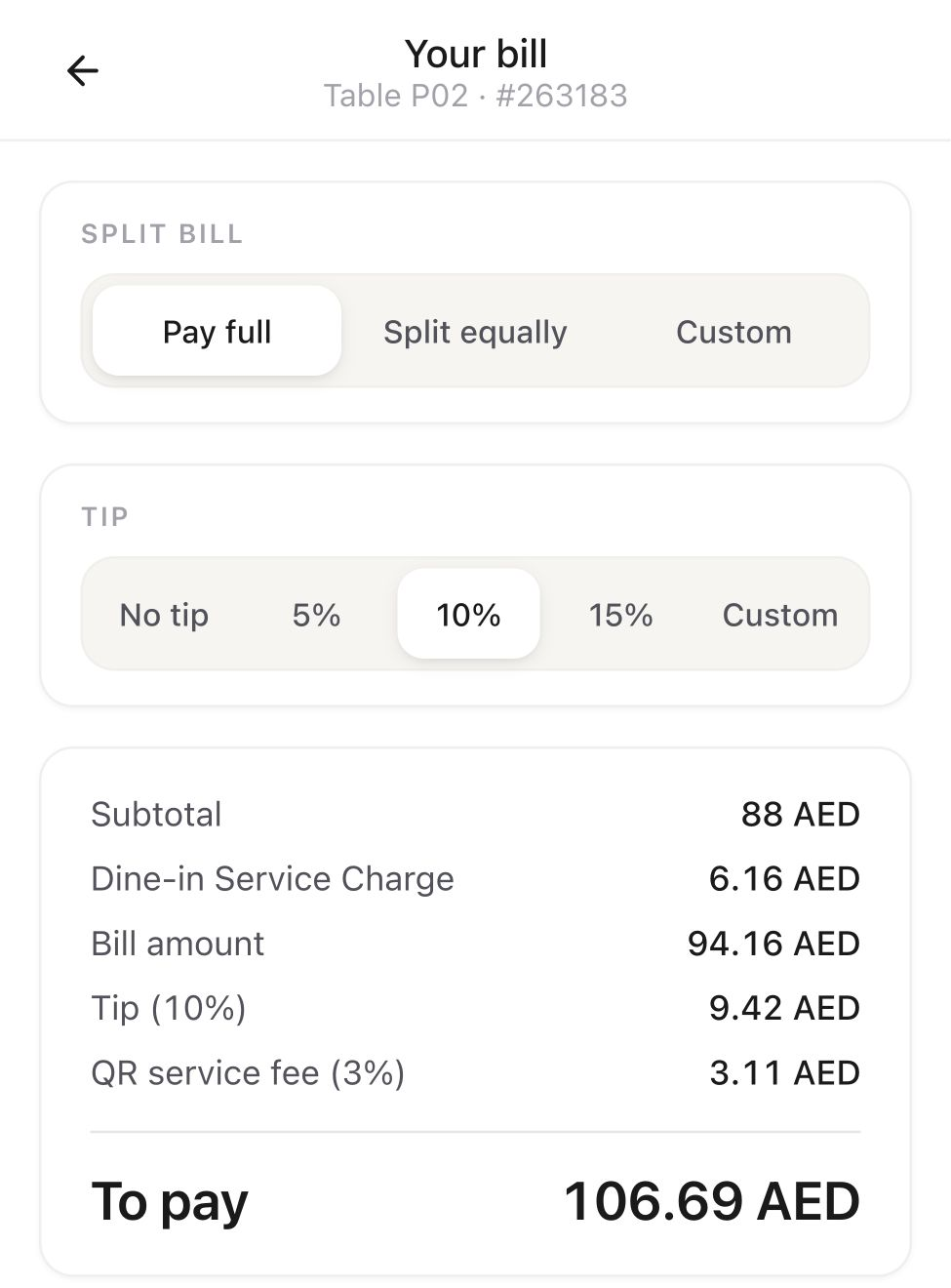
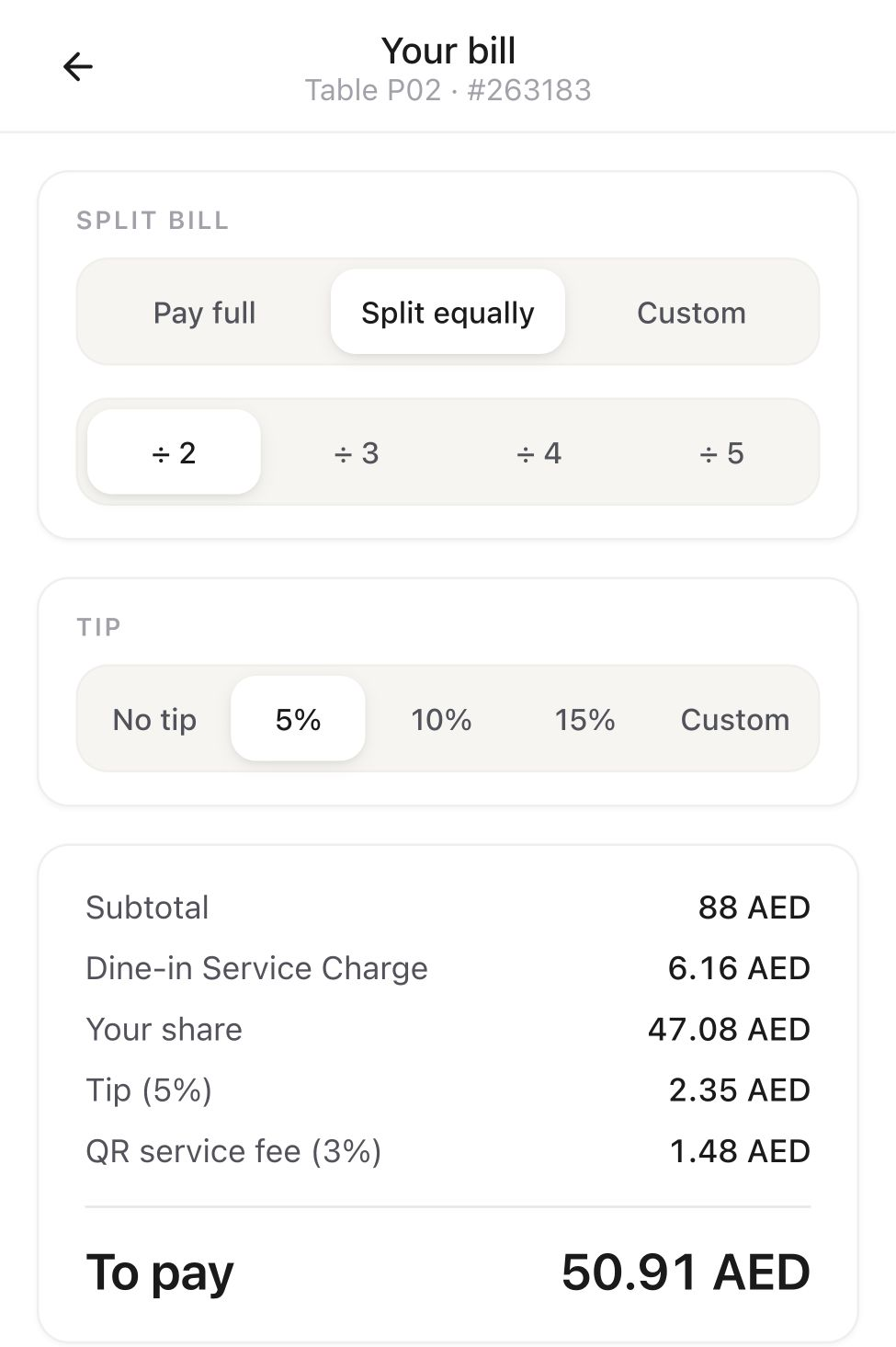
Guests can pay the full bill or their share. The bill, chosen tip and any configured service fee are shown separately before payment, so the final amount is clear.

  • Preset percentages or a custom tip
  • Full or partial payment
  • Equal shares or a chosen amount
  • Separate fee and tip breakdown

Bill & tip

Native payment choices for table P02: 10 percent tip, separate service fee and final amount AED 106.69

Split equally

Native equal split: half the AED 94.16 bill, a 5 percent tip and a final amount of AED 50.91

04 / THE SAME ORDER IN POS

The table bill stays with your team.

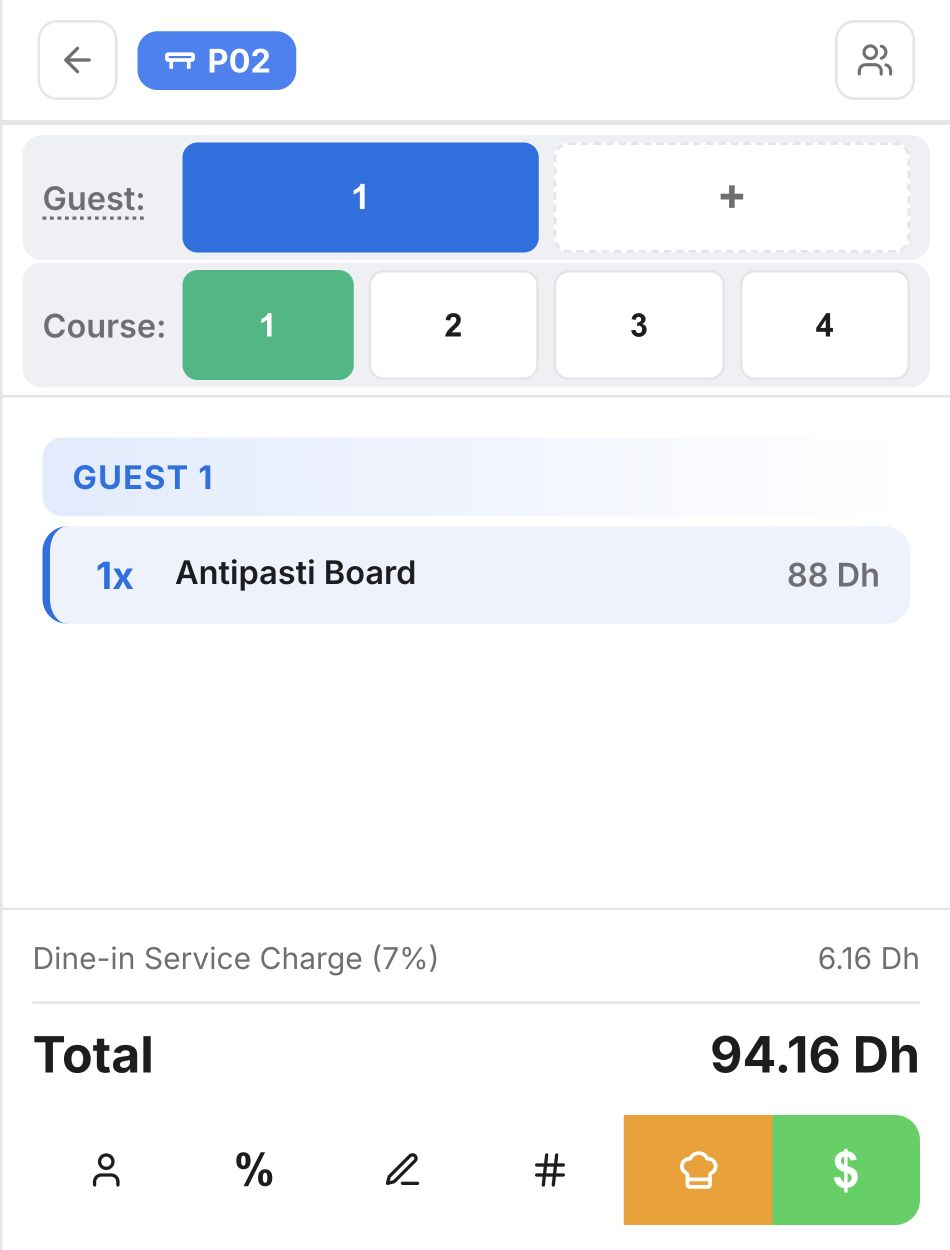
The guest’s bill comes from the open table order in HoreX. Staff keep working with the same dishes and balance in POS, whether the guest checks the bill on a phone or asks the waiter.

When the connected payment service confirms a payment, HoreX records it against that order and notifies the team. Tips stay separate and linked to the payment and waiter. Partial payments leave a clear remaining balance.

  • The active table order in POS
  • Confirmed payments against the bill
  • Tips linked to the waiter
  • Paid amount and remaining balance
Native POS order for table P02 with Antipasti Board, 7 percent service charge and the same AED 94.16 bill

FOR THE GUEST AND THE TEAM

Less waiting for the basics. More time for service.

Guests can start choosing as soon as they sit down, give the waiter a clear selection and review the bill when they are ready. With connected payments, leaving a tip becomes part of paying, without a separate cash handover.

Your team maintains one dish catalogue and one table order. Menu updates, service requests and confirmed payments stay connected to the restaurant’s daily work.

More in QR Menu.

Dish discovery, table service, online payment with tips, and the controls to make the menu your own.

Live menu

Keep the guest menu connected to your dish catalogue.

See details

Use the menu items, prices and photographs maintained in HoreX. Choose which categories and dishes guests can see at each branch without hiding them from the POS.

  • Dish photographs
  • Current catalogue prices
  • Branch visibility

Call the waiter

Send the table and selected dishes to the service team.

See details

Guests can collect their choices in My order, including dish options, then call the waiter. The request includes the table and selections. Staff confirm the order before sending it to the kitchen.

  • Table-specific request
  • Selected dishes
  • Staff confirmation

View the table bill

Let guests check what is on their open order.

See details

The bill reflects the active table order, including the amounts already paid and the balance still due. Changes recorded by staff appear when the bill refreshes.

  • Open table order
  • Paid amount
  • Remaining balance

Dish options

Show the choices that belong to the dish.

See details

Modifier groups give guests the available additions and preparation choices. Required selections are checked before the dish can be added to their selection.

  • Modifier groups
  • Price adjustments
  • Required choices

Tips

Let guests add a tip while paying online.

See details

Offer tip presets and a custom amount in the connected QR payment flow. The guest sees the gratuity before paying; HoreX records confirmed tips separately and links them to the payment and relevant waiter.

  • Percentage presets
  • Custom gratuity amount
  • Tip in the payment step
  • Payment and waiter link

Split the bill

Track paid and unpaid amounts on the same order.

See details

A connected QR payment provider can record partial payments against the open order. Item-based splitting also identifies the dishes paid for, so the waiter can distinguish them from the remaining items.

  • Partial payments
  • Remaining amount
  • Item-based payment support

Connected QR payments

Connect guest payments to the table order.

See details

A connected QR payment service lets guests pay against their table order. The confirmed amount appears with the bill so the waiter can see what has been paid and what is still due.

  • Provider setup
  • Confirmed payments
  • POS bill updates

Service-fee settings

Show any configured fee before payment.

See details

Configure the fee label and percentage for the supported QR payment flow. Review the guest-facing amount, provider terms and your restaurant’s charging policy before enabling it.

  • Configurable label
  • Percentage setting
  • Visible payment total

Multiple menu concepts

Organise several concepts under one table menu.

See details

Group dishes into the category and concept structure used by your restaurant or food hall. Guests can browse those sections while the QR keeps the same branch and table context.

  • Menu hierarchy
  • Concept sections
  • Table context

Restaurant branding

Use your name, cover and accent colour.

See details

Set the guest-facing name, logo, welcome text and cover image. The same menu structure can carry the restaurant’s own presentation without changing its dishes or prices.

  • Logo and name
  • Cover image
  • Accent colour

Table-specific QR codes

Keep each code tied to the right physical table.

See details

A table QR identifies the branch and physical table, so guest requests and the active bill reach the right place. Generate codes for the tables used by each location.

  • Branch identity
  • Table label
  • Print-ready codes

QR menu visibility

Publish a guest menu suited to each branch.

See details

Hide a whole category or an individual dish from the QR channel. The dish can remain available to staff in the POS, with no separate recipe or price record to maintain.

  • Category visibility
  • Individual dishes
  • Separate POS availability

Branch rollout

Start with one location or a small set of tables.

See details

Enable the branch, review the menu and test guest requests with the service team. A pilot lets you check table labels, photographs and the staff response before a wider rollout.

  • Enabled branches
  • Table checks
  • Staff handover

Browser access

Open the menu from the phone camera.

See details

Guests follow the table QR in their browser. They do not need to find an app in a store or create an account just to browse the restaurant menu.

  • Camera scan
  • Mobile browser
  • No install for browsing

Payment record checks

Avoid recording the same confirmed payment twice.

See details

HoreX recognises repeated confirmations from a connected payment provider and keeps them tied to the original payment. Your team can review the payment record on the guest check.

  • Provider reference
  • Duplicate confirmation checks
  • Payment audit trail

Connected QR services

Keep an existing QR provider connected to HoreX.

See details

A supported service such as Locus can read the menu and active table order, pass service requests and record confirmed payments. The enabled provider determines the guest-facing experience.

  • Menu connection
  • Table order access
  • Service and payment events

Guest-facing information

Show the guest the details intended for them.

See details

The public menu and bill use guest-facing dish and order information. Internal cost data and staff-only records remain in the operational workspace.

  • Guest menu fields
  • Bill details
  • Separate operational records

Questions about QR Menu

Do guests need to install an app?

No. The table code opens the menu in the guest’s browser. Browsing does not require an app installation.

Will the QR menu look like my restaurant or like generic software?

Use the restaurant’s name, logo, cover image, accent colour and welcome text. The dish catalogue stays connected to HoreX.

I run a cloud kitchen with several brands. Can one QR show all of them?

Yes. Menu concepts and categories can share a table QR. The enabled branch and table remain part of the request, so the service team knows where it came from.

Two friends want to split the bill. What happens?

The open bill shows the paid amount and remaining balance. With a connected QR payment provider, guests can make partial payments; item-based splitting must also identify which dishes were paid for.

Can the QR menu show different items than the POS?

Yes. Categories and dishes can be hidden from the QR channel while remaining available in the POS. The underlying recipe and price records stay together.

Can I pass the card commission to the guest?

HoreX has configurable service-fee settings for supported payment flows. Confirm the provider’s terms and your charging policy, and make the fee clear to the guest before payment.

How are tips handled?

Guests can add a tip while paying online through the connected QR service, choosing a preset percentage or their own amount. The tip is shown before payment, recorded separately from the bill and linked to the payment and waiter.

We already use Locus or another QR vendor. Can HoreX work with that?

Yes, through a supported integration. The provider can access the menu and table order, send service requests and record confirmed payments. Confirm the exact payment and splitting options for that provider.

How long does setup take?

Setup depends on menu readiness, table labels and any payment-provider connection. Start with one branch, review the phone experience and test service requests before printing the full set of codes.

See the guest journey at your tables.

Explore your menu, table requests, bill splitting and online tips with the HoreX team.