





VAT reporting for restaurants and groups.

Manage VAT for several LLCs in one HoreX workspace. Keep each company’s TRN, reporting periods, sales and purchase tax, and filing records together.

01 / REVIEW THE FIGURES

Sales & purchase VAT

Bring recorded output and input tax into one report.

02 / MULTI-COMPANY VAT

LLCs & tax periods

Separate TRNs, reports and filing periods in one workspace.

03 / KEEP THE EVIDENCE

Audit records

Export the source records and keep a filing history.

Explore all features

01 / VAT REPORT

Review sales tax and purchase tax together.

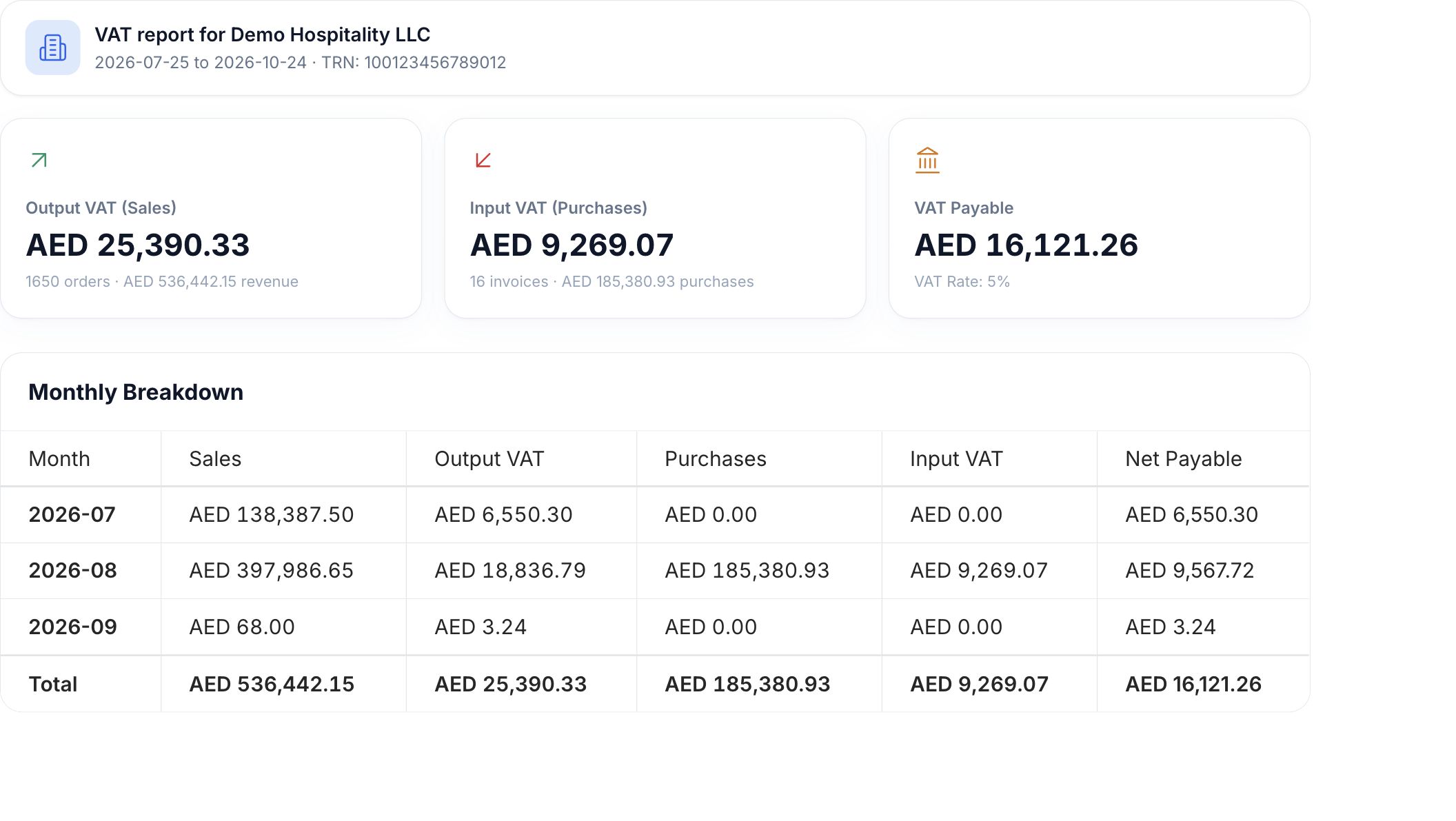
Choose the company and period. HoreX brings together output VAT from its recorded sales and input VAT from posted purchase and expense invoices.

HoreX VAT report for Demo Hospitality LLC showing output VAT, input VAT, net payable and monthly figures
Actual HoreX VAT totals for the selected demo-company period

See the net amount, then use the monthly and expense-category breakdowns to check the figures. Keep supporting invoices available for your accountant’s review.

  • Output and input VAT
  • Net amount for the period
  • Monthly breakdown
  • Expense-category detail

02 / MULTIPLE LLCS

Manage VAT for several LLCs in one workspace.

Run several restaurant companies in HoreX and review VAT separately for each LLC. Each legal entity has its own TRN, reporting periods, tax totals and filing history, so your finance team can work across the group from one place.

Map brands and sales channels to the right company, and keep supplier and expense invoices under the LLC that pays them. Select the company and period to review the sales and purchases included in its report.

The report also highlights posted purchase invoices that have not been assigned to a company. Review these with their attachments before completing the period.

  • Several LLCs in one workspace
  • Separate TRNs and VAT reports
  • Brand and sales-channel mapping
  • Monthly or quarterly periods
  • Unassigned-invoice review
  • Filing and payment history by company
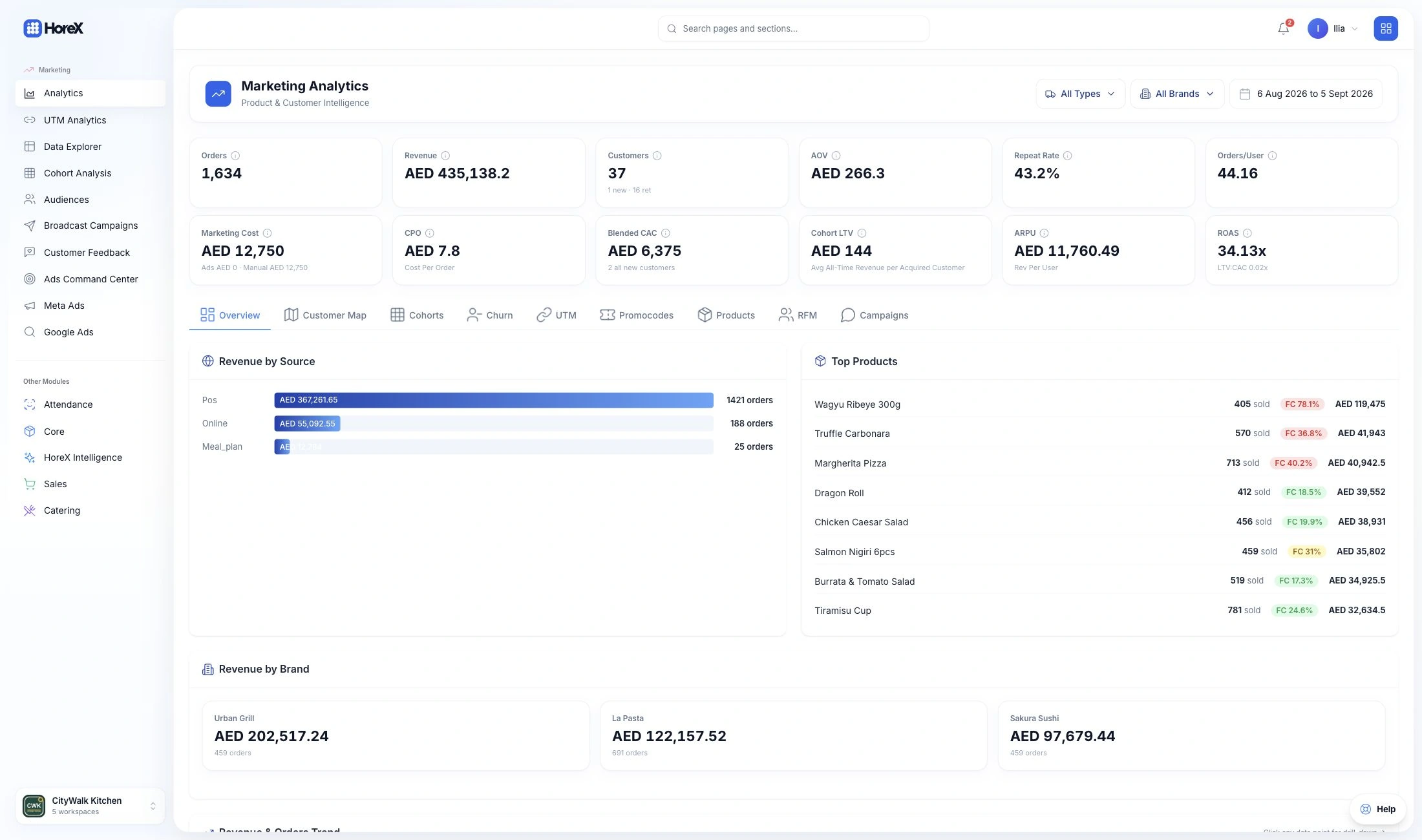
Restaurant owner and accountant reviewing a company reporting period together
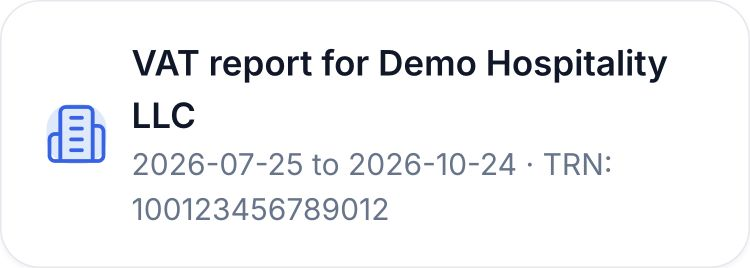
HoreX report header identifying Demo Hospitality LLC, its TRN and the selected tax period
Restaurant owner and accountant reviewing a company reporting period together
HoreX report header identifying Demo Hospitality LLC, its TRN and the selected tax period

From the working report to the filing record.

  1. Check the source records

    Review the sales scope, posted invoices, VAT dates and supporting documents.

  2. Complete the return

    Your accountant reviews adjustments and submits the return through the FTA portal.

  3. Record the reference

    Keep the filing and payment status against the period in HoreX.

03 / AUDIT RECORDS

Keep the documents behind the totals.

Export the purchase and sales audit-file records for the selected company and period. The CSV includes the available Section 2 and Section 4 data for further review.

Once the return is filed, record its reference. Update the payment status after payment so the internal history follows what actually happened.

  • Purchase and sales export
  • Company and period scope
  • Filing reference
  • Payment history
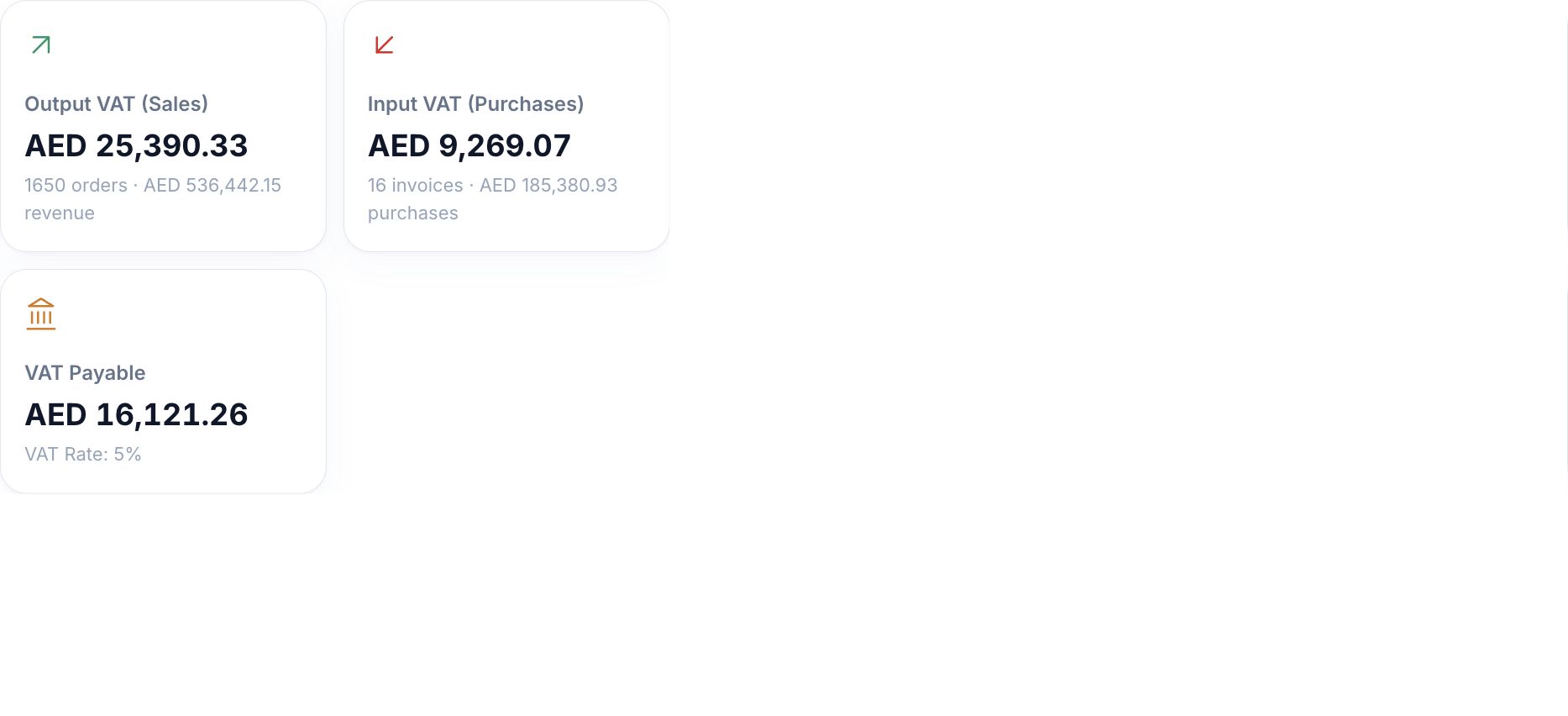
Restaurant finance manager checking a supplier invoice against her records
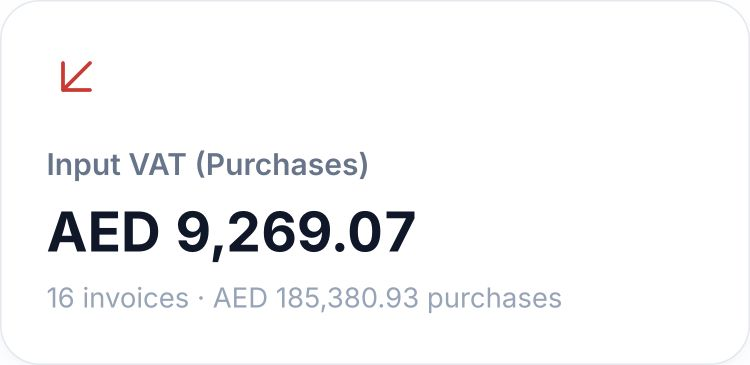
HoreX input VAT card showing AED 9,269.07 across 16 invoices in the same reporting period
Restaurant finance manager checking a supplier invoice against her records
HoreX input VAT card showing AED 9,269.07 across 16 invoices in the same reporting period

More in VAT reporting.

Period preparation, source-document checks and the records you keep after filing.

Output VAT

Review the tax recorded on your sales.

See details

The report brings together sales assigned to the selected legal entity and period. Review the sales total, output VAT and monthly breakdown. Confirm the relevant POS, catering and finance-invoice sales routes during setup so revenue is assigned to the right company.

  • Recorded sales
  • Output VAT total
  • Monthly breakdown
  • Company sales routes

Input VAT

Follow purchase tax back to posted invoices.

See details

Input VAT is taken from posted purchase and expense invoices in the selected scope. Use the invoice date, or its recorded VAT claim date where set, to identify the period. Your accountant still reviews supporting documents and recoverability.

  • Posted invoices
  • Recorded VAT amounts
  • VAT claim dates
  • Document review

Return preparation

Use the report to prepare your filing.

See details

Output and input totals, monthly figures and the Box 9 expense-category breakdown support return preparation. Review the required adjustments and return boxes with your accountant. HoreX does not submit VAT201 to the FTA on your behalf.

  • Sales and purchase totals
  • Box 9 category breakdown
  • Accountant review
  • External return submission

Tax periods

Keep the company and period visible.

See details

Set up the legal entity’s reporting period and select the relevant month or quarter. The report shows the period dates, TRN and calculated deadline. Confirm the assigned filing period and any official deadline change against the company’s tax account.

  • Monthly or quarterly setup
  • Period dates
  • Company TRN
  • Deadline display

FAF export

Prepare purchase and sales records for review.

See details

Export the available purchase and sales audit-file sections as CSV for the selected entity and period. The export contains Section 2 purchase records and Section 4 sales records; B2C sales may be grouped by day. Review coverage and source documents before using it for an audit request.

  • Purchase records
  • Sales records
  • Entity and period scope
  • CSV audit file

Supplier and company tax details

Keep tax identifiers with the right records.

See details

Store the supplier and legal entity’s tax information with their business details. Check the TRN against the source invoice and the appropriate official verification before relying on it. A saved number is not proof of tax registration or input-tax eligibility.

  • Supplier details
  • Legal entity TRN
  • Invoice cross-check
  • Source-document review

Net VAT calculation

Read output and input tax together.

See details

The summary shows recorded output VAT, input VAT and their difference for the chosen period. Use the monthly breakdown to see where the total comes from. The displayed net amount is a working report; recoverability and filing adjustments need review.

  • Output VAT
  • Input VAT
  • Calculated difference
  • Monthly totals

Multiple LLCs & legal entities

Manage each company’s VAT from one HoreX workspace.

See details

Operate several LLCs in the same HoreX workspace, with each company’s own TRN, reporting periods, VAT totals and filing and payment records. Switch between companies to prepare and review their reports separately.

Select the legal entity to view the sales and invoices assigned to it. Branches and brands need the correct company mapping. Access to the VAT workspace requires the organisation-wide finance scope needed to review a complete company report.

  • Multiple LLCs in one workspace
  • Company selection
  • Branch and brand mapping
  • Separate TRNs
  • Company-specific reporting periods
  • Filing and payment history
  • Whole-company review

Unassigned purchase invoices

Find input tax missing a company assignment.

See details

The VAT workspace flags posted purchase invoices that have no legal entity mapping. Open the list to inspect suppliers, invoice values, attachments and possible duplicate candidates. Resolve the source record before including it in a company’s filing.

  • Missing company mapping
  • Invoice and supplier list
  • Attachment visibility
  • Duplicate candidates

Expense-category breakdown

See the purchases behind input VAT.

See details

The Box 9 breakdown groups input VAT by the expense categories in your records. Compare invoice counts, amounts before VAT and recorded VAT. An expense category organises the review; it does not automatically determine whether tax is recoverable.

  • Expense categories
  • Invoice counts
  • Amounts before VAT
  • Recorded tax totals

Period summary

See the figures you are preparing to file.

See details

The selected report keeps output VAT, input VAT and net payable together, with monthly figures underneath. The company and date range identify the scope so a reviewer can return to the same records.

  • Company and date range
  • Three tax totals
  • Monthly figures
  • Period selection

Filing history

Record what was filed and paid.

See details

After the return has been submitted outside HoreX, record the filing reference and status against its period. Record payment after the actual payment has been made. These actions maintain the internal history; they do not send a return or transfer funds.

  • Filing reference
  • Period status
  • Recorded payment
  • Internal history

Deadline visibility

Keep upcoming and overdue periods in view.

See details

Period status and deadline information help the finance team plan its review. Check urgent or overdue periods and follow up on the external filing and payment. Use the FTA account to confirm the final deadline and submission status.

  • Period status
  • Displayed deadline
  • Urgent-period visibility
  • Filing follow-up

Questions about VAT reporting

How does the VAT report work?

HoreX calculates a working VAT report from recorded sales and posted purchase and expense invoices. Select the company and period, review the output and input totals, and inspect monthly and category breakdowns. The accountant reviews adjustments and completes the external filing.

Does HoreX complete or submit VAT201?

The report supports VAT201 preparation with sales and purchase totals and a Box 9 input-VAT category breakdown. It is not a complete automatic VAT201 submission. Your accountant completes the applicable return boxes and adjustments through the FTA portal.

Where does output VAT come from?

The report uses recorded sales assigned to the selected company and period. Output VAT is shown beside the sales amount and monthly figures. Correct company routing and source records are needed for a useful result.

How is input VAT included?

Input VAT comes from posted purchase and expense invoices, using the recorded VAT claim date where one is set or the invoice date otherwise. Keep the source invoice and review recoverability before including the amount in a return.

What does the FAF export contain?

Yes. The available export contains purchase records in Section 2 and sales records in Section 4 as CSV for the selected company and period. Review its coverage and documents for the specific audit request; it does not submit a tax return.

Does a saved supplier TRN mean it has been verified?

HoreX stores tax details with supplier and company records. Verify the supplier’s TRN against the invoice and official tax-registration information. Storing a number should not be treated as an official verification or a decision on recoverability.

Can we manage VAT for multiple LLCs in one HoreX workspace?

Yes. Manage several legal entities in one workspace, with a separate TRN, reporting periods, VAT report and filing history for each company. Map brands and sales channels to the appropriate LLC and assign purchase and expense invoices to the company that pays them. Your finance team can then review each company’s figures and records from the same workspace.

How are branches and legal entities handled?

Assign the relevant branches, brands and sales sources to their legal entity. Review the complete company report under its TRN. Users with only partial branch finance access cannot use that partial view as a complete VAT filing report.

Can I use monthly or quarterly periods?

Monthly and quarterly periods can be configured for a legal entity. Use the period assigned to the business, and confirm the deadline in its FTA account. The report’s calculated deadline is a planning aid and may not reflect an exceptional official extension.

Review a VAT period with your finance team.

See how your sales, supplier invoices and company setup come together in HoreX.