



Time attendance for restaurant teams.

Record arrivals and departures, see which branch staff worked at, and review shift exceptions before payroll.

01 / START THE SHIFT

QR check-in

Staff use their phone and the restaurant’s POS or KDS.

02 / REVIEW THE SHIFT

Time review

Resolve shift exceptions and decide payable time.

03 / RECORD THE PLACE

The right branch

Check the branch where the employee is working.

Explore all features

01 / STAFF CHECK-IN

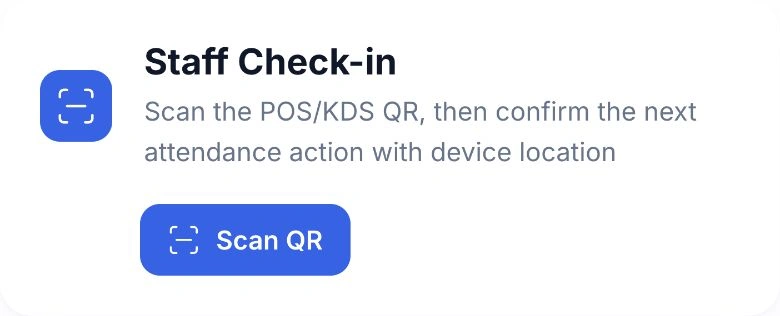
Clock in at the restaurant. Confirm it on your phone.

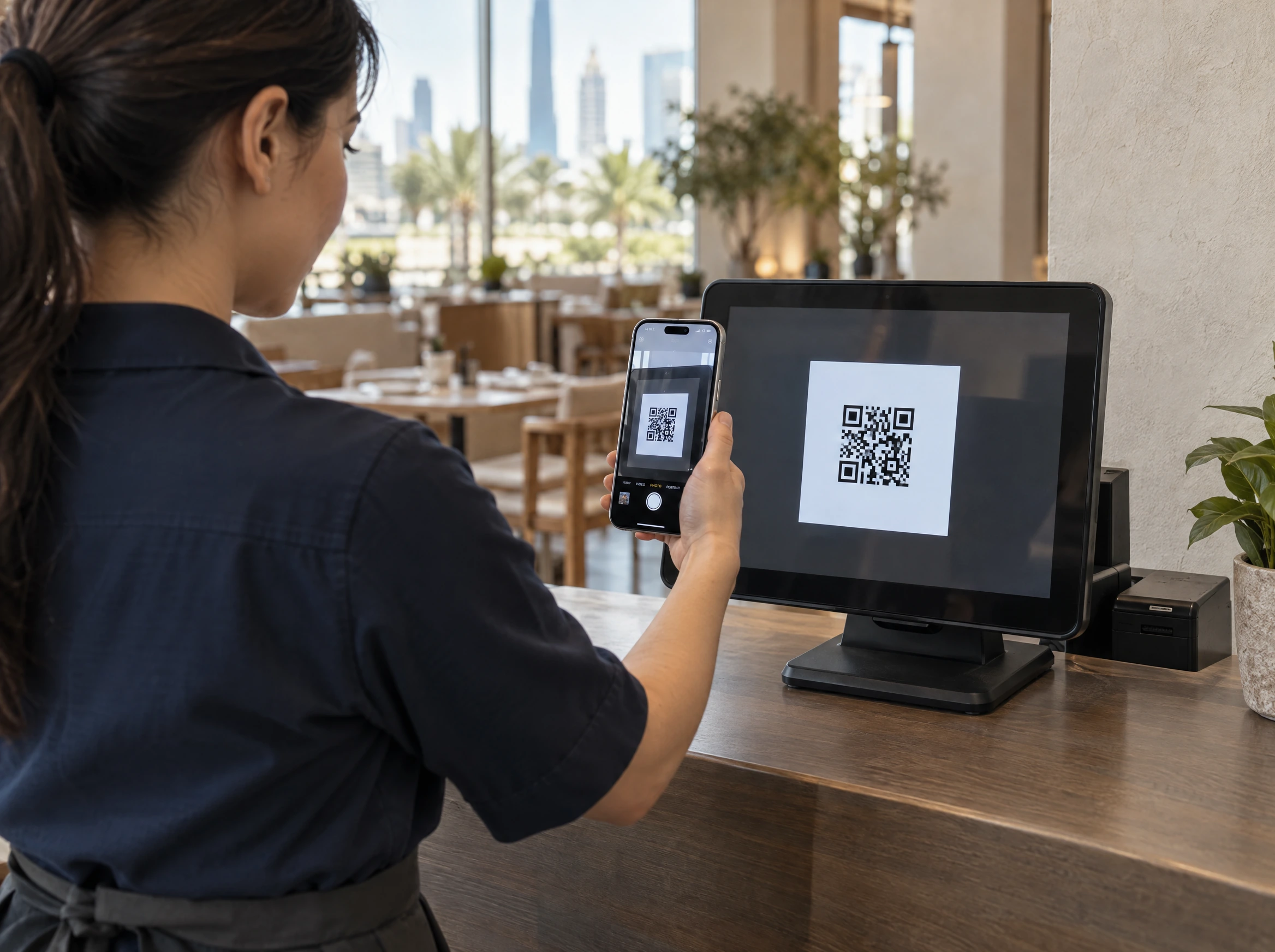
Staff scan the attendance QR on a POS or kitchen display and confirm their arrival on their own phone. HoreX records the time and checks the branch using the phone’s location.

At the end of service, the same flow records departure. Staff see which action is next and whether it was saved, while the manager has the attendance record to review against the rota.

  • QR on the POS or KDS
  • Check-in and check-out
  • Confirmation on the employee’s phone
  • Time and branch recorded
A waitress aims her phone camera at the attendance QR code on the front of the restaurant POS screen
HoreX Staff Check-in with the Scan QR action

02 / THE TEAM VIEW

Keep the rota and attendance in the same view.

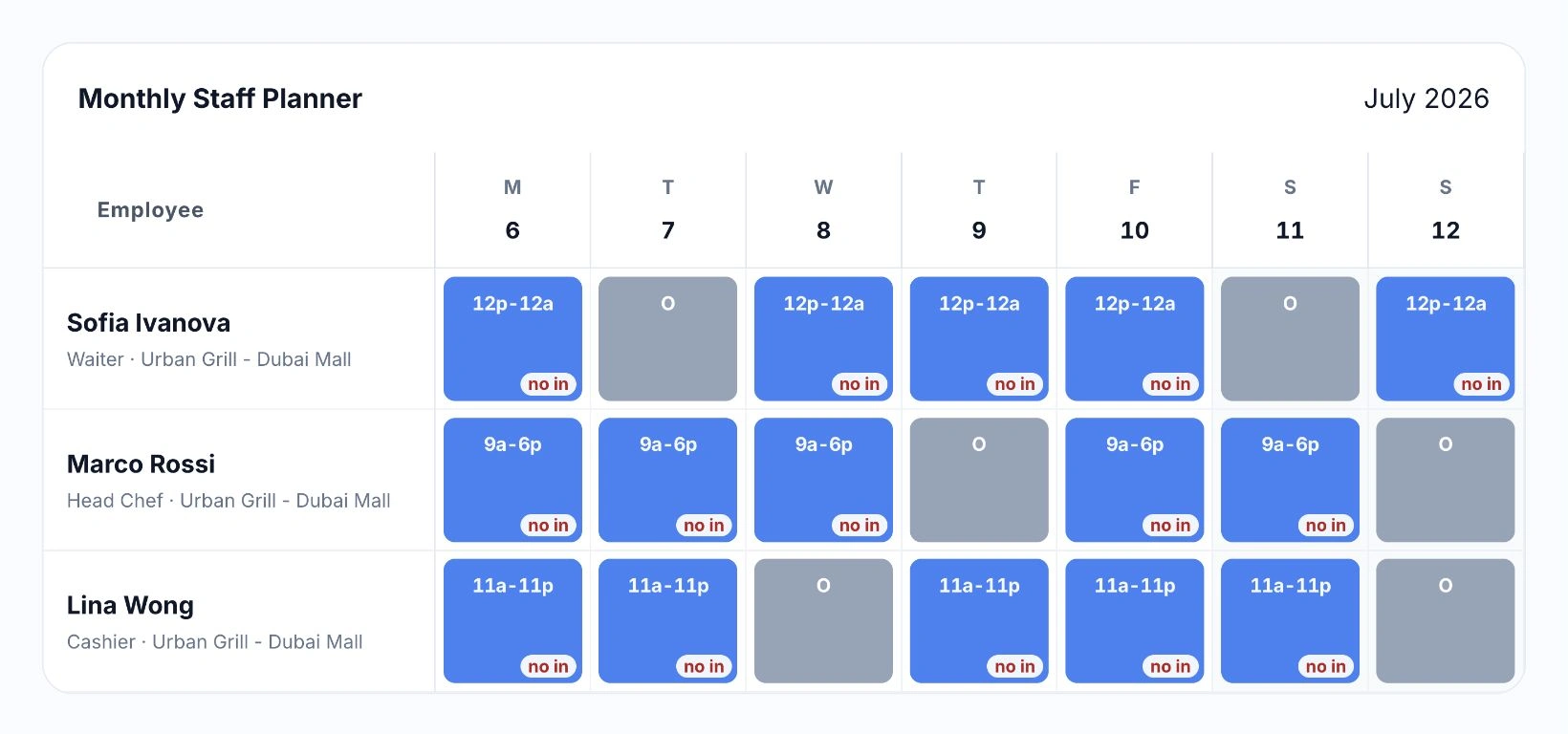
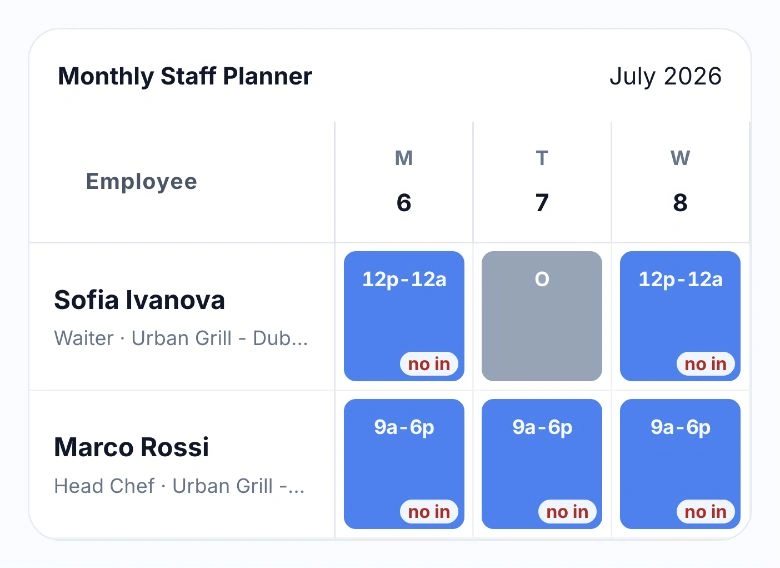
See planned shifts, worked days, days off and missing check-ins across the team. Narrow the view by branch, department or position, then go into the shift that needs attention.

HoreX staff planner with shifts for a waiter, head chef and cashier at Urban Grill Dubai Mall
HoreX staff planner with the waiter and head chef shifts at Urban Grill Dubai Mall

A shift marked as worked can still have a missing phone record. Keeping both visible helps managers resolve the gap instead of treating every missed scan as an absence.

  • Day and month attendance reports
  • Team and branch filters
  • Planned shifts and worked days
  • Missing marks stay visible

03 / SHIFT REVIEW

Resolve the shift before it reaches payroll.

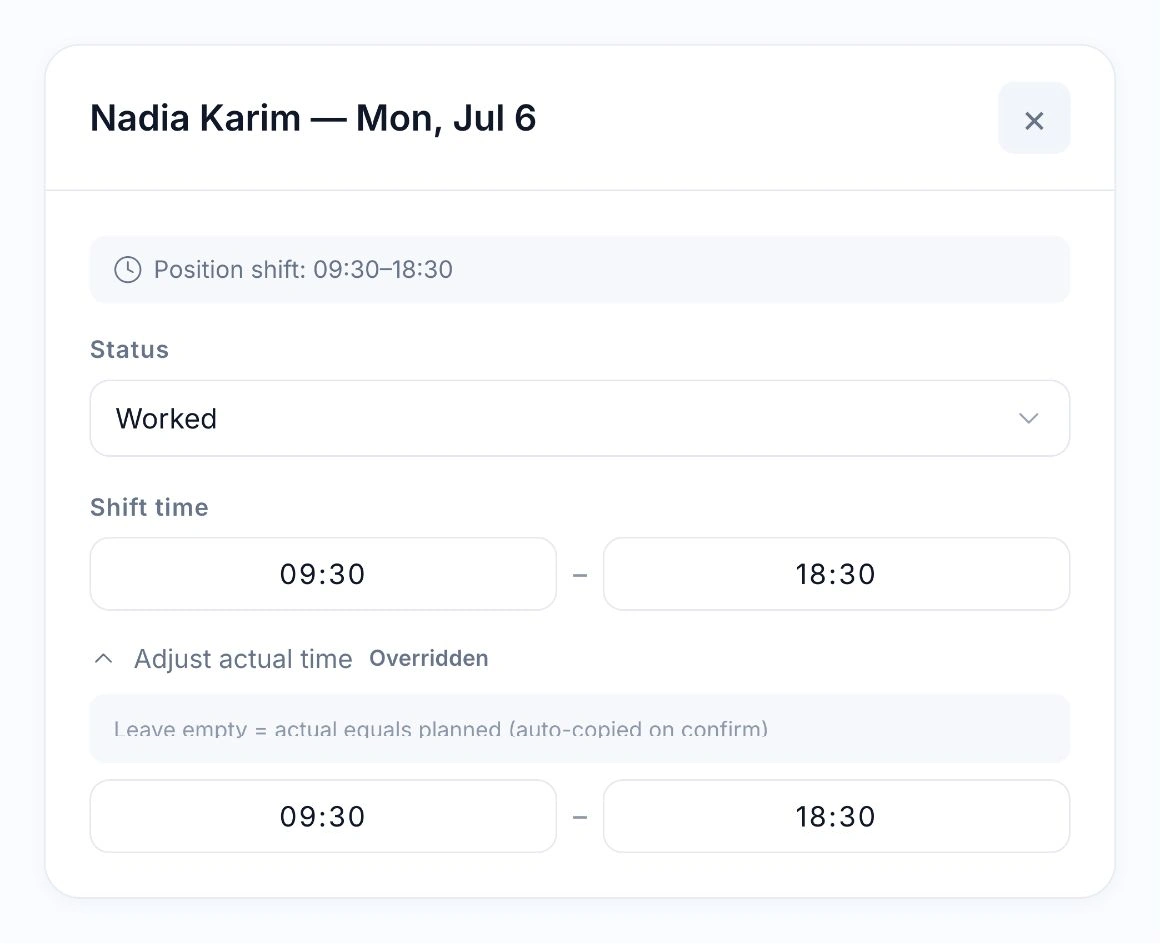
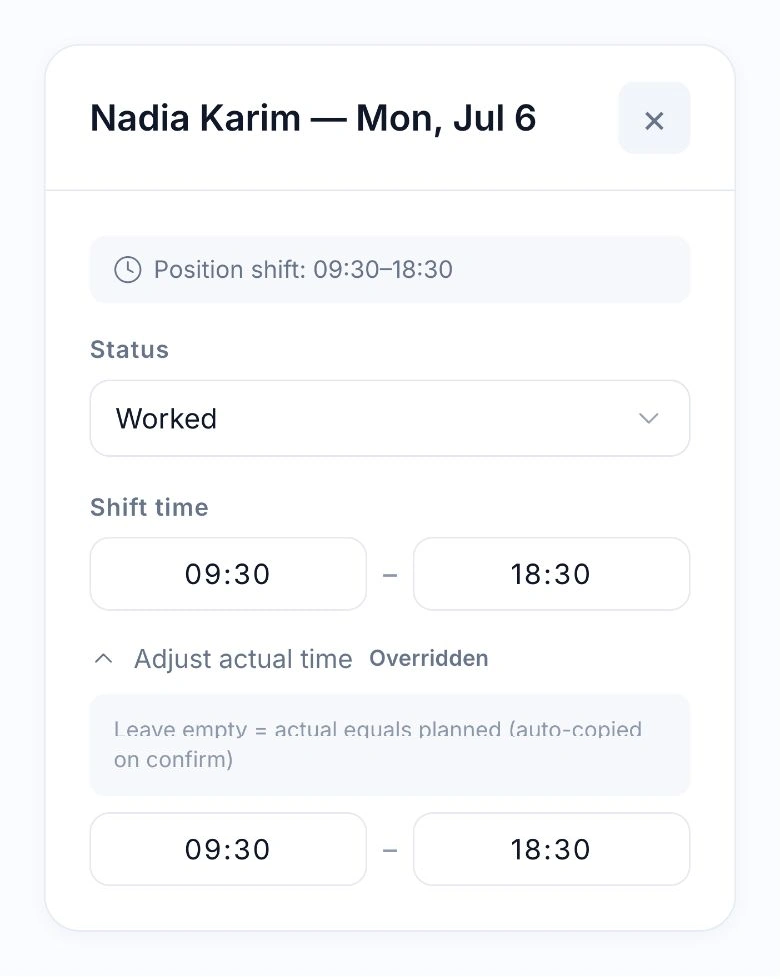
Compare the planned shift with the recorded arrival and departure. Check a late start, extra time or a missed mark with the person responsible for that service.

Shift · Review · Pay

Keep the plan and corrected time together.

Open the employee’s shift from the schedule. Check its status and times, and review the attendance evidence before deciding how the day should be paid.

Native HoreX shift for Nadia Karim with the planned and adjusted actual times

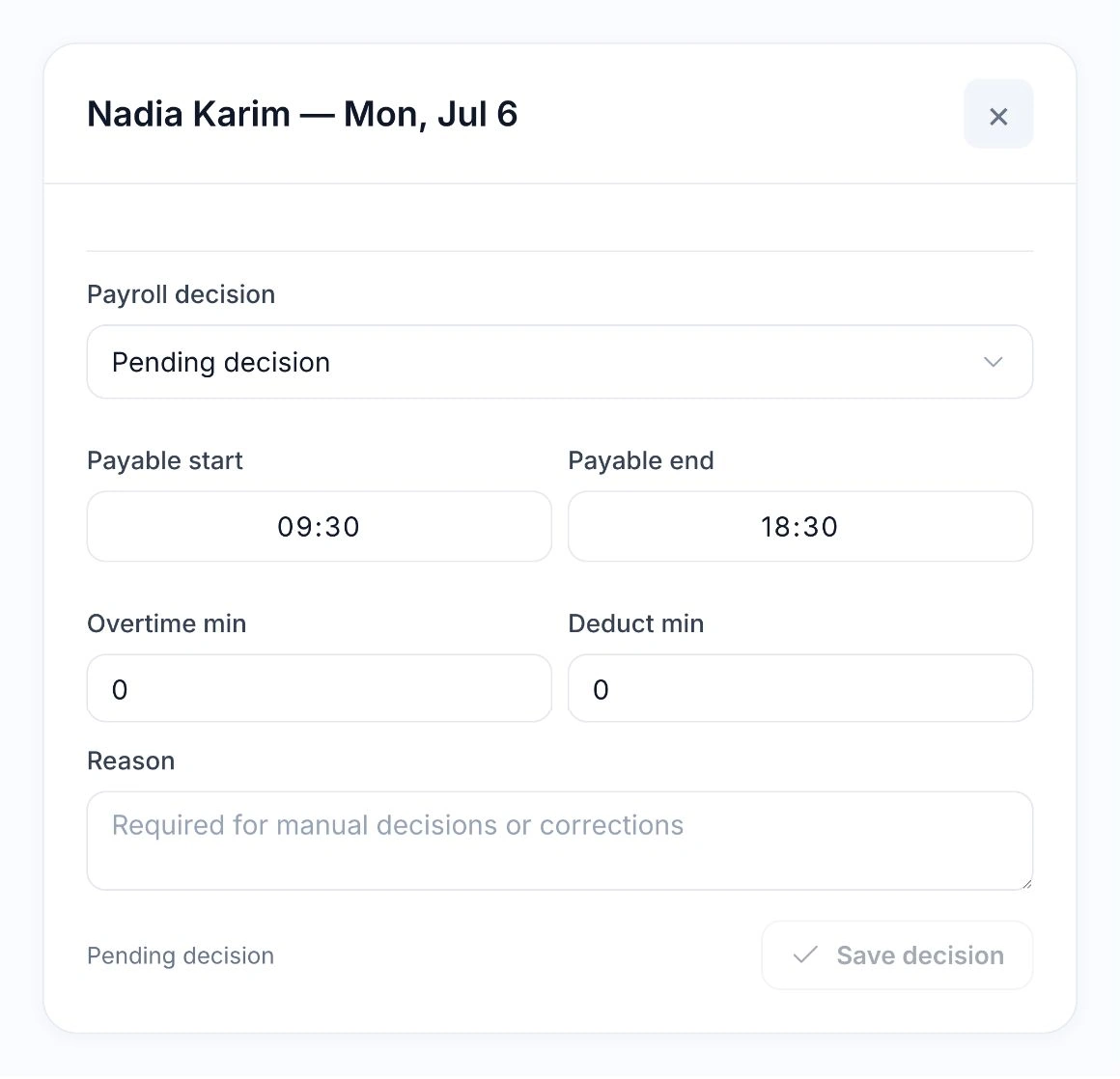
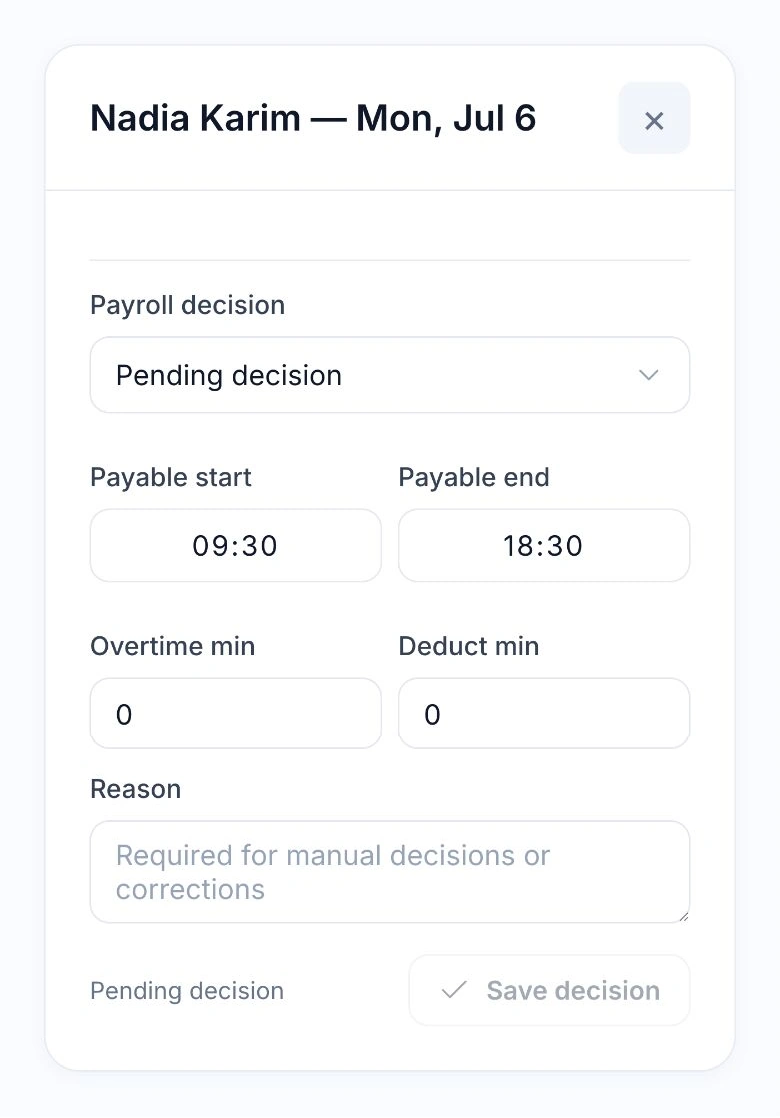
Set what payroll should count.

Choose the treatment for the shift, confirm payable start and end, and record overtime or a deduction where appropriate. The decision keeps the reason with that employee and date.

HoreX payroll decision with payable start and end, overtime, deduction and reason fields

The manager records the payable hours and the reason for any adjustment. An early arrival does not automatically become overtime, and a missed check-out does not automatically become a deduction.

  • Planned and actual shift times
  • Missing-event review
  • Payable hours and overtime
  • A reason for each correction

04 / BRANCH CHECKS

Record the branch where the shift happens.

When someone covers another restaurant, their attendance belongs to the location where they actually work. The branch and available location evidence stay with the event for the manager’s review.

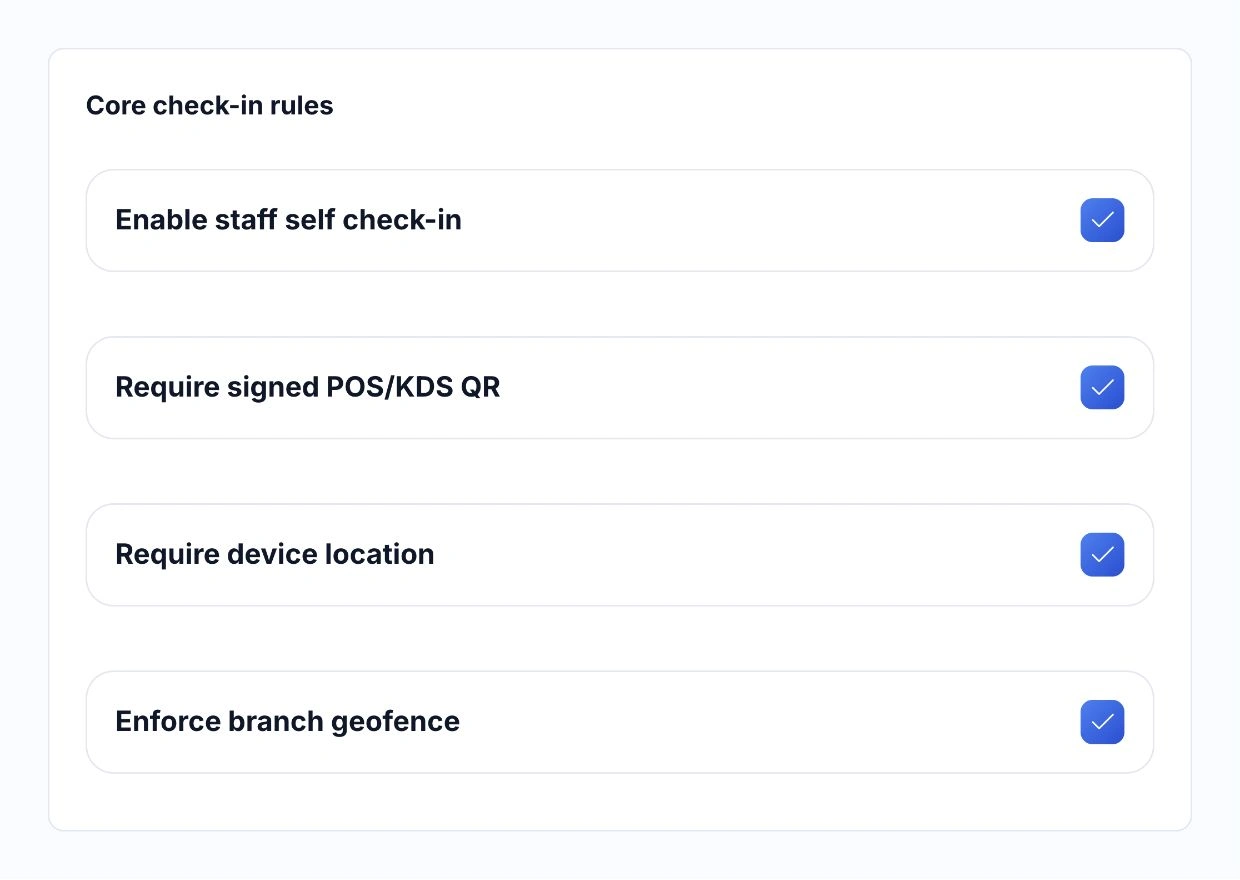
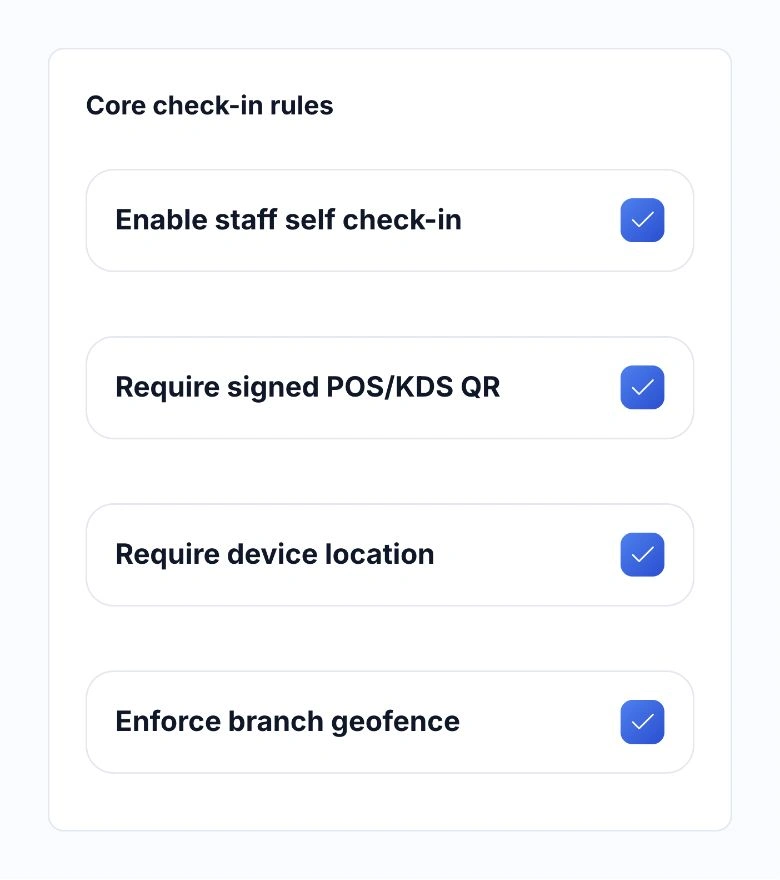
Set the check-in rules for each site: eligible POS or KDS screens, whether device location is required, and the permitted distance from the branch. Managers can investigate an indoor location problem without losing the context of the shift.

  • The branch actually worked
  • Cover shifts across locations
  • Configurable location checks
  • Selected POS and KDS screens
HoreX attendance rules for self check-in, POS/KDS QR, device location and branch geofence
HoreX configurable attendance check-in rules

05 / CONNECTED PAYROLL

Use reviewed time in the salary calculation.

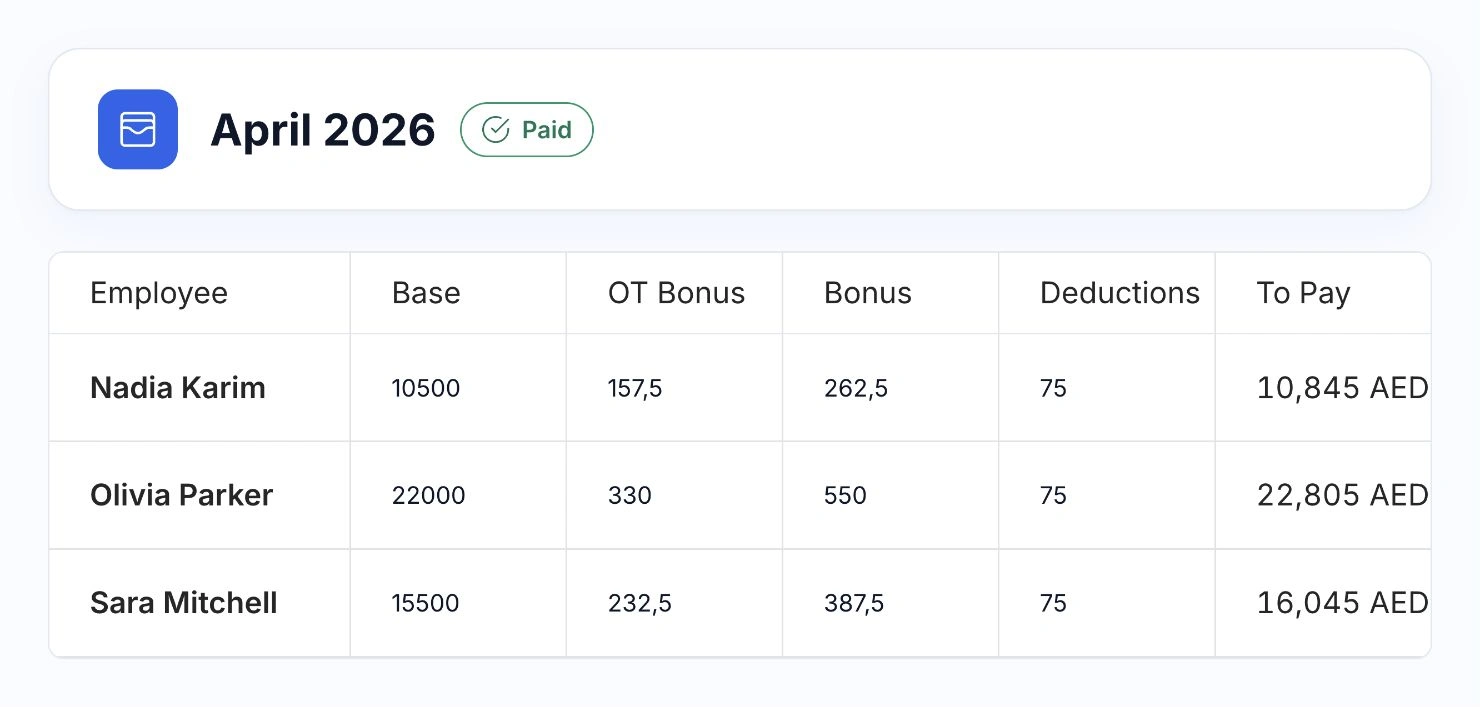
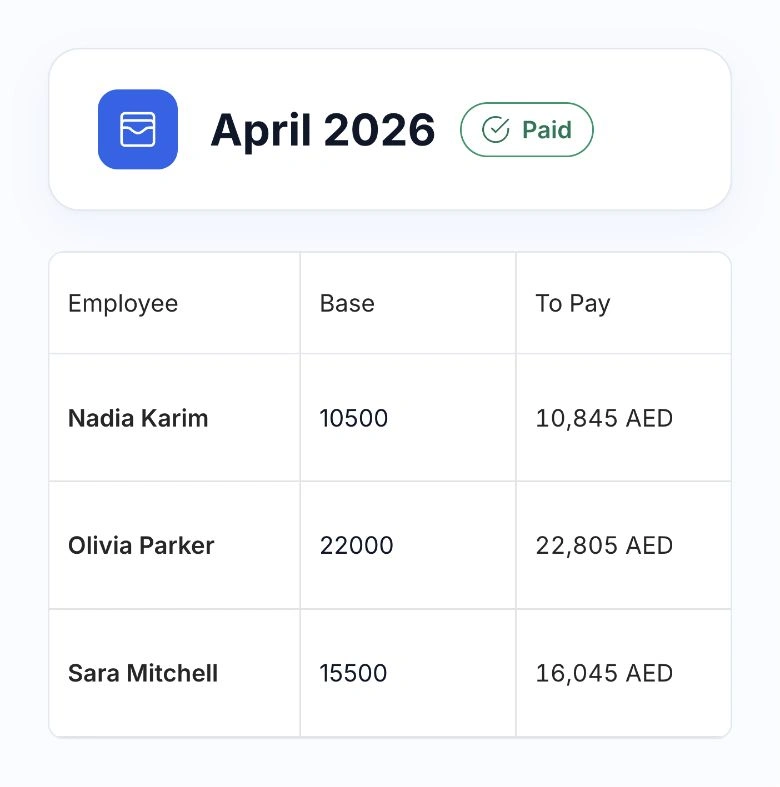
Payable time and approved adjustments carry into the employee’s payroll period alongside salary settings and other approved amounts. The payroll team can review the salary calculation without rebuilding attendance in a separate spreadsheet.

Prepared and paid payroll periods protect the associated attendance decisions. Keep the shift history and its reasoning available when the team needs to explain a figure later.

  • Reviewed payable time
  • Overtime and approved adjustments
  • Salary-period review
  • Protected payroll periods
HoreX payroll review with employees, salary components and totals
HoreX payroll review showing employee salary components

More in Time attendance.

The controls behind check-in, branch matching and payable time.

QR check-in

Start a shift from the code on the restaurant screen.

See details

With signed QR required, an employee scans a short-lived code generated by an eligible POS or KDS. A linked employee account identifies the person; the QR provides the restaurant-screen context. A bookmarked page alone does not satisfy this check.

  • POS and KDS codes
  • Linked employee account
  • Short validity window
  • Server-recorded time

Device location

Record where the phone was at check-in.

See details

When location is required, the employee must allow the phone to share it before recording attendance. The event keeps the reported position and its accuracy for review. This is check-in evidence, not continuous tracking of staff throughout their day.

  • Location permission
  • Coordinates with the event
  • Accuracy evidence
  • Check-in and check-out

Branch radius

Check that the phone is close enough to the restaurant.

See details

Each branch can have its own coordinates and attendance radius. With the geofence enabled, a phone outside the permitted area is refused. The location must also agree with the branch of the scanned QR.

  • Branch coordinates
  • Per-branch radius
  • Outside-area checks
  • QR and location agreement

Location accuracy

Set a useful tolerance for the building.

See details

A phone can report an imprecise location indoors. Set the maximum accepted accuracy and review branch coordinates when people are refused at the door. Keep the setting appropriate to the actual premises.

  • Accuracy threshold
  • Reported accuracy
  • Branch setup review
  • Clear rejection reason

Covering another branch

Keep the place actually worked with the attendance record.

See details

Staff covering another location use that branch’s screen and location. The match follows the configured branch where they are recording attendance, rather than silently assigning the event to their usual workplace.

  • Actual branch
  • Cover shifts
  • Branch-specific QR
  • Distance evidence

Eligible restaurant screens

Choose which POS and KDS devices can issue codes.

See details

Attendance settings can restrict QR generation to selected active terminals. This lets the team use the restaurant devices intended for staff check-in and keep the screen setup consistent between branches.

  • Selected terminals
  • POS and KDS
  • Active device scope
  • Shared attendance rules

Day and month views

Review one service day or a wider period.

See details

Use the attendance report to inspect planned shifts and their available attendance facts. Switch between day and month views and filter by brand, branch, department, position or status to narrow the review.

  • Day and month periods
  • Team filters
  • Status filters
  • Day-off rows

Planned and actual time

Put the rota beside the clock-in record.

See details

The planned shift remains visible alongside recorded arrival and departure. Missing events stay visible as missing evidence. They do not become invented working hours or an automatic decision about pay.

  • Planned start and end
  • Recorded arrivals
  • Recorded departures
  • Missing-event visibility

Time differences

Find late arrivals and additional time to review.

See details

Compare attendance with the scheduled times to identify exceptions. Early arrival, a late finish or a missing check-out needs context from the manager before it affects the payable shift.

  • Late arrival
  • Extra time
  • Schedule comparison
  • Manager review

Distance from branch

Keep location context close to the event.

See details

Where device location is available, the record includes the matched branch and distance. A manager can review that evidence alongside the time and method used to record attendance.

  • Matched branch
  • Distance in metres
  • Event method
  • Available location evidence

Overtime review

Approve the extra time that was actually worked.

See details

A manager reviews the shift and records the payable time or overtime decision with a reason. Simply arriving early or leaving late does not by itself authorise additional pay.

  • Payable start and end
  • Overtime minutes
  • Decision reason
  • Payroll handover

Late-arrival review

Resolve the exception before changing pay.

See details

A late arrival may need an adjustment, a correction or no deduction. The authorised manager records the decision after reviewing the evidence and the employee’s circumstances. Raw minutes late are not an automatic salary deduction.

  • Recorded lateness
  • Manager decision
  • Adjustment reason
  • Payable-time record

Manual corrections

Handle a missed punch with an accountable record.

See details

If a device failed or an event is missing, an authorised manager can record or correct attendance within their employee scope. Keep the reason and review the resulting payable time before payroll.

  • Authorised manager
  • Employee scope
  • Manual event method
  • Reviewable history

One-off exceptions

Resolve an unusual shift without rewriting the rule.

See details

Use the shift decision to handle an isolated attendance issue. The manager’s choice stays with that date, allowing the normal branch and attendance rules to remain in place for the team.

  • Individual shift decision
  • Written context
  • Original facts retained
  • Normal rules preserved

Closed payroll periods

Protect attendance decisions already used for pay.

See details

The system checks the payroll period before allowing changes to payable attendance decisions. Pending and paid payroll periods are protected so later edits do not silently change an already prepared salary period.

  • Payroll-period checks
  • Protected decisions
  • Pending and paid periods
  • Controlled corrections

Event and decision history

See what was recorded and how it was reviewed.

See details

Attendance facts keep their recording method, time and available branch evidence. The manager decision holds the payable-time treatment and reason. Keep those two parts together when investigating a shift.

  • Event timestamps
  • Recording method
  • Branch evidence
  • Decision and reason

Connected payroll

Use reviewed attendance in the salary calculation.

See details

The payable-time decision feeds the payroll workflow alongside the employee’s salary settings and other approved adjustments. Attendance provides the evidence and review; payroll remains the place to check and prepare the salary payment.

  • Approved payable time
  • Salary settings
  • Payroll review
  • Separate payment action

Questions about Time attendance

What does the team need for QR check-in?

Employees need a supported phone with a camera, browser or app access, and location permission. The restaurant displays an attendance QR on an eligible HoreX POS or KDS. Configure the employee-account links and branch locations before rollout.

What if an employee covers another branch?

They scan the QR at the branch they are covering and record attendance there. The system checks the device against the configured location; with the geofence enabled, the scanned QR and location must agree.

Do late check-ins automatically reduce pay?

No. Late arrival is evidence for review. An authorised manager decides the payable time or adjustment and records the reason before it is used in payroll.

Can we configure the location checks?

Attendance settings control whether the geofence is enforced. Each branch can have its own coordinates and radius. Review the setup before relaxing location requirements.

What can a manager review?

The report offers day and month views with filters for the team and status. Planned shifts sit alongside available attendance facts, branch evidence and the manager’s decision.

How does attendance connect to payroll?

Reviewed payable time, overtime and adjustments feed the payroll workflow. The payroll team still checks the period and prepares payment. Pending and paid periods protect the associated decisions.

What if the phone cannot record attendance?

The employee should report the issue to the manager. An authorised manager can handle a missing event or correction with a recorded reason; the system should not assume hours that were never recorded.

Does this work with our staff schedules?

Yes. The existing monthly staff schedule provides the plan against which attendance is reviewed. A work pattern and a recorded arrival remain separate facts.

See attendance with your shift setup.

Walk through check-in, branch rules and the manager’s review with your team.