
Online ordering websites for restaurants.

Take delivery orders on your own site, with your menu, delivery areas, guest accounts and payments connected to HoreX.

01 / YOUR MENU

Your ordering site

A restaurant storefront on your own address.

02 / SERVICE AREA

Delivery coverage

Check which kitchen serves the guest’s address.

03 / YOUR RESTAURANT

Connected orders

The same order reaches POS, kitchen, courier and accounts.

Explore all features

01 / ONLINE MENU

Take delivery orders from your own website.

Give guests a direct link to your restaurant menu. They can choose dishes, review options and build an order without leaving your storefront.

The website uses the dishes maintained in HoreX. Your logo, cover, colours and domain make the ordering page part of the restaurant’s own presence.

  • Own domain and branding
  • Connected menu and prices
  • Dish options
  • Direct guest orders
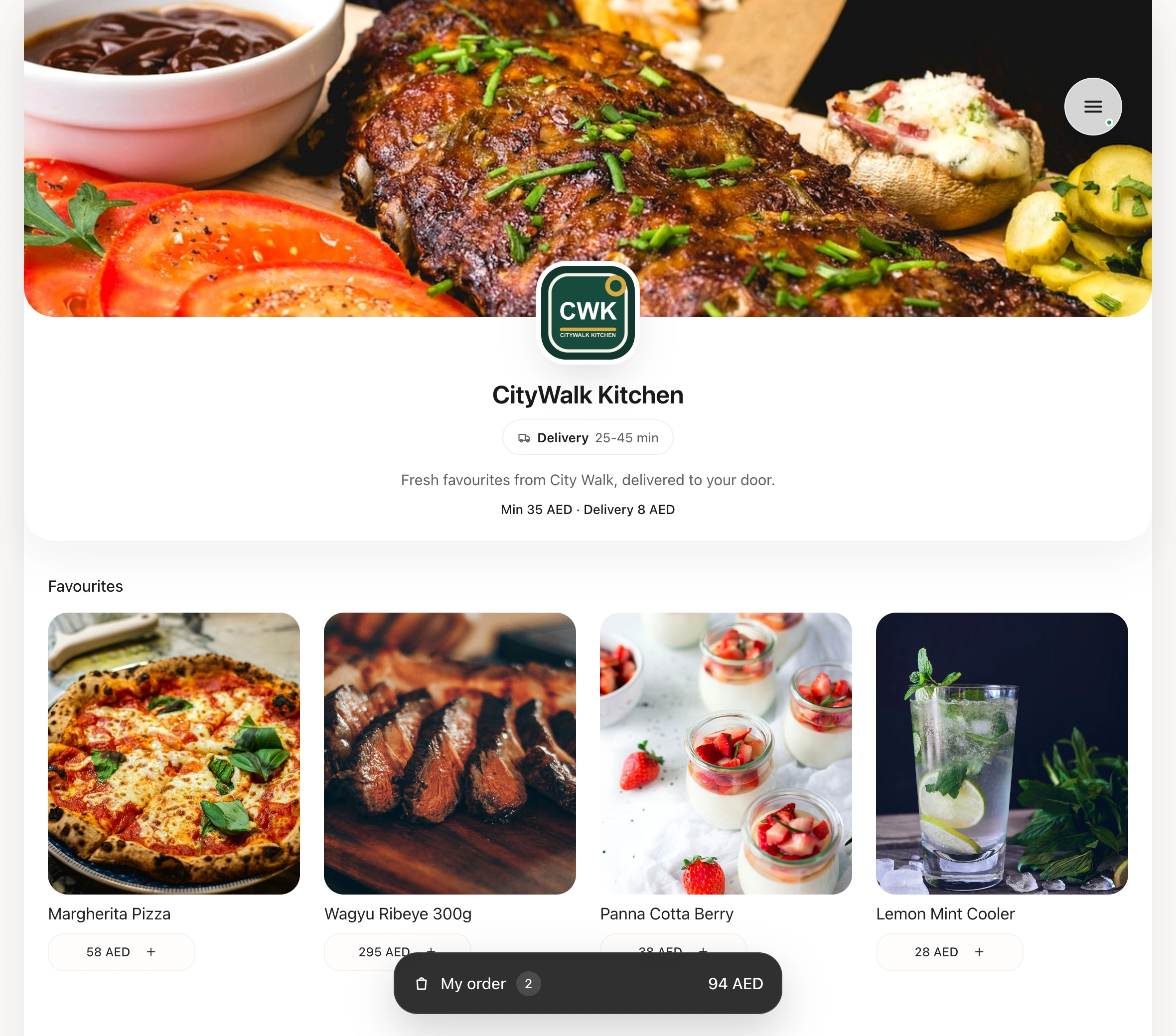
CityWalk Kitchen · Online ordering
CityWalk Kitchen online ordering website with restaurant branding, menu, prices and order basket
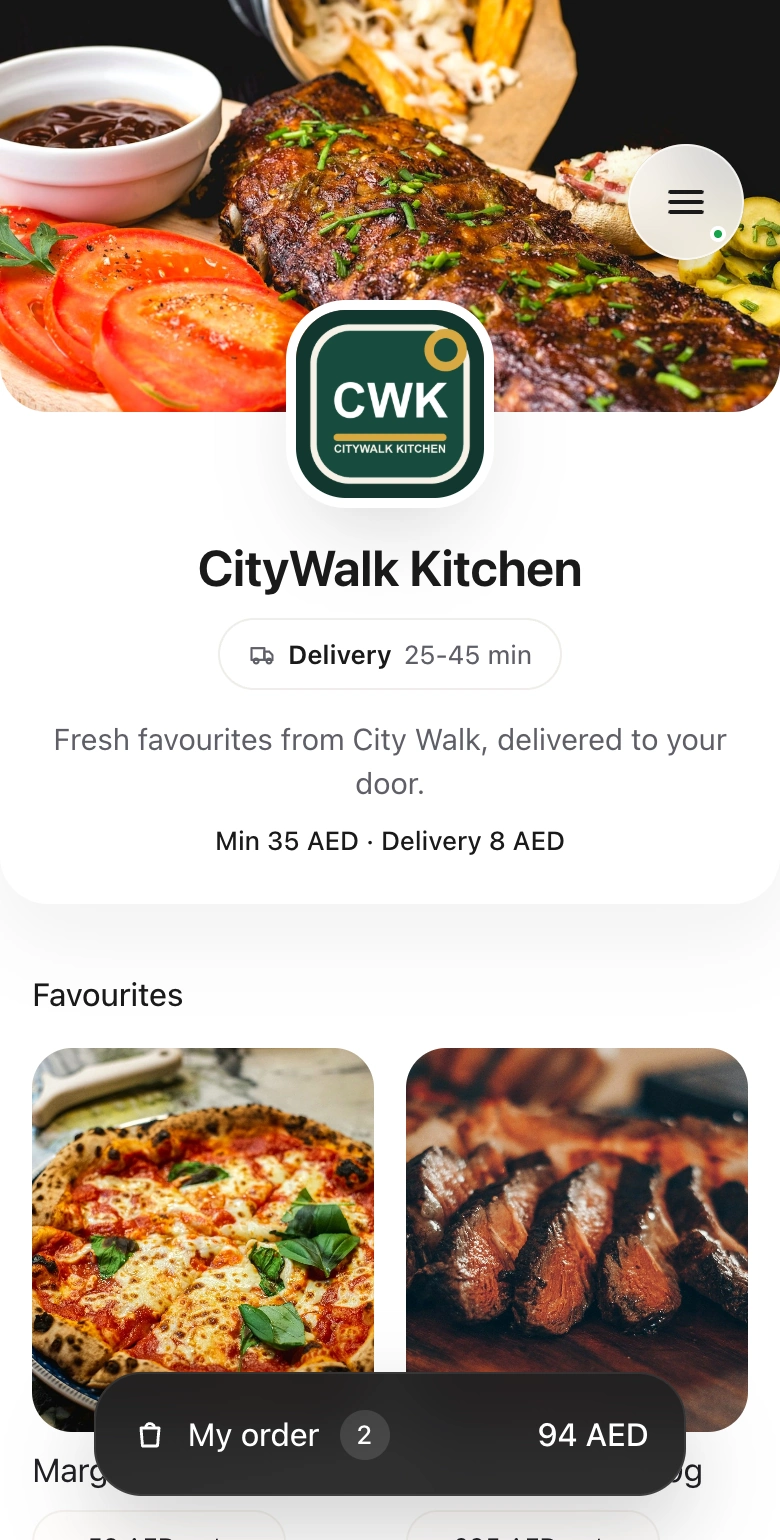
The same CityWalk Kitchen storefront on a mobile phone

02 / YOUR BRAND

Make the ordering site feel like your restaurant.

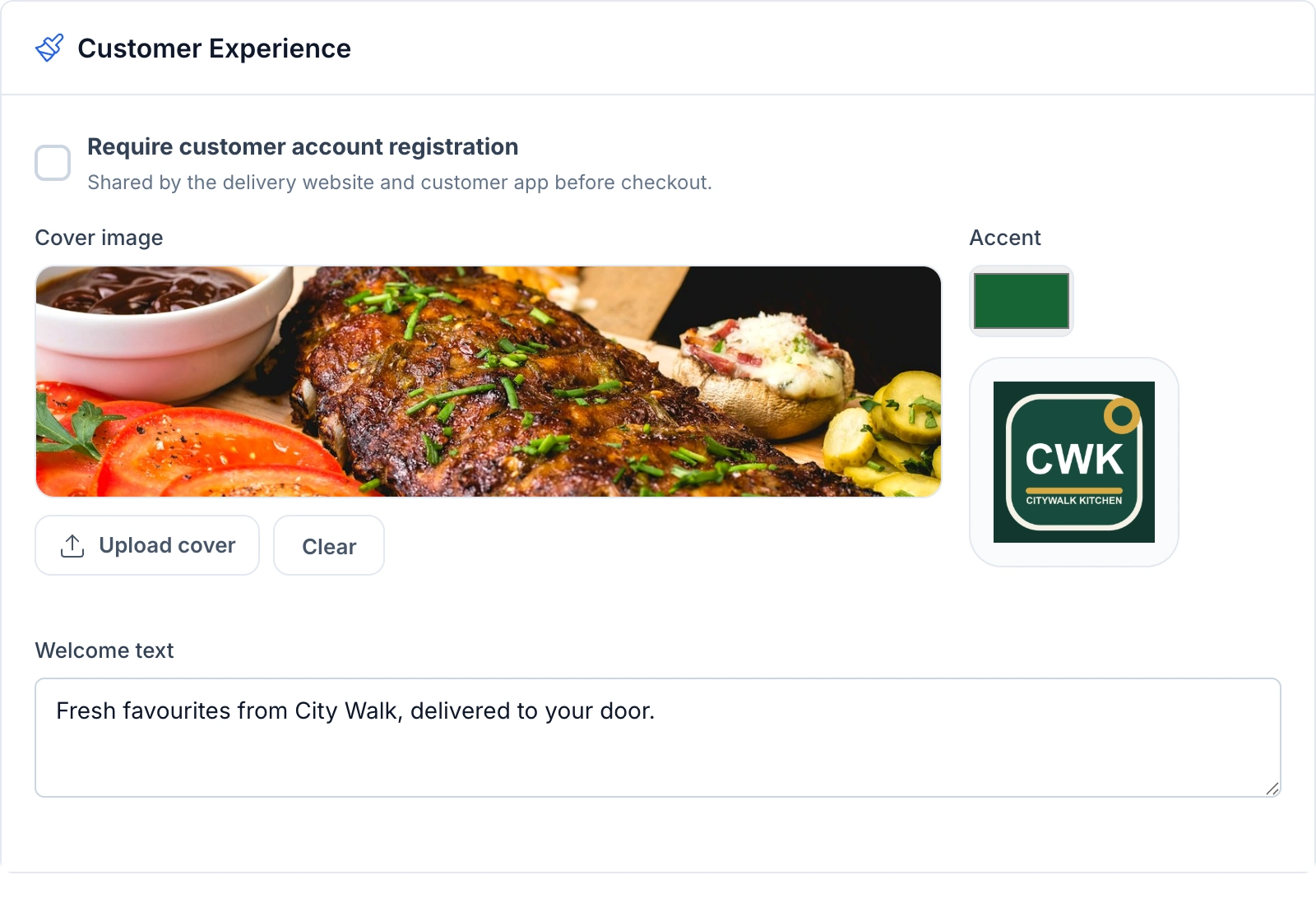
Use your domain, logo, cover image and colours. Write the welcome message guests see first, and use banners to lead them to a dish, a menu category or an offer.

Choose how guests browse your menu: a single restaurant menu or separate brand folders. The website and customer app share the delivery and guest-account settings you manage in HoreX.

  • Own domain and logo
  • Cover and accent colour
  • Promotional banners
  • Brand and category navigation
HoreX Customer Experience settings for the storefront cover, logo, accent colour and welcome text

04 / DELIVERY AREAS

Match the address to a serving kitchen.

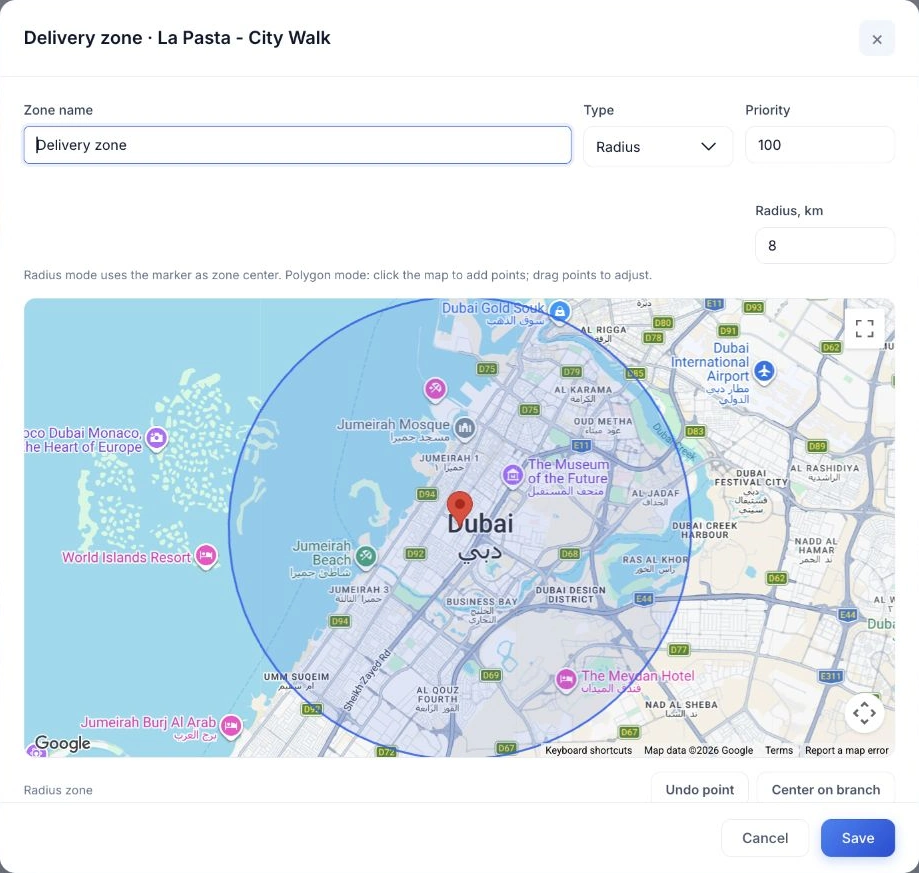
Define the areas served by each branch. The guest’s location is checked before an order can proceed, including whether the selected dishes are available from the serving kitchen.

Where areas overlap, branch priority helps route the order. Show the delivery charge and expected time so the guest knows the arrangement before checkout.

  • Branch delivery zones
  • Address coverage checks
  • Delivery fees
  • Expected delivery time
Google Maps delivery-zone editor for La Pasta City Walk, showing an eight-kilometre radius and branch priority

05 / CHECKOUT

Get the details the courier will need.

Collect the building, floor, apartment and delivery instructions alongside the address. Regular guests can choose a saved address when customer accounts are enabled.

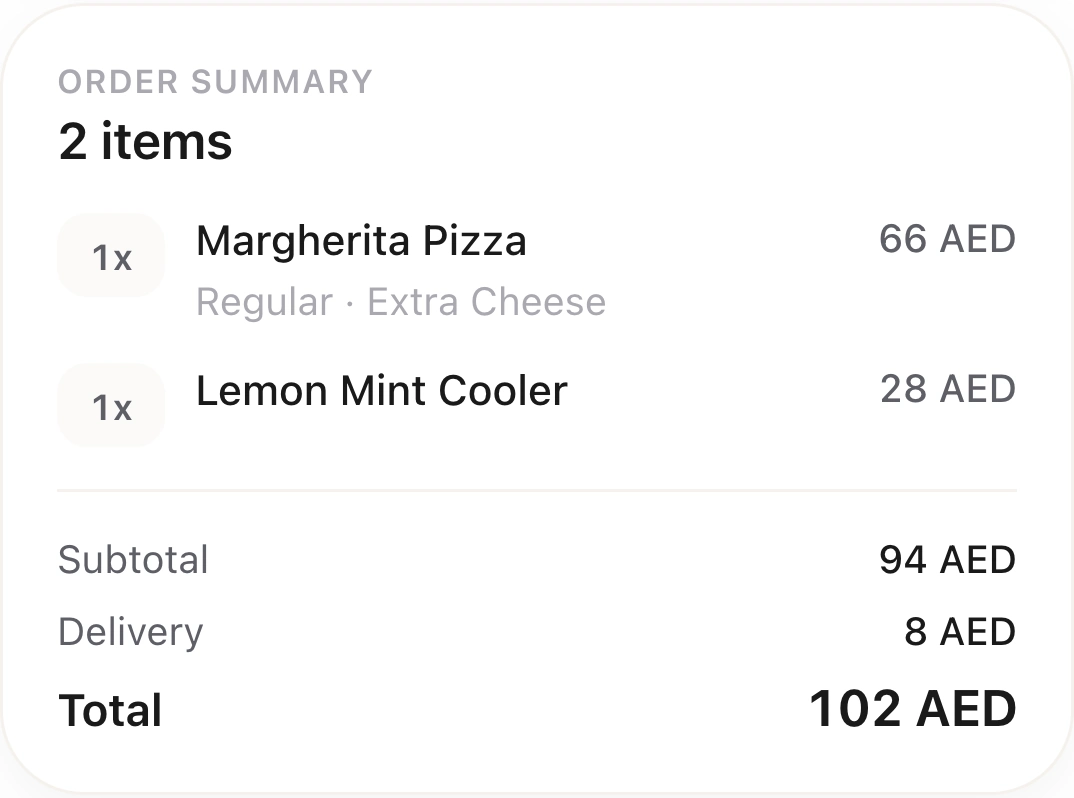
Show the item total, delivery fee, eligible discounts and available payment methods together. The confirmed order and delivery job arrive in HoreX with those details attached.

  • Saved addresses
  • Building and courier notes
  • Promo codes and rewards
  • Configured payment methods
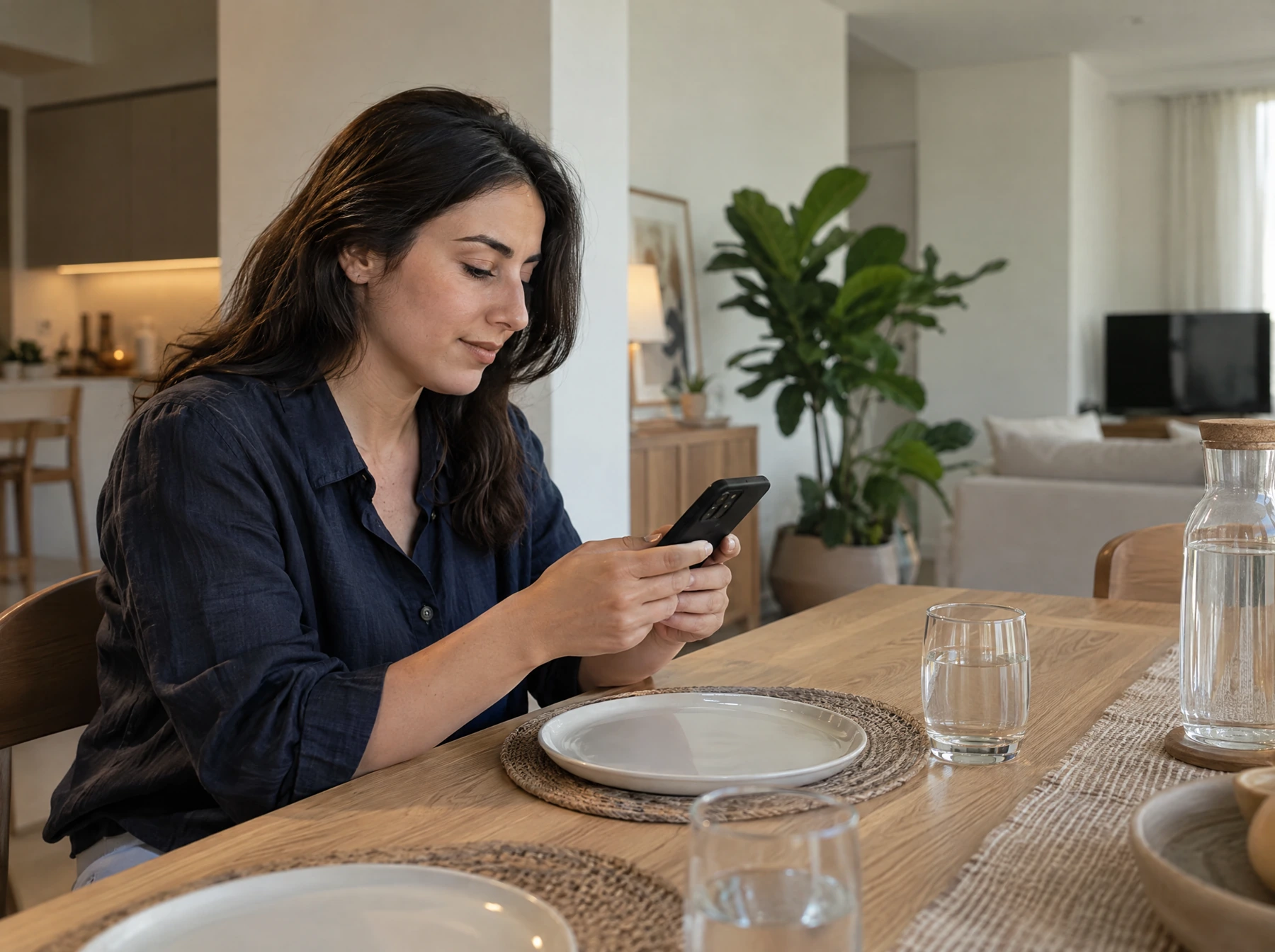
A guest choosing a delivery dinner on her phone at home
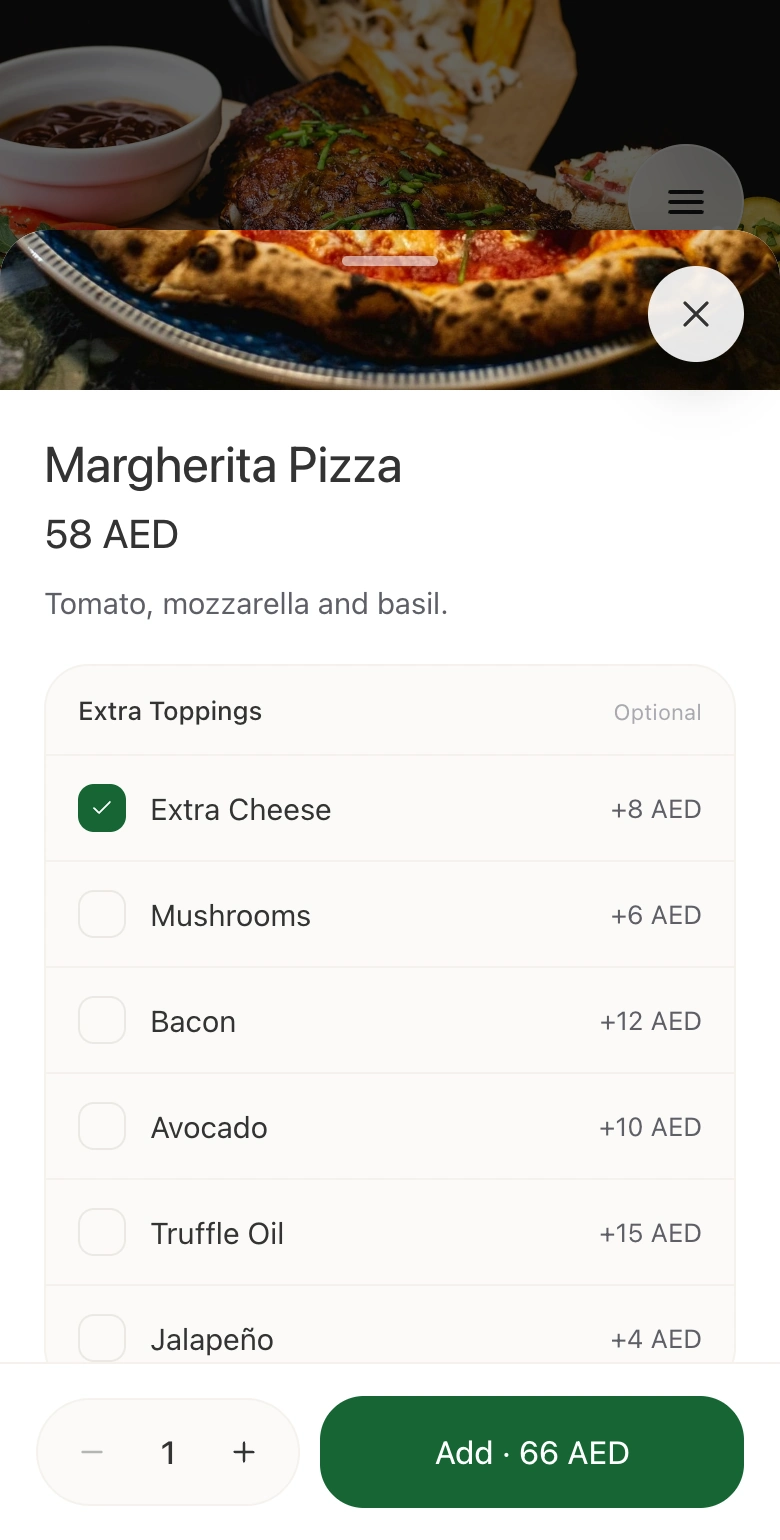
Guest order summary in HoreX: Margherita Pizza with Extra Cheese, Lemon Mint Cooler, AED 8 delivery and AED 102 total

06 / ONE CONNECTED ORDER

From checkout to kitchen, courier and accounts.

The guest’s order becomes a HoreX order with its dishes, modifiers, address, payment details and customer record attached. Your team can prepare it, arrange delivery and review the money collected without entering the order again.

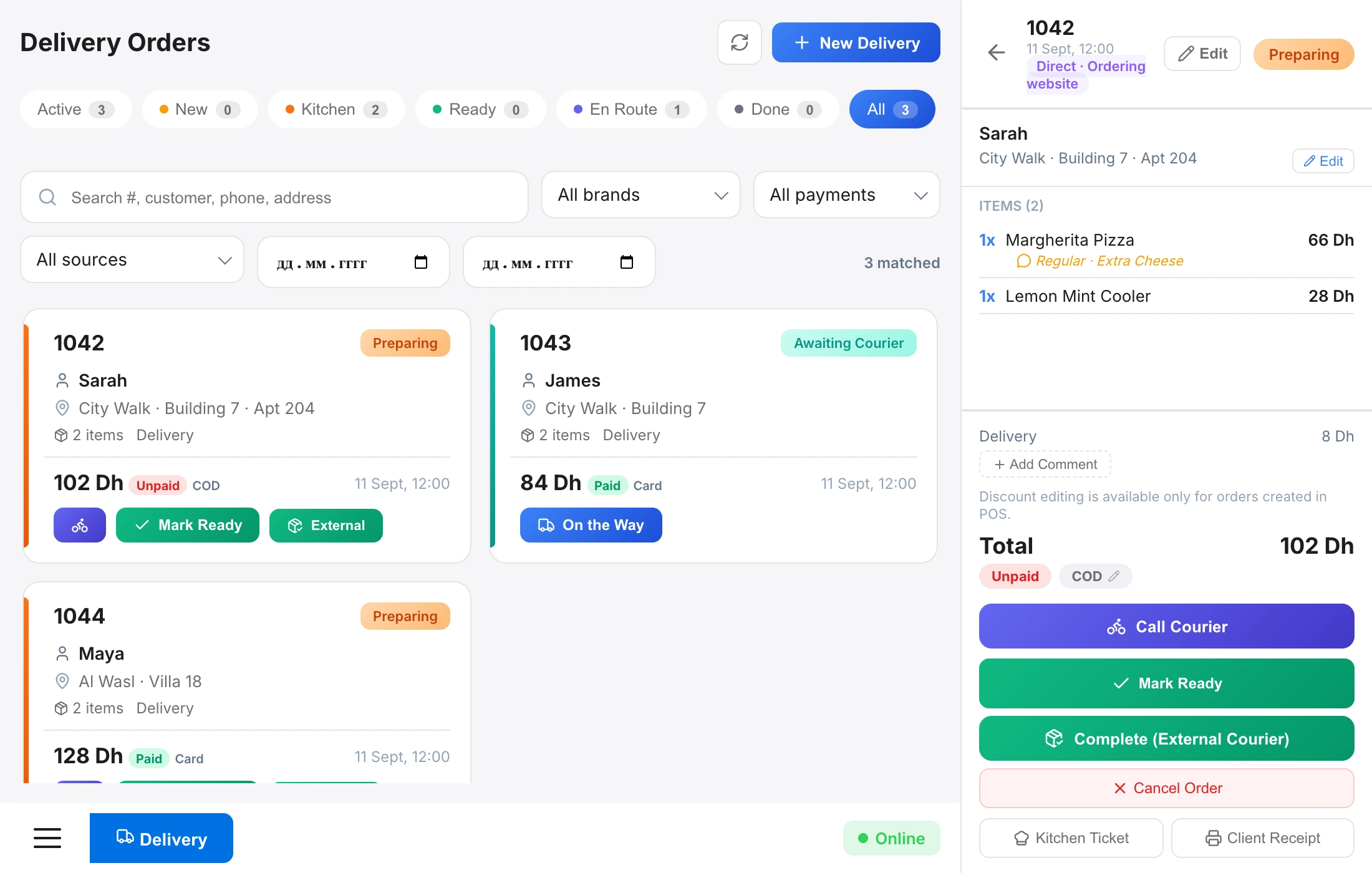
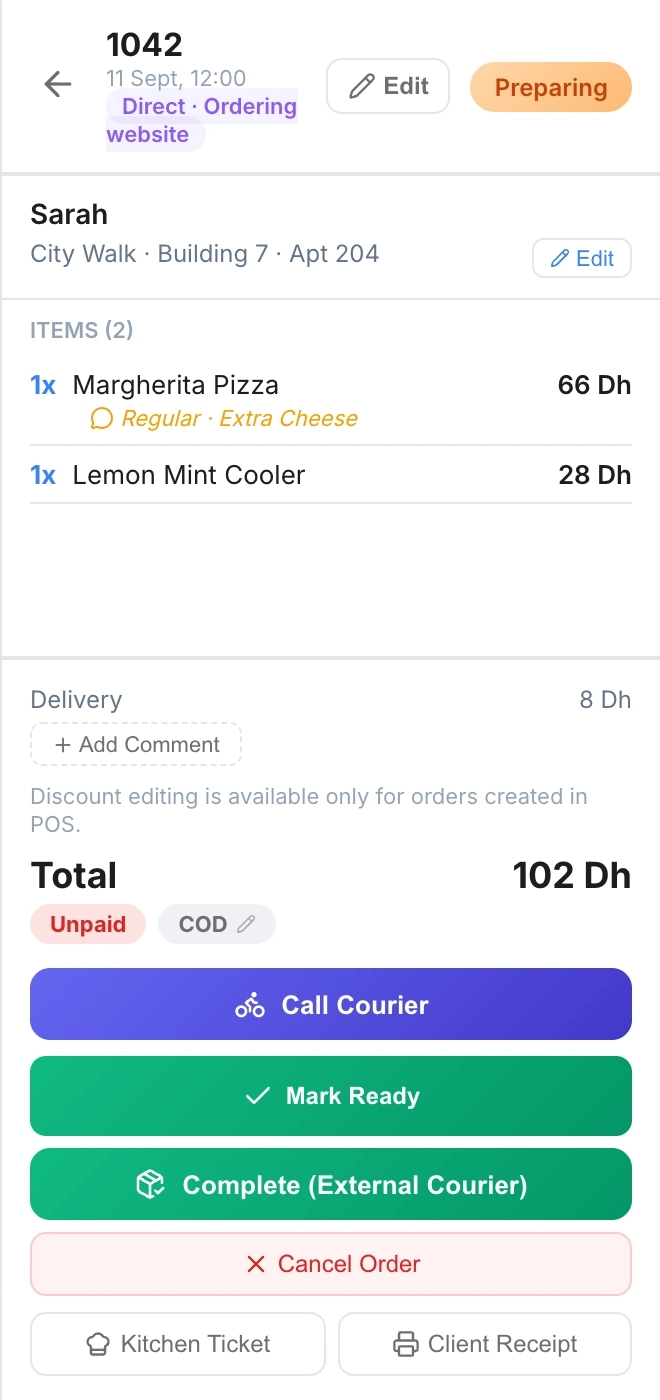
Order #1042 · Website · AED 102

The guest’s choices reach your team.

The confirmed order appears in POS with its website source, customer, address and selected extras. Staff work from those same details as the dishes move through the kitchen.

For online payments, confirmation is checked before the order enters the preparation workflow.

  • Order and customer in HoreX
  • Modifiers stay with each dish
  • Payment state visible in POS
POS delivery order 1042 for Sarah: Margherita Pizza with Extra Cheese, Lemon Mint Cooler, delivery fee and total AED 102

Give the courier the complete delivery.

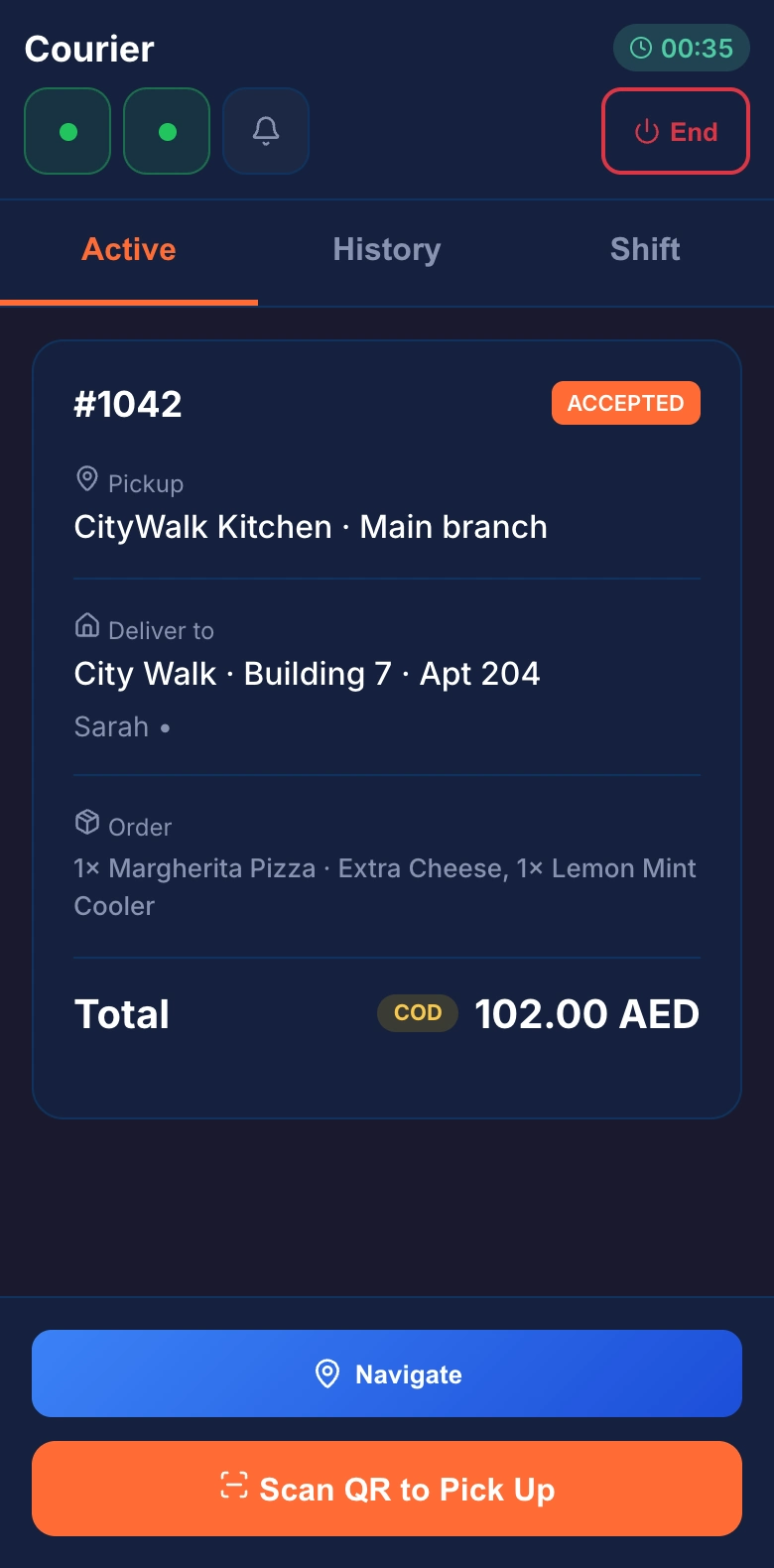
Assign the delivery to your courier. The app carries the pickup, destination, guest details and amount to collect. Pickup and delivery progress stay linked to the order in POS.

Guests can follow their order on the ordering website and in the HoreX customer app, including courier tracking when available for the delivery.

  • Courier assignment from HoreX
  • Address and collection amount
  • Delivery updates in POS
Courier app for the same order 1042, delivering to Sarah in City Walk with AED 102 to collect

Follow the payment through to collection.

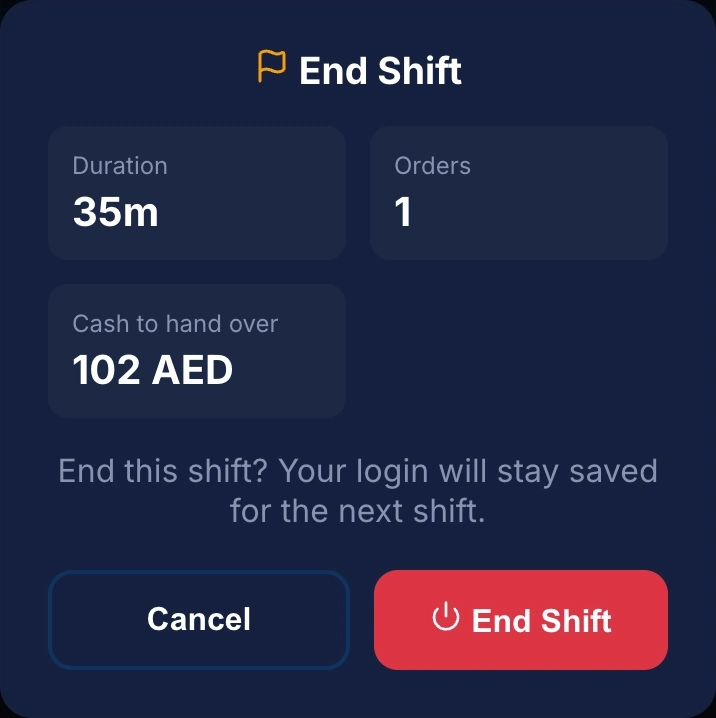
For a cash order, the collected amount is recorded with the completed delivery and included in the courier’s shift handover. Card payments keep their own payment status.

The restaurant can review sales, VAT and dish costs in HoreX reports, then reconcile payment receipts and bank settlements through its finance workflow.

  • Cash linked to the delivery
  • Courier shift handover
  • Sales and accounting records
Courier shift summary with one delivery and AED 102 cash to hand over

07 / RETURNING GUESTS

Keep addresses, orders and rewards in one account.

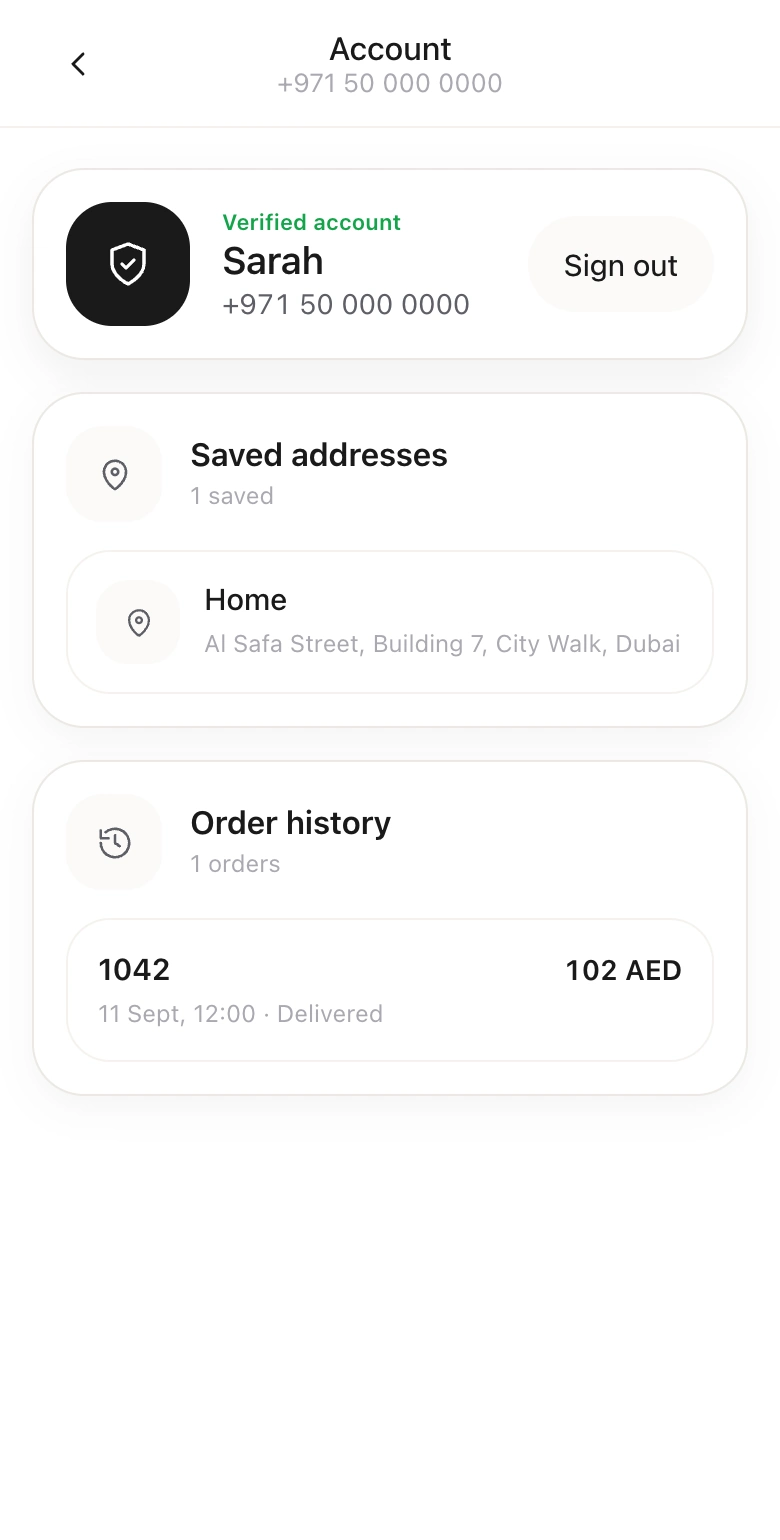
Enable phone verification so guests can return to their saved details. They can review recent orders and choose a saved delivery address.

With loyalty enabled, the account also shows the guest’s rewards and tier progress. Eligible rewards can be used at checkout under the restaurant’s program rules.

  • WhatsApp verification
  • Saved address book
  • Recent orders
  • Loyalty balance
Guest account with a saved home address and order 1042 in delivery history

More in Ordering Website.

The menu, checkout, customer and fulfilment details behind direct ordering.

Your own domain

Give guests a direct restaurant ordering address.

See details

Publish the storefront on a HoreX address or connect your restaurant domain. Your team can share that address from the website, social profiles and customer messages.

  • Custom domain
  • Hosted storefront
  • Direct ordering link

Restaurant branding

Keep your name and menu at the centre.

See details

Set the logo, cover image, welcome text and accent colour. Promotional banners can lead guests to a menu section or offer rather than a separate ordering system.

  • Brand identity
  • Cover and welcome text
  • Menu banners

Dish modifiers

Collect the choices needed to prepare the order.

See details

Show the additions and preparation options assigned to each dish. Required choices and quantity rules are checked before the item is added.

  • Required groups
  • Additional charges
  • Item quantities

Delivery areas

Check the address against your delivery coverage.

See details

The guest’s address is checked against configured branch zones or the fallback service radius. An address outside coverage cannot continue as a valid delivery order.

  • Branch zones
  • Service radius
  • Address check

Branch selection

Route the address to the kitchen that serves it.

See details

The delivery address and branch coverage identify the kitchen serving the order. When areas overlap, your branch priority determines the choice. Dishes are checked against that kitchen’s available menu.

  • Address-based branch
  • Zone priority
  • Available dishes

Delivery address details

Collect more than a map pin.

See details

Checkout records the building, floor, apartment and courier instructions alongside the address coordinates. Guests can choose an existing saved address when accounts are enabled.

  • Map and address
  • Building and apartment
  • Courier note

Order minimums

Show guests what is needed for delivery.

See details

Display the minimum order and the delivery charge before checkout. Where configured, the site also shows the spend needed for free delivery.

  • Minimum order
  • Delivery fee
  • Free-delivery threshold

Payment choices

Offer the methods configured for your restaurant.

See details

Checkout can offer cash or card on delivery and connected online payment providers. The available methods come from the restaurant’s settings; gateway setup is required for online charging.

  • Cash on delivery
  • Card on delivery
  • Connected online payment

Online payment confirmation

Keep payment status with the order.

See details

After checkout, guests return to their order status. Staff can see whether the payment is pending, completed or failed alongside the same order.

  • Provider confirmation
  • Payment status
  • Return to the order

Promo codes

Apply eligible offers at checkout.

See details

Guests enter a code and the quote checks its conditions. A valid discount appears in the total; a code that does not apply explains why it cannot be used.

  • Code validation
  • Discount breakdown
  • Eligibility rules

Customer accounts

Let regular guests keep their details.

See details

When registration is enabled, WhatsApp verification signs the guest into their account. The profile, addresses and recent orders stay linked to the restaurant’s CRM guest record.

  • Phone verification
  • Saved addresses
  • Order history

Loyalty at checkout

Let enrolled guests use eligible rewards.

See details

With an active loyalty program, the account shows the balance and tier information. Checkout applies eligible rewards and checks whether they can be combined with a promo code.

  • Rewards balance
  • Tier progress
  • Redemption rules

Order status

Keep the guest informed after checkout.

See details

The order link shows its current preparation and delivery state. When a linked courier is on the way, the supported tracking view can show their reported position and route.

  • Order status link
  • Preparation progress
  • Courier updates

Your delivery team

Hand the order to the delivery workspace.

See details

Website deliveries create a linked delivery job in HoreX. Dispatchers can assign the restaurant’s couriers, with pickup, navigation and proof kept against that job.

  • Linked delivery job
  • Courier assignment
  • Proof of delivery

POS connection

Keep website orders in the restaurant’s order flow.

See details

Online orders and their lines are recorded in HoreX with the website source. Staff work with their items, payment state and delivery context in the operational system.

  • Website source
  • Order lines
  • Payment context

Kitchen connection

Use the configured preparation workflow.

See details

Website orders reach the kitchen through your restaurant’s station assignments. Each dish goes to the team responsible for preparing it, with quantities and selected options attached.

  • Station assignments
  • Dish modifiers
  • Kitchen status

Guest history

Keep the customer relationship with the restaurant.

See details

Guest details and website order history stay in HoreX. Your authorised team can use those records for customer service, loyalty and relevant marketing.

  • CRM guest record
  • Order history
  • Consent-aware outreach

Sales and accounting

Keep the sale connected to its financial records.

See details

The order, payments, discounts and tax treatment follow the configured HoreX sales process. The accountant can trace results to source records instead of reconciling a separate website order list.

  • Sales source
  • Payment and discount records
  • Tax and accounting context

Launch checks

Test the full guest journey before sharing the link.

See details

Review the menu, address coverage, delivery charges and payment setup. Run an agreed test order through kitchen preparation and delivery, then confirm the guest sees the expected result.

  • Menu review
  • Zone and fee checks
  • Order and payment testing

Questions about Ordering Website

How is a HoreX ordering website different from Talabat or Deliveroo?

It is the restaurant’s direct ordering channel, using your menu, branding and domain. You bring guests to the site and choose the delivery and payment setup; marketplace discovery is a separate service.

Will the site look like a generic widget or like my restaurant?

Set the restaurant name, logo, cover, welcome text and accent colour. You can connect your domain and organise the published menu from HoreX.

Does the site integrate with my POS, KDS, delivery, P&L, and VAT report?

Website orders, items and payments are recorded in HoreX. Your kitchen, delivery team and finance staff work from those linked records, using the menu and payment setup agreed for the restaurant.

Which payment methods does the site accept?

Available methods depend on your settings: cash or card on delivery and connected online providers such as Stripe or MPGS. Wallet options depend on the connected provider and device.

Can guests schedule orders for later — for example, lunch tomorrow at noon?

The standard storefront handles orders for current delivery. If advance ordering or scheduled pickup is essential, include that scenario in the demo so the available setup is confirmed before launch.

I run a cloud kitchen with several brands. Can one site handle all of them?

You can organise the menu into concepts and categories. Address coverage determines the serving branch; confirm the menu and fulfilment rules for your brands during setup.

How does delivery work?

Orders create linked delivery jobs in HoreX. Your dispatcher can assign your own couriers and follow pickup and completion. Any third-party fleet connection needs its own confirmed integration.

Does the site support Arabic?

We review your menu languages and right-to-left requirements during setup. Ask to see the complete guest journey in Arabic, including dish options, the address form and checkout.

How fast can it go live?

The timeline depends on menu readiness, branding, domain connection, delivery zones and payment-provider setup. Agree the launch date after checking those items and the test-order flow.

See direct ordering with your restaurant menu.

Review the storefront, checkout and kitchen handover together.