






Waiter app for restaurant service.

Take orders at the table, keep dishes assigned to guests and follow kitchen progress from a phone. Return to the same check throughout the meal.

01 / TAKE THE ORDER

Tableside orders

Choose dishes and modifiers while speaking with the guest.

02 / ORGANISE

Guests & courses

Keep each guest’s dishes and course timing clear.

03 / SERVE

Kitchen updates

Know which dishes are ready to collect.

Explore all features

01 / AT THE TABLE

Take the order at the table.

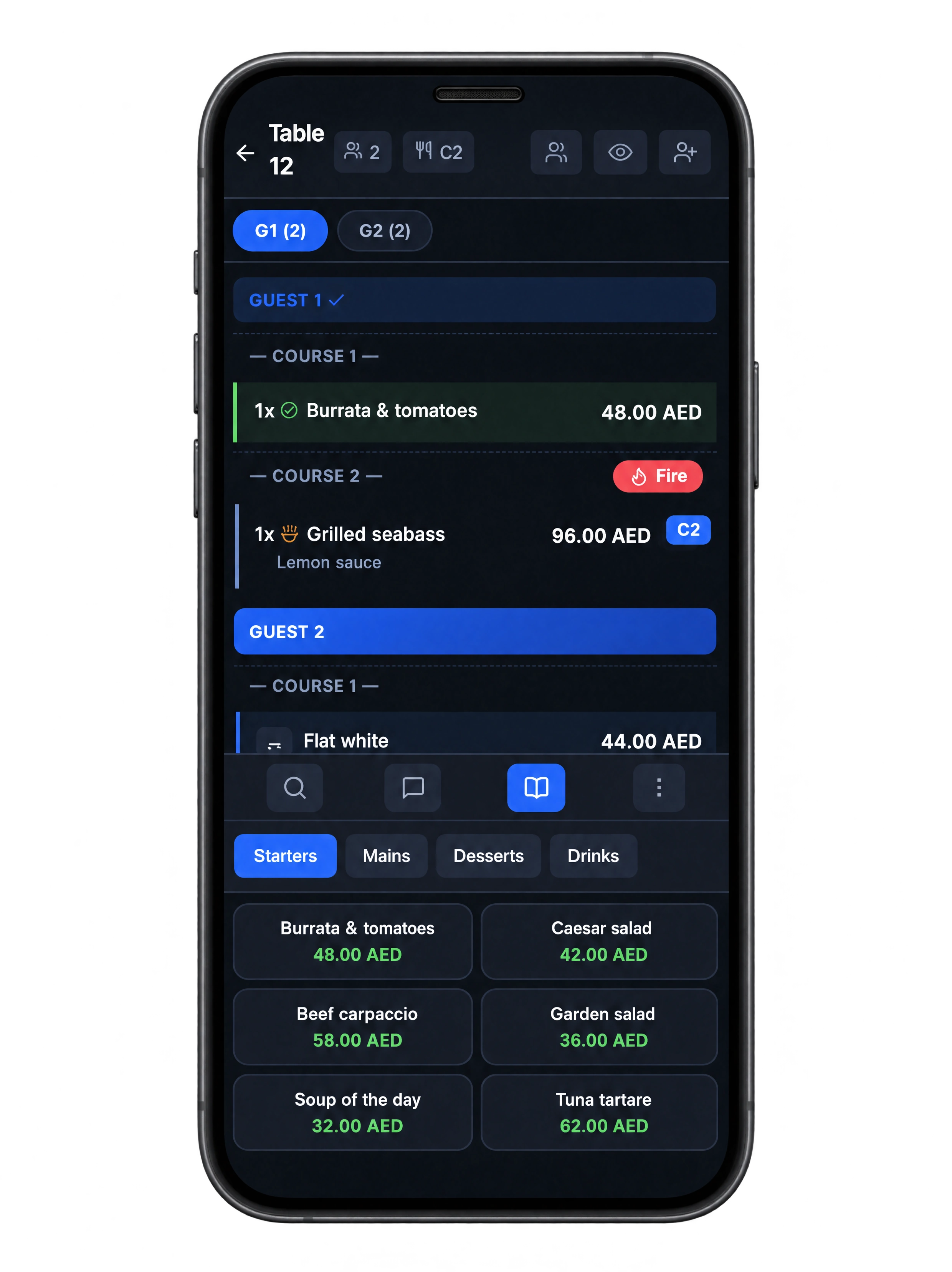
Open the table, choose the guest and add dishes from the menu. Record modifiers and preparation notes while the request is fresh.

The order stays connected to POS and the kitchen. Staff can return to the same check to add another dish, release a course or review what has already been paid.

  • Categories and search
  • Required modifiers
  • Item notes
  • Shared guest check
A waiter enters a guest’s order on a small phone beside the restaurant table
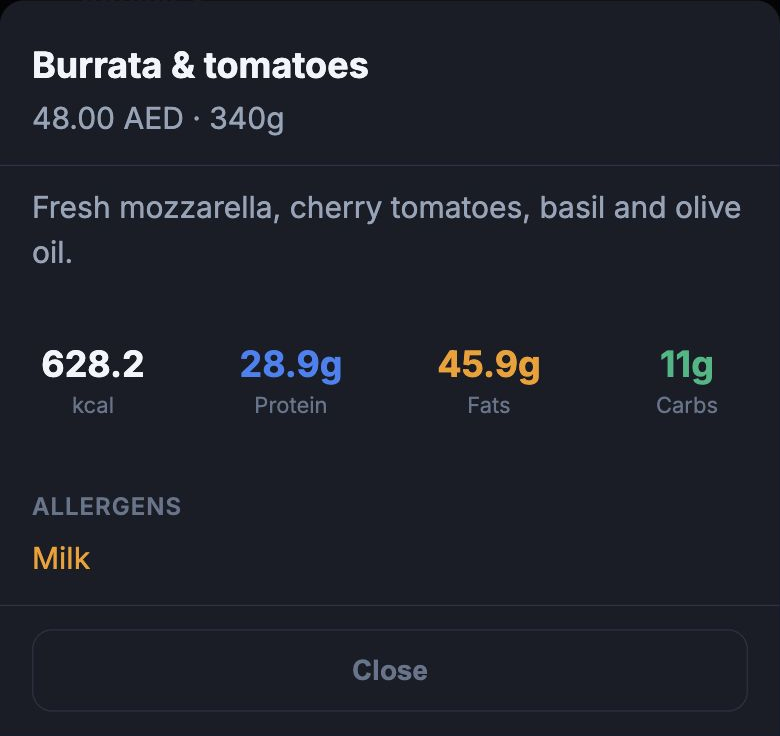
HoreX Waiter showing guest assignments, courses and dishes

02 / GUESTS & COURSES

Keep the meal organised from the first dish.

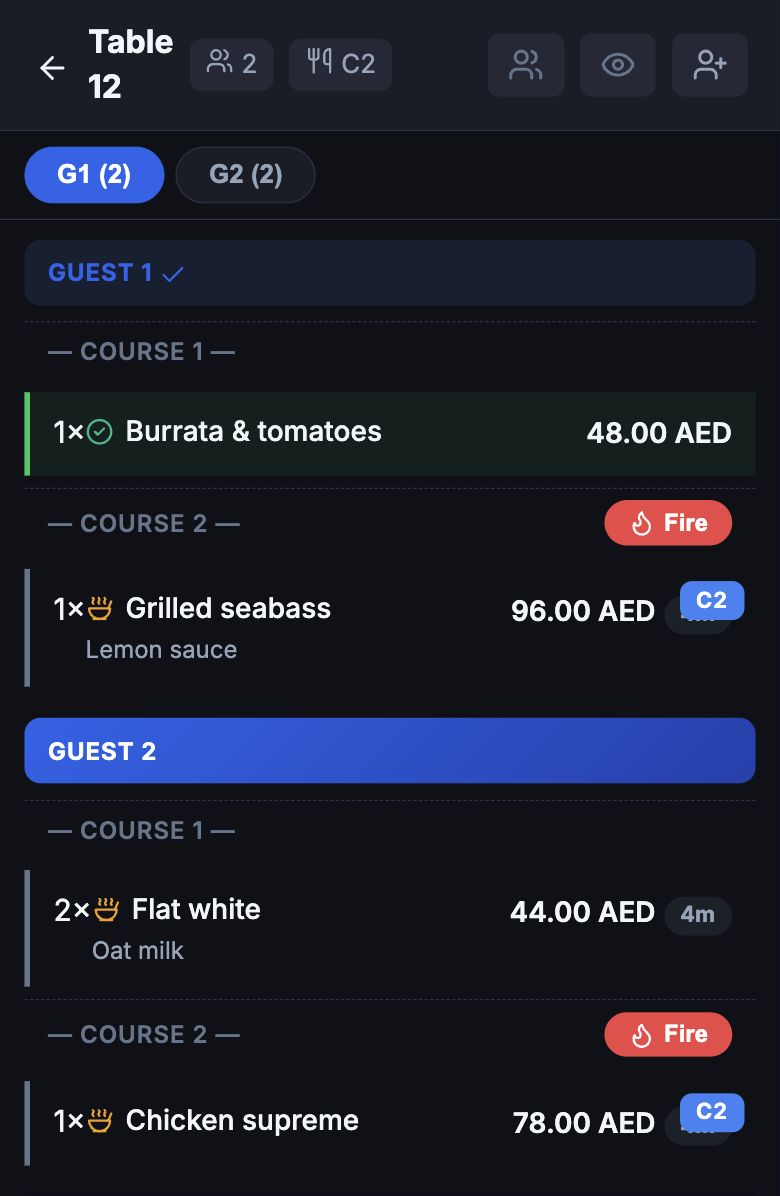
Assign dishes to guests as you add them. A shared table can contain different courses and preparation requests without losing the connection to the person who ordered each item.

Hold the mains while starters are served. Fire the next course from the order when the guests are ready.

The same guest assignments are there when it is time to split the bill. Staff do not have to work out who ordered what a second time.

  • Guest-by-guest lines
  • Course grouping
  • Hold and fire
  • Kitchen status beside the dish
Waiter order for Table 12 with dishes grouped by guest and course, preparation status and lemon sauce request

03 / KITCHEN UPDATES

See what is ready at the pass.

When KDS marks a dish ready, its status updates in the connected order. Pickup notifications help the assigned waiter decide when to return to the kitchen.

Keep notifications enabled on the service phone. The order itself remains the reference for dishes that are cooking, ready or served.

  • Dish-ready updates
  • Table reference
  • Preparation status
  • Connected KDS
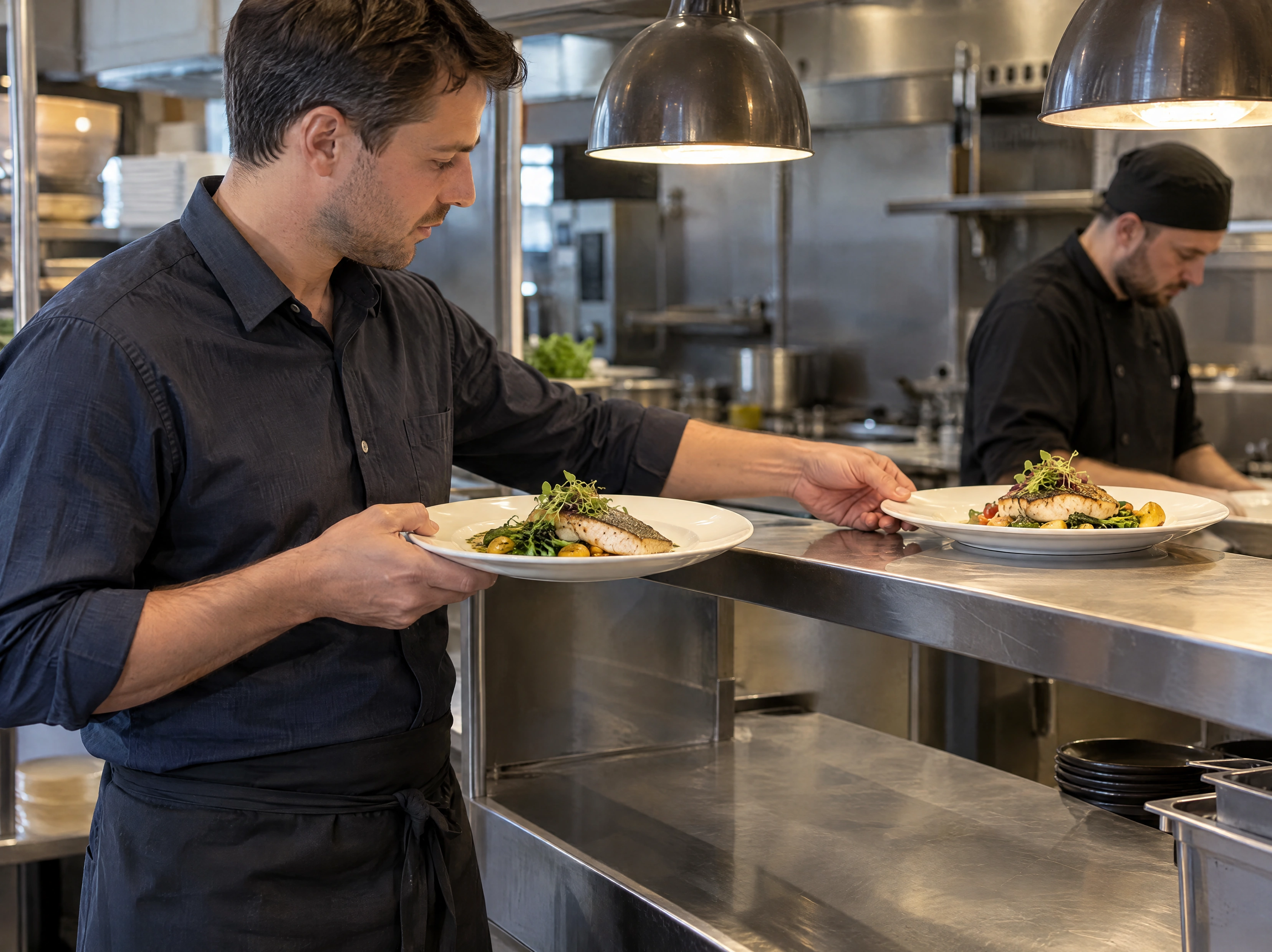
A waiter collects freshly prepared mains from the kitchen pass

04 / PAYMENTS & LOYALTY

Close the right part of the check.

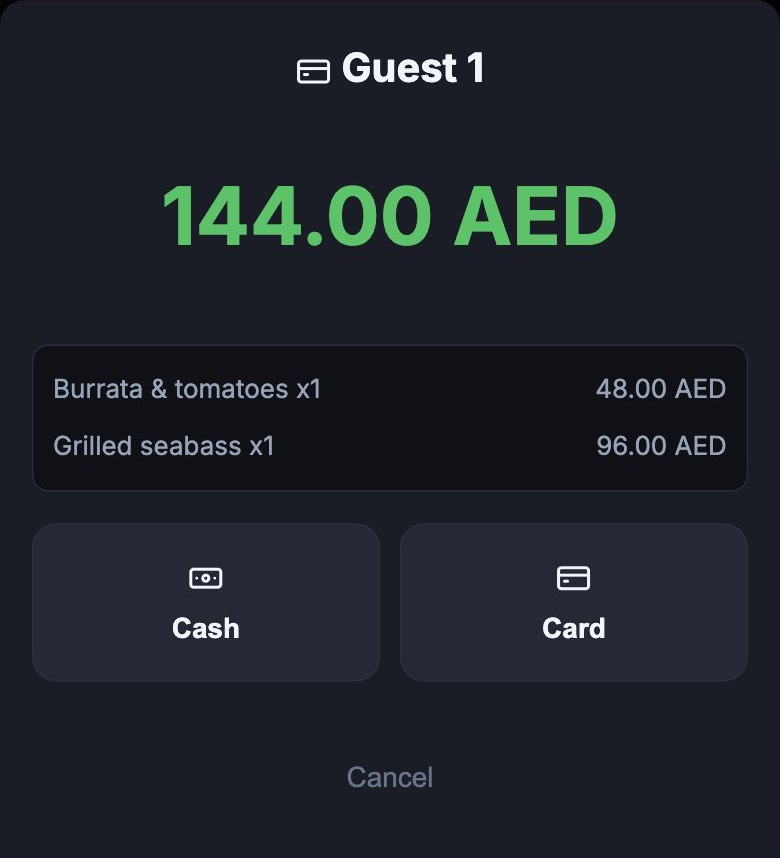
Choose the guest or items using the assignments already recorded in the order. Review the selected lines and payments already collected before confirming payment.

Collect the payment and keep any unpaid items on the open check. Connect the guest’s loyalty membership to check available rewards before the final payment.

  • Payment by guest or selected items
  • Remaining balance on the open check
  • Cash and card payments
  • Guest loyalty at checkout
Waiter payment selection for Guest 1: burrata and seabass, AED 144, with cash and card choices

DURING SERVICE

The kitchen gets the order.
You stay with the guests.

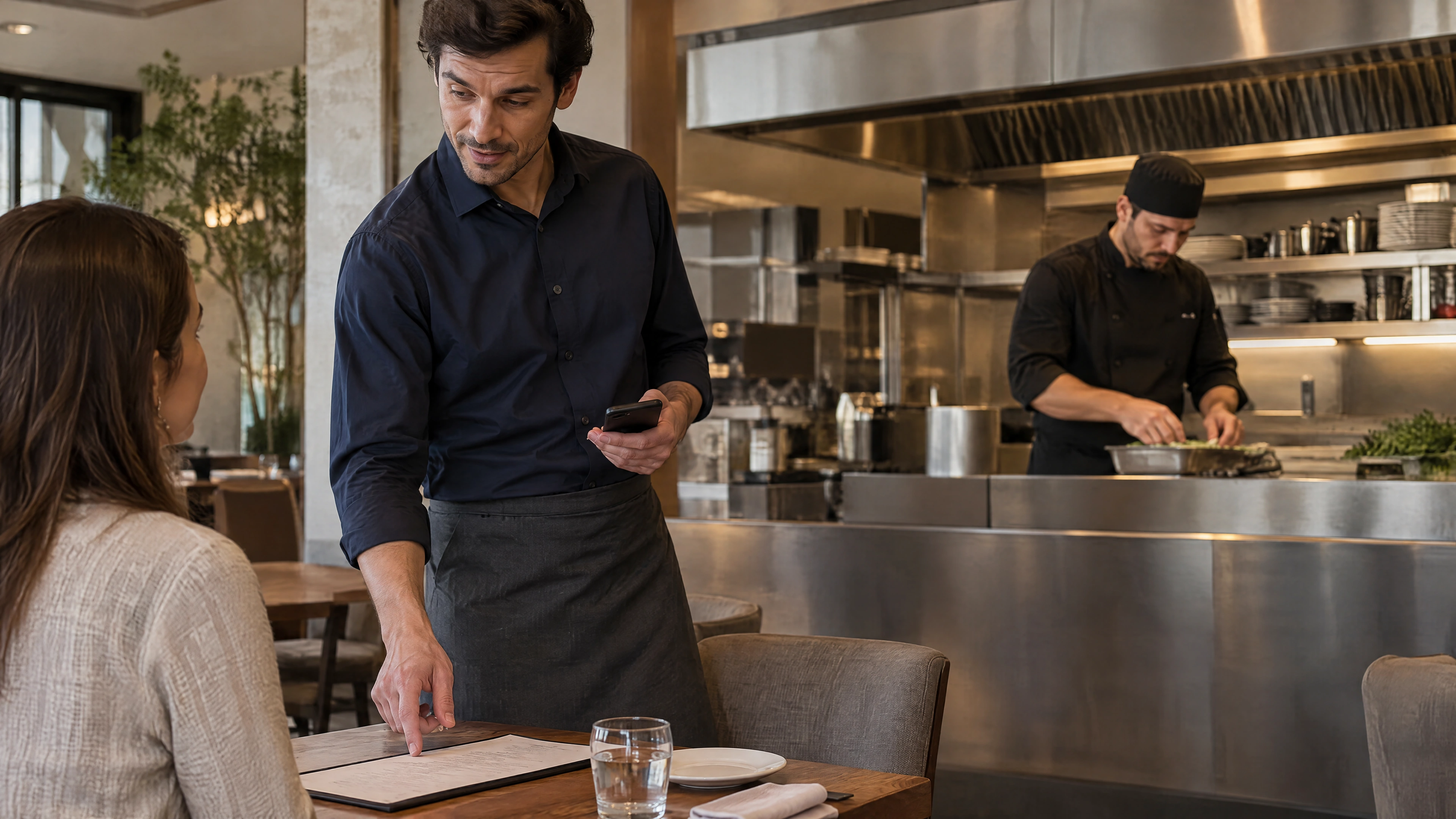
Confirm the details once, at the table. The kitchen can start preparing while you continue service.

A waiter stays in conversation with a guest while a chef works in the restaurant’s open kitchen
At the tableConnected
Table 12#1042
Guest 1 · Course 2
1
Grilled seabassLemon sauce
Sent to kitchen
Checked with the guest. Sent.

Dishes, modifiers and notes go straight to the kitchen.

In the kitchenConnected
Table 12#1042
Guest 1 · Course 2
1
Grilled seabassLemon sauce
In preparation
The same request. Already cooking.

No walk to the POS. No second round of entry.

More in Waiter App.

The ordering, service and payment details used at the table.

Mobile staff workspace

Take orders from the phone used during service.

See details

The Waiter workspace is designed for a small touch screen. Staff use their enabled account and restaurant assignment to open their working area.

Browser and installed-app setups have different device capabilities. Choose the supported setup and notification permissions before service.

  • Phone layout
  • Employee account
  • Restaurant access
  • Device setup

Guest assignment

Keep each guest’s dishes together.

See details

Choose the guest before adding a dish. The order preserves the guest number alongside the item, modifiers and course.

At checkout, the team can select the relevant lines without asking the table to reconstruct who ordered what.

  • Guest numbers
  • Item assignment
  • Guest totals
  • Selected-line payment

Course firing

Release the next course from the table.

See details

Place dishes in the appropriate course and hold later courses until they are needed. Fire the course when the table is ready.

The kitchen receives the relevant lines with their preparation requests. You can follow their status from the order.

  • Course grouping
  • Hold and fire
  • Kitchen instructions
  • Dish status

Pickup notifications

See when the kitchen marks a dish ready.

See details

A ready update from KDS identifies the table and dish. The Waiter order reflects the new kitchen state.

Phone notifications depend on the supported device setup and granted permissions. Keep the visible order status available as the team’s working reference.

  • Table reference
  • Dish-ready updates
  • Visible kitchen status
  • Phone notifications

Employee sign-in

Give staff their own access to the workspace.

See details

Employees sign in with their staff account and work within their restaurant and branch access. App access is configured against the employee record.

Manager approval is separate from normal sign-in. Sensitive actions such as a complimentary item can require a manager PIN and a recorded reason.

  • Employee accounts
  • Branch access
  • App activation
  • Manager-approved actions

Halls & tables

Open the right table from the floor.

See details

Use the table view to find the guest check and inspect its current order. Hall and branch setup keep the workspace tied to the restaurant being served.

Configured staff access controls the available workspace. Review hall and table assignments as part of the service setup.

  • Hall navigation
  • Table context
  • Open guest checks
  • Assigned workspace

Waiter sales records

Keep the staff member attached to the sale.

See details

Orders retain waiter information so managers can review sales by the team member who served the table.

Use the relevant sales reports for order totals and service history. Available money fields depend on the manager’s reporting permissions.

  • Waiter attribution
  • Order totals
  • Sales reports
  • Permission-aware access

Order history

Return to a previous guest check.

See details

Find earlier orders and open their dishes, totals and status. This gives the team a reference when a guest asks about an earlier visit or receipt.

Completed orders remain separate from active service. Access and any correction actions follow the staff member’s permissions.

  • Previous checks
  • Dish details
  • Payment state
  • Controlled corrections

Table management

Use the floor plan during service.

See details

Open a table to see its order or begin a new check. The shared floor plan supplies the hall layout and table numbers.

Table changes and order moves stay within the supported service workflow, keeping the check associated with the right guests.

  • Visual floor plan
  • Table numbers
  • Active order status
  • Order moves

Availability updates

Check what the kitchen can serve.

See details

The Waiter menu uses the restaurant’s current item availability and stop-list setup. Staff can see when a dish is unavailable while taking the order.

Maintain availability from the connected product workflow and keep service devices online for fresh menu information.

  • Menu availability
  • Stop-list connection
  • Connected updates
  • Current dish choices

Bill splitting

Collect payment for the selected guests or items.

See details

Guest assignments help the team choose the lines being paid. The remaining unpaid items stay on the open check.

The payment view accounts for amounts already collected, including connected QR payments, so staff work with the outstanding balance.

  • Selected-line payment
  • Guest item grouping
  • Existing payments
  • Remaining balance

Item notes

Keep a preparation request with the dish.

See details

Add a comment to the specific order line, such as a preparation request that is not a standard modifier.

The kitchen sees the request with the item. Internal preparation comments are kept separate from the guest-facing receipt where the service setup requires it.

  • Line comments
  • Kitchen context
  • Specific dish requests
  • Receipt separation

Modifiers & extras

Capture the choices that change a dish.

See details

Select the configured extras, alternatives or preparation options when adding an item. Priced modifiers are included in its amount.

Items with different modifiers remain distinguishable in the order and kitchen workflow. Required selections must be completed before the dish is added.

  • Configured choices
  • Modifier prices
  • Required selections
  • Distinct item combinations

Orders before kitchen send

Take the order and control when preparation starts.

See details

Enter the dishes while speaking with the table, then send the appropriate items or course to the kitchen.

Taking the order and firing a course are separate actions. The team can hold later courses and release them at the right point in service.

  • Order entry
  • Separate kitchen send
  • Held courses
  • Service pacing

Guest checks & receipts

Request the printed document needed by the guest.

See details

Use the supported check and receipt actions for the order. The printed output comes from the configured terminal and receipt route.

A payment receipt reflects the confirmed payment. The device and printer setup should be checked together during rollout.

  • Guest pre-check
  • Payment receipt
  • Configured printer route
  • Order reference

Sales & shift connection

Keep table sales in the restaurant’s shift records.

See details

Orders and payments are associated with the branch’s operating shift. Managers can review the corresponding totals in the POS and reporting workspace.

Waiter attribution stays with the order, helping the team investigate a check without building a separate spreadsheet of tables.

  • Branch shift
  • Order attribution
  • Payment records
  • Manager reporting

Connection recovery

Return to the workspace after a connection drop.

See details

The app preserves sign-in and reconnects to the working area when the connection returns. Check the latest order state before continuing.

Adding items, sending work to the kitchen and confirming payment need a working connection. The Waiter app should not be presented as an offline substitute for the configured POS terminal.

  • Preserved sign-in
  • Workspace recovery
  • Fresh order state
  • Online kitchen and payment actions

Questions about Waiter App

Do waiters need to download a special app?

HoreX provides a mobile Waiter workspace with browser and installed-app options. Staff use their enabled employee account. Choose the supported device setup and notification permissions with your restaurant before rollout.

Can waiters assign items to specific guests?

Yes. Select the guest before adding a dish. Its guest assignment stays with the order and helps the team select the correct lines for payment.

How does the waiter know when a dish is ready?

KDS sends a ready update to the connected service workspace. The order shows the dish status, and supported phone notifications can alert the assigned waiter when permissions are enabled.

Does it work with course firing?

Yes. Group dishes into courses, hold later courses and fire them from the order when the table is ready.

Can waiters be assigned to specific halls?

The workspace follows the restaurant’s branch, hall and table setup. Employee access and assignments determine the working area available to each member of staff.

How does bill splitting work?

Staff can select the guests’ order lines and collect the corresponding payment. Existing payments are taken into account, and unpaid lines remain on the open check.

Does the app work offline?

A working connection is needed to add items, send orders to the kitchen and confirm payments. The app preserves sign-in and recovers the workspace after a drop; check the refreshed order state before continuing.

Can managers see waiter performance?

Orders retain waiter information for sales and order-history review. Managers use the relevant reporting views, with financial fields controlled by their permissions.

Try a table-service order with your team.

Walk through guests, modifiers, courses and checkout on a service phone.