
POS and stock management for food trucks.

Take orders at the window, follow the shift’s cash and keep track of the ingredients on board. Prepare the devices and menu for each service location.

01 / AT THE WINDOW

Window service

Take the order, keep its choices and hand it over.

02 / THROUGH THE SHIFT

Orders & shifts

Keep local orders and reconcile the day’s takings.

03 / BACK AT BASE

Stock on board

Know what was loaded, sold, wasted and counted.

Explore the setup

01 / COUNTER SERVICE

Keep the order moving through a small team.

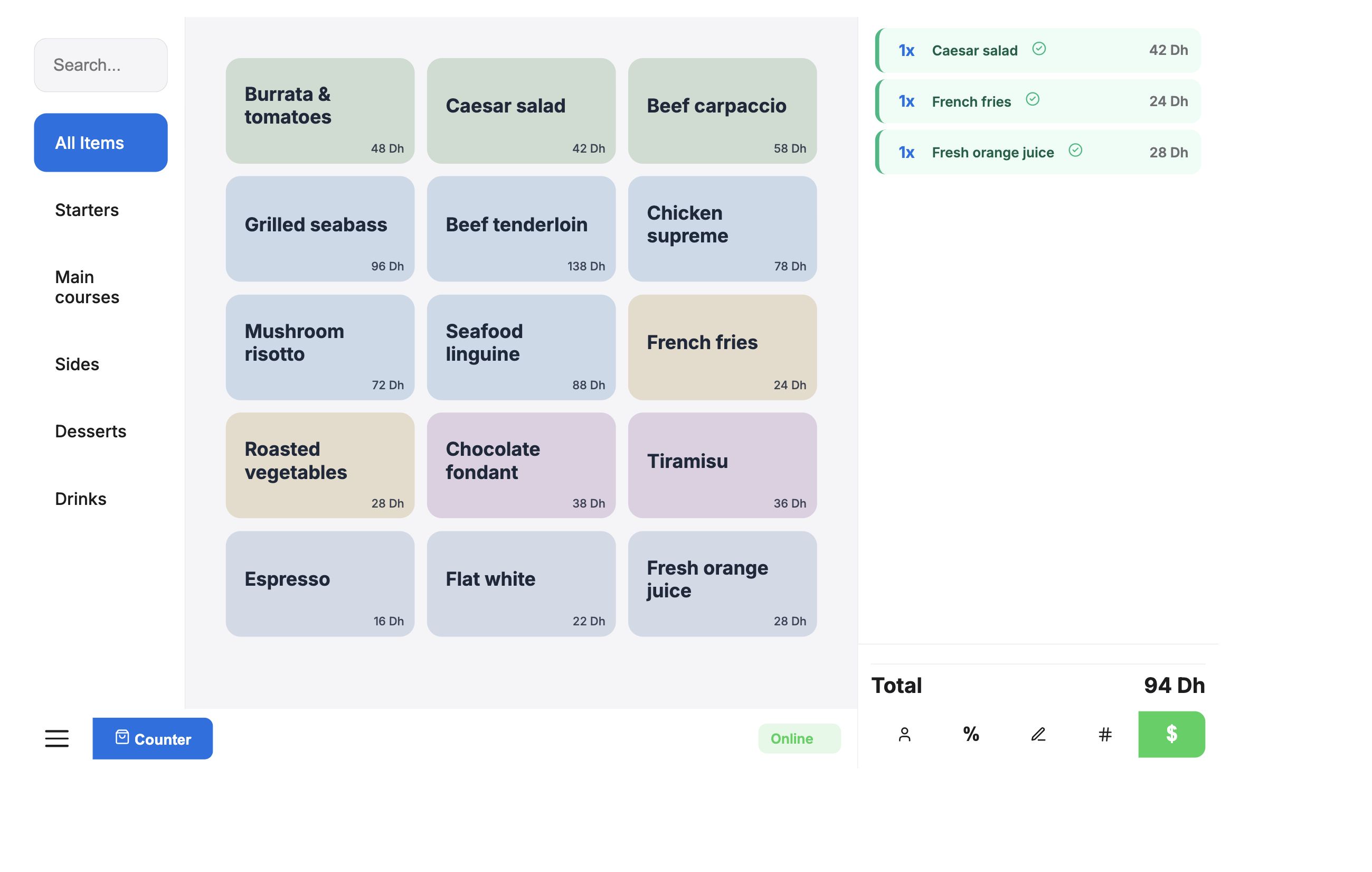
At the service window, the cashier needs the menu and choices within reach. The kitchen needs the same order number and instructions. HoreX connects the order, preparation and checkout.

Use a terminal and printer setup suited to the truck. Prepare the menu before service and check the complete flow from taking an order to handing over the food.

  • Touchscreen ordering
  • Dish choices
  • Order numbers
  • Cash and card records
HoreX Counter POS with a sample takeaway order and touchscreen menu
Dish selection and prices in the HoreX Counter touchscreen menu

02 / PICKUP

Keep the right bag with the right order.

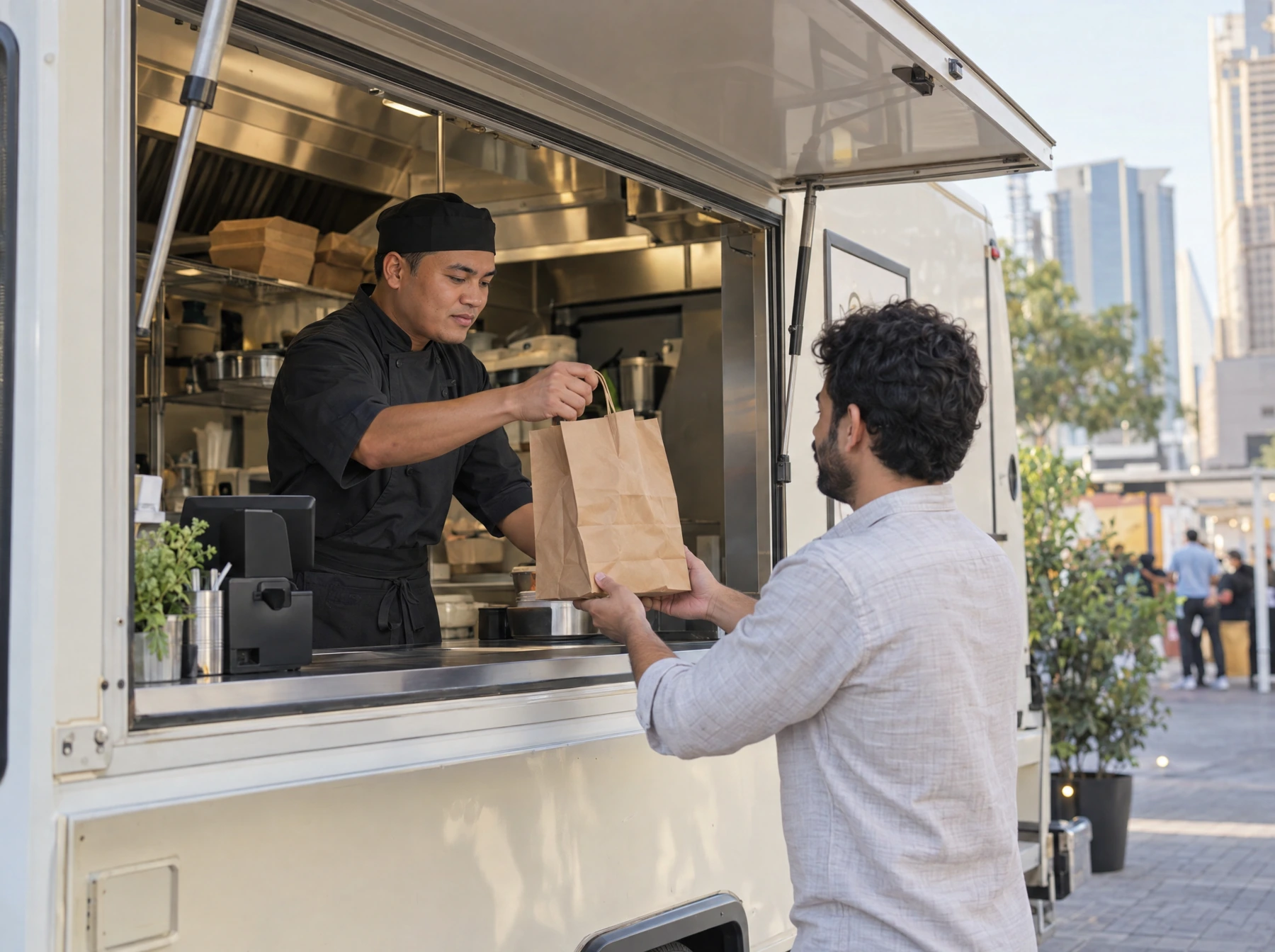
Follow the order through preparation and pickup. Notes and modifiers stay with the dish so the team can check the contents before handing the bag through the window.

For a busy event, keep the available selection clear and review stock during service. The menu, kitchen setup and staff routine should match what the truck can prepare.

  • Preparation status
  • Pickup reference
  • Order notes
  • Available selection
A food-truck team member hands a neatly packed takeaway order to a guest at the service window

03 / SHIFT CLOSE

Count the drawer before you leave the site.

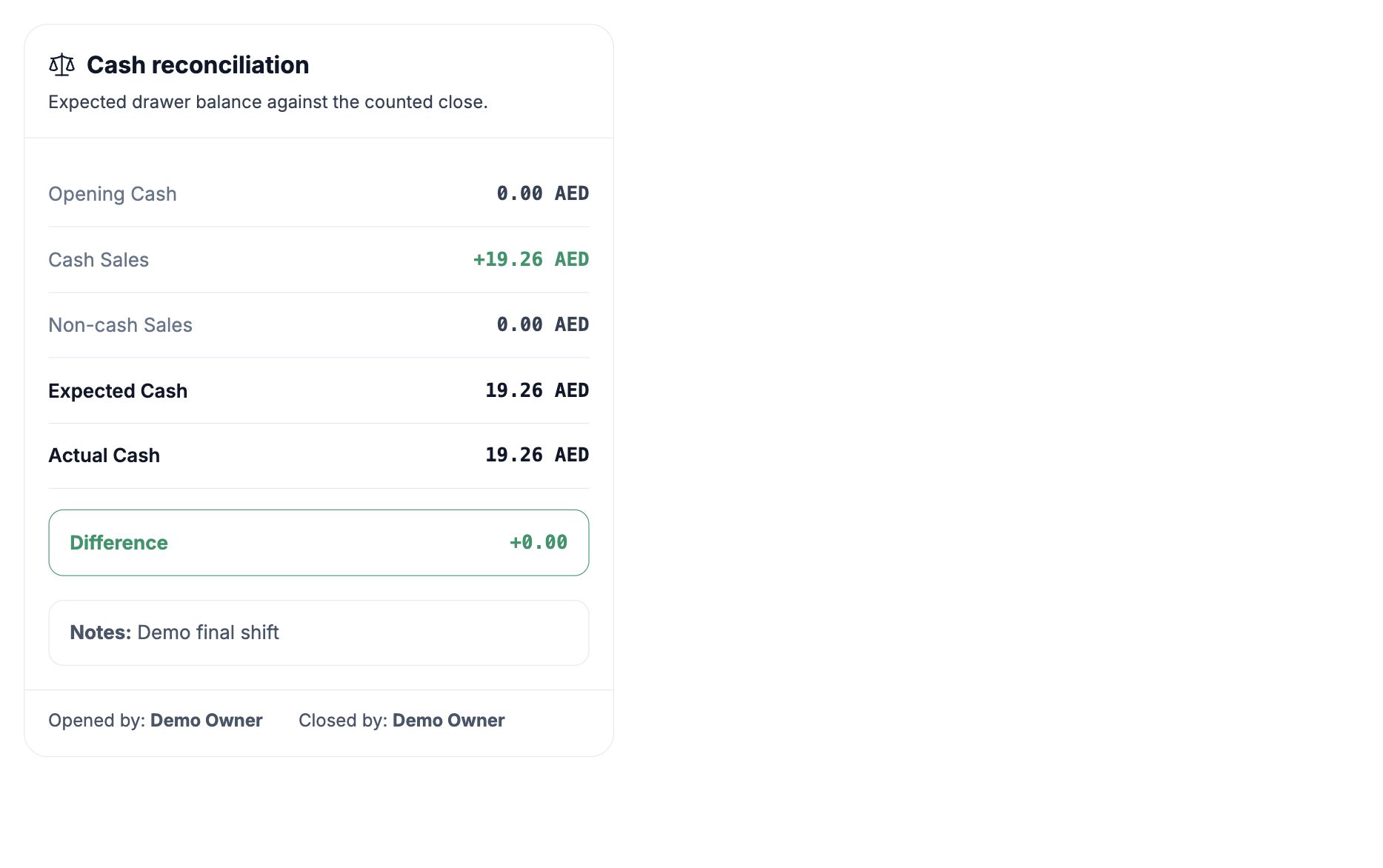
Opening cash, cash sales and recorded cash movements give the expected drawer balance. Enter the amount counted at close and review any difference while the team still remembers the shift.

The Z-report keeps the shift’s sales and payments together. Open the source orders or cash movements when a total needs explaining.

  • Opening cash
  • Cash and non-cash sales
  • Expected and actual cash
  • Closed shift report
HoreX cash reconciliation with opening cash, sales, expected cash, actual cash and difference

04 / LOADING & RESTOCK

Start from what is actually on board.

Record the ingredients transferred from base to the truck. Recipes connect posted sales to their ingredient quantities; counts and waste capture the changes that sales do not explain.

At the end of service, compare the recorded balance with what remains. Use those records and recent demand to prepare the next load.

  • Transfers from base
  • Recipe-based deductions
  • Waste records
  • Closing counts

05 / CONNECTION & SETUP

Check the devices before the next event.

Supported installed POS setups can keep local orders during a connection drop and synchronise when the connection returns. Check that the menu is loaded and local devices work before leaving base.

Card payments depend on the payment provider’s connection. Digital messages need internet access. Include those details in the truck’s service and recovery routine.

  • Installed POS
  • Local order queue
  • Configured local printing
  • Reconnect and review

A practical routine for each location.

  1. Before opening

    Check menu availability, prices, devices, opening cash and the stock loaded.

  2. During service

    Keep choices with orders, check pickup and record waste or cash movements.

  3. At close

    Count cash and stock, close the shift and review any unsynced records.

What your team can use.

Choose the modules and controls that fit your operation.

Counter POS

Take the order at the service window.

See details

Use the configured touchscreen menu to record dishes, quantities and choices. Keep the order number with preparation and pickup so the person taking payment and the person handing over food can follow the same order.

  • Touchscreen menu
  • Modifiers
  • Order numbers
  • Pickup status

Local orders

Prepare for a connection drop before service.

See details

Supported installed POS setups can retain local orders and sync after the connection returns. Load the menu and check the devices before leaving base. Local printing depends on the configured printer and network; payment-provider connectivity is separate.

  • Installed POS
  • Prepared menu
  • Local order queue
  • Reconnect and review

Cash and card

Keep each payment method with the order.

See details

Record the amount paid and the remaining balance at checkout. Use your configured card provider and terminal for card transactions. Card payments need the connection required by your provider.

  • Cash payments
  • Configured card provider
  • Mixed payment
  • Remaining balance

Shift reconciliation

Compare the drawer with the expected cash.

See details

Record opening cash, sales and cash movements during the shift. At close, count the drawer and compare it with the expected amount. The closed Z-report preserves the period; review differences through the underlying records.

  • Opening cash
  • Cash movements
  • Counted and expected
  • Z-report

Menus and prices

Prepare the selection for the next location.

See details

Choose which dishes are available on the relevant sales surfaces and set the truck’s branch prices. Named price lists can have start and end dates. Check the saved menu and devices before starting service.

  • Dish availability
  • Branch prices
  • Dated price lists
  • Menu preview

Truck stock

Record what leaves the base kitchen.

See details

Treat the truck as its configured stock location. Record transfers from base against that location. For direct supplier deliveries, post the supplier invoice to add the ingredients to the truck’s stock.

  • Stock location
  • Transfers from base
  • Supplier receipts
  • Opening balances

Ingredient use

Connect sold dishes to the loaded stock.

See details

Recipe quantities determine ingredient use from posted sales. Counts, prep production and waste records explain changes that sales alone cannot. Synced records update the back-office view after an interruption.

  • Recipe quantities
  • Sale-linked movements
  • Waste
  • Stock counts

Several trucks

Review each truck’s service separately.

See details

Keep terminals, shifts and stock assigned to the correct branch or location. Use branch and period filters to compare sales, orders and costs for the trucks in your access scope.

  • Separate locations
  • Assigned terminals
  • Shift records
  • Period comparisons

Receipts

Give the guest a record of the order.

See details

Print locally through the configured hardware. Digital receipt and WhatsApp delivery use the enabled customer messaging setup and require connectivity. Check the chosen receipt flow on the truck’s actual devices.

  • Local printing
  • Receipt templates
  • Digital receipts
  • Configured messaging

Questions about Food trucks and pop-ups

Does HoreX work without WiFi?

Supported installed POS setups can keep local orders through a connection drop and synchronise after reconnection. The menu and local devices must be prepared beforehand. Card processing and digital messaging depend on their own connectivity; a browser alone is not a complete offline hardware setup.

What hardware do I need?

Choose a supported POS device, configured receipt printer and a network and power arrangement suited to the truck. We review the payment terminal, local printing and reconnection routine on the actual setup before service.

Can I create special menus for events?

You can configure dish availability and branch or sales-flow prices for the truck. Named price lists can be assigned to dates and branches. Review the saved menu before the event; these controls use the existing menu and pricing tools.

Can I send receipts via WhatsApp?

Digital receipts and WhatsApp messaging use the restaurant’s enabled messaging setup and require a connection. Local paper receipts use the configured printer. Check the required guest details and receipt flow during setup.

Can I track inventory on a food truck?

Yes. Record the stock loaded or transferred to the truck, then use recipes, posted sales, waste and counts to follow its balance. A physical count remains necessary to explain losses or quantities that differ from the recipe.

Can I manage multiple food trucks?

Yes. Give each truck its own location, terminals and stock. Managers can compare sales and shifts across the trucks they have permission to view, using the same reporting period.

How does cash management work?

Record opening cash and any cash movements. The shift calculates expected cash from the recorded transactions; staff count the drawer at close and review any difference. The closed Z-report remains part of the journal.

How quickly can I get started?

Prepare the menu, recipes, prices, opening stock and the truck’s device list. We walk through ordering, preparation, printing, payment, shift close and reconnection before you start using the setup in service.

Check the setup your truck will use on site.

Walk through a service-window order, a connection drop and the end-of-shift count.