



Procurement for restaurant teams.

Compare suppliers as you choose each product. Build one purchasing cart, create a separate order for every supplier, and keep deliveries, invoices and ingredient costs connected.

01 / BUILD THE ORDER

One cart, several suppliers

Choose the supplier for each product. Create separate purchase orders in one batch.

02 / CHOOSE THE SUPPLIER

Compare before you buy

See who supplied an ingredient before, when you last bought it and at what price.

03 / COMPLETE THE PURCHASE

Invoices, stock & costs

Check the delivery and supplier bill. Carry the reviewed purchase into stock and costing.

Explore all features

01 / ONE PURCHASING CART

Order from several suppliers in one cart.

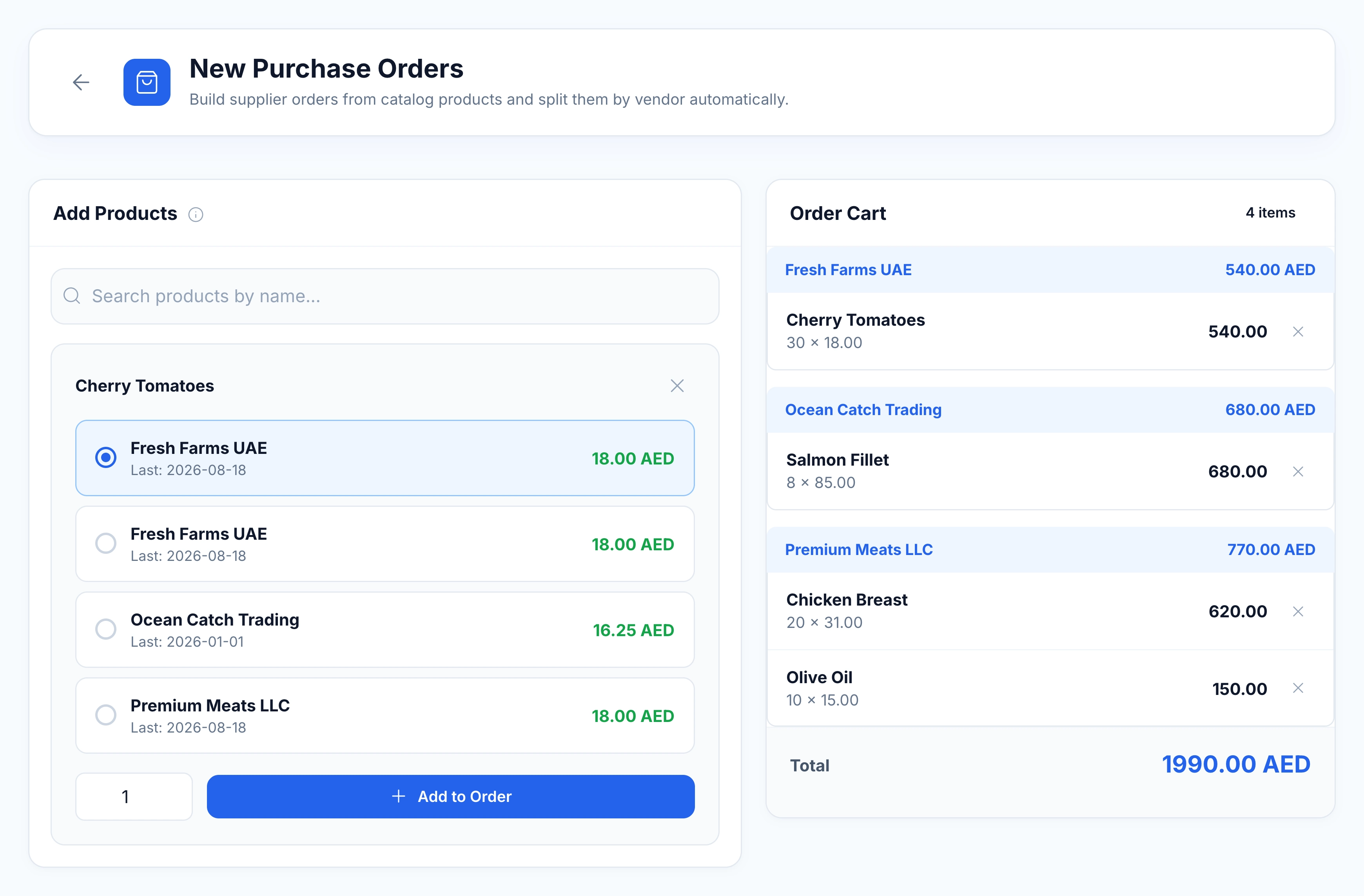
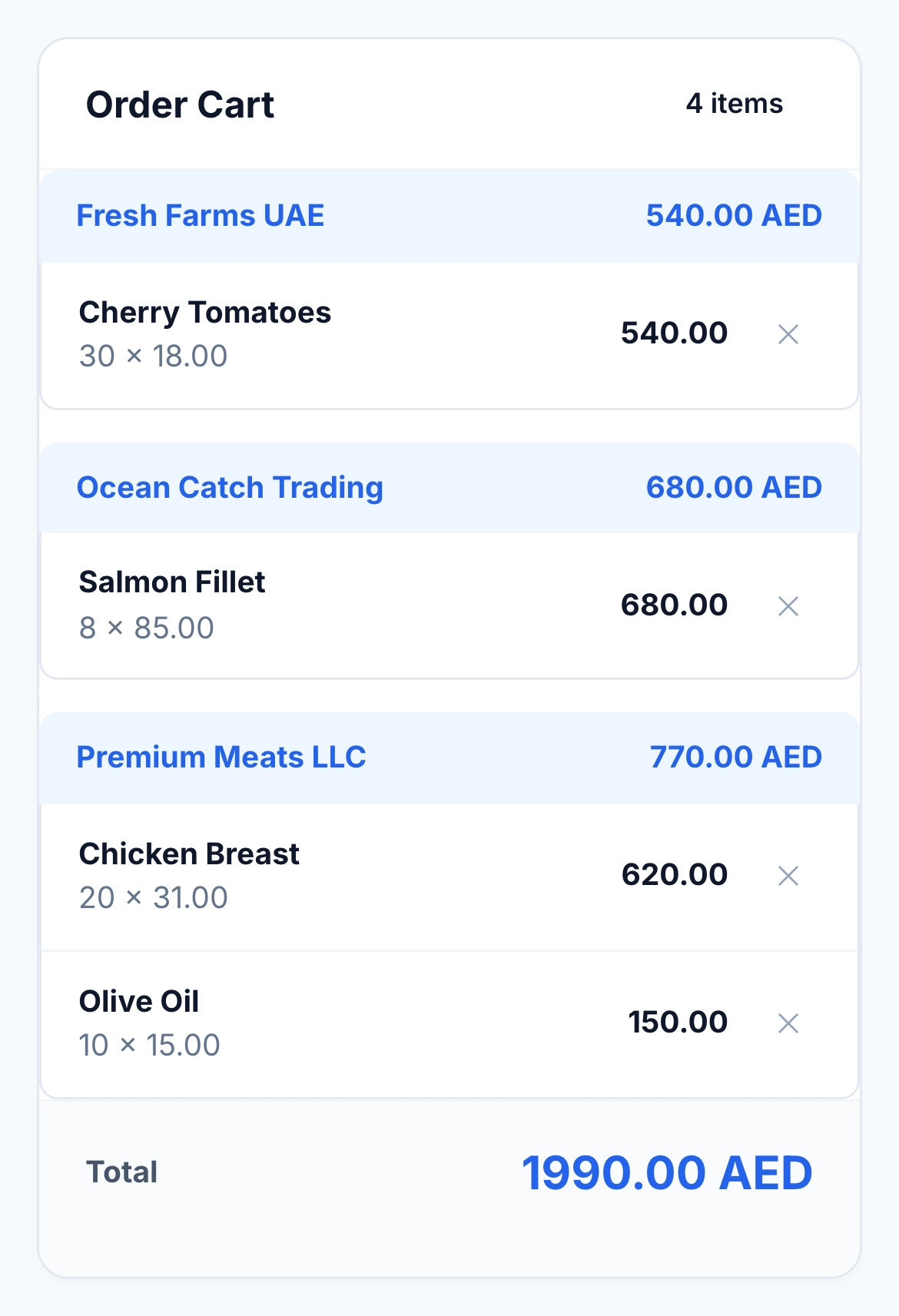
Start with the ingredients your kitchen needs. Choose a supplier and quantity for each product, then keep adding to the same cart. Produce, meat and dry goods can all be prepared together, with the items and subtotal grouped under each supplier.

HoreX purchase cart with four products grouped under Fresh Farms UAE, Ocean Catch Trading and Premium Meats LLC, beside the product supplier selector

When the list is ready, select the receiving branch and delivery details. HoreX creates one draft purchase order per supplier in a single batch. Your team can review and send each order without rebuilding the list supplier by supplier.

  • Search your product catalogue
  • Choose a supplier per product
  • Supplier subtotals and a combined total
  • Separate supplier drafts in one batch

02 / SUPPLIER COMPARISON

Compare suppliers while you choose the product.

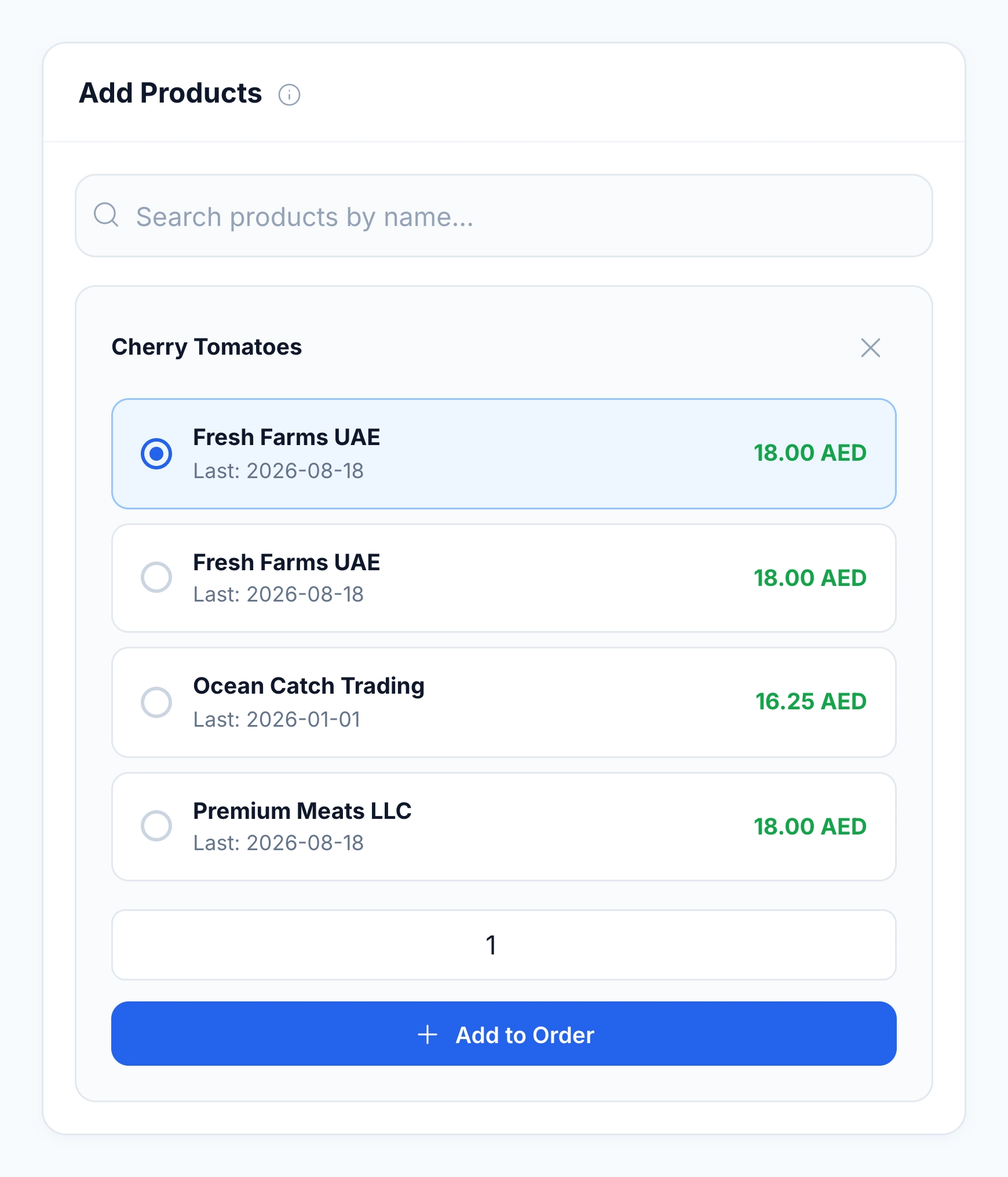
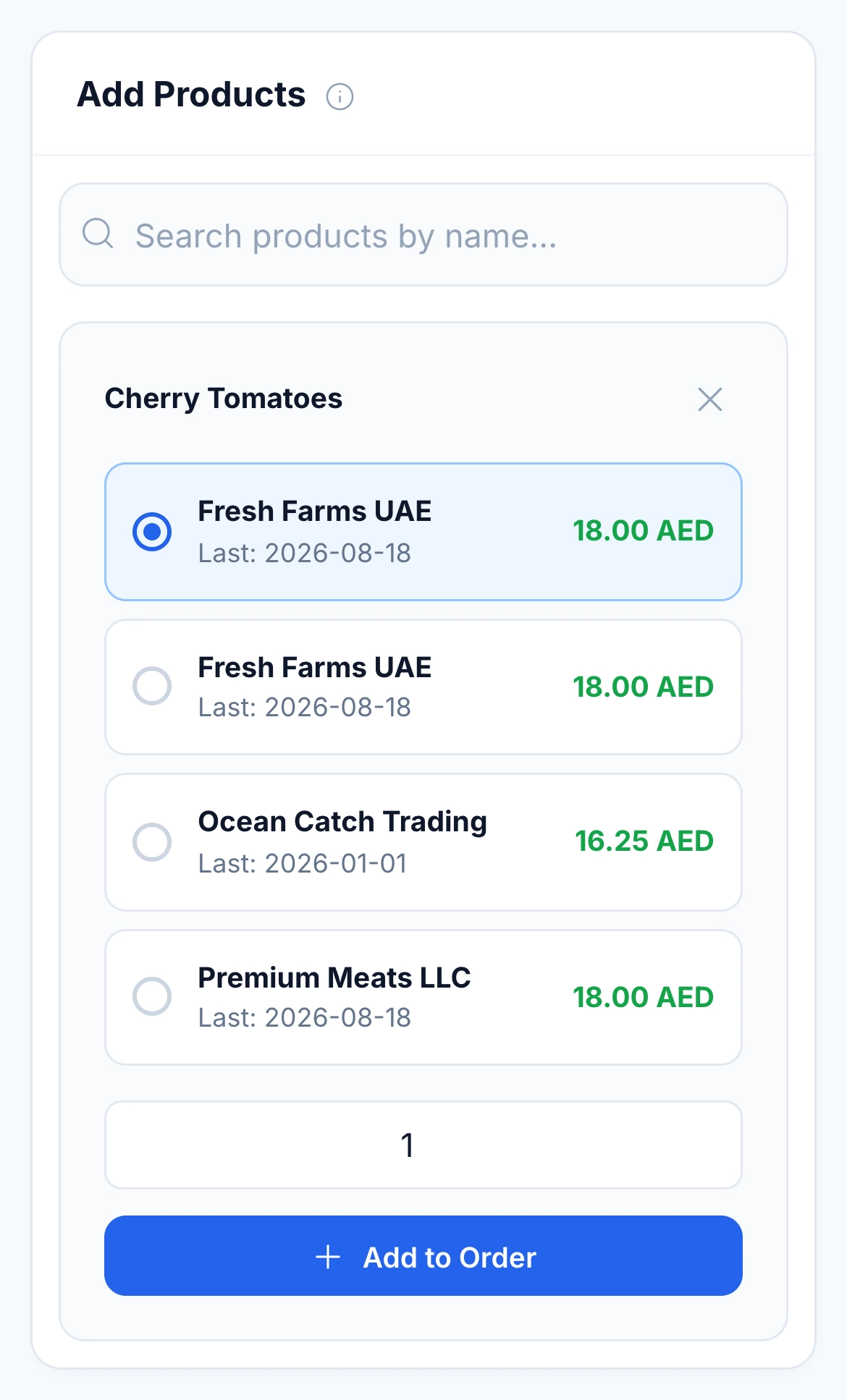
Select an ingredient and see the suppliers you have bought it from. Their latest purchase dates and prices appear in the same panel, so the buying history is at hand when you decide who to order from.

Choose the supplier, enter the quantity and add the product to the cart. You can use a different supplier for the next ingredient. For a closer price review, return to the purchase history and source invoices, including the relevant pack conversions.

  • Previous suppliers for the selected product
  • Last purchase date and price
  • Supplier choice within the order
  • Source invoices for a closer review
Native Cherry Tomatoes supplier selection with historical purchase dates and prices

03 / SEPARATE SUPPLIER ORDERS

Each supplier gets their own order.

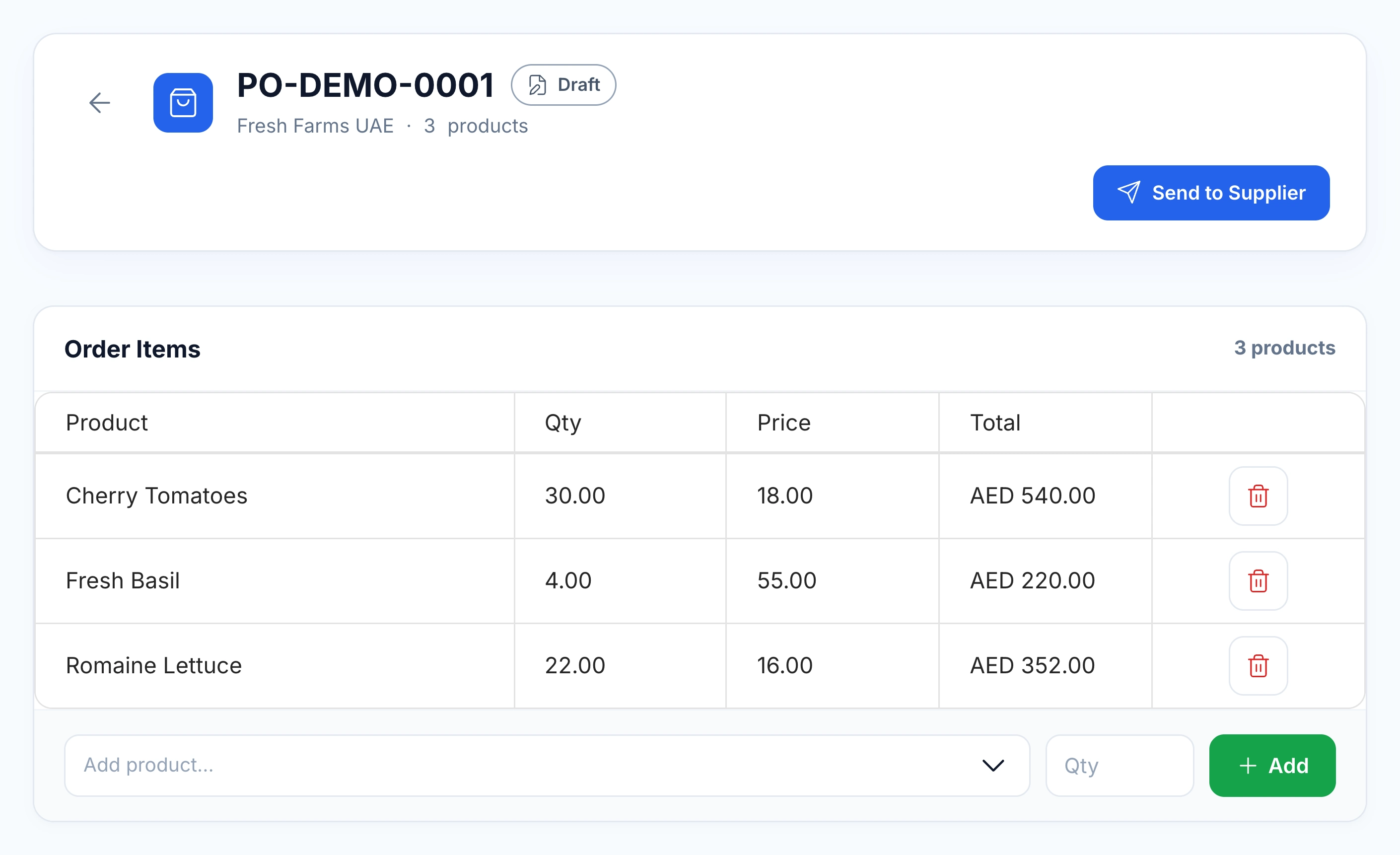
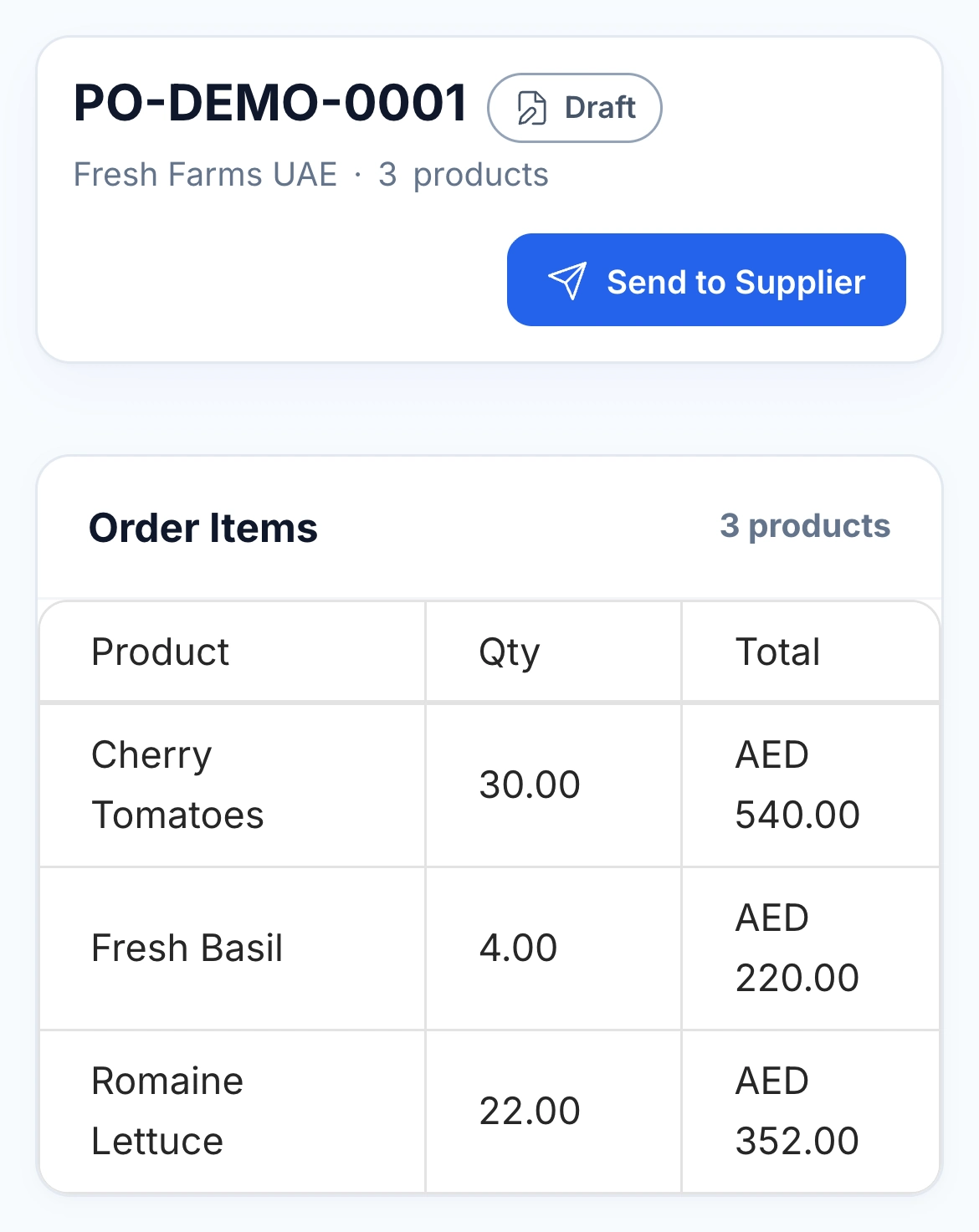
The shared cart becomes individual drafts, each with its supplier, products and quantities. Open a draft to check the delivery details, make changes and send it directly to the supplier.

Where a supplier item is linked, the outgoing order uses that supplier’s product name. The kitchen can work from its own catalogue while the supplier receives names they recognise. Follow each order through Draft, Sent, Confirmed and Received.

  • One draft per supplier
  • Review before sending
  • Mapped supplier product names
  • Delivery details and order status
Existing Fresh Farms UAE draft purchase order with item quantities, prices and Send to Supplier action

04 / SUPPLIER ITEMS & PACKS

Connect supplier names and packs to your catalogue.

The same ingredient can arrive under different supplier names and in different packs. Link each supplier item to your catalogue product and record the pack-to-base-unit conversion, so a carton on an invoice can become the right quantity in stock.

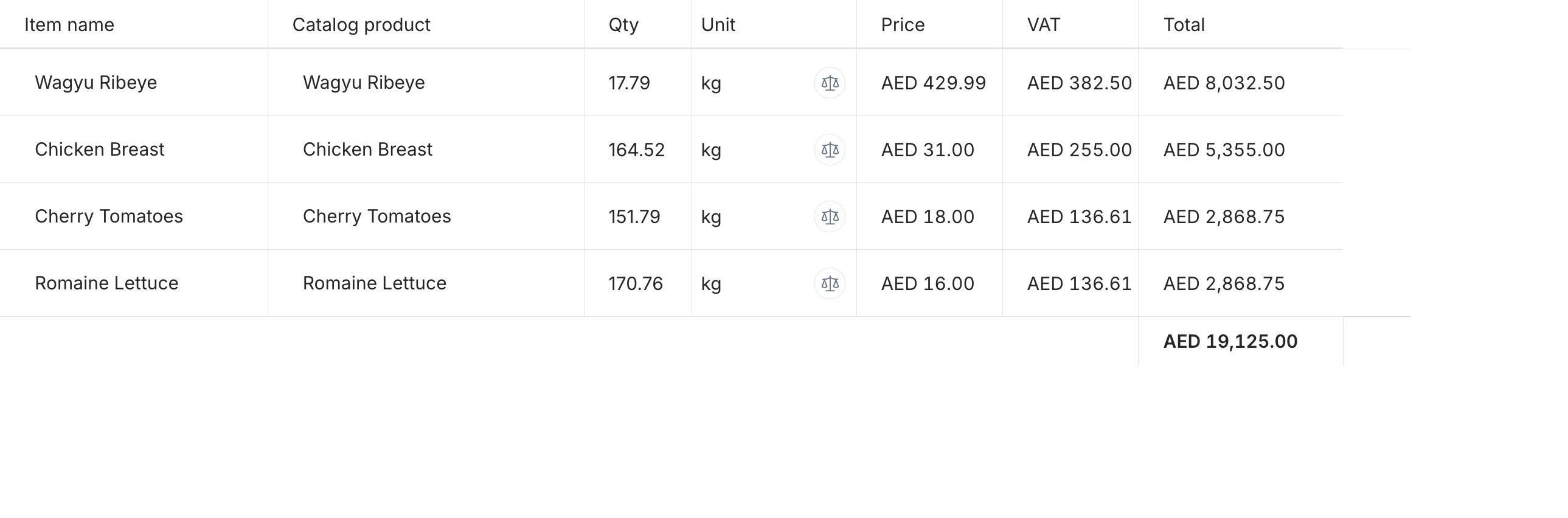
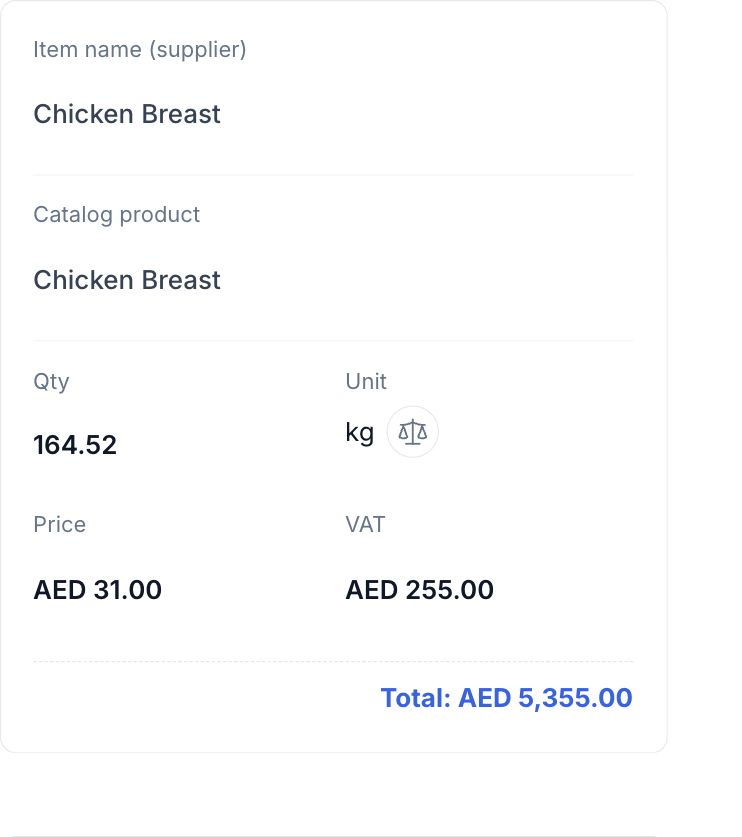
Supplier invoice lines with original item names, catalog products, quantities, units, prices and totals
A purchase invoice line showing the supplier item, catalog match, quantity, unit and purchase price

Keep the original supplier line beside its catalogue match, quantity, unit and price. Once the invoice is reviewed and posted, those purchase records support ingredient cost calculations and future supplier comparisons. Supplier records also hold contacts and payment terms.

  • Supplier product records
  • Pack-to-base-unit conversions
  • Purchase price history
  • Supplier contacts and terms

05 / DELIVERY RECEIVING

Record what actually arrived.

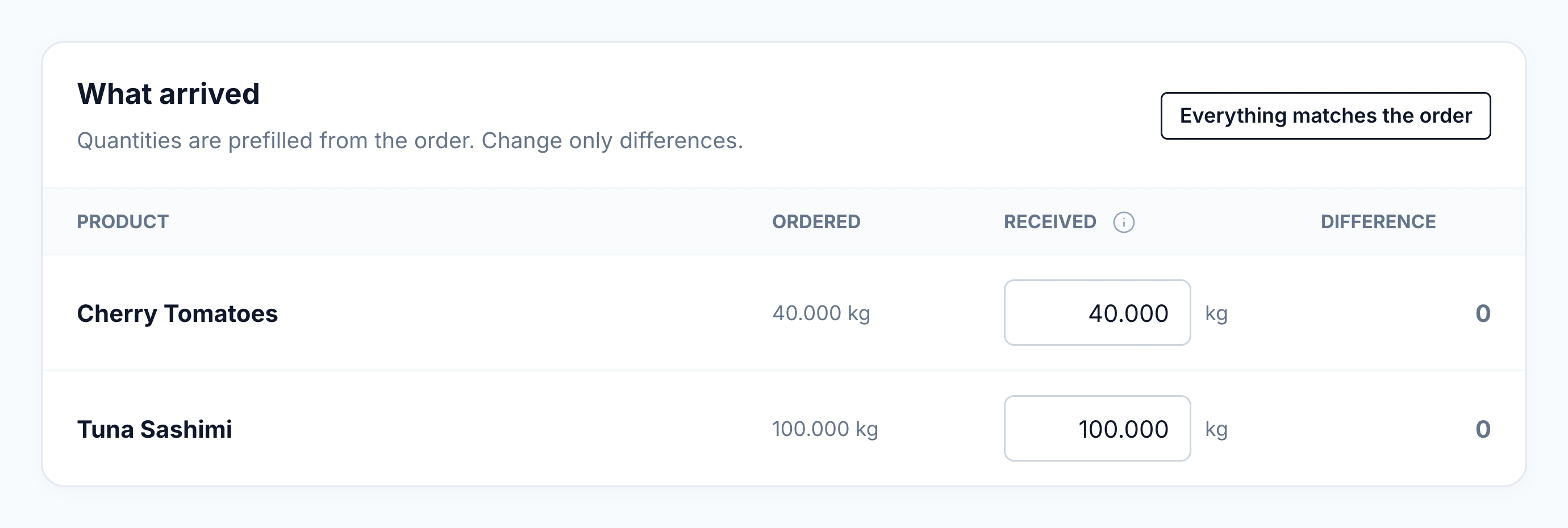
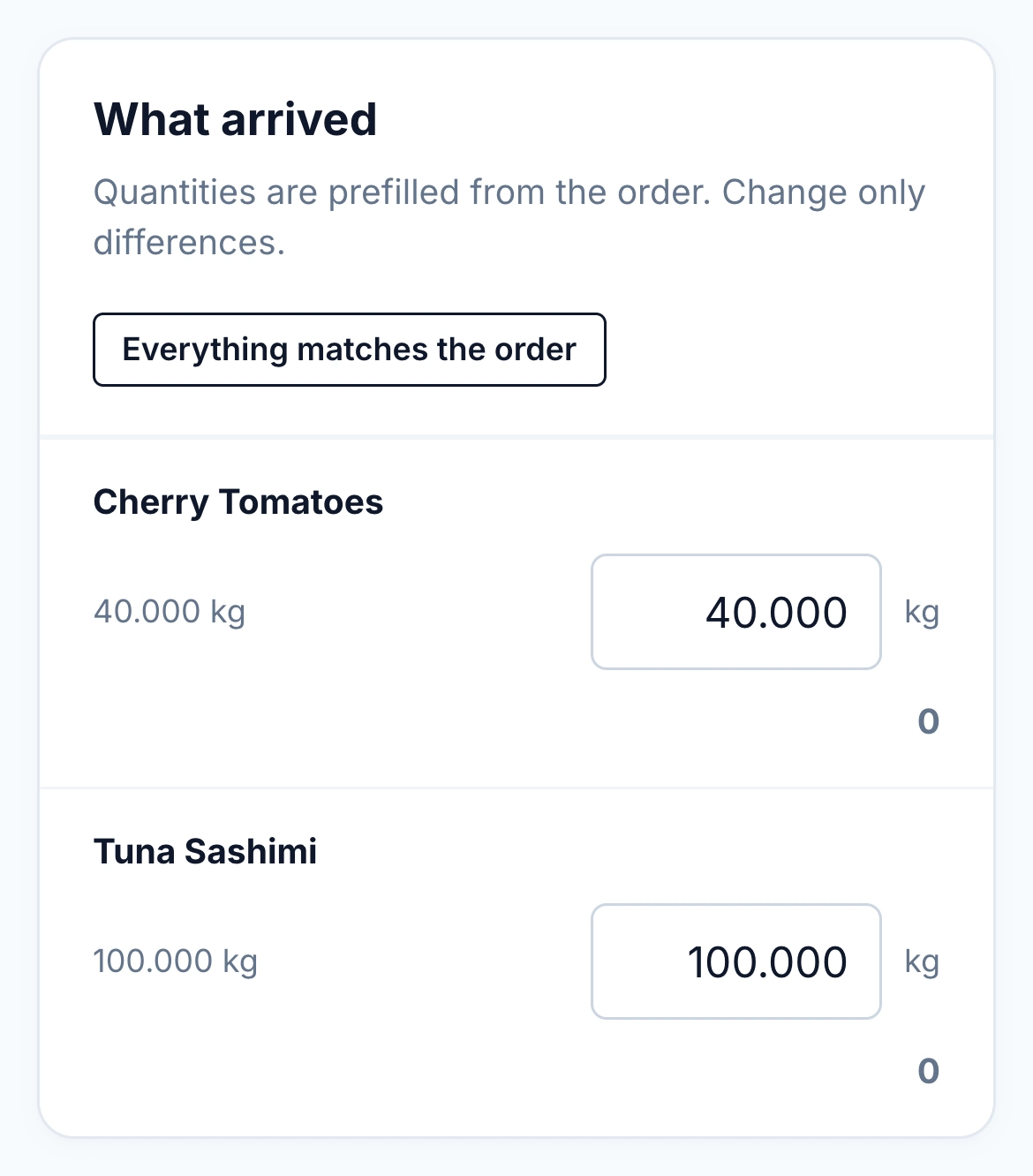
Open the supplier order when the goods arrive. Quantities start from the order; enter what was received and check the differences. The order keeps the physical receipt for the team following up the purchase.

If the supplier’s tax invoice arrives with the goods, attach it to prepare a linked draft for review. Confirming receipt and posting the invoice are separate steps: the reviewed invoice records incoming stock and purchase costs.

  • Ordered and received quantities
  • Visible shortages and differences
  • Optional supplier invoice attachment
  • A linked invoice for stock posting
Actual HoreX receiving form with ordered quantities, editable received quantities and differences

06 / INVOICE, STOCK & COSTS

Check the bill beside the original document.

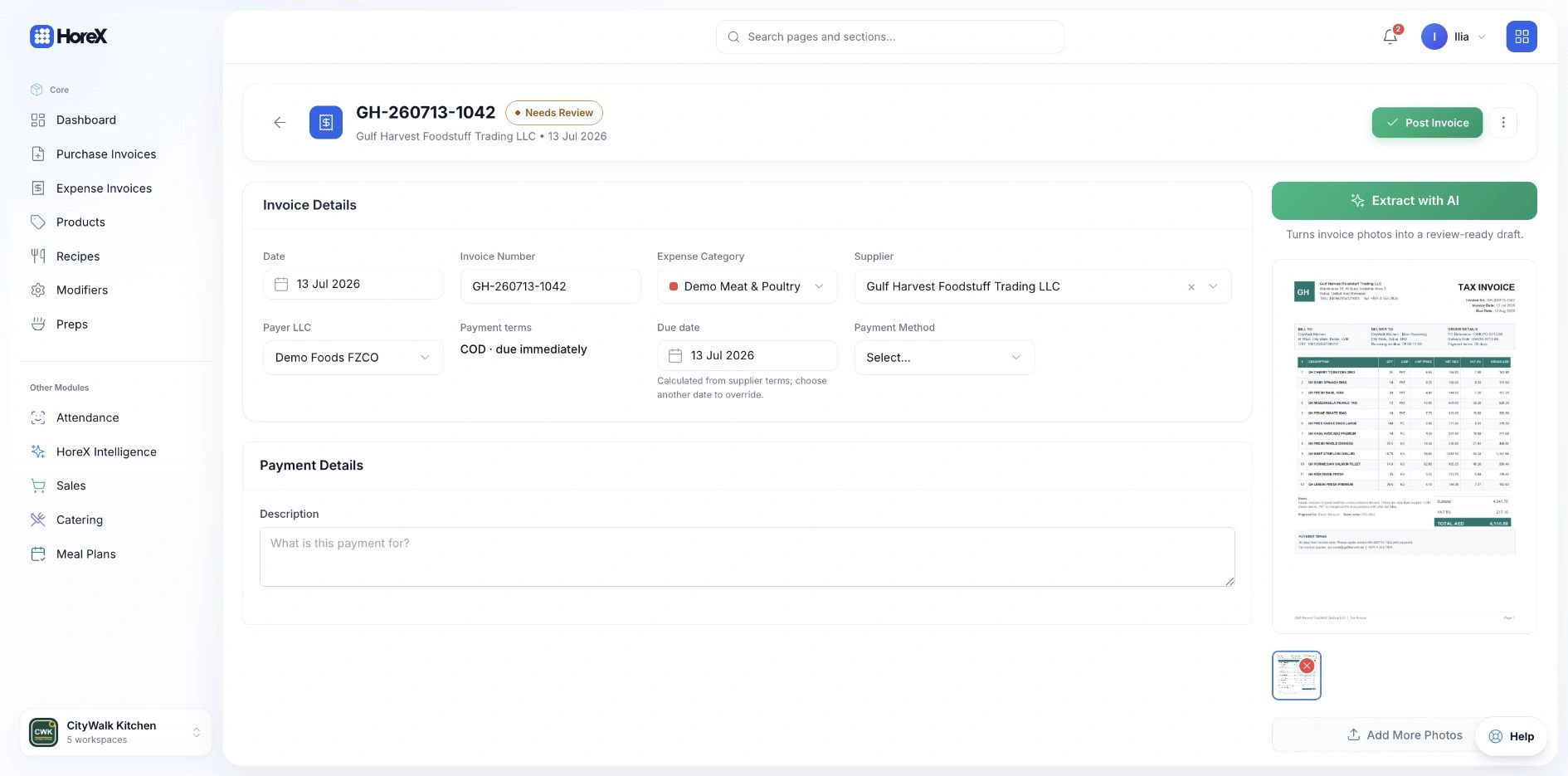
Upload a supplier PDF or phone photo to prepare an invoice draft. Review the extracted fields and product matches beside the original document, including quantities, prices, tax and pack sizes.

Supplier invoice details beside the original PDF in HoreX, with the extracted fields ready for review
The original supplier tax invoice attached in HoreX with the Extract with AI action

Posting the reviewed invoice records incoming stock and purchase prices for ingredient costing. The supplier bill, attachment, due date and payment state remain available to finance. Awaiting Tax Invoice and Awaiting posting help the team find purchases that still need attention.

  • Arabic and English extraction
  • PDF and photo upload
  • Catalogue matching and pack conversions
  • Stock, cost and finance connection

PURCHASING TOOLS

The details your purchasing team works with.

Supplier comparisons, batch orders, receiving and invoice review, with Smart Order available to suggest quantities from your stock targets.

Purchase orders

Build one cart across suppliers and create a separate draft for each.

See details

Search the product catalogue, choose a supplier for each ingredient and build one cart. Review supplier subtotals and the combined amount, then choose the receiving branch and delivery details.

Creating orders splits the cart into one draft per supplier. Open each draft, make any changes and send it. Draft, Sent and Confirmed show the order before arrival; receiving records the delivery, and the linked posted supplier invoice completes the purchasing record.

  • Product-first order cart
  • One draft per supplier
  • Delivery details and order statuses
  • Linked supplier invoice

Purchase price history

Compare previous suppliers, last purchase dates and prices as you order.

See details

Select a catalogue product in a new purchase order to see its previous suppliers, latest purchase dates and prices. Choose the supplier in that same panel before adding the quantity to the cart.

Posted purchase lines keep the supplier, quantity and price behind each purchase. Review that history before choosing a vendor or discussing a price change.

Compare like-for-like units. A carton price only becomes useful beside a kilogram price once the pack conversion is correct.

  • Supplier purchase history
  • Ingredient prices
  • Pack conversions
  • Source invoices

Supplier registry

Keep supplier details, terms and the items you buy together.

See details

Use supplier records for contact details and payment terms. Link the products they supply, including the supplier's item names and pack sizes.

When several suppliers carry an ingredient, choose the appropriate supplier for that order. Keep pack quantities consistent so prices and stock quantities remain comparable.

  • Supplier contacts
  • Payment terms
  • Supplier items
  • Pack sizes

Invoice scanning

Turn a supplier PDF or photo into an editable purchase draft.

See details

Upload the supplier document and extract its header and line items. Arabic and English documents are supported.

Review the original attachment alongside quantities, prices and tax. Confirm each catalog product and supplier pack conversion before posting.

  • PDF and photo upload
  • Arabic and English
  • Product matching
  • Review before posting

Delivery receiving

Record the quantities that actually arrived.

See details

Open the purchase order when the delivery arrives. Check each product and enter the actual quantity, including any shortage.

The received order waits for its supplier invoice. This physical checkpoint helps the kitchen plan with arrived goods; posting the invoice is the separate step that updates the stock ledger.

Receipt closes the order as one final delivery; an entered shortage is final for that purchase order. An optional invoice attachment can start a linked draft for review.

  • Ordered quantities
  • Actual received quantities
  • Visible discrepancies
  • Invoice follow-up

Order and invoice comparison

Trace a billed quantity or price back to the order.

See details

Keep the supplier invoice linked to the received purchase order. That connection makes differences between requested, delivered and billed quantities easier to investigate.

Use the supplier's document when reviewing billed prices. A discrepancy should lead back to its order and invoice, with the actual amounts preserved.

  • Order-to-invoice link
  • Quantity differences
  • Price differences
  • Source documents

Smart Order

Build a purchasing list from usable stock and the targets you set.

See details

Select a branch and review products below their par levels. Smart Order separates posted stock from deliveries received but not yet posted, so an invoice waiting for review does not make an arrived delivery disappear from the calculation.

Review the proposed quantity, choose suppliers and adjust for the service you are planning. Add the items to the cart, then create supplier-specific drafts for your team to review and send.

  • Branch selection
  • Posted and pending stock
  • Editable quantities
  • Supplier grouping

Stock targets

Set the minimum and target quantities behind replenishment.

See details

Configure product thresholds for the relevant stock location. Smart Order uses those par levels to identify the items that need attention.

Review the targets as your menu and service volumes change. You can adjust the suggested order quantity before adding it to the cart.

  • Product thresholds
  • Location scope
  • Below-target products
  • Manual quantity adjustment

Ingredient cost updates

Bring posted purchase prices into recipe costing.

See details

Posting a purchase invoice records the price paid for each mapped product. Those purchase records feed the cost calculations used by recipes and reports.

Supplier units matter here too: confirm how many base units are in a pack before posting, so both the received quantity and unit cost are correct.

  • Posted purchase prices
  • Base-unit costs
  • Recipe cost connection
  • Purchase history

Delivery follow-up

Keep expected deliveries and missing invoices visible.

See details

Use the expected delivery date and order status to follow outstanding orders.

After receipt, Awaiting Tax Invoice identifies orders with no invoice yet. Awaiting posting identifies orders whose invoice exists but is still a draft.

  • Expected dates
  • Active orders
  • Awaiting Tax Invoice
  • Awaiting posting

Purchasing reports

Review spending and return to the documents behind it.

See details

Review procurement totals, supplier spend and purchase differences for the selected reporting period.

Use the underlying invoices and orders to investigate an amount. Keep branch and period filters aligned when comparing results.

  • Supplier spend
  • Period filters
  • Purchase discrepancies
  • Document drill-down

Stock posting

Receive product quantities through the purchase invoice.

See details

Post the reviewed itemized supplier invoice to record incoming products for the receiving branch. An order or a scanned draft on its own does not create a stock movement.

The order, physical receipt and invoice stay connected, helping you avoid counting one delivery twice.

  • Receiving branch
  • Itemized purchase lines
  • Posted stock movement
  • Linked order

Finance connection

Keep supplier bills and purchase costs tied to their source.

See details

The supplier invoice carries the billed amount, due date and payment state. Finance can follow the purchase without re-entering the supplier document.

Purchases and ingredient consumption answer different questions. Review purchasing totals alongside the appropriate stock and financial reports for the period.

  • Supplier invoices
  • Payment state
  • Due dates
  • Source-linked costs

Questions about restaurant purchasing

Can I order from several suppliers at once?

Yes. Add products from different suppliers to one cart. HoreX groups the lines by supplier and creates a separate draft purchase order for each in one batch. Review and send those drafts individually.

How does AI Smart Order work for restaurants?

Smart Order compares usable stock with your configured par levels. It shows posted stock and goods received but not yet posted separately. Select a branch, review quantities and suppliers, then create draft purchase orders for your team to send.

Can I send purchase orders directly to suppliers?

Yes. Prepare the order, review its products, quantities, delivery date and supplier details, then use the sending workflow. Creating an order only creates a draft; sending is a separate action.

How does invoice scanning work for supplier deliveries?

Upload a PDF or photo. HoreX extracts supplier details, product lines, quantities, prices and tax into a draft. Review the source, catalog matches and pack conversions before posting.

Can I compare prices across multiple suppliers?

Yes. Select a product in the purchase-order cart to see previous suppliers, their latest purchase dates and prices. Choose a supplier there and continue building the cart. Purchase history and source invoices provide the detail for checking pack or base-unit conversions.

What happens when goods are received from a supplier?

Enter the actual quantities against the purchase order. The received order then needs a linked supplier invoice. Posting that itemized invoice records the incoming stock and purchase prices.

Does it support purchase order approval workflows?

Access to creating, editing, sending and receiving orders follows your team's action permissions and assigned branches. Set those responsibilities for the people who prepare and release orders.

How does procurement connect to inventory and finance?

Planning reads stock and par levels. Receiving records what arrived. The linked posted invoice updates stock and purchase price history, while keeping the supplier bill available to finance.

Can I track supplier delivery reliability?

Use order dates, actual received quantities and linked invoices to review a supplier's delivery history. Quantity and price differences remain traceable to the documents involved.

See your supplier routine in HoreX.

Walk through product selection, supplier comparison and a batch of purchase orders, then follow a delivery into its invoice and costs.