


Purchase orders for restaurant suppliers.

Build the order, check the delivery and keep the supplier invoice linked. Purchasing, receiving and finance can follow the same purchase.

01 / ORDER

Prepare the supplier order

Collect products in a cart and create one order per supplier.

02 / RECEIVE

Check what arrived

Record actual quantities against the products you ordered.

03 / FOLLOW THROUGH

Link the supplier invoice

Keep the bill with the receipt and complete stock posting.

Explore all 12 purchasing features

01 / THE PURCHASE ORDER

The supplier, products and quantities in one record.

Search your product catalog and add the items you need to the order cart. Choose the supplier for each line, set quantities and select the delivery branch.

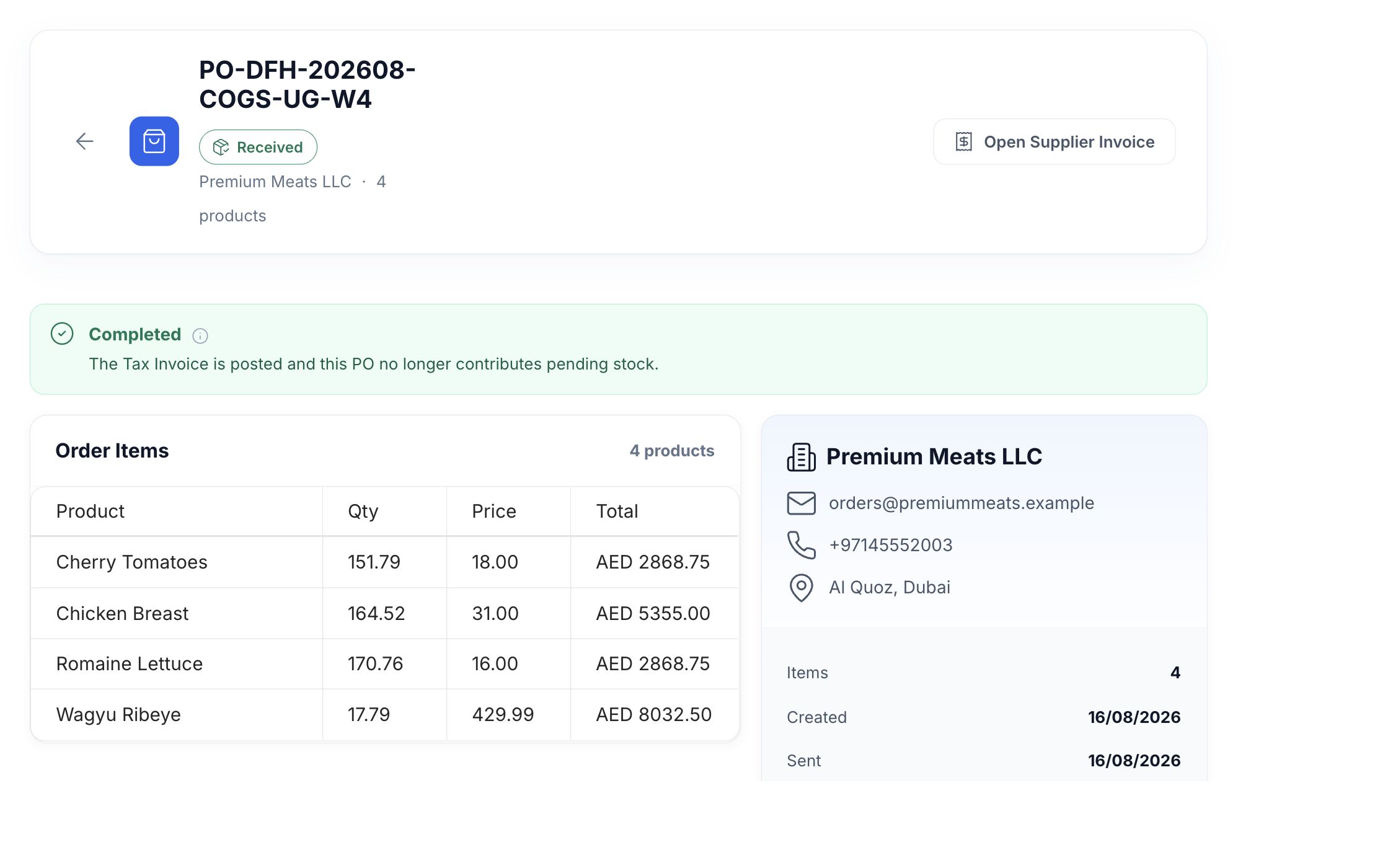
Received purchase order with supplier, ordered products and a link to the posted invoice

Creating orders splits the cart by supplier and saves drafts. Review the details and send each order. Its status shows whether it is being prepared, has been sent, or has been received.

  • Product-first ordering
  • One draft per supplier
  • Delivery branch and date
  • Supplier invoice link

02 / AT THE DELIVERY DOOR

Record the delivery you actually received.

Open the order when the goods arrive. Check the products and enter the actual quantities, including any short delivery.

Receiving gives purchasing and the kitchen a record of what arrived. It also leaves a clear next step for the person reviewing the supplier's bill.

  • Ordered and received quantities
  • Shortage visibility
  • Physical receiving status
  • Invoice follow-up
A restaurant receiving chef checking produce crates against an order on a tablet

03 / RECEIPT TO INVOICE

Close the order with the supplier's bill.

Receiving and invoice posting are separate steps, so an arrived delivery is counted once.

  1. Record the receipt

    Enter the quantities that arrived. The order waits for its supplier invoice.

  2. Link the invoice

    Create a prefilled draft or link an existing supplier invoice. Review products, units and billed prices.

  3. Post the purchase

    The posted itemized invoice records stock and purchase prices. The order remains linked to it.

04 / OUTSTANDING PURCHASES

See what is waiting for the supplier, or for your team.

Active orders cover drafts, sent orders and confirmed deliveries still to come. Once you record receipt, invoice follow-up shows whether the bill is missing or is waiting to be posted.

Use the order and invoice together when a supplier bills a different quantity or price. The original amounts stay available for the conversation.

  • Draft, Sent and Confirmed
  • Awaiting Tax Invoice
  • Awaiting posting
  • Completed purchase record

ALL FEATURES

Tools for the purchasing routine.

Smart Order

Use stock targets to prepare the purchasing basket.

See details

Select a branch and review products below their configured par levels. Posted stock and goods received but not yet posted appear separately.

Choose suppliers, adjust quantities and create draft purchase orders from the basket.

  • Branch scope
  • Stock targets
  • Pending received stock
  • Editable quantities

Purchase order builder

Collect the products you need in one cart.

See details

Search your product catalog, select the product and supplier, and add the required quantity. Repeat for ingredients, packaging and other stocked products.

Set the delivery branch and details. HoreX splits the cart into one draft order per supplier.

  • Product search
  • Supplier selection
  • Order cart
  • Supplier-based splitting

Supplier details

Keep the right contacts, items and terms on the order.

See details

Supplier records connect the vendor with the products and pack sizes you purchase.

Check the chosen supplier and delivery details before sending. Staff can return to the supplier's order history when following up.

  • Contact details
  • Supplier products
  • Pack sizes
  • Payment terms

Purchase prices

Review the supplier and price for each product.

See details

Use supplier item information and posted purchase history when choosing where to buy a product.

Check the unit behind the price. An agreed price per case needs the correct pack conversion before it can be compared with a price per kilogram.

  • Supplier selection
  • Purchase history
  • Pack units
  • Line totals

Sending orders

Review the draft before it goes to the supplier.

See details

Creating orders saves drafts. Open the order and check the supplier, products, quantities, delivery date and notes.

Send the reviewed order through the purchasing workflow. Sent status separates an order released to the supplier from one still being prepared.

  • Draft review
  • Supplier details
  • Delivery date
  • Sent status

Delivery receiving

Compare the delivery with the requested quantities.

See details

Open the order at receiving and enter what actually arrived for each line. A short delivery should stay recorded as a shortage.

This records the physical receipt. The supplier invoice is reviewed and posted separately to create the incoming stock movement.

  • Ordered quantity
  • Received quantity
  • Shortage record
  • Invoice follow-up

Below-target products

See which ingredients need replenishment.

See details

Set minimum and target quantities for products at the appropriate stock location.

Smart Order brings below-target products into the planning view. Review the suggestions and create drafts when you are ready to place the order.

  • Minimum quantities
  • Par levels
  • Critical products
  • Reviewed order creation

Purchasing permissions

Give order preparation and release to the right people.

See details

Creating, editing, sending, receiving and deleting orders follow the account's action permissions.

Assigned branches determine which orders a team member can open or change. Set responsibilities to match the people preparing, releasing and checking purchases.

  • Action permissions
  • Assigned branches
  • Order access
  • Receiving access

Previous orders

Return to a supplier's earlier order when planning the next.

See details

Order history keeps previous product lists, quantities and supplier details available for reference.

Open the earlier order to check what you bought and its linked invoice, then prepare the quantities needed for the next delivery.

  • Supplier history
  • Ordered items
  • Previous quantities
  • Linked invoice

Branch ordering

Keep each order with the location receiving it.

See details

Choose the delivery branch when building the cart. Branch choices follow the locations available to your account.

A legacy warehouse order belongs to its warehouse branch. The linked supplier invoice keeps the purchase connected to the receiving location.

  • Delivery branch
  • Assigned locations
  • Warehouse connection
  • Branch-scoped invoices

Supplier review

Investigate shortages and billed price changes.

See details

Review the requested quantities, the actual receipt and the supplier invoice together.

Order-versus-invoice differences provide a starting point for a supplier conversation. Return to the individual documents to see which product and amount changed.

  • Ordered versus received
  • Price differences
  • Supplier order history
  • Source documents

Order history & follow-up

Find the orders and invoices that still need attention.

See details

The order workspace separates active orders from received ones. Open an order for its supplier, lines and linked invoice.

Awaiting Tax Invoice means the delivery has no supplier invoice yet. Awaiting posting means a linked draft exists and still needs review and posting.

  • Active orders
  • Received orders
  • Awaiting Tax Invoice
  • Awaiting posting

Questions about supplier orders

How does AI-powered supplier ordering work?

Smart Order compares usable stock with the par levels set for your products. Review the suggested quantities and suppliers, then create draft purchase orders. Goods received but not yet posted are shown separately and included in usable stock.

Can I compare prices across multiple suppliers?

You can choose among suppliers linked to a product and review purchase price history. Check pack conversions so that prices use a comparable unit.

How do I send purchase orders to suppliers?

Create the draft, review its supplier details, products, quantities and delivery date, then use the order's sending action. A newly created draft has not yet been sent to the supplier.

What happens when the delivery arrives?

Open the order and enter the actual received quantities. Create or link the supplier invoice for that receipt, check the billed prices and post it. The posted invoice creates incoming stock.

Can I set up automatic reorder points?

Set minimum and target quantities for products by stock location. Smart Order shows the products needing replenishment. Your team reviews the basket and explicitly creates the supplier orders.

Does it support multi-branch consolidated ordering?

Orders are assigned to a delivery branch, and one cart is split into separate orders by supplier. People with access to several branches can work across those locations; each order and receipt keeps its branch context.

How does the approval workflow work?

Order actions are controlled by permissions: creating, editing, sending and receiving can be assigned to the appropriate people. Branch access also limits which orders a person can open or change.

Can I repeat previous orders quickly?

Previous orders stay available in the order history. Use them to check the supplier, product list and quantities, then prepare the next order for the delivery you need.

See how your team would place an order.

We will walk through the product cart, delivery check and linked supplier invoice.