



Delivery management for your restaurant’s couriers.

Assign orders, confirm pickup by QR and follow each delivery through to the door. Keep courier shifts, proof photos and cash collection connected.

01 / ASSIGN

Courier dispatch

Assign deliveries and follow the courier’s progress.

02 / DELIVER

Pickup & proof

Check the order at pickup and record the drop-off.

03 / RECONCILE

Shifts & cash

Review completed jobs and cash to hand over.

Explore all features

01 / PICKUP & COURIER APP

The right order, ready for the courier.

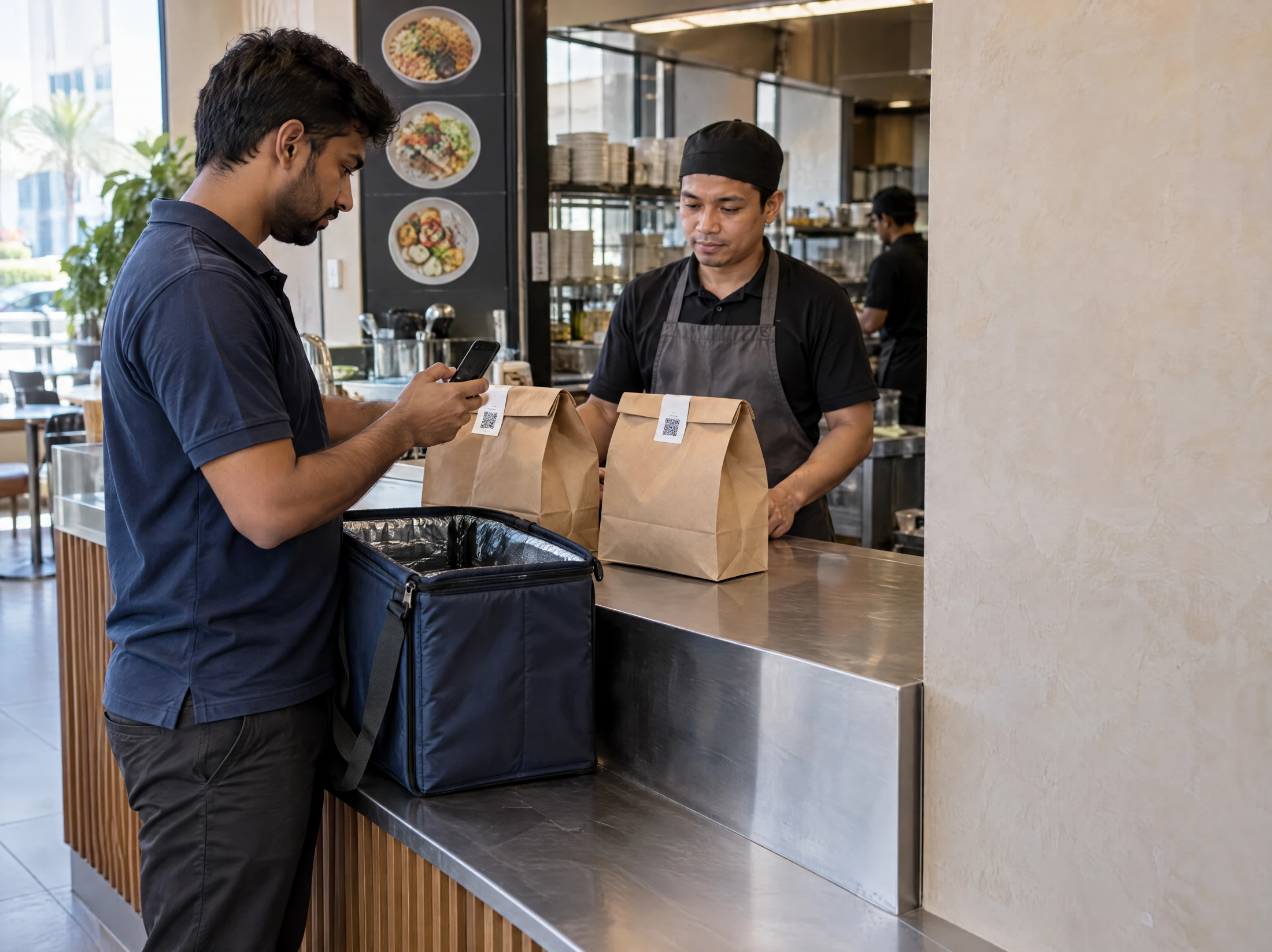
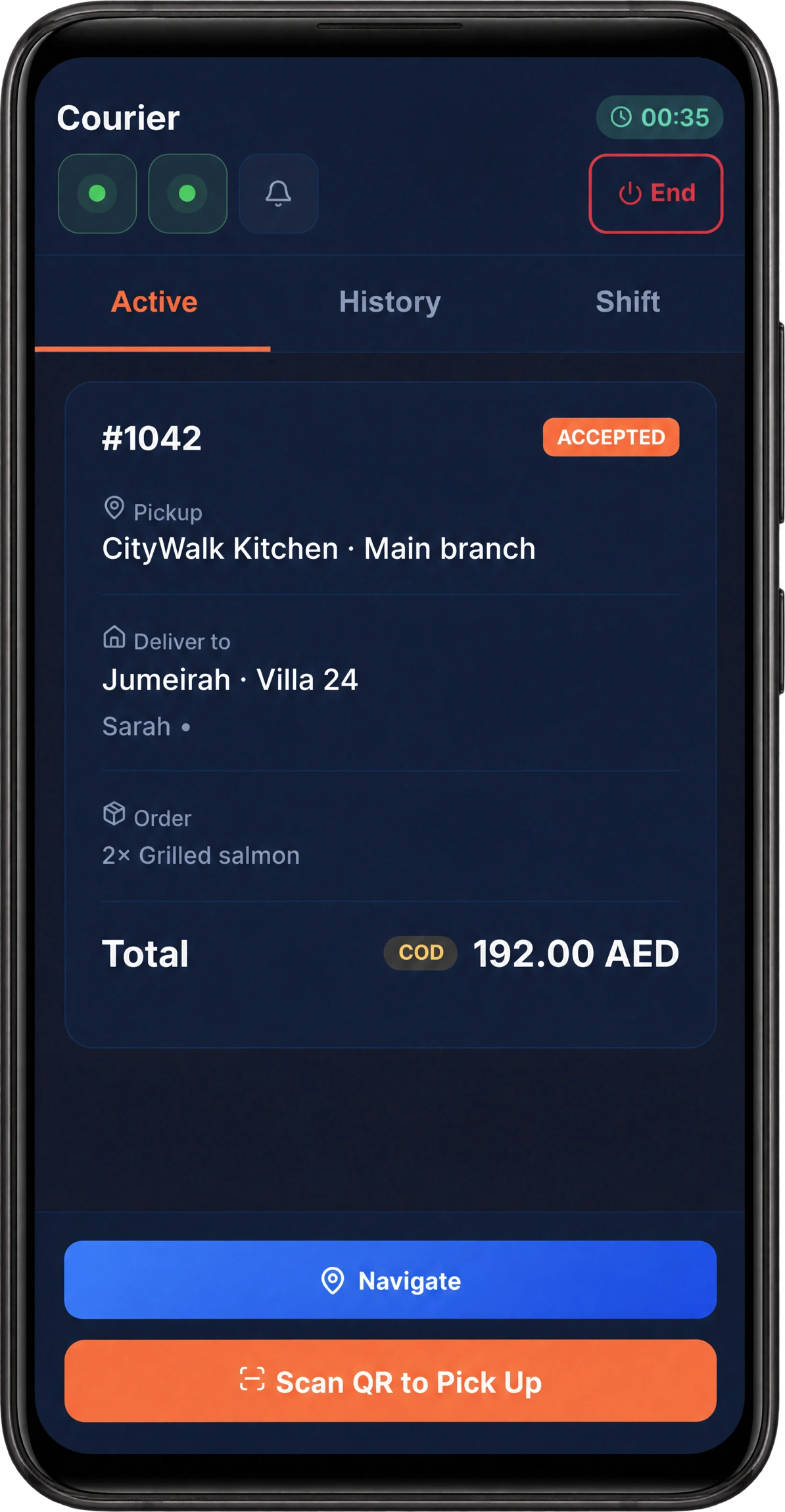
The courier receives the pickup point, customer address, items and payment method in the Android app. At collection, they scan the delivery receipt’s QR code to check that the bags belong to the selected order.

A courier checks a sealed takeaway bag at the restaurant collection counter
HoreX Courier order 1042 for Sarah, showing pickup, destination, AED 192 cash on delivery and Scan QR to Pick Up

A QR from a different order is rejected. Once pickup is confirmed, the courier can open directions and contact the customer from the same job. The restaurant keeps the delivery status connected to its original order.

  • Accept or decline an assignment
  • QR checked against the selected order
  • Customer address, items and payment
  • Navigation and customer contact

02 / DELIVERY IN POS

Manage delivery orders right in POS.

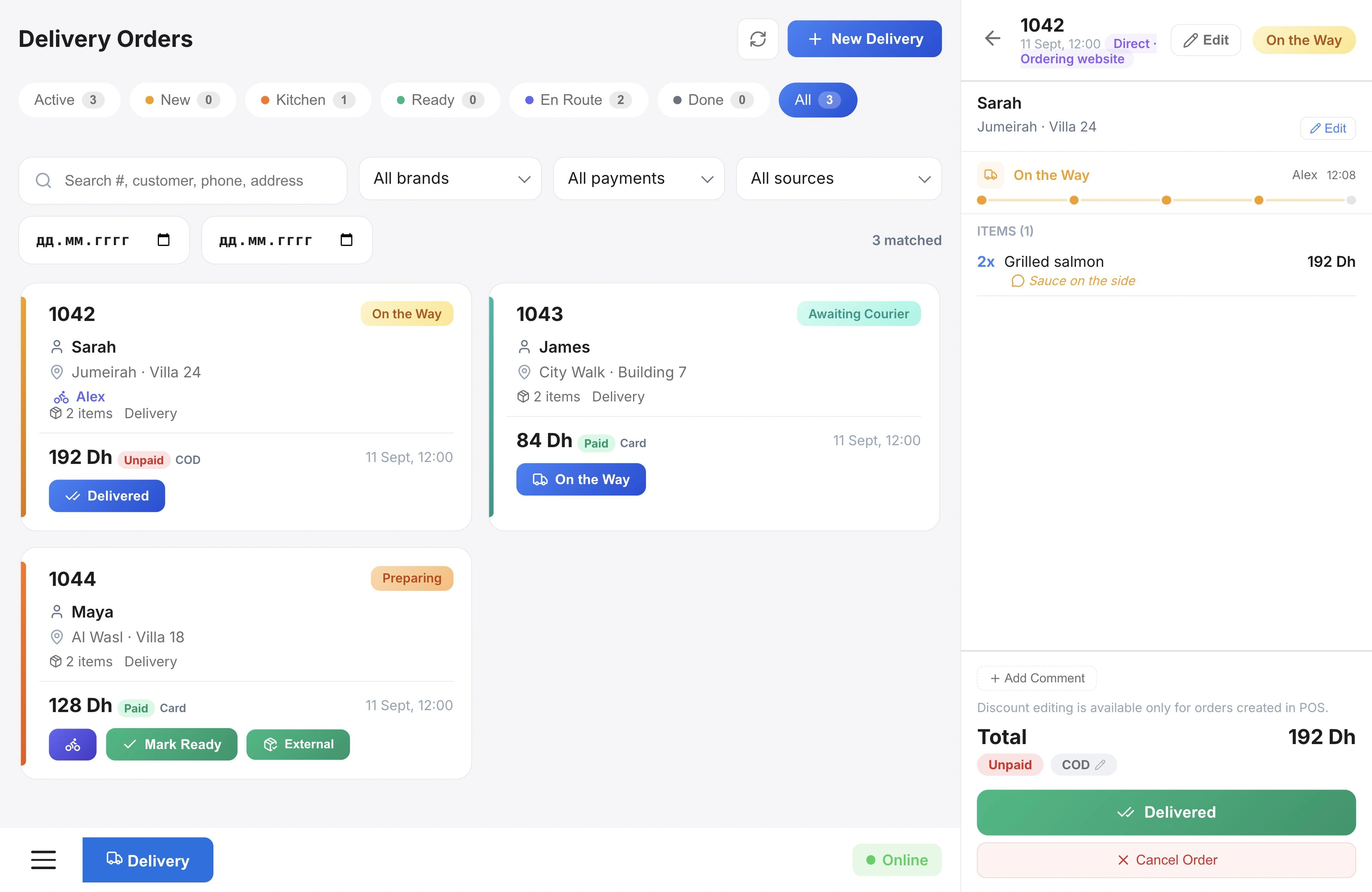
Orders from your ordering website and HoreX customer app reach POS with the guest, address, dishes and payment details. Your team can send them to the kitchen, call a courier and follow the delivery from the same order.

HoreX POS delivery queue and order 1042 for Sarah, assigned to Alex, on the way, with AED 192 cash due
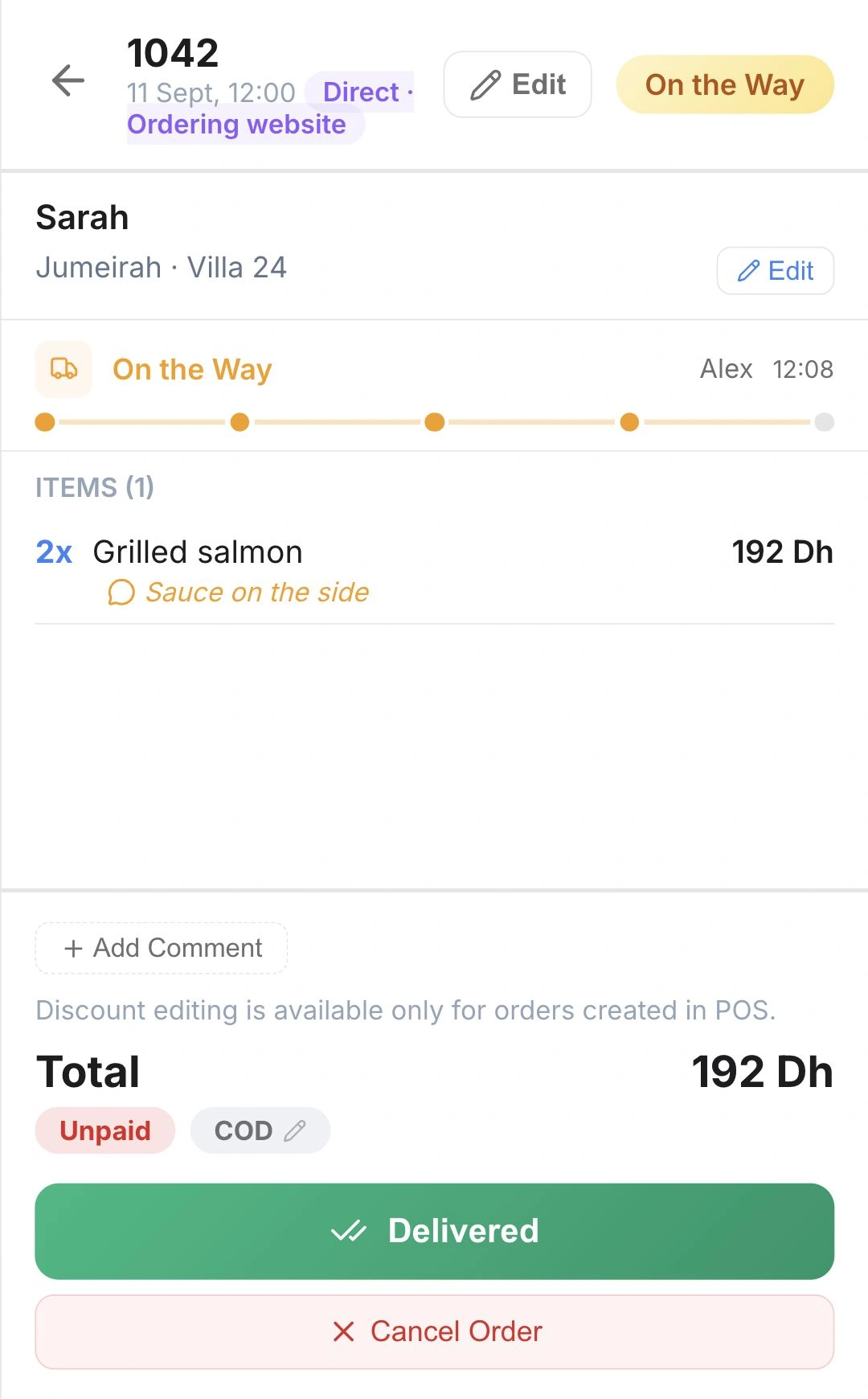
POS order 1042: Sarah, Alex, pickup at 12:08, grilled salmon and AED 192 cash due

Courier assignment, pickup and delivery status stay visible in POS. Open an order to check who has it, when it was collected and whether payment is still due. Once delivered, the proof photo remains with the record.

  • Website and app orders in POS
  • Kitchen preparation and courier handoff
  • Courier, status and pickup time
  • Payment details and delivery proof

03 / DISPATCH

Assign the delivery. See who has it.

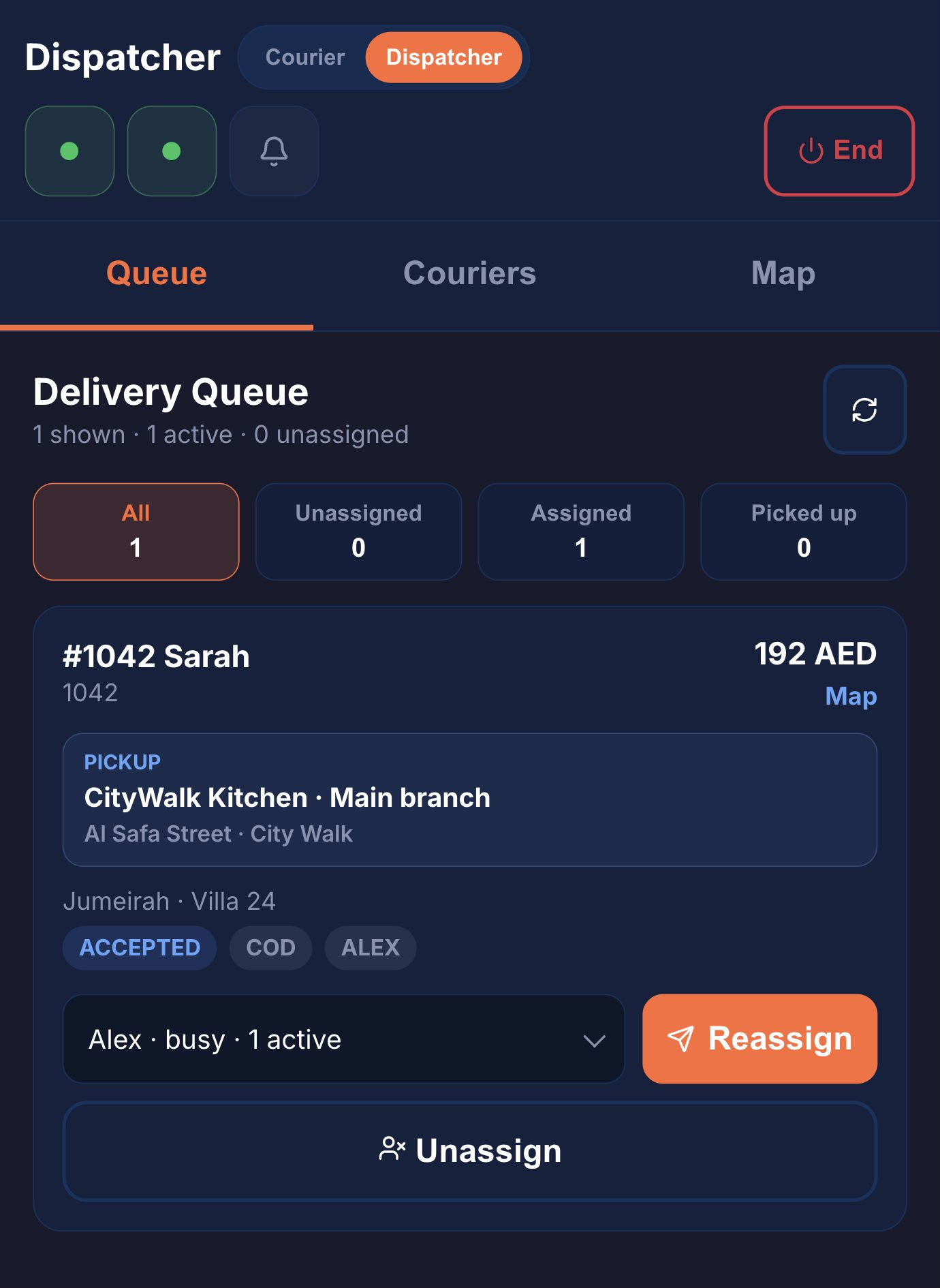
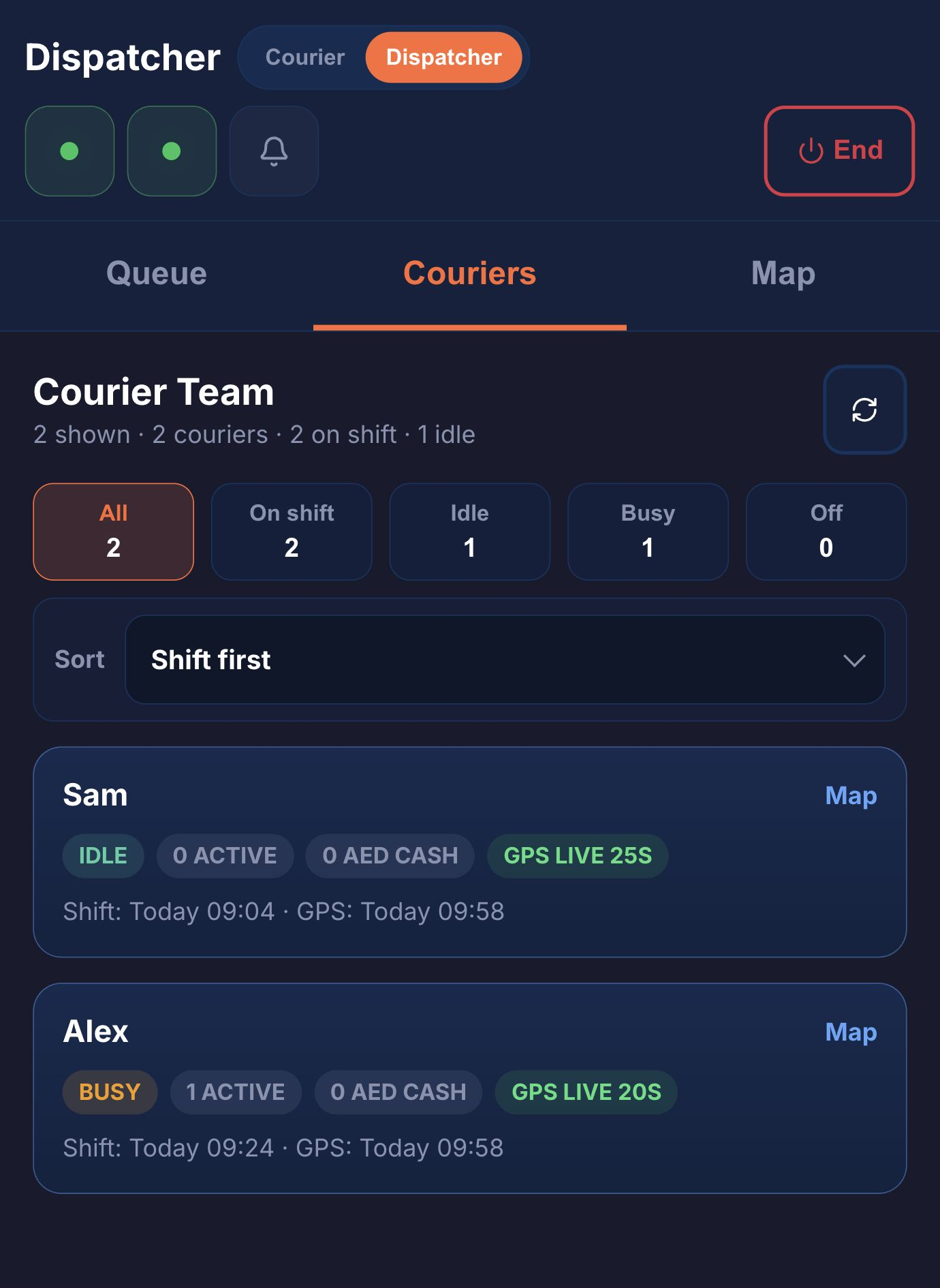
Open Dispatcher mode to see your delivery queue and the couriers on shift. Check who is free and how many active jobs each person has, then assign the order.

The courier receives the job in their app. Acceptance and pickup remain visible to dispatch, so the team can follow up on a waiting order or reassign it before collection.

Location updates show when each position was last received. Your team can check an old location before making the next assignment. Aggregator riders continue in the aggregator’s delivery workflow.

  • Queue and courier team views
  • Assign, reassign and unassign
  • Active jobs per courier
  • Time of the last location update

Delivery queue

Dispatcher queue showing order 1042 assigned to Alex, cash on delivery AED 192 and reassignment control

Courier team

Dispatcher team view with Sam idle and Alex carrying one active order, including location update times

04 / COURIER MAP

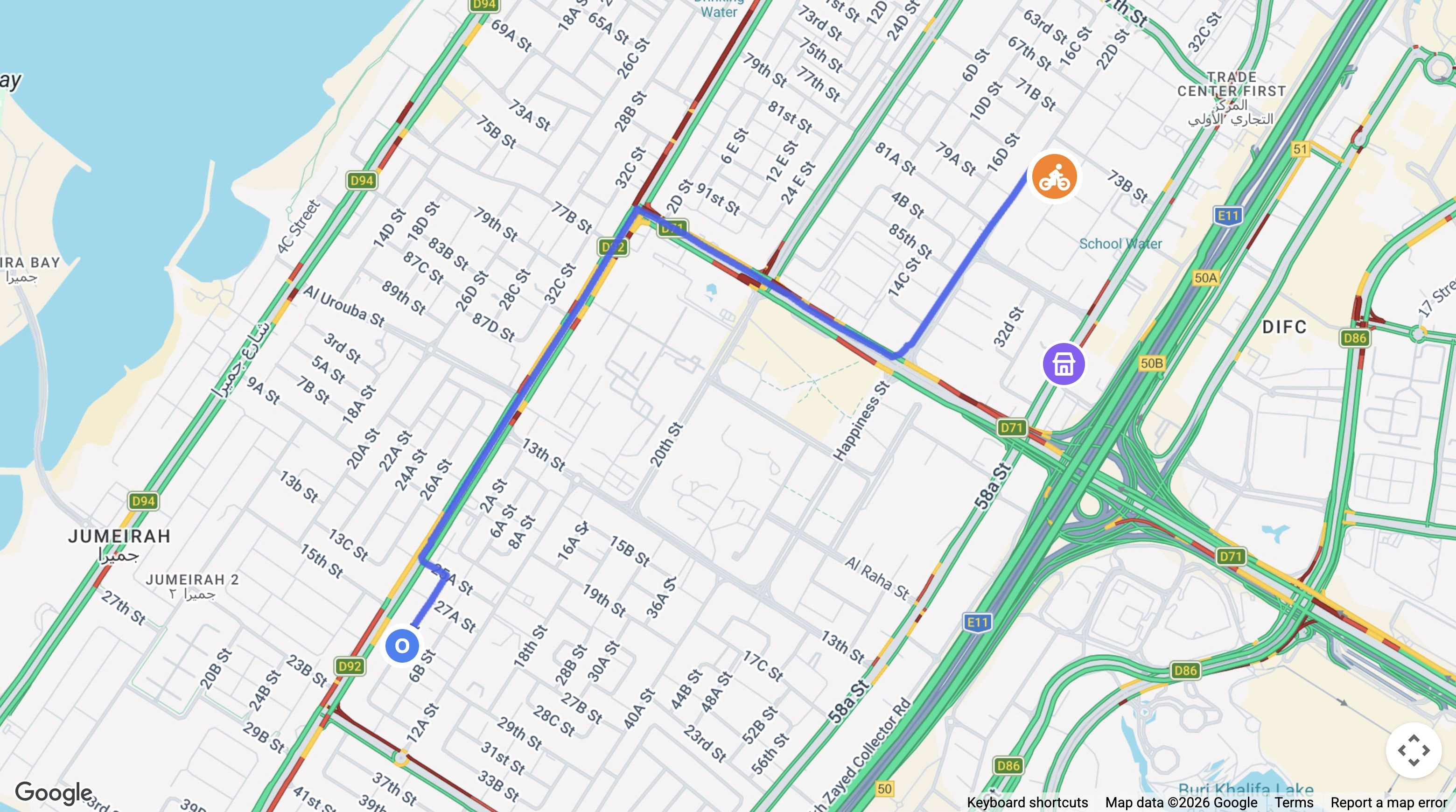
Follow the courier’s route on Google Maps.

See the courier’s position, the route to the delivery address and the estimated arrival time on one map. Select an order to follow its journey, with pickup, destination and the latest GPS update in view.

Delivery #1042Courier location
Native HoreX Google Map with a blue driving route from courier Alex to the delivery destination
GoogleMap data ©2026 Google · Terms
Arriving in6 min
Alex · Courier3.3 km to the customer
Delivering toJumeirah · Villa 24
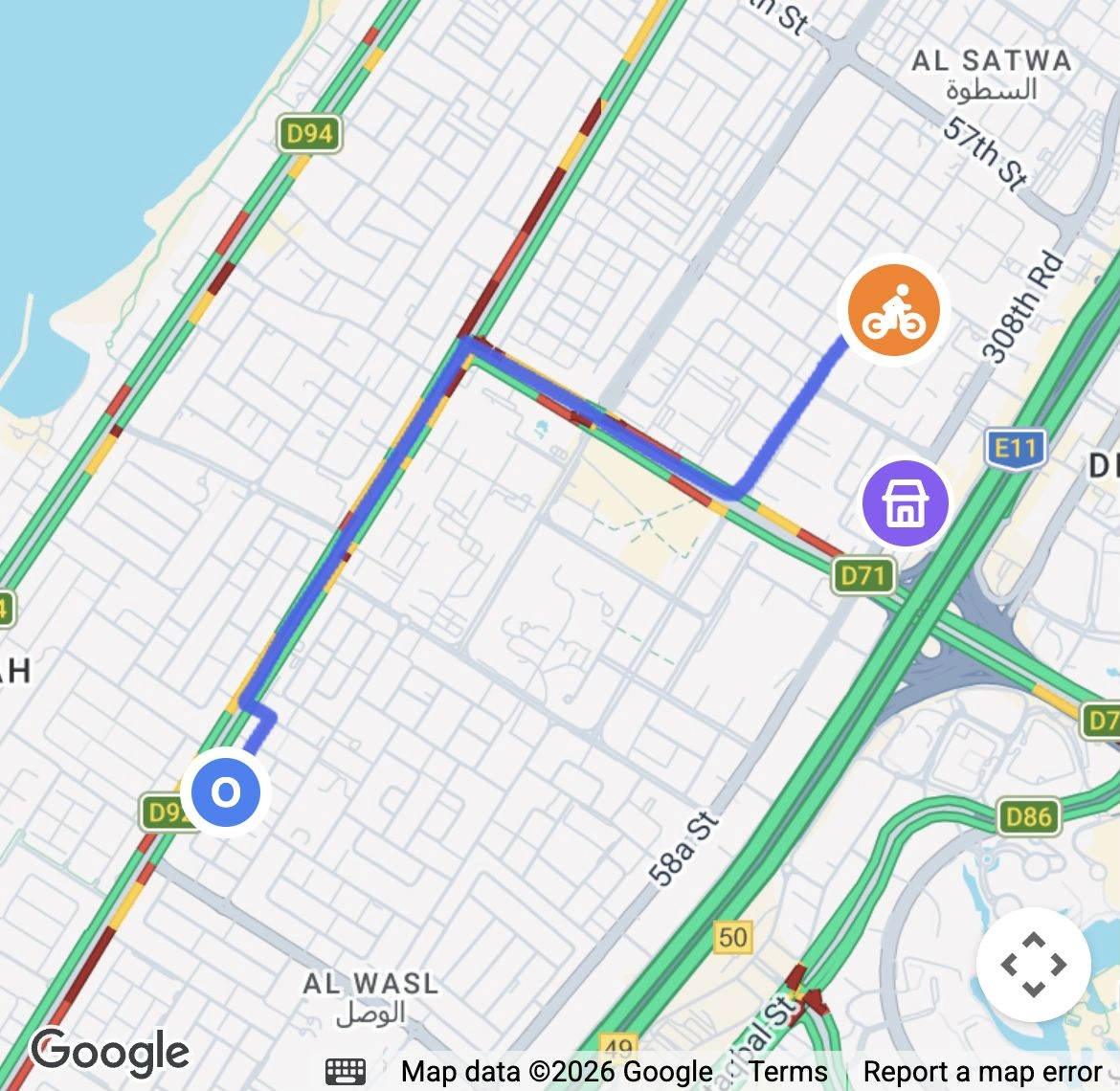
Delivery #1042Courier location
Google Maps road route, courier and delivery destination
GoogleMap data ©2026 Google · Terms
Arriving in6 min
Alex · Courier3.3 km to the customer
Delivering toJumeirah · Villa 24
  • Route along the road network
  • Estimated arrival time
  • Courier GPS updates
  • Linked to the order in POS

05 / CUSTOMER TRACKING

Guests can see their courier on the map.

Guests follow their order on your delivery website and in the HoreX customer app. Once it is on the way, they can see the courier on the map and check the delivery progress without calling the restaurant.

The guest sees their own delivery. Your team follows the same order in POS, from preparation and pickup through to the doorstep.

  • Map tracking on your website
  • Map tracking in the HoreX customer app
  • Preparation and delivery progress
  • The same order in POS
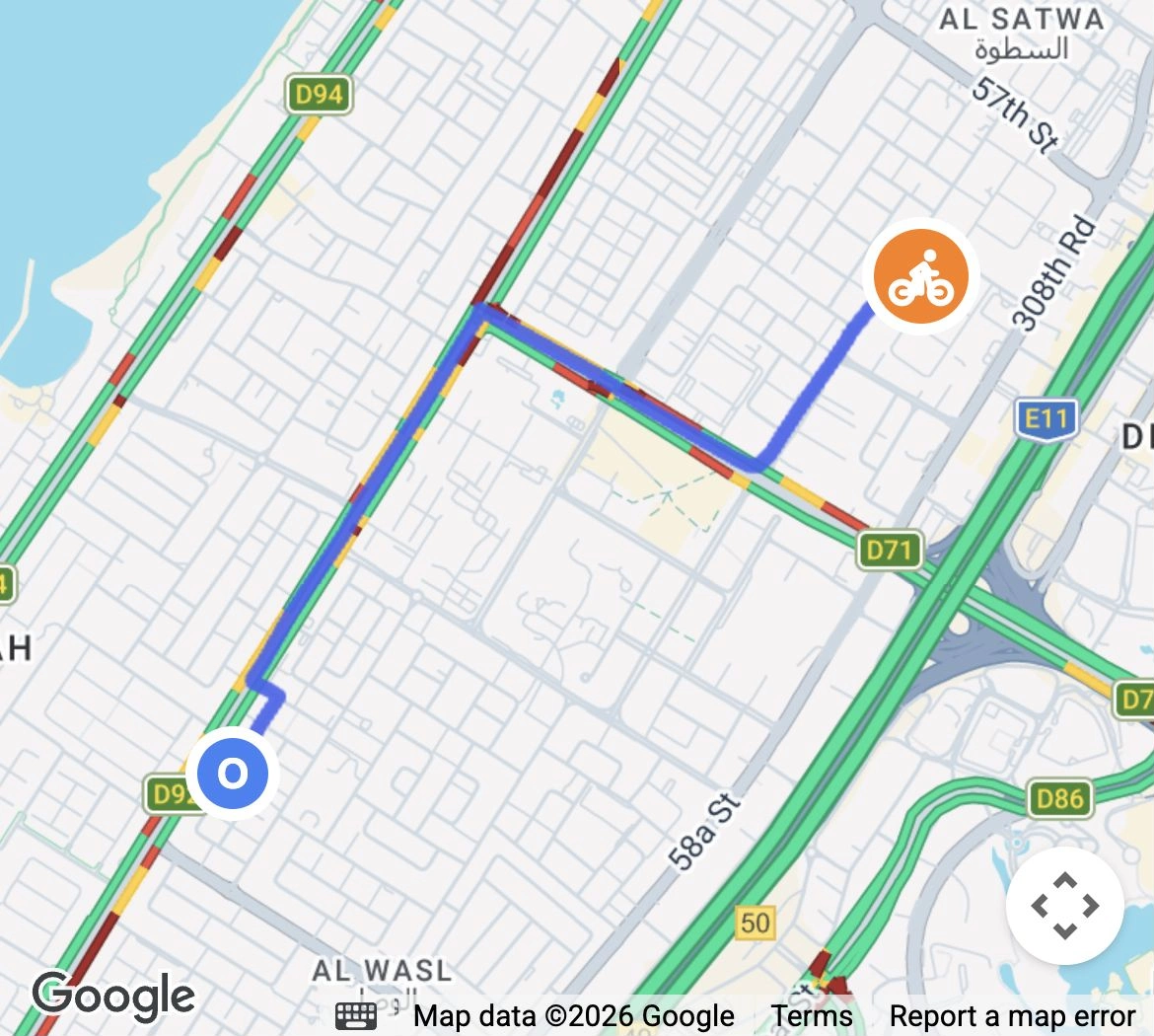
Order #1042Your delivery
Customer tracking illustration with the courier’s road route on Google Maps
On the way6 min
Alex · Your courier3.3 km away
Delivering toJumeirah · Villa 24

06 / DELIVERY PROOF

A delivery record you can return to.

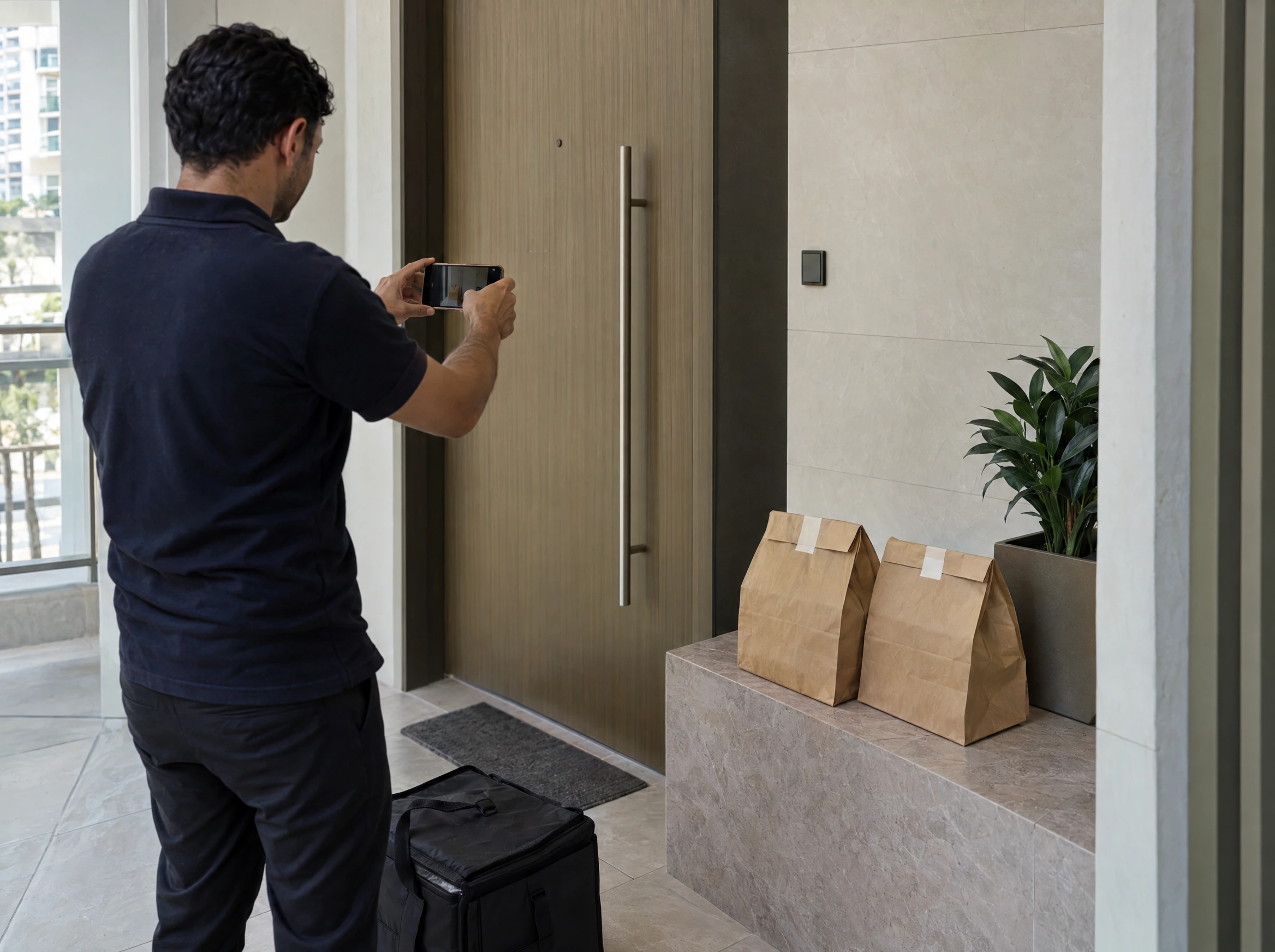
At the door, the courier records delivery against the same order. When a proof photo is needed, it stays with that job rather than disappearing into a separate chat.

If a guest calls about the handover, the team can check the delivery status, timing, photo and payment context together. The original restaurant order receives the delivery update too.

  • Order-linked photo
  • Delivery history
  • Customer contact
  • Payment context
A courier photographs sealed takeaway bags left at the customer’s door

07 / CASH & SHIFTS

Know what cash comes back with the courier.

Cash orders show the courier how much to collect. Recorded collections add to the shift’s cash-to-hand-over total, alongside its completed deliveries.

Before ending the shift, check the deliveries and the amount due back. If a figure needs checking, open the order’s history. Your team still counts and confirms the money at handover.

  • Cash amount on each order
  • Completed delivery history
  • Shift cash-to-hand-over total
  • Review before ending the shift

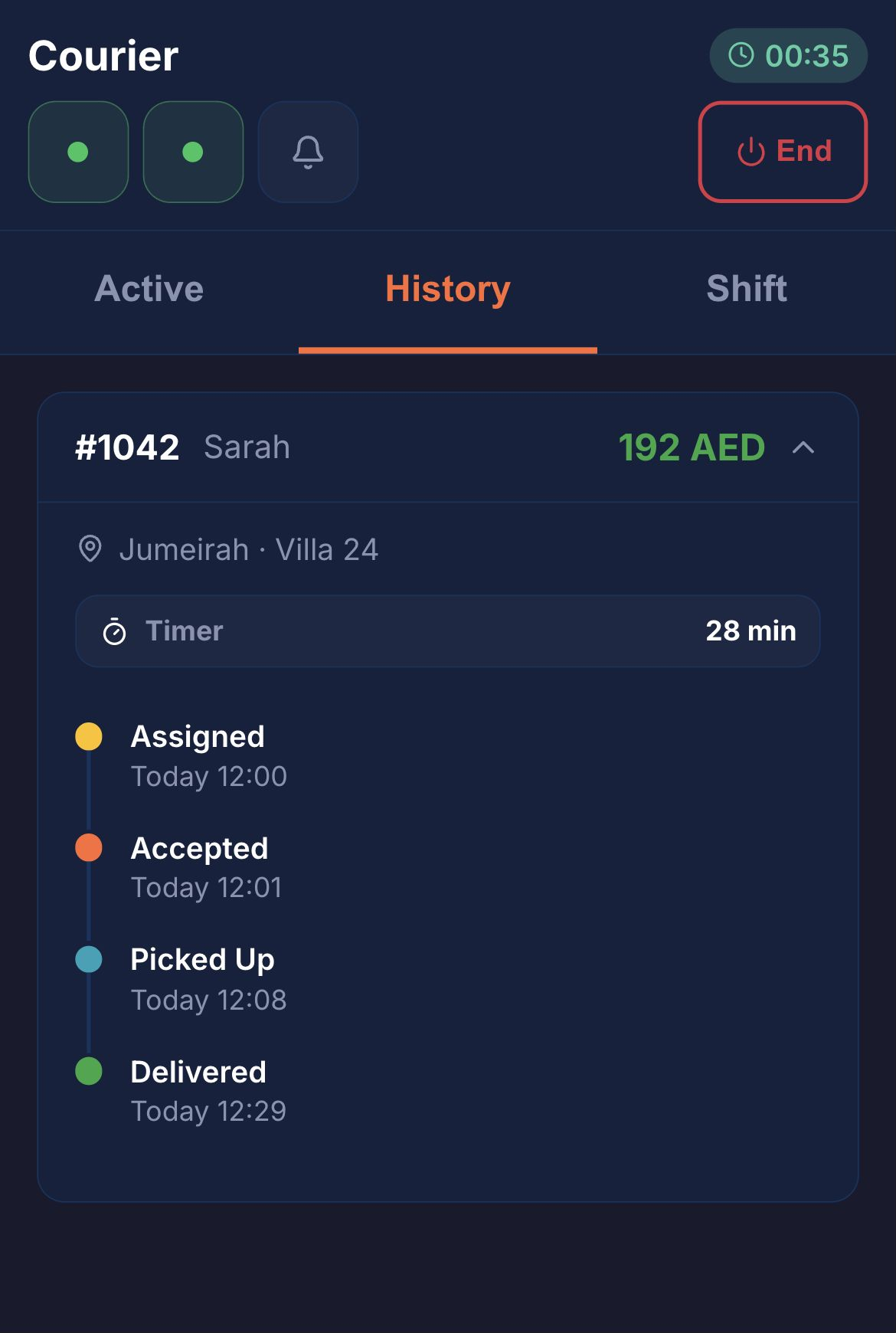
Delivery history

Completed delivery 1042 for Sarah, AED 192, with assigned, accepted, picked up and delivered timeline

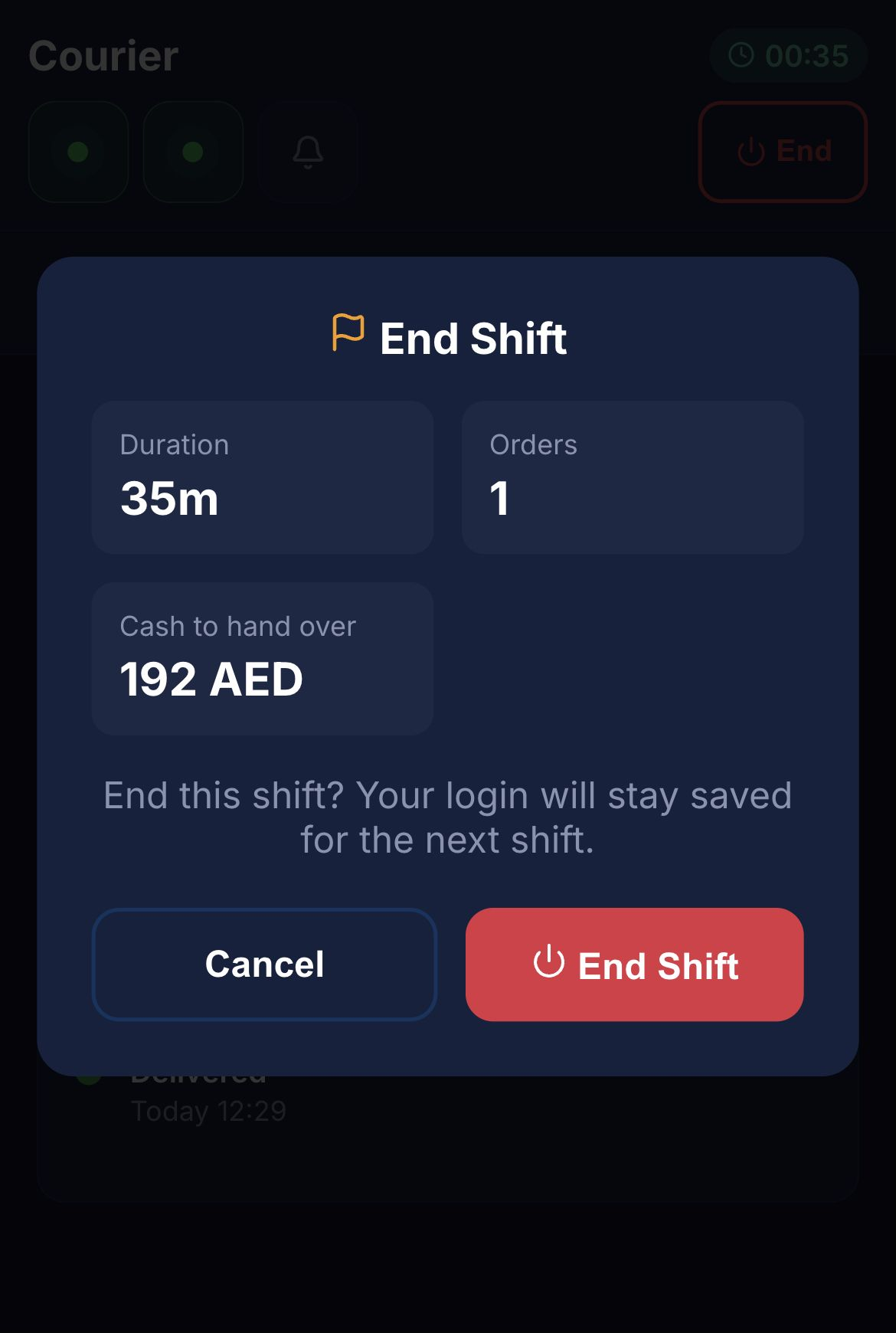
Shift handover

Courier End Shift summary with one completed order and AED 192 cash to hand over

FOR ENTERPRISE TEAMS

API connectors for your delivery workflow.

Keep your own ordering website, customer app or business software. Connect orders to HoreX and send delivery updates back to the systems your customers use.

API connectors are available for enterprise clients. We agree the systems, data and workflow with your team.

More in Delivery.

Assignment, pickup, delivery and the end-of-shift handover.

Order assignment

Send an available courier the delivery details.

See details

Assign an order from the dispatch workspace. The courier receives the pickup point, destination, items and payment information.

The courier accepts or declines the assignment. Keep the current state visible so an unaccepted job can be followed up or reassigned.

  • Courier assignment
  • Accept and decline
  • Pickup and drop-off
  • Payment information

Photo proof

Attach a delivery photo to the order record.

See details

The courier can take a photo during completion and attach it to the delivery. The image stays linked to the job for later review.

Use the photo to document the drop-off when it is appropriate for your service. It supplements the order status and recorded delivery history.

  • Camera capture
  • Order attachment
  • Delivery context
  • Later review

Courier locations

Follow courier positions and road routes on Google Maps.

See details

Select a delivery to see the courier’s route to the address on Google Maps, with estimated arrival time and distance.

The dispatcher can view courier positions and availability. Location freshness helps distinguish a recent update from an old position.

The installed Android app supports background location during a shift. Phone permissions, battery settings and signal affect when an update arrives.

  • Google Maps, road route and ETA
  • Location freshness
  • On-shift visibility
  • Background location setup

Courier shifts

Keep the working shift and deliveries together.

See details

Couriers start and end their shift in the app. Assigned jobs and completed deliveries contribute to the shift record.

At handover, review the completed work and cash collection totals before closing the shift.

  • Start and end shift
  • Completed deliveries
  • Shift totals
  • Handover review

Order alerts

Notify the courier about a new assignment.

See details

New assignments produce an alert in the courier workflow. The order remains available in the active list for acceptance and follow-up.

Enable notifications and the required phone settings during installation. The dispatcher can check assignment status when a courier has not responded.

  • Assignment alerts
  • Active order list
  • Acceptance status
  • Device permissions

Multiple active deliveries

Keep each job’s progress separate.

See details

A courier can have more than one active order. Order tabs let them switch between the pickup and destination details for each job.

Each delivery keeps its own acceptance, pickup and completion state. Check the order reference before scanning or confirming the drop-off.

  • Active order tabs
  • Separate addresses
  • Individual status
  • Order-specific pickup

Dispatcher workspace

Assign work with the courier’s current load in view.

See details

Use the queue to see unassigned and active deliveries. Available couriers, current work and reported location help the dispatcher choose an assignment.

Permitted staff can also use Dispatcher mode in the Courier app. Assignment actions stay limited to their allowed workspace.

  • Unassigned queue
  • Courier availability
  • Active workload
  • Permission-based Dispatcher mode

Delivery history

Return to the job when a customer asks about it.

See details

Review the delivery record, its status and the associated order. Pickup and completion details provide context for the service team.

Photo proof and payment information stay connected to the same delivery where recorded. History is separate from the active courier queue.

  • Order reference
  • Delivery state
  • Recorded milestones
  • Proof and payment context

Cash collection

Know what needs to be handed over after the shift.

See details

Cash-on-delivery jobs show the amount to collect. The courier records collection as part of completing the delivery.

Shift totals bring the cash amounts together for the handover. Review them against the underlying orders when a difference needs investigation.

  • Cash-on-delivery amounts
  • Collection record
  • Shift summary
  • Order-level review

Android Courier app

Use the installed app for delivery work.

See details

Couriers use the supported Android app. It provides the camera, notifications and background location needed during a delivery shift.

The browser page directs users to install the app. Set up the employee’s access and required phone permissions before the first shift.

  • Android installation
  • Camera and QR scanning
  • Background location
  • Enabled courier access

Pickup QR check

Confirm that the courier is taking the right order.

See details

The courier scans the QR on the delivery receipt before pickup. The scan must identify the selected order.

A damaged QR needs a reprinted receipt. Matching the physical order to its digital record helps avoid taking the wrong bag from the pass.

  • Order-specific QR
  • Receipt scanning
  • Pickup confirmation
  • Reprint when needed

Questions about Delivery

How fast do drivers receive orders?

An assignment is sent to the connected courier app with an alert and order details. The dispatcher can see whether it has been accepted and follow up when the courier has not responded.

Which navigation app does HoreX use?

The order can open supported navigation apps including Google Maps and Waze with the delivery coordinates. Available choices depend on the phone setup.

How does photo proof of delivery work?

The courier can capture a photo when completing the delivery. It is attached to that delivery for later review alongside the order’s status and payment information.

How does the dispatcher see couriers on the map?

The dispatcher sees courier availability and last reported positions on Google Maps. Select a delivery to see its road route and estimated arrival time. Location freshness is shown so an older GPS update is not treated as the rider’s current position.

How do shifts and earnings work?

Couriers start and end shifts in the app. Shift records bring completed deliveries and recorded cash together for review and handover; configured earnings are tracked with the shift.

Can a driver handle multiple orders at once?

Yes. Active-order tabs keep each job’s details and progress separate. The pickup QR must match the specific order being collected.

Does the app work in areas with bad internet?

The app indicates a lost connection and can show the last received data. Updates resume when it reconnects. Confirm the refreshed order state before treating a pickup or completion as successful.

Do drivers need to download an app from the App Store?

Couriers need the supported Android app. The browser directs them to installation because background location is required during delivery work. Camera, notification and location permissions should be set up before the shift.

Follow a delivery with your team.

From restaurant pickup to the customer’s door and the cash handed back at the end of the shift.