




Staff training for restaurant teams.

Bring new starters up to speed, keep service standards consistent and see where the team needs coaching. Build checklists and knowledge tests, assign them by role or branch, and follow each task through to its result.

01 / THE STANDARD

Daily standards

Give opening and service routines a clear structure.

02 / THE TEAM

Team assignments

Assign by employee, position or branch.

03 / THE FOLLOW-UP

Results & follow-up

Review the answers behind a score.

04 / YOUR RULES

Questions & tests

Build questions around what staff need to know.

Explore all features

01 / SERVICE STANDARDS

Turn your restaurant standards into clear tasks.

Create a checklist for opening the restaurant, a test for menu knowledge or a guided task for a new starter. Keep the instructions, questions and required checks together, so each person knows what to work through.

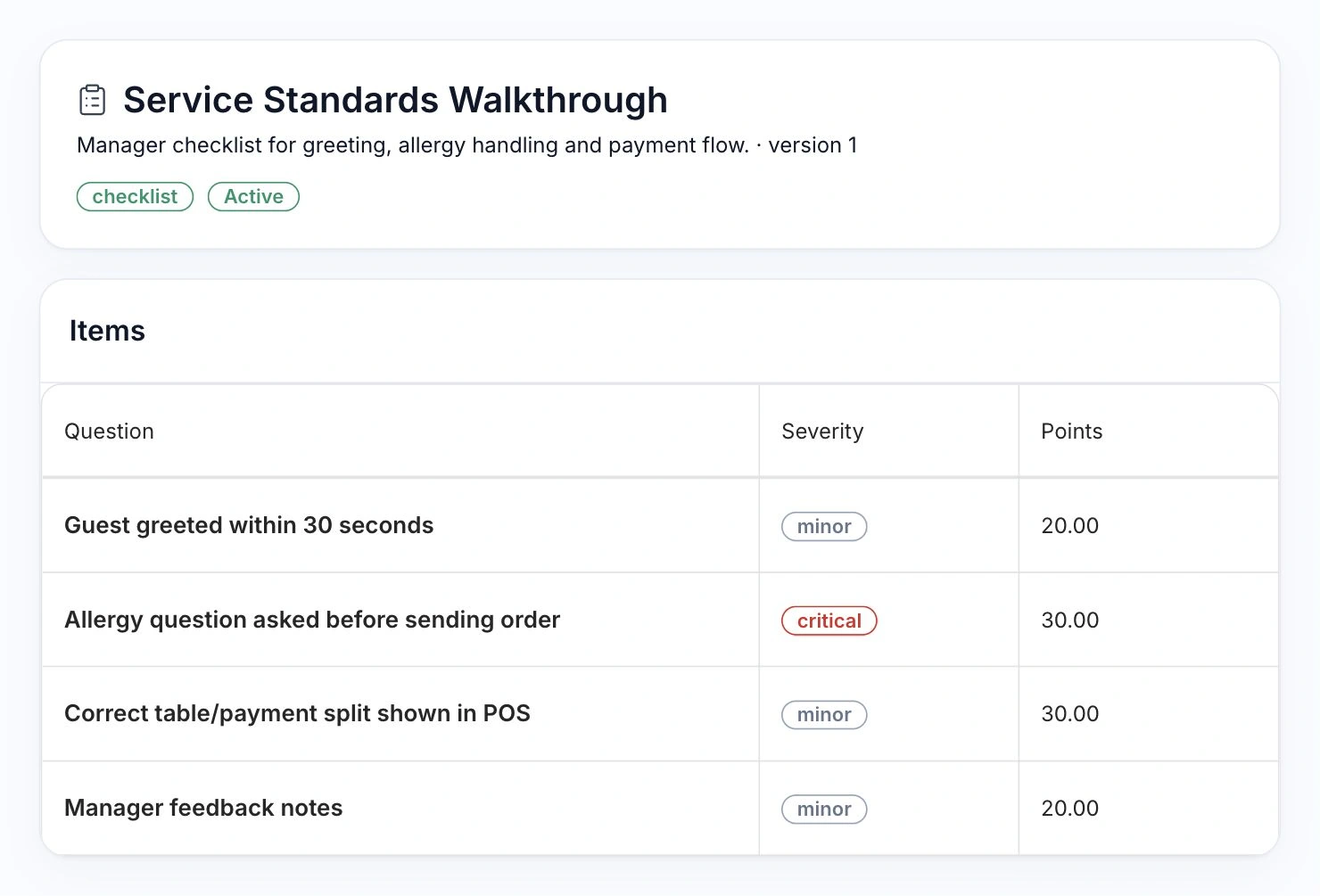
HoreX Service Standards Walkthrough with greeting, allergy and POS payment checks, severity and points

Service Standards Walkthrough brings greeting, allergy questions, POS payment handling and manager feedback into one checklist. Use it for a practical service check, then focus the next briefing on what needs attention.

  • Opening and closing routines
  • Service standards
  • Knowledge checks
  • New-starter training

02 / ASSIGNMENTS & MY TASKS

Give the right task to the right team.

Assign one employee, a position, a department or a branch. Staff open their assigned work in My Tasks or from a direct task link; managers keep a team view of deadlines and progress.

Service Standards Walkthrough

A service check for the waiter role.

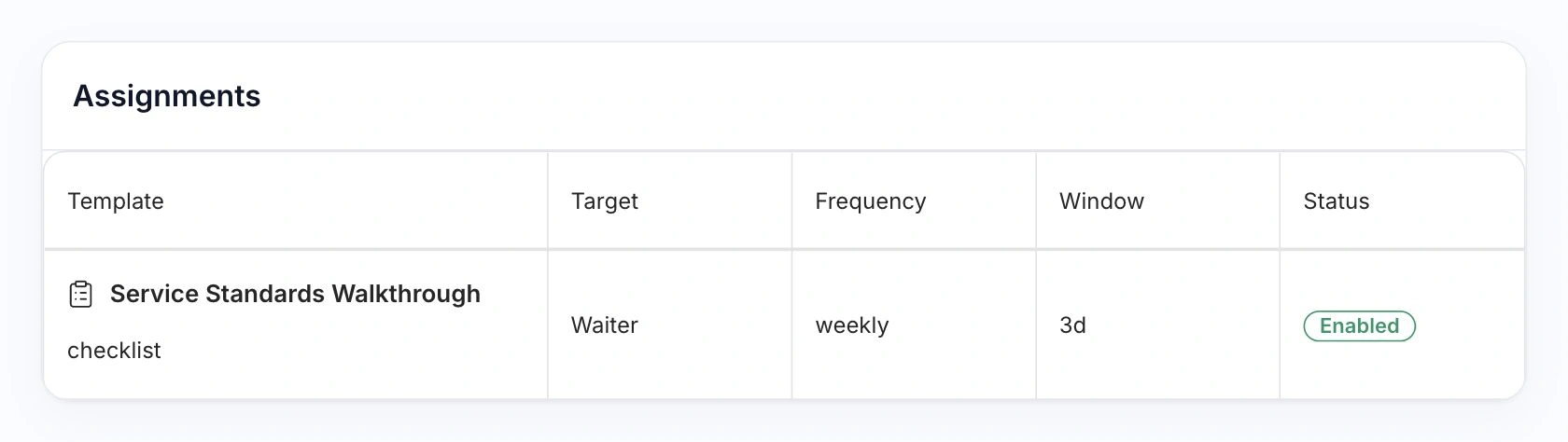
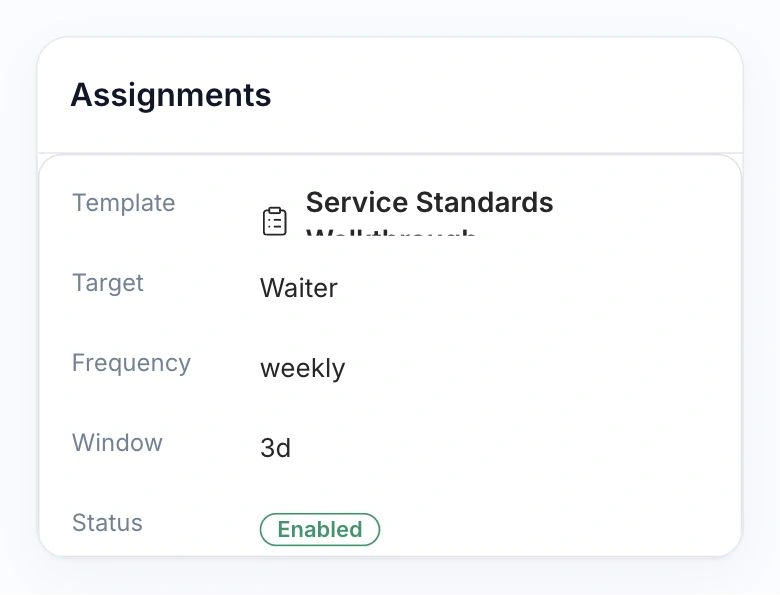
The same checklist can repeat for the people who need it. This weekly rule gives waiters a three-day window.

HoreX assignment for Service Standards Walkthrough: Waiter role, weekly recurrence, three-day window and enabled state

Know who still needs to complete it.

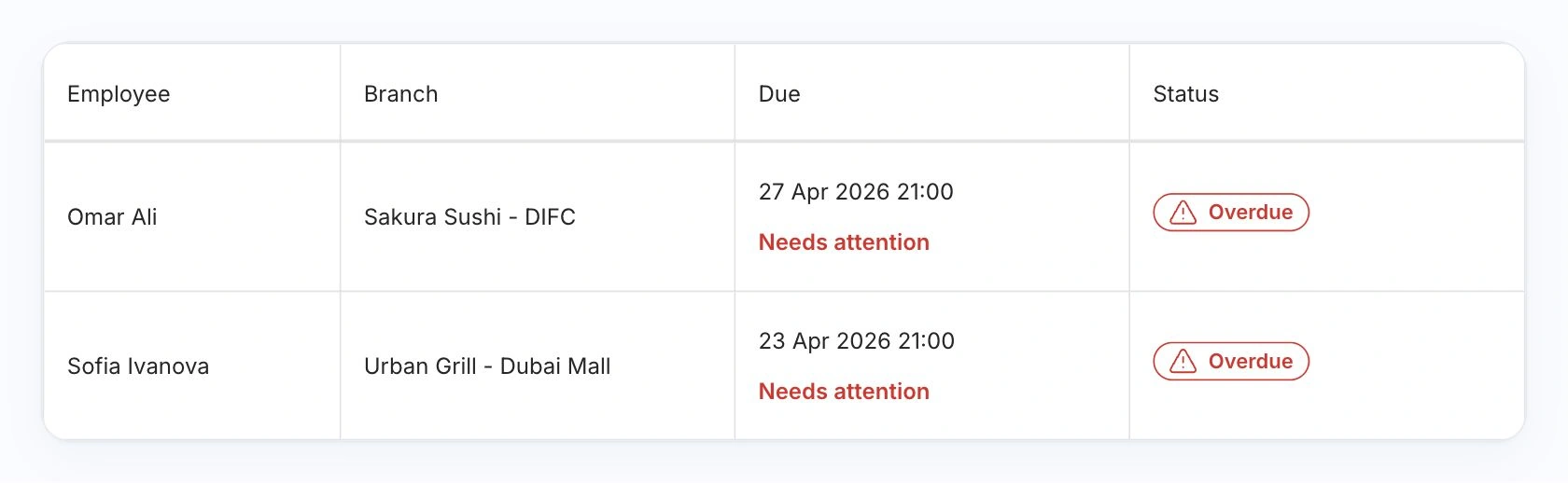
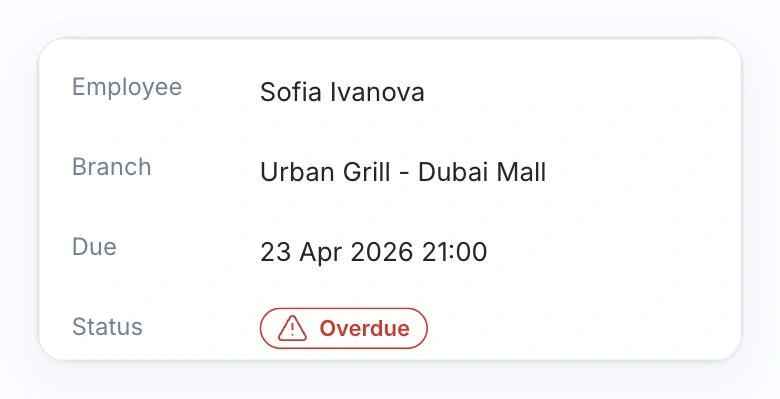
Follow the named employee, branch, deadline and task status together. A manager can open the task that needs a follow-up.

HoreX team task list showing the assigned employee, branch, due time and overdue status

Set a completion window and make opening checks or knowledge reviews repeat daily, weekly or monthly. Enable reminders and tasks on app entry to keep the routine visible between briefings.

  • Employee, role and branch assignments
  • Daily, weekly and monthly routines
  • My Tasks and direct task links
  • Deadlines, reminders and overdue work

03 / COMPLETION & COACHING

Find the check that needs another conversation.

A total score is a starting point. Open the submitted task to see which checks passed and which failed, then use the finding to guide a practical conversation with the employee.

Service check · example answers

Record what happened in service.

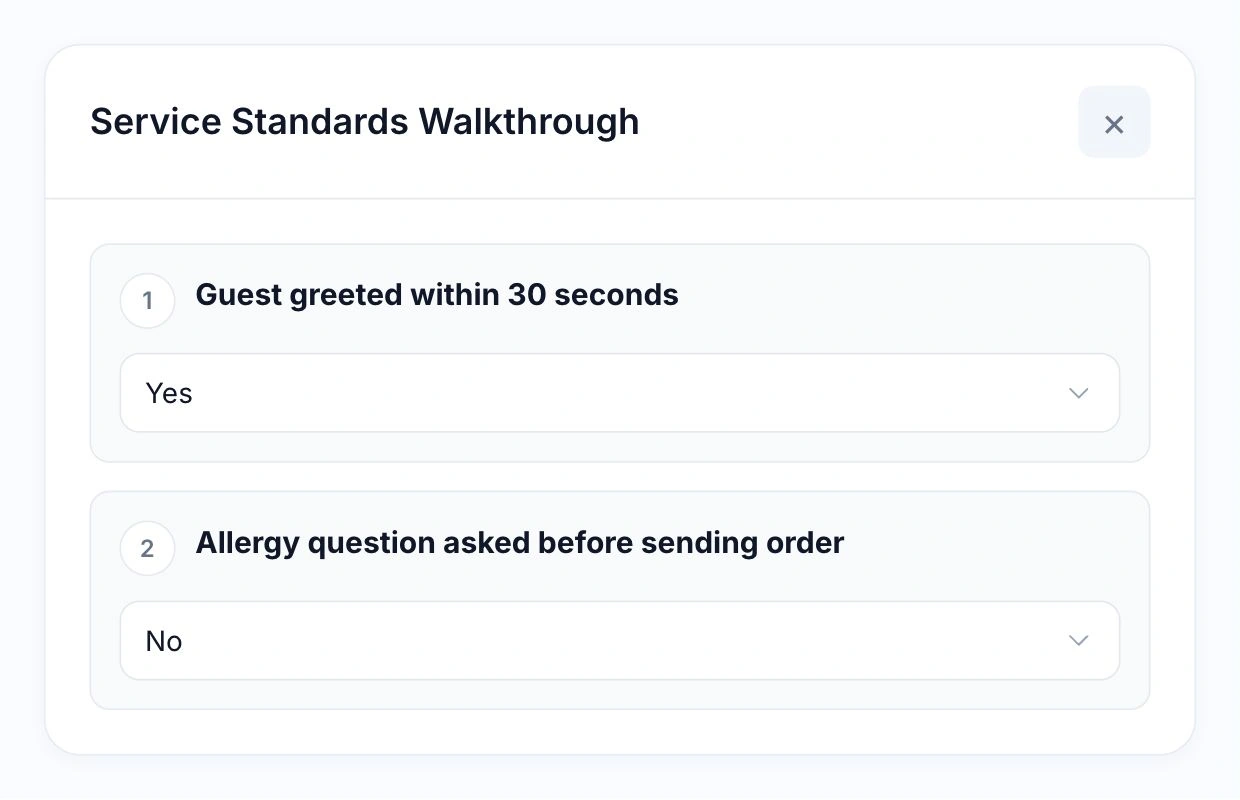
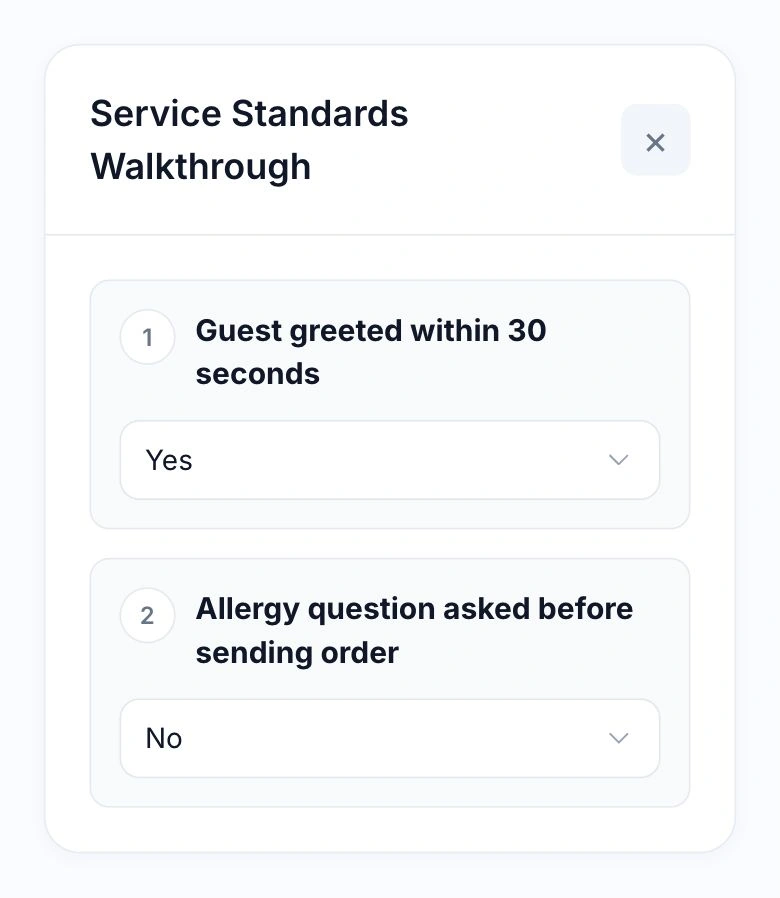
In this example, the guest was greeted on time, but the allergy question was missed. Each check records its own answer.

Illustrative answers in the native HoreX task form: greeting Yes, allergy question No

Coach the specific step that was missed.

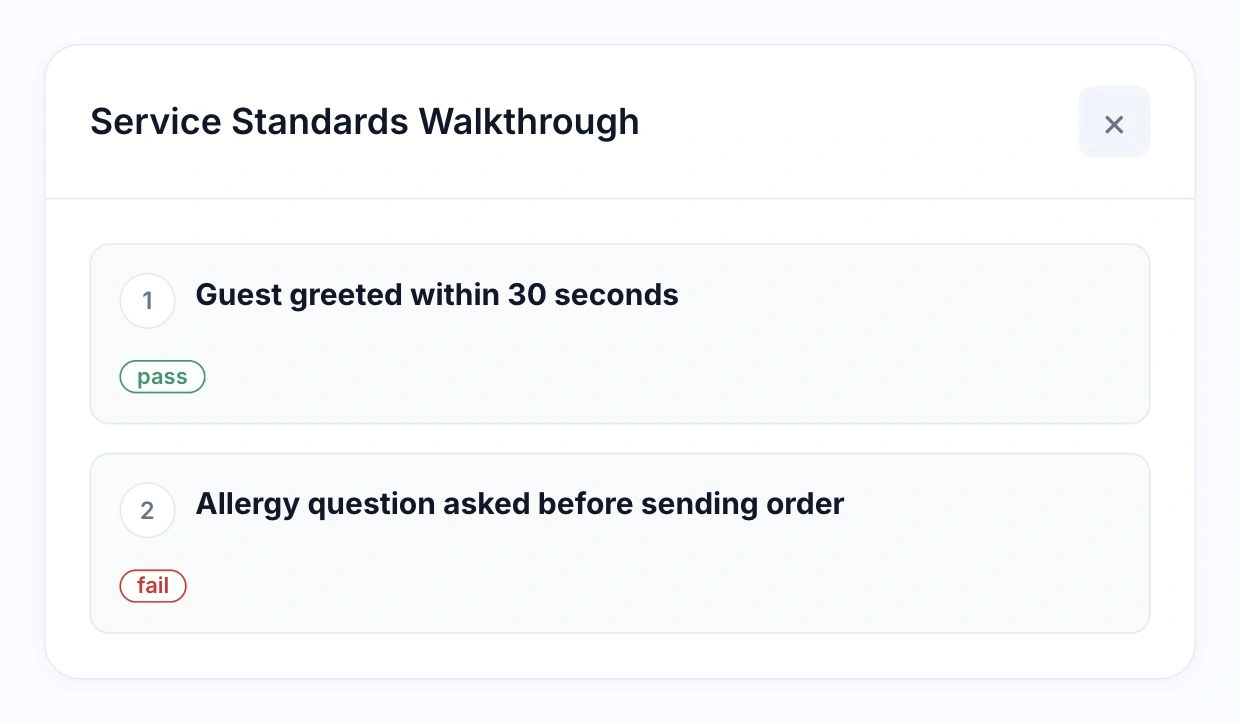
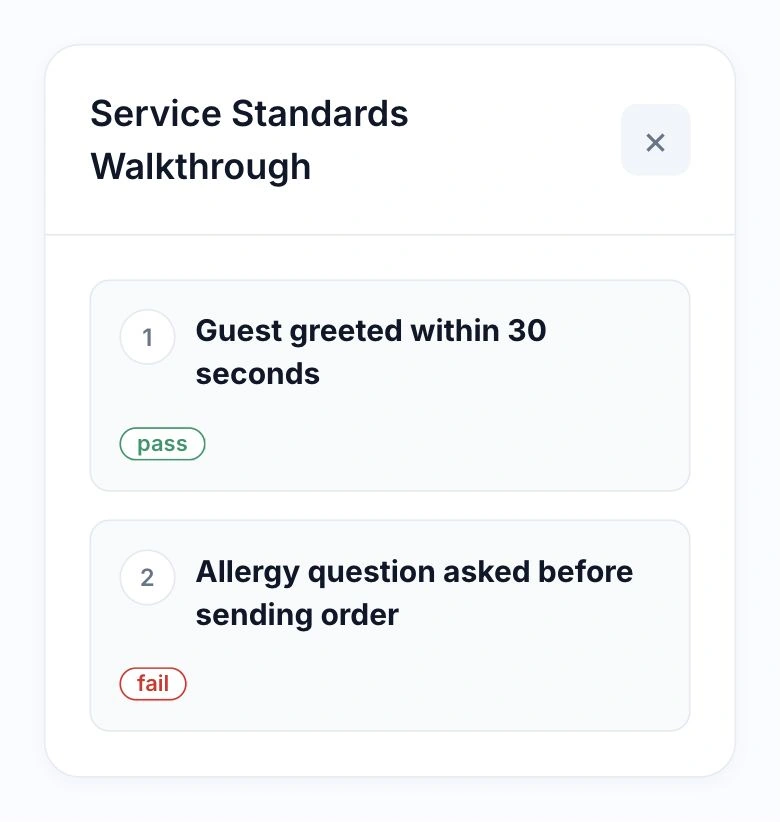
The greeting passes and the allergy check fails. The manager knows which service step to practise before the next check.

Illustrative native HoreX question-level review: greeting pass, allergy question fail; no employee result or score

Mark essential checks as critical so they cannot disappear inside an otherwise good result. Track completion, overdue tasks and scores across the team while keeping the manager’s judgement central.

  • Question-level pass and fail results
  • Critical checks stay visible
  • Completion, scores and overdue tasks
  • Employee history and team rankings

04 / YOUR CONTENT & RULES

Build training around the way you work.

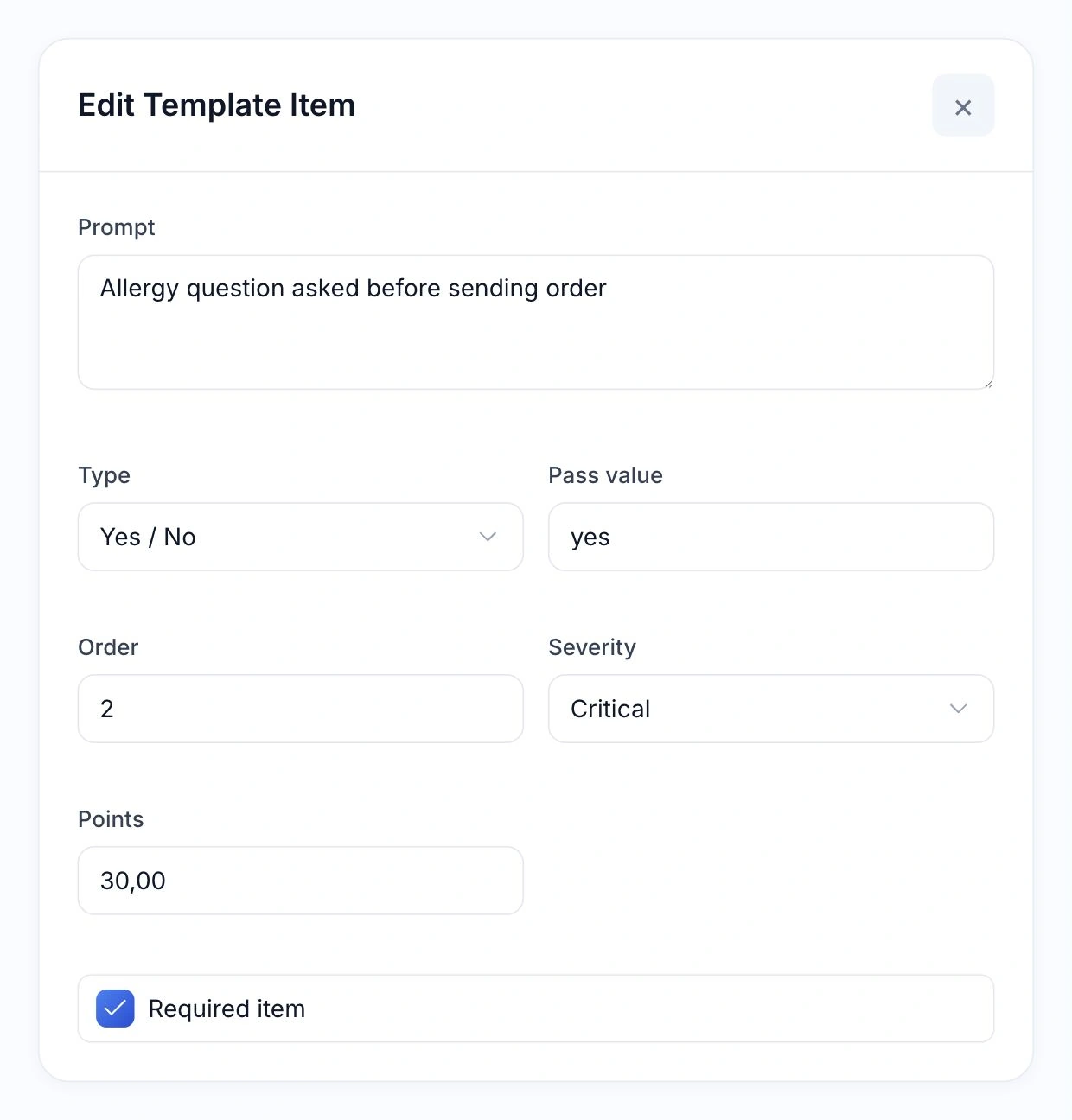
Write your own questions and choose the answer format: a yes-or-no check, a choice of answers, a number or a written note. Set required items, points and severity to match the importance of each standard.

Reuse questions from the library, organise longer tasks into sections and time blocks, and add images to questions or answer options. Issued tasks keep the version they started with when you update the template.

  • Required items and passing answers
  • Points and critical-question settings
  • Reusable questions and image options
  • Sections, time blocks and saved versions
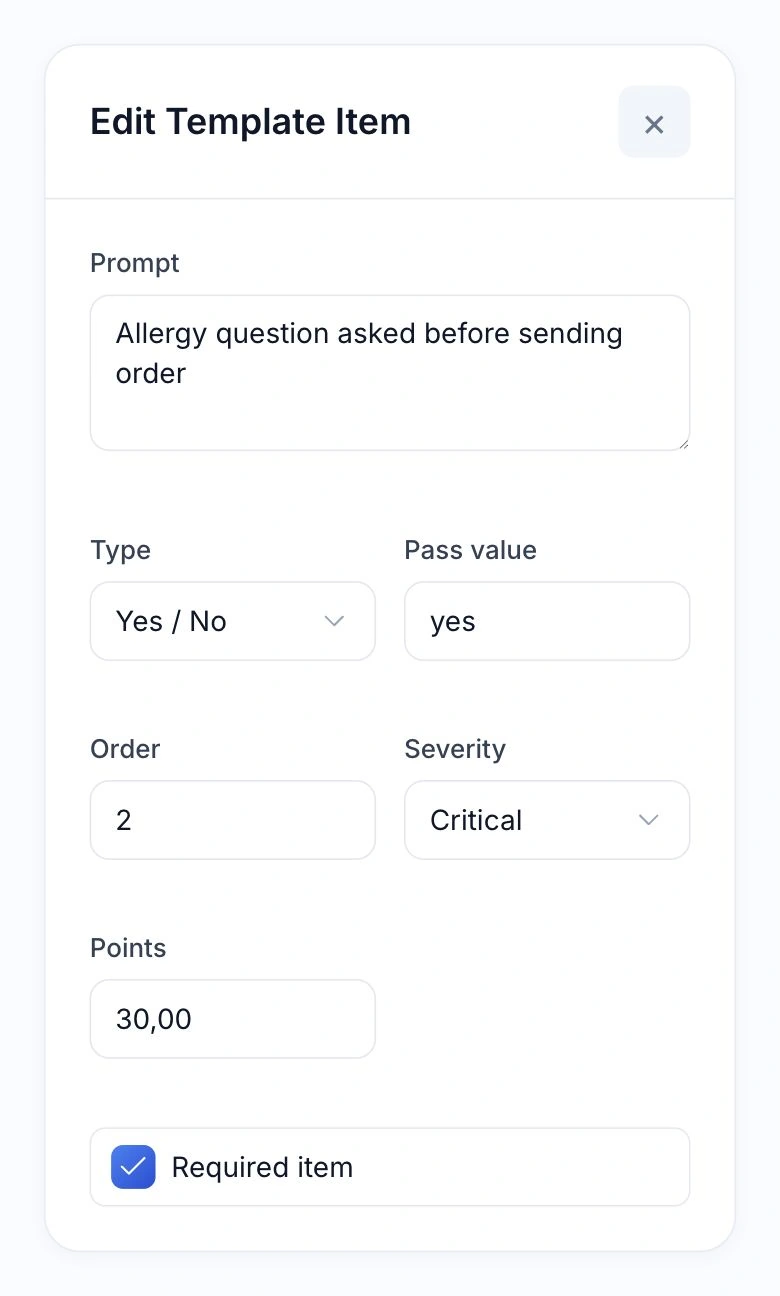
Actual HoreX allergy question settings: Yes / No, passing answer yes, critical severity, 30 points and required item

05 / ONBOARDING & FOLLOW-UP

Make the next briefing specific.

A new starter gets a clear path through the restaurant’s standards. An experienced team gets a regular check on the details that are easy to miss during a busy service.

Bring the relevant task to a one-to-one or pre-service briefing. Demonstrate the step, answer questions and use the next check to see what still needs practice. The same content gives managers across branches a consistent starting point.

  • Structured new-starter training
  • Practical checks alongside coaching
  • Shared standards across branches
Restaurant manager and waiter reviewing service before opening
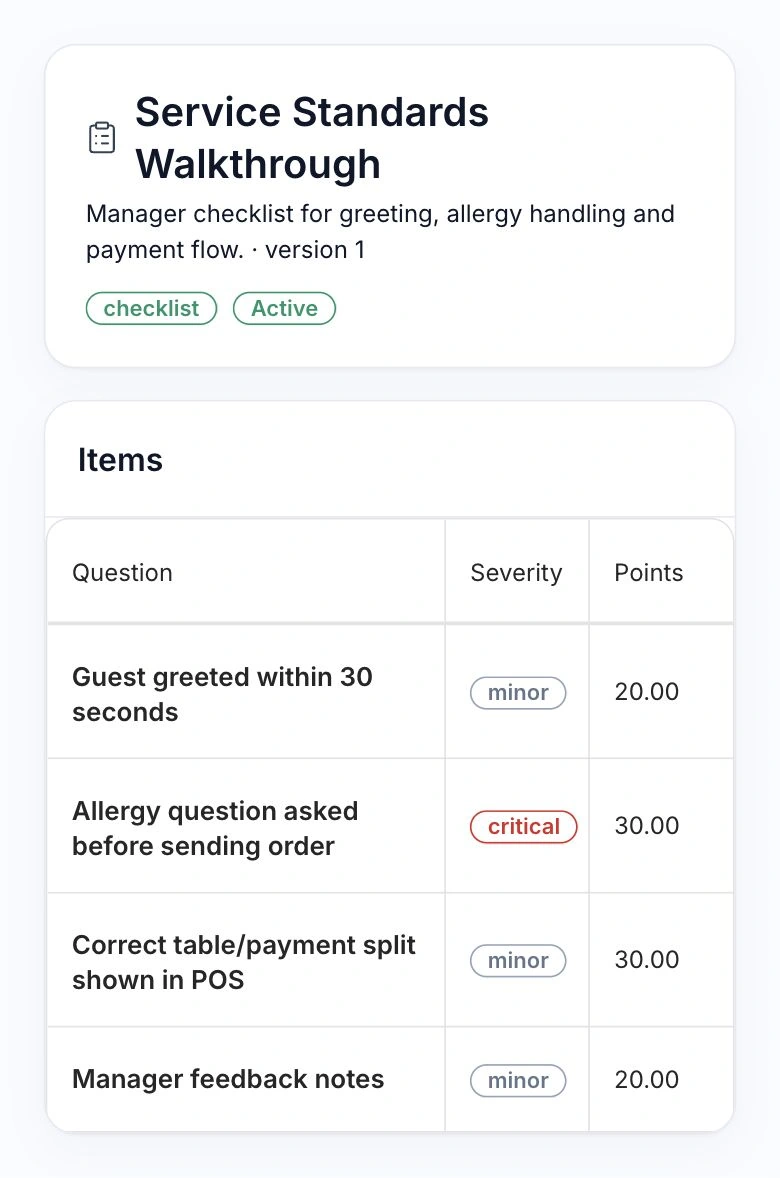
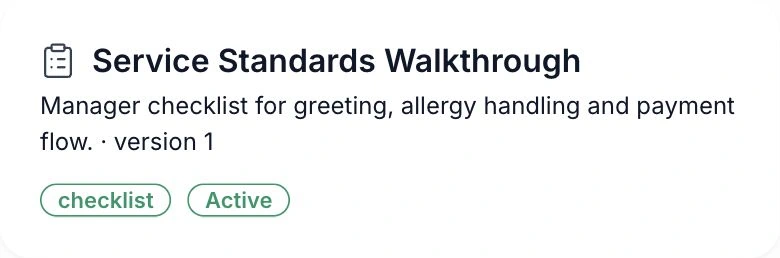
Native HoreX Service Standards Walkthrough checklist identity

More in Staff training.

Tools for preparing the task, assigning it and following through.

Daily checklists

Turn a service routine into clear steps.

See details

Build opening, closing or service checklists with required items and pass/fail answers. Use sections to keep the sequence easy to follow, and make a critical item stand out from a minor issue.

  • Required steps
  • Pass/fail answers
  • Sections
  • Severity

Knowledge tests

Check understanding with scored questions.

See details

Build a test from questions and answer options. Set the correct options and point values, then review the submitted answers behind the result. A test checks the material you provide; it is not an external qualification.

  • Answer options
  • Correct answers
  • Point values
  • Submitted results

Training tasks

Give a new starter a structured learning task.

See details

Use a training template to guide someone through onboarding or a new procedure. Assign it to the relevant employee or group and follow its completion from the team task list.

  • Onboarding tasks
  • Guided steps
  • Named assignees
  • Completion tracking

Question library

Write a useful question once.

See details

Keep reusable questions, answer options and correct answers in the Staff Performance question bank. Bring them into the relevant template while preserving the version issued to an employee.

  • Reusable wording
  • Answer options
  • Correct option settings
  • Versioned tasks

Sections and time blocks

Arrange the work in a practical order.

See details

Group questions under headings such as opening preparation or service checks. Optional time labels help explain the sequence. Section headings organise the task and are not scored as questions.

  • Section headings
  • Time labels
  • Ordered questions
  • Non-scored guidance

Employee and team assignments

Send the right task to the people doing the work.

See details

Create a rule for an employee, position, department, branch, role or all staff. The rule generates individual tasks, keeping the named employee and branch with each due instance.

  • Individual employees
  • Positions and departments
  • Branches and roles
  • Employee-based tasks

Recurring tasks

Keep routine checks coming back.

See details

Use supported once, daily, weekly, monthly or longer recurring frequencies with a due window. Enabled rules generate tasks for the period; disabling a rule stops future generation while preserving assigned history.

  • Recurring frequencies
  • Due windows
  • Enabled rules
  • Assigned-task history

Task reminders

Bring due work back to the employee’s attention.

See details

Due tasks can send reminders through the app’s notification system. Delivery depends on the linked account and device notification setup. A reminder opens the relevant task rather than a generic dashboard.

  • Linked employee account
  • Push notification route
  • Specific task link
  • Due-time context

Tasks on app entry

Put due work in front of the person responsible.

See details

When an actionable assigned task exists, the app can open it on entry after higher-priority handling. My Tasks remains available for the person’s queue and history. Staff need a linked active employee profile.

  • Actionable due tasks
  • Linked employee
  • Own queue
  • Task history

Save and resume

Come back to unfinished work.

See details

Answers saved to a draft remain available when the employee reopens the task. It only becomes a completed result after submission. Check that work has saved before leaving a connection that is failing.

  • Draft answers
  • Resume assigned task
  • Explicit submission
  • Unfinished work stays open

Questions with images

Show what the question is referring to.

See details

Attach a relevant image to a question or an answer option. The task can display answer images as selectable cards while the score still follows the configured option, keeping visual questions consistent.

  • Question images
  • Answer-option images
  • Selectable visual answers
  • Configured scoring

Frozen versions

Keep the question as it was when assigned.

See details

Editing a template changes future work. Already issued tasks keep the version they received, so an answer is reviewed against the same wording, options and point settings the employee saw.

  • Issued template version
  • Original question wording
  • Answer options retained
  • Future edits kept separate

Scores with context

Read the result alongside the work completed.

See details

Review completed tasks, overdue work, answer scores and critical failures. The dashboard combines these signals into a ranking, while the underlying tasks remain available for a fair discussion with the employee.

  • Completion
  • Submitted scores
  • Overdue work
  • Critical failures

Answer-level review

Find the question that needs another explanation.

See details

Open a submitted task to inspect the answers and the result of each scored item. Use the specific mistake to plan follow-up coaching instead of treating the average score as the whole story.

  • Submitted answers
  • Item results
  • Point context
  • Focused coaching

Team rankings

See who needs follow-up.

See details

Rankings bring completion, overdue work and scores together for the selected scope. Use them to find work to review, then open the actual tasks before drawing conclusions about a person’s performance.

  • Employee ranking
  • Branch context
  • Completion counts
  • Underlying task records

Own and team access

Keep personal work and management views appropriate.

See details

Permissions distinguish an employee’s own tasks from team or wider reporting, and separate those views from template editing, assignments and scoring controls. Access follows the configured role and scope.

  • Own tasks
  • Team visibility
  • Builder permissions
  • Management actions

Employee-based history

Keep assignments tied to the staff record.

See details

Tasks belong to employees, not just logins. An employee can remain in assignment and reporting history without a working account, but personal task completion and reminders need the appropriate linked access.

  • Employee identity
  • Assignment history
  • Linked account for access
  • Visible unfinished work

Questions about Staff training

What kinds of staff tasks can we create?

The builder supports checklists, tests and training templates. Use checklists for operational routines, tests for scored knowledge questions and training tasks for guided learning or onboarding.

Can we reuse questions across templates?

Yes. Reusable questions and their answer options can be brought into templates. Questions and answer options can also contain images. Issued tasks retain the version they received.

How do we assign tasks to people or roles?

Assignment rules can target employees, positions, departments, branches, roles or all staff. Choose the template, due time, completion window and supported recurrence for that group.

What if an employee does not have a linked login?

The assignment can remain linked to the employee record, but completing personal tasks and receiving app reminders needs the appropriate linked account. Managers can identify unfinished work from the team view.

How are results scored?

Submitted items earn points according to their configured answers and weights. Critical failures affect the result. Team rankings also consider completion and overdue work; open the underlying task before judging a score.

Can a manager review individual answers?

Yes. Open a submitted task to review individual answers and results. This gives the manager a specific starting point for coaching rather than relying only on an average.

Can staff see each other’s results?

Access depends on permissions. An employee can have access to their own tasks while managers have team or wider views. Editing templates and managing assignments are separate actions.

Can questions and answers include images?

You can include an image with a question and with individual answer options. Use images that clarify the actual knowledge being checked, such as equipment, a process step or a product label.

Walk through a training task with your team.

See how your service standards become assignments, answers and follow-up.