
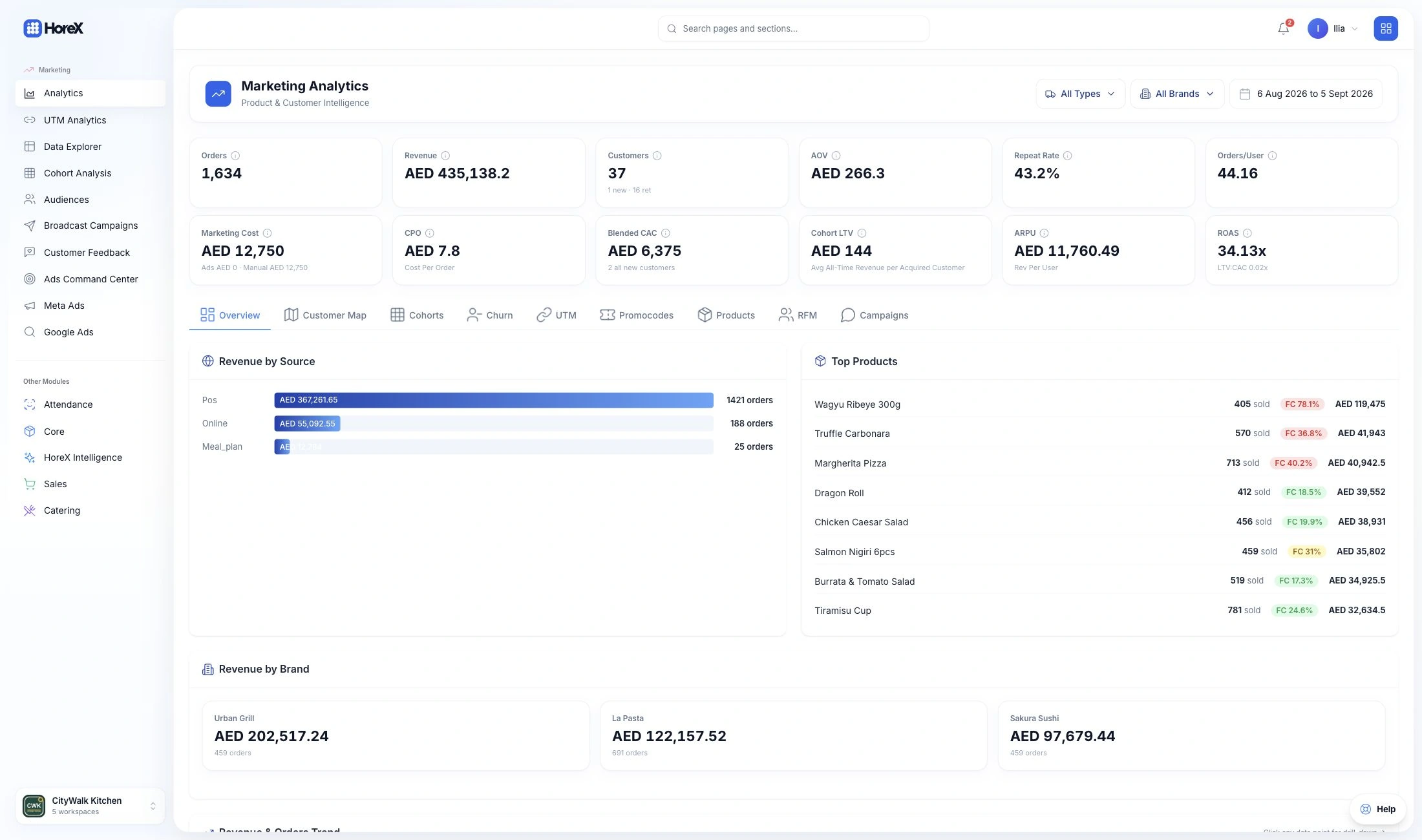
Kitchen display system for restaurants.

Give every station a clear order queue. Pace courses with the floor, open recipes during preparation and bring the complete order together at the pass.

01 / PREPARE

Station queues

Give each station the dishes it needs to prepare.

02 / PACE

Course timing

Follow courses released from POS and the Waiter App.

03 / SERVE

Ready for service

Coordinate finished dishes at the pass.

Explore all features

01 / KITCHEN ORDERS

Every station sees its part of the order.

Orders from POS, the Waiter App and connected ordering channels arrive in the same kitchen workflow. The grill, cold kitchen and pastry section see the dishes assigned to them; dispatch keeps the complete order in view.

Quantities, modifiers and guest requests stay beside the dish. Use compact Grid cards to follow individual tables or Kanban columns to see what is pending, cooking and ready.

  • Dine-in, takeaway and delivery
  • Recipe-to-station routing
  • Modifiers and preparation notes
  • Item and whole-order progress

All stations

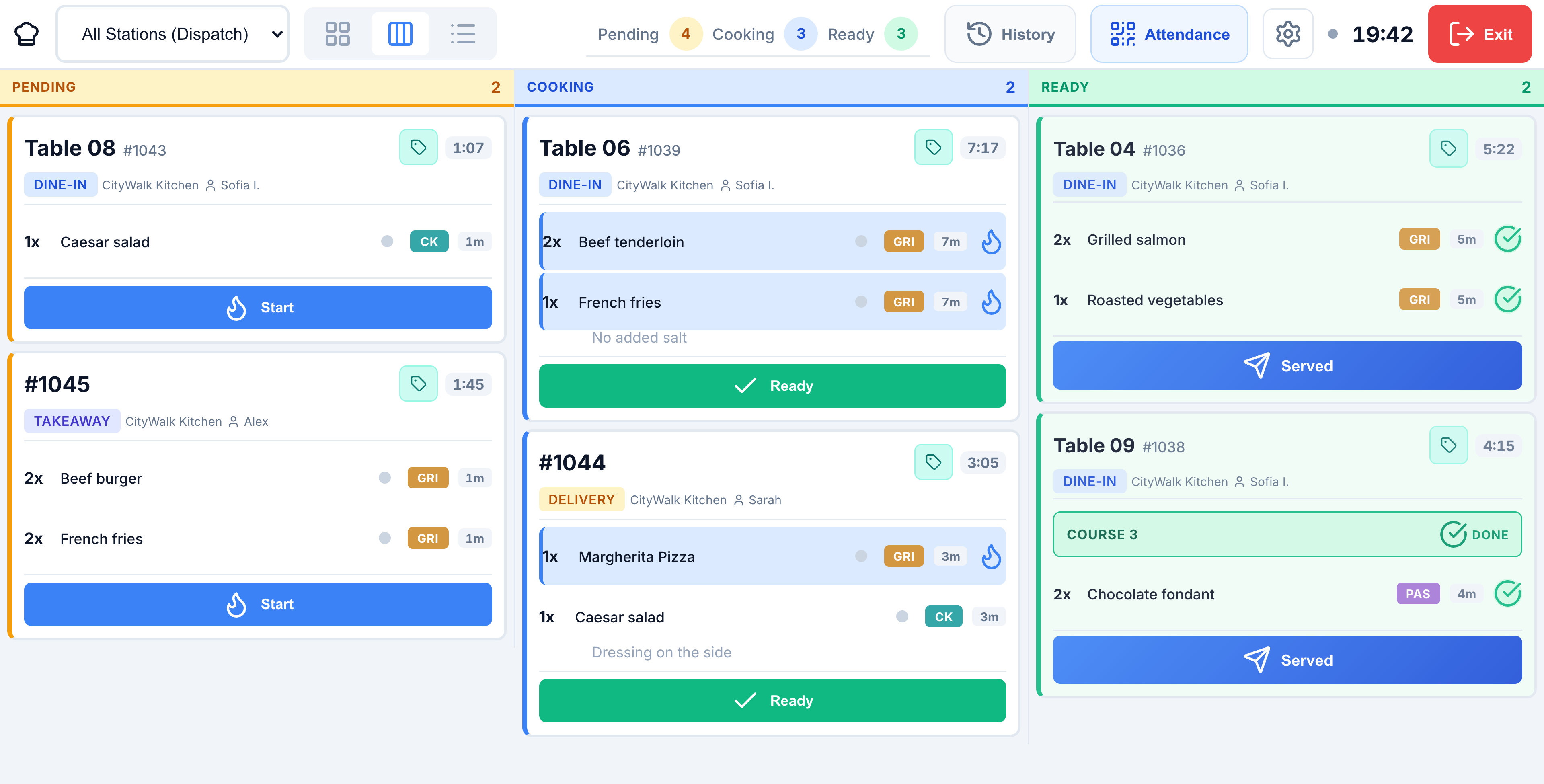
HoreX kitchen queue with pending, cooking and ready orders across stations
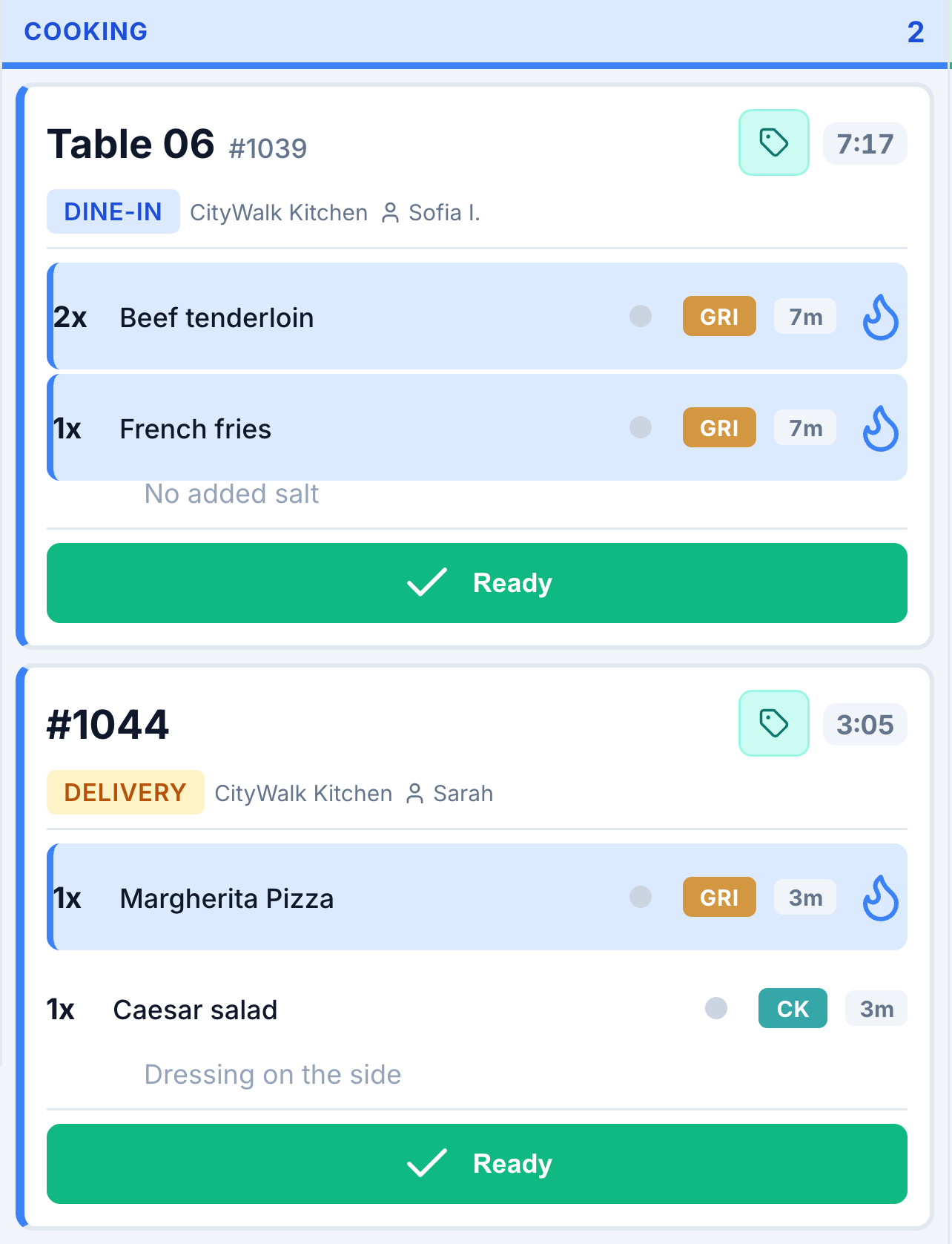
HoreX kitchen queue with pending, cooking and ready orders across stations; dine-in and delivery orders in the cooking queue

Grill station

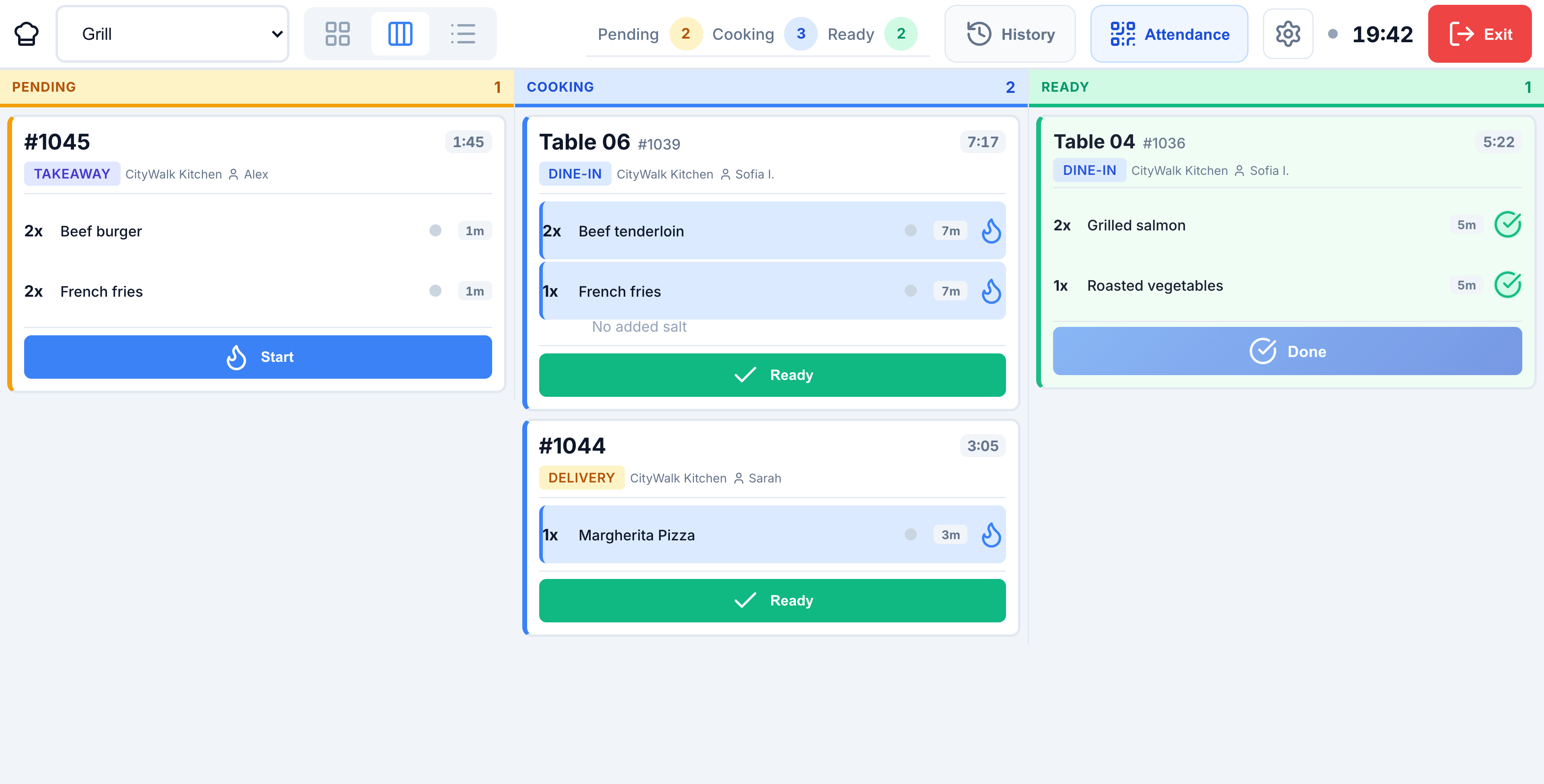
Grill station queue showing its assigned dishes and their preparation status
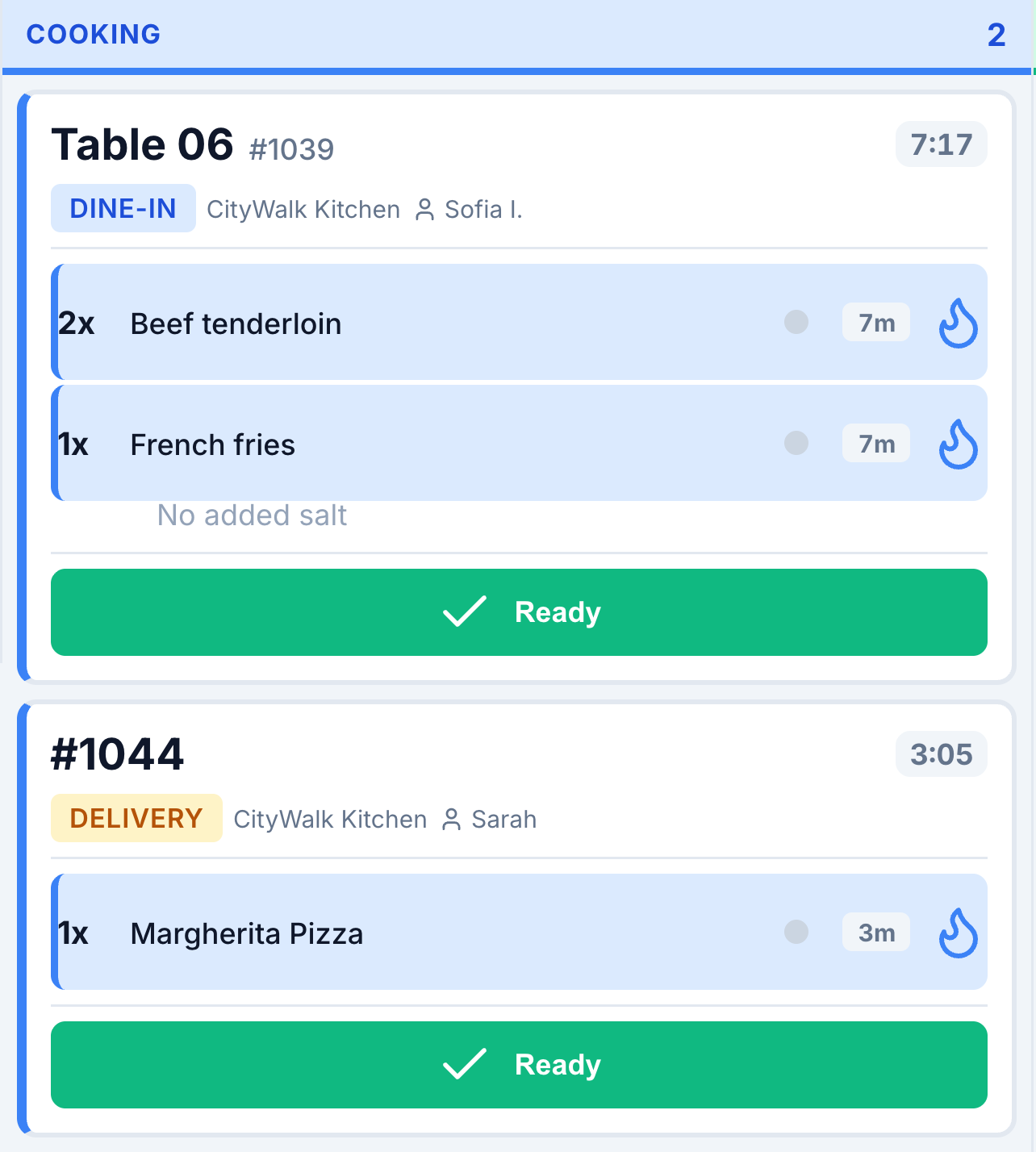
Grill station queue showing its assigned dishes and their preparation status; dine-in and delivery orders in the cooking queue

02 / COURSES & TIMERS

Pace courses with the service team.

Keep mains on hold while starters are served. The waiter releases the next course from POS or the Waiter App, and the kitchen sees the change on the same order.

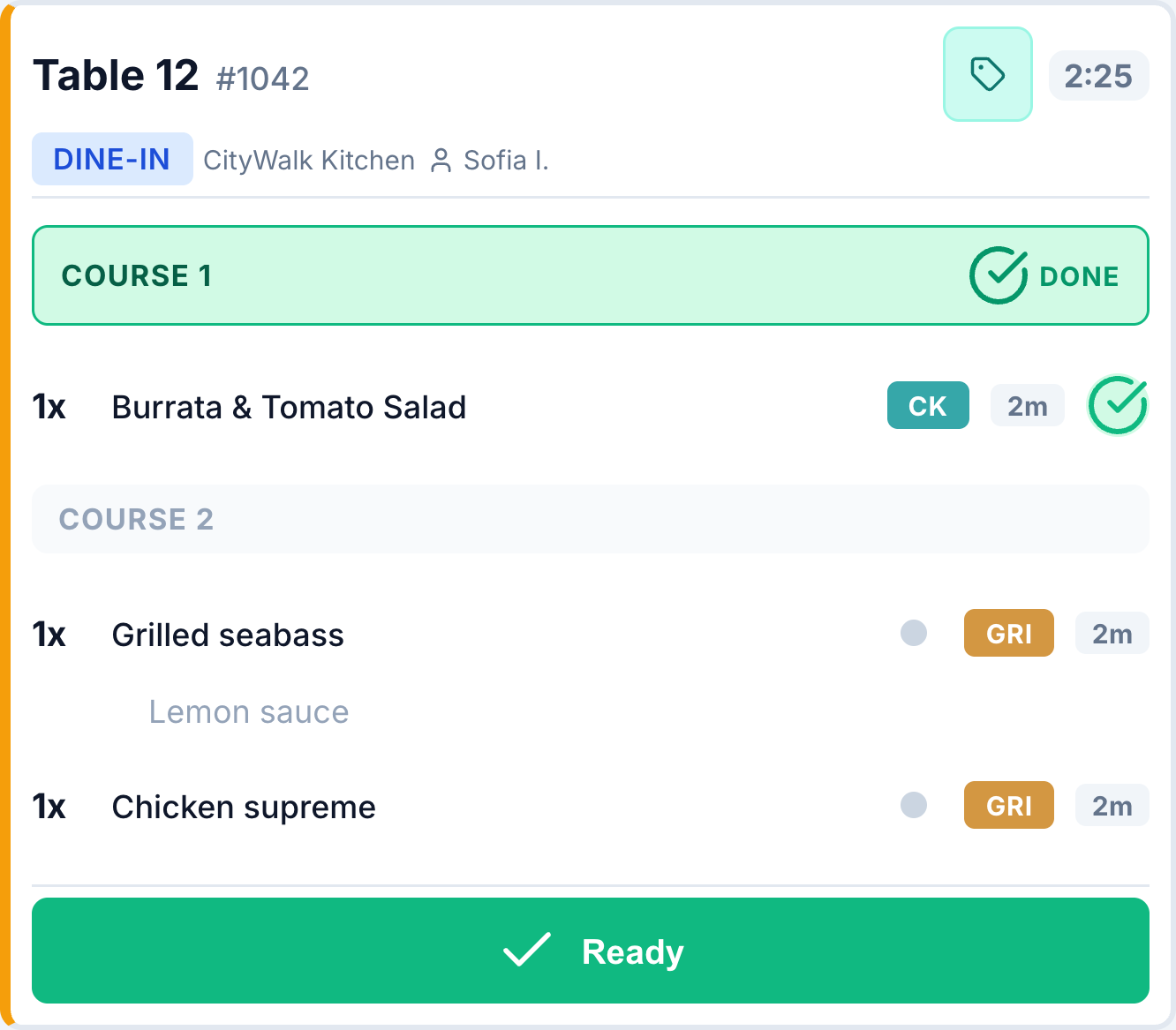
Table 12 · the same order through service

Keep the next course in view.

The kitchen can see the mains and their preparation notes while the starter is ready. Staff keep the table’s course sequence together instead of treating each dish as a separate request.

  • Course groups
  • Guest requests stay with the dish
  • Shared table and waiter context
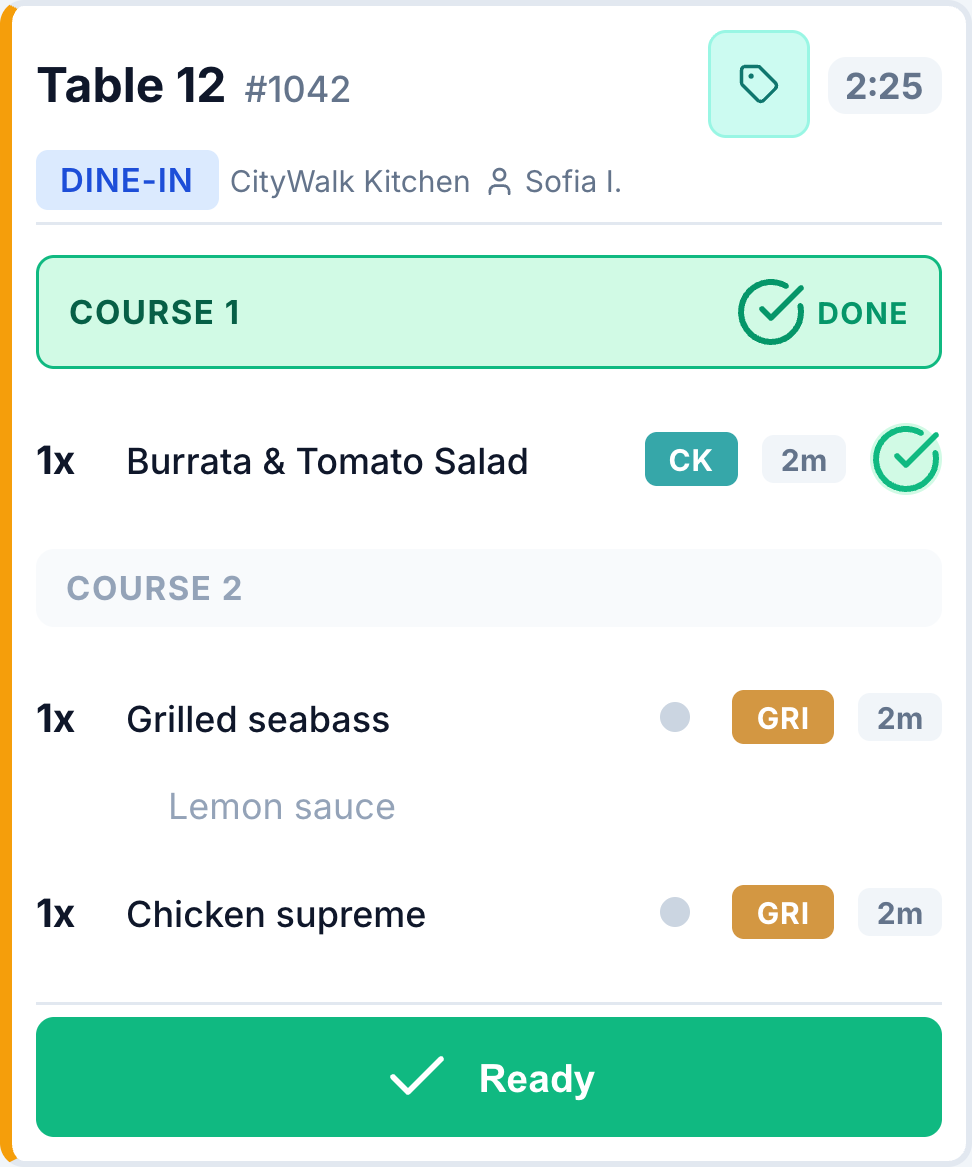
KDS order for Table 12 with the first course done and the second course pending

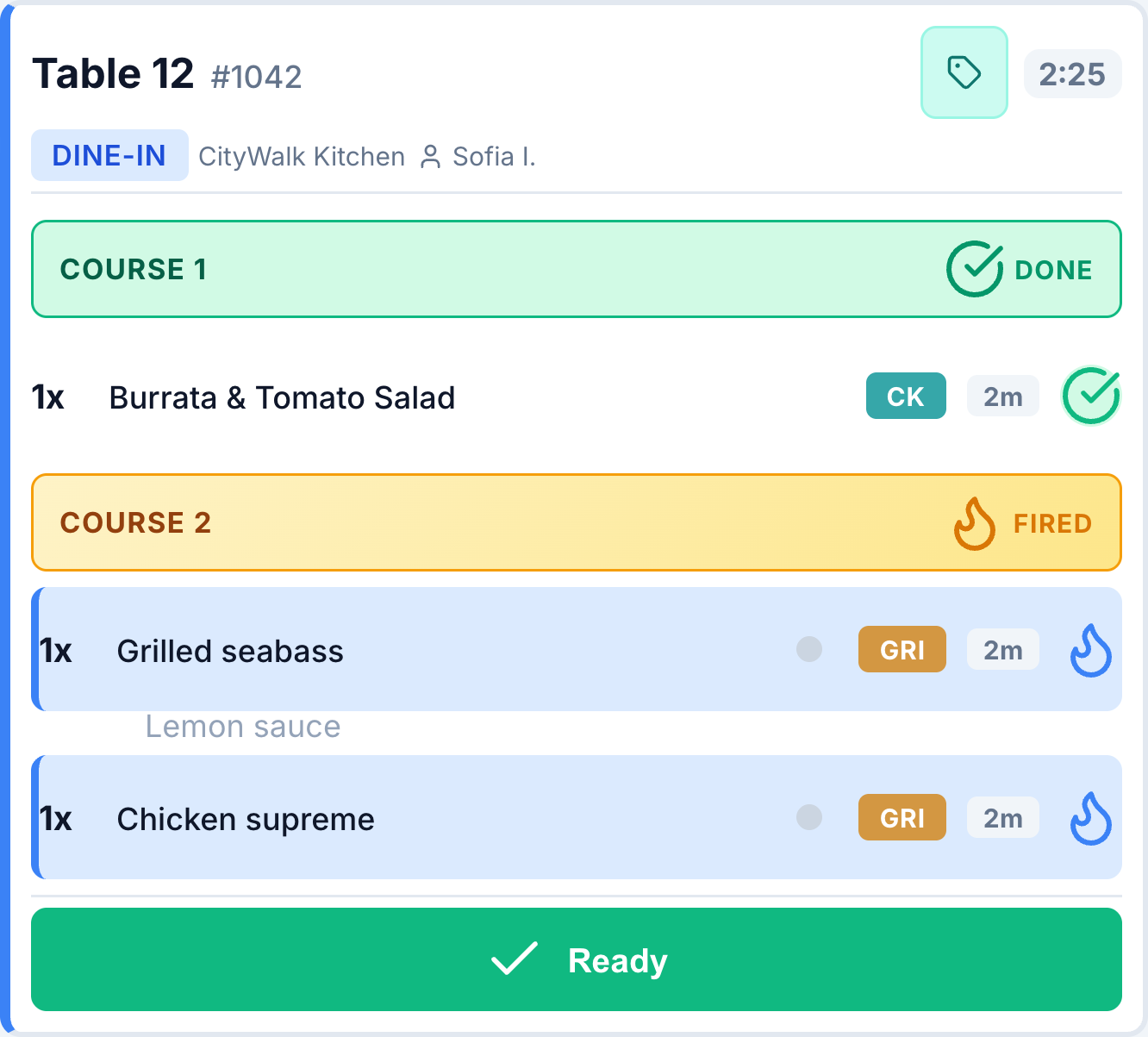
The kitchen sees when it is time to cook.

Once the next course is fired from POS or the Waiter App, KDS shows it as fired and tracks its dishes in preparation. Warnings use the cooking time stored in each recipe; later additions have their own kitchen timing.

  • Visible fired course
  • Recipe-based preparation warnings
  • Separate timing for new batches
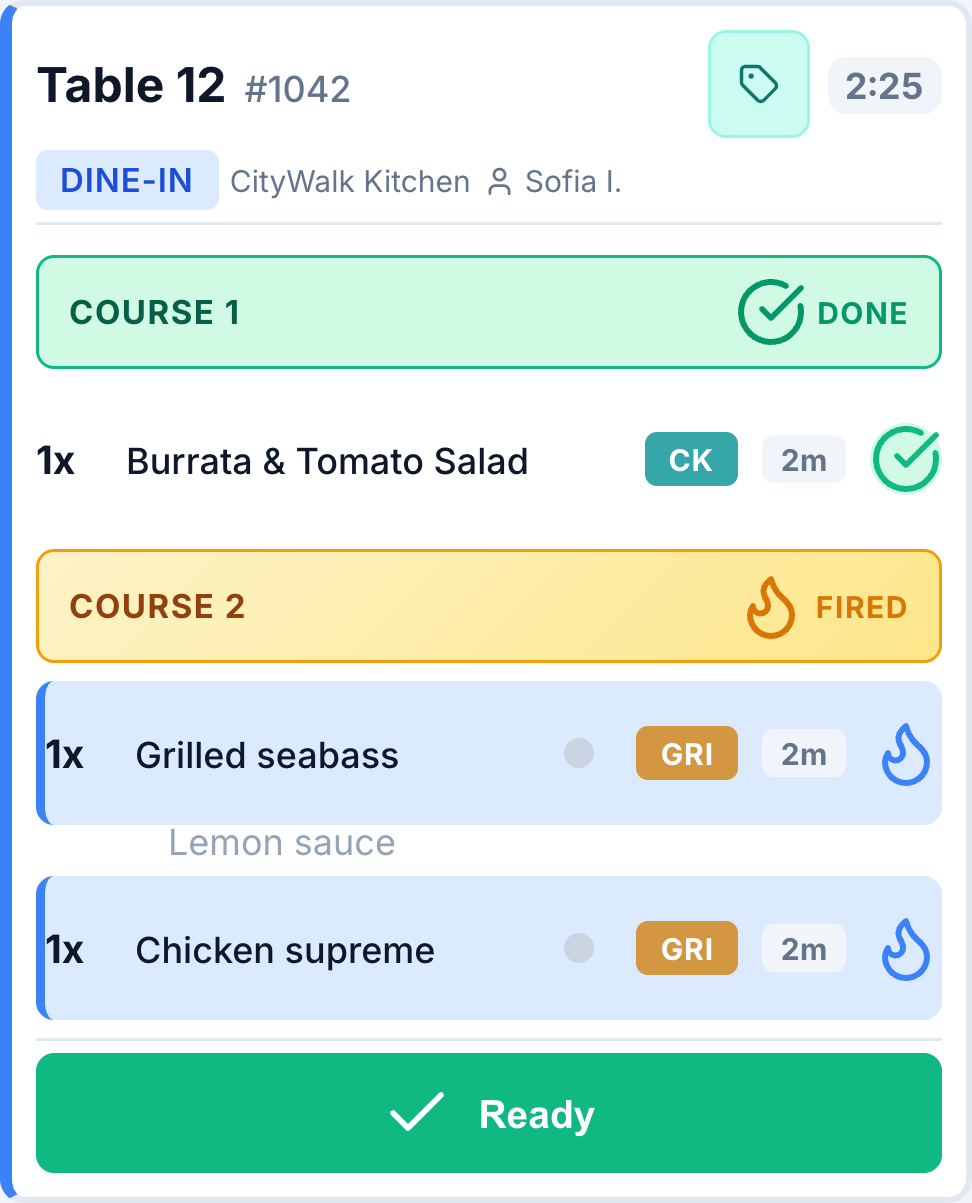
The same Table 12 order with Course 2 fired and the mains in preparation

03 / RECIPES AT THE STATION

Open the recipe from the kitchen order.

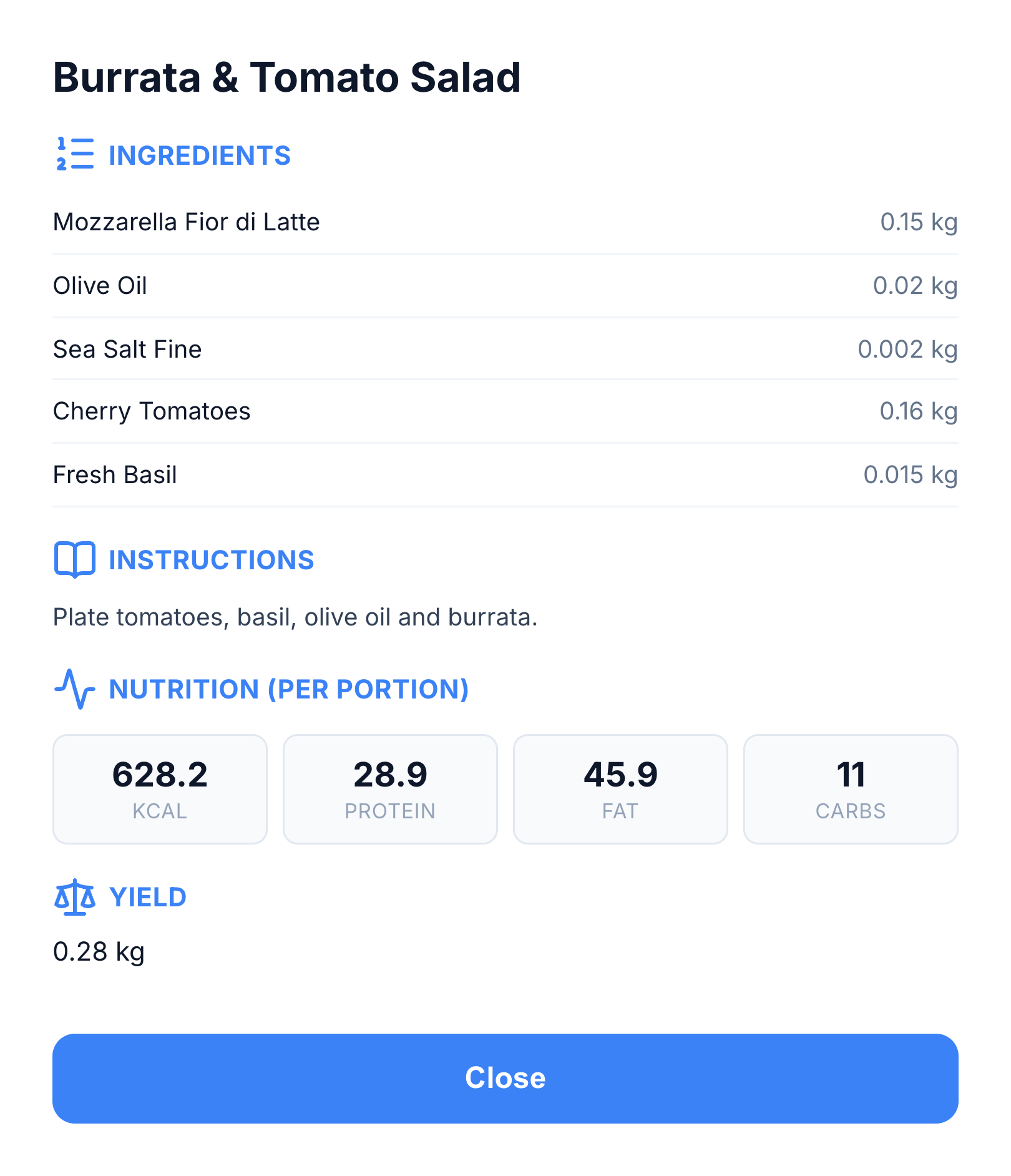
A cook can open the recipe card from a dish on the KDS. Check ingredient quantities and preparation instructions, then return to the order without leaving the station.

The card brings the recipe information entered in HoreX into service: photos, instructions, yield, nutrition and allergens where available. New team members have a reference at hand, and every shift can work from the same recipe.

  • Ingredients and quantities
  • Cooking instructions and photos
  • Portion yield and nutrition
  • Allergen information when recorded
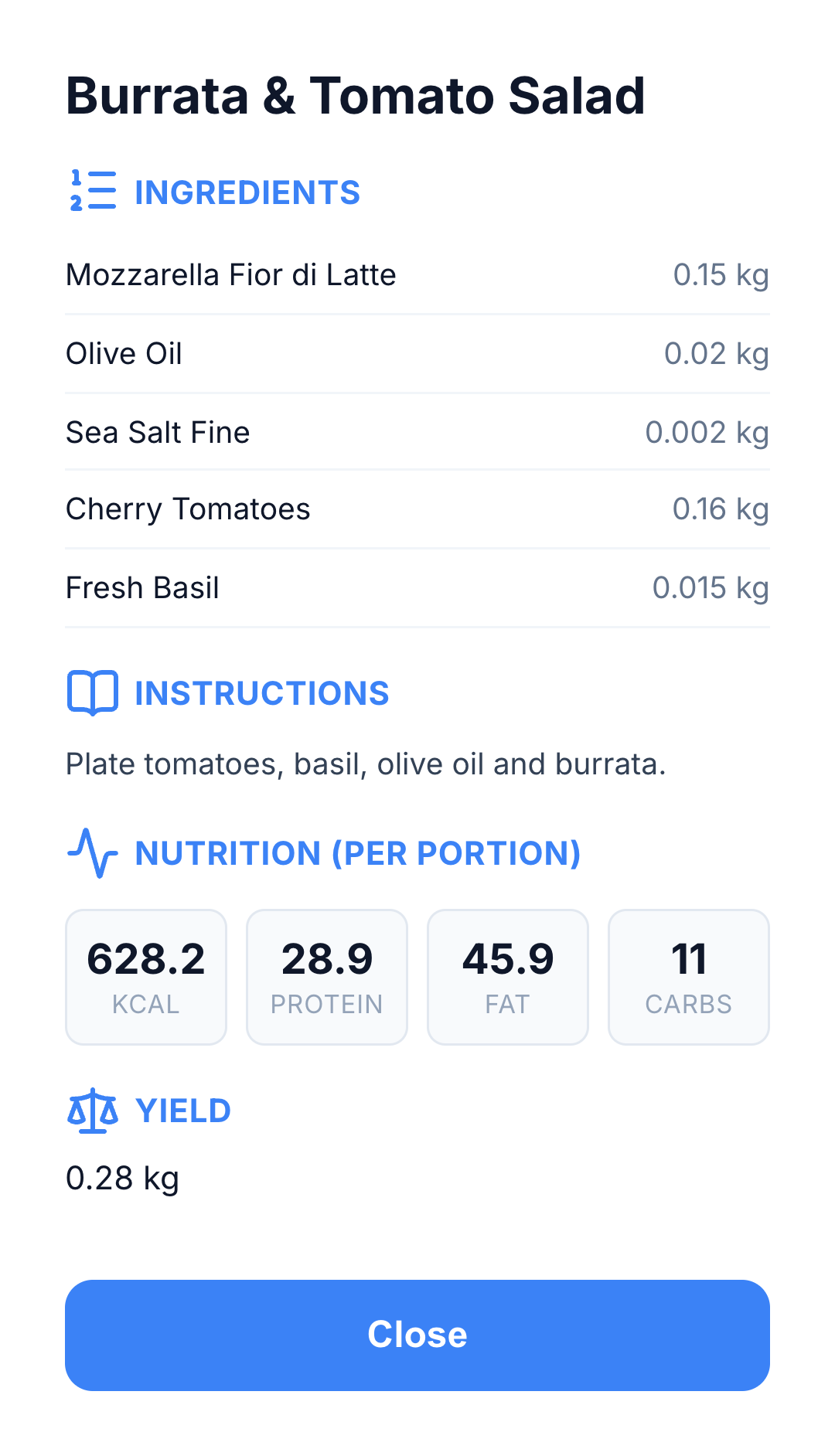
Native KDS recipe card for Burrata & Tomato Salad with five ingredients, instructions, nutrition per portion and yield

04 / THE PASS

Know when the whole order is ready.

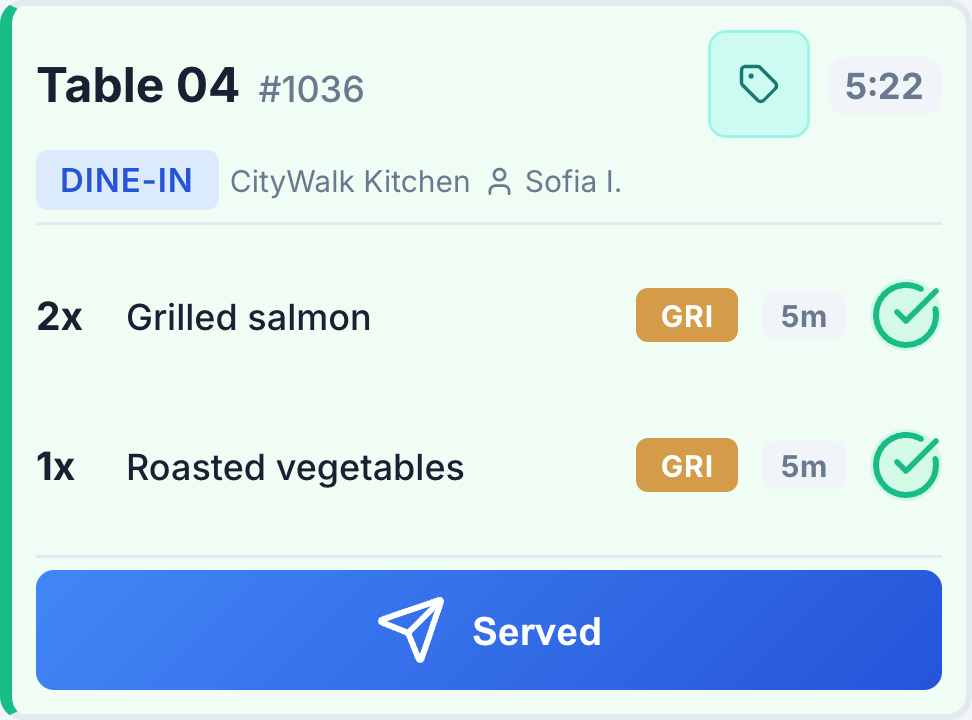
At dispatch, the expeditor sees progress from every station in one order. Check what is ready and what is still cooking before sending the plates to the table or packing a delivery.

Ready notifications tell the assigned waiter there is food to collect. For delivery, the order reference and its channel stay visible through packing and handover to the courier.

  • Complete order across stations
  • Ready notifications for the waiter
  • Dine-in and delivery context
  • Ready and served actions
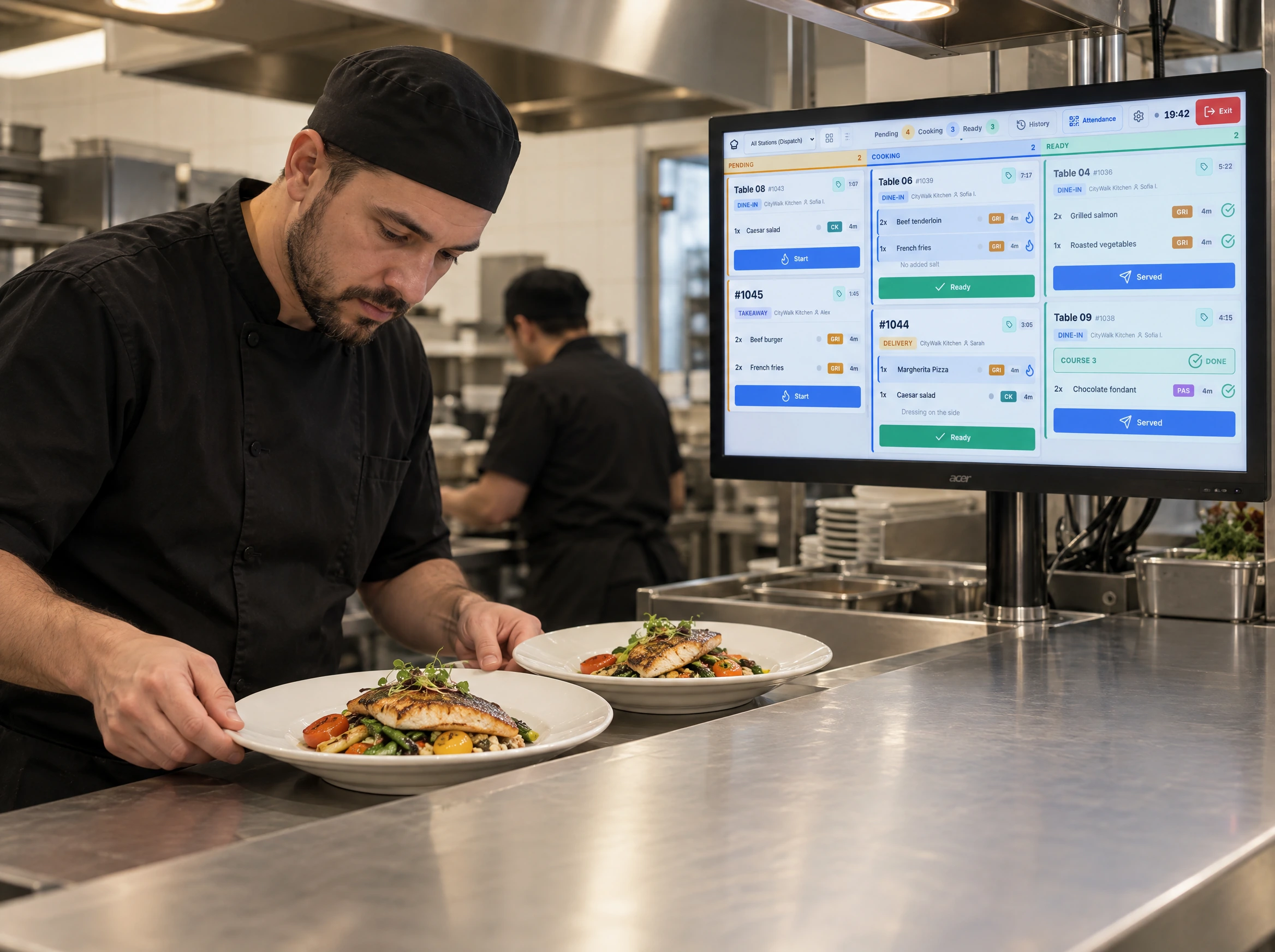
Chef checking freshly prepared dishes beside a kitchen display at the pass
Native dispatch order for Table 04: grilled salmon and roasted vegetables ready, with the Served action

More in Kitchen Display.

Order queues, preparation, service and kitchen setup.

Dispatch KDS

See the complete order at the pass.

See details

The expeditor sees every dish in an order and the progress reported by its stations. Use this view to bring the grill, cold kitchen and pastry work together before service.

An order can include items at different stages. Check the individual dishes before marking the order ready or served.

Start, Ready and Served follow preparation and service progress. These kitchen states remain separate from payment and closing the guest check.

  • Complete orders
  • Station progress
  • Course progress
  • Ready and served actions

Station KDS

Give each kitchen section its own work queue.

See details

Configure a screen for the station it serves. The grill works with grill tasks, while the cold kitchen sees its own items.

The same order can appear across several stations. Their updates remain connected to the complete order at dispatch.

Use Grid for compact individual order cards, or Kanban to group the work into pending, cooking and ready columns.

  • Assigned station
  • Dish quantities
  • Modifiers and notes
  • Shared order status

Preparation timers

Spot dishes approaching their preparation time.

See details

Elapsed time is compared with the cooking time stored in the recipe. An amber warning appears as a dish approaches that time; red highlights an overdue dish.

A newly added batch starts from its own kitchen time. It does not inherit the age of an earlier batch at the same table. Set recipe cooking times for useful warnings.

  • Recipe cooking times
  • Amber and red warnings
  • Separate item timing
  • Visible overdue work

Station routing

Send dishes to the station assigned to their recipe.

See details

Recipe-to-station assignments determine where kitchen tasks appear. An order with dishes from several stations is split into the corresponding work queues.

Items without a station mapping remain visible at dispatch with a warning so the team can resolve the missing setup.

  • Recipe mapping
  • Multiple stations per order
  • Dispatch overview
  • Unmapped-item warnings

Kitchen tickets & labels

Print through the configured kitchen devices.

See details

Use kitchen screens with station ticket printers where your service needs both. Templates carry the dish, quantity and kitchen instructions.

Printing uses the installed POS/KDS setup and assigned devices. Food labels can include the order or individual packed items; confirm printer and template compatibility during setup.

  • Station printer routes
  • Receipt templates
  • Order and dish labels
  • Installed device setup

Connected order channels

Bring connected delivery orders into the kitchen.

See details

Orders accepted through a configured delivery integration enter the HoreX kitchen workflow alongside your own sales channels. The source stays with the order.

Set up each provider and its menu mapping before service. Channel availability depends on the integration enabled for your restaurant.

  • Dine-in and takeaway
  • Connected aggregators
  • Order source labels
  • Menu mapping

Course sequencing

Hold the next course until the table is ready.

See details

Group dishes into courses when taking the order. Hold later courses and release the next one from POS or the Waiter App when the table is ready. KDS shows the course state alongside the dishes being prepared.

The waiter and kitchen work from the same order, with the course and guest context preserved. This helps the team pace a meal without re-entering the dishes.

  • Course groups
  • Hold and fire
  • Waiter connection
  • Course-level progress

Waiting-order visibility

Find older work without losing the order context.

See details

Elapsed time and preparation warnings make waiting dishes visible in the queue. Review their station and current state before deciding what to prepare next.

Use the individual order view when one table needs attention; use All Day when the station needs the total quantity of each dish.

  • Elapsed time
  • Preparation warnings
  • Order context
  • Individual and aggregate views

Recipe cards

Check the recipe while preparing an order.

See details

Open Recipe Card from a dish in the kitchen queue or from an All Day dish action. The card shows the recipe information entered in HoreX without leaving KDS.

Ingredient quantities and preparation instructions give the cook a working reference. Photos, portion yield, nutrition and allergen information appear where they have been recorded. Close the card to return to the current kitchen work.

  • Ingredients and amounts
  • Instructions and photos
  • Yield and nutrition
  • Recorded allergens

Menu names & instructions

Keep the dish and its requests together.

See details

The kitchen receives the configured dish names, selected modifiers and order-line comments. Staff can check the requested preparation beside the quantity.

Prepare menu wording and translations for the team during setup. Free-text instructions retain what the service team entered.

  • Menu item names
  • Modifier details
  • Line comments
  • Station context

Kitchen history

Review completed work after service.

See details

Open kitchen history to find completed orders and their item details. Use the order reference to investigate a question from the floor.

Current queue timers show work in progress. Historical records provide the order context for a later review without reopening a closed guest check.

  • Completed order lookup
  • Dish and order details
  • Order references
  • Current queue timers

Kitchen & pickup alerts

Let the next team know when the state changes.

See details

New work and ready dishes update the connected service screens. A ready event can notify the assigned waiter so they can collect the dish.

Enable the relevant device notifications and keep the connection available. The kitchen status remains visible in the order even when a phone alert is missed.

  • New order updates
  • Ready notifications
  • Visible status
  • Device notification setup

Completed-order lookup

Find the order behind a service question.

See details

Use History to locate work that has left the active queue. Review the table, dishes and kitchen record before taking the next action.

Closed and cancelled guest orders are protected from new kitchen actions. Corrections should follow the permitted order workflow.

  • History view
  • Order details
  • Table context
  • Closed-order protection

Touch controls

Advance an item or order from the kitchen screen.

See details

Use the displayed Start, Ready and Served controls for the appropriate stage of work. The screen keeps individual item status alongside the complete order.

Plan the display position and device for the station. Touch controls are part of the standard screen; confirm any external input hardware separately.

  • Start preparation
  • Mark ready
  • Mark served
  • Item and order actions

Order changes

Keep kitchen work aligned with changes from service.

See details

Items added or changed in POS and Waiter update the connected order. Quantities, modifiers and comments stay attached to the affected dish.

A later kitchen send creates work for the new lines. Completing an older batch does not mark unsent additions served.

  • Added dishes
  • Quantity changes
  • Modifier and note context
  • Separate kitchen sends

Kitchen displays

Choose a practical screen for each station.

See details

Use the browser display or an installed HoreX terminal appropriate to your kitchen. A readable mount position and suitable touch surface matter during service.

Local printing needs the installed device setup and a supported, configured printer. Review the display, network and print requirements together before rollout.

  • Browser display
  • Installed terminal options
  • Station placement
  • Printer compatibility review

Multiple kitchen screens

Configure the pass and each prep section separately.

See details

Combine a dispatch screen at the pass with station screens where the cooking happens. Each screen follows its configured role and assigned work.

Add stations to match the kitchen layout and keep their recipe mappings maintained. All Day is also useful for a production team preparing multiple portions.

Define the preparation stations and assign their recipes, place the displays for the pass and cooks, then check courses, pickup alerts and the configured ticket or label printers together.

  • Dispatch and station roles
  • Independent screen setup
  • Shared kitchen updates
  • All Day quantities

All Day for batch preparation

See dish totals for meal plans and production.

See details

All Day brings together the quantities of each dish across the selected work. It is useful for meal-plan production and kitchens preparing multiple portions of the same recipe.

Use batch actions when preparing those quantities, and return to individual orders for assembly and handover. Grid and Kanban retain the separate order context used during restaurant service.

  • Dish totals across orders
  • Batch preparation actions
  • Recipe card access
  • Individual orders for dispatch

Questions about Kitchen Display

What is the difference between Dispatch KDS and Station KDS?

Dispatch shows complete orders for the expeditor. Station KDS shows work assigned to one kitchen section. When a station updates a dish, the complete order reflects its new status.

Can the KDS also print kitchen tickets?

Yes. Station ticket printing can run alongside the screens through an installed and configured HoreX terminal. The printer route and receipt template determine what each device prints.

Why should I switch from kitchen printers to a KDS?

A screen adds visible preparation states, elapsed time and station routing to the kitchen queue. You can keep configured ticket printing where the service still needs a physical copy.

How does station routing work?

Recipes are assigned to kitchen stations. Their order items become tasks for those stations, while dispatch retains the complete order. Missing mappings remain visible for review.

Can cooks open recipes from KDS?

Yes. Open Recipe Card from a dish in the order or from its All Day action. The card shows the ingredients and instructions entered in HoreX, with photos, yield, nutrition and allergens where available.

Do Talabat and Deliveroo orders appear on the KDS?

Orders from a configured and connected integration can enter the HoreX kitchen queue. Set up the provider and menu mapping for your restaurant before relying on it during service.

How do the color-coded timers work?

Kitchen warnings compare elapsed time with the cooking time in the recipe. Amber appears as that time approaches; red indicates it has been exceeded. A newly added batch uses its own kitchen time.

Can I use course sequencing for fine dining?

Yes. Group dishes into courses and hold the later courses. Fire the next course from POS or the Waiter App when the table is ready. KDS shows its state with the same dishes and order context throughout service.

What hardware do I need for KDS?

Choose a readable touchscreen or monitor for the station and the appropriate browser or installed HoreX setup. Printing requires supported, configured devices; confirm your specific hardware during the demo.

Can I track how fast my kitchen prepares orders?

Live item timers show how long the current work has been waiting or preparing. Kitchen history lets you return to completed orders for a service review. We can walk through the available reporting views with your team.

How many screens can I run?

You can combine dispatch and station screens to suit the kitchen layout. Each is configured for its role and assigned station. Plan the device count and setup with your restaurant’s service and production needs.

See your kitchen workflow in HoreX.

Walk through an order from kitchen send to the pass, with your stations and service routine.